Expression
The Expression Node allows you to define formulas or conditions using Expression Syntax that evaluate to a single value. It provides a code-free way to perform calculations, comparisons, and logic checks within workflows or decisions. The node evaluates the expression and returns a result (number, string, boolean, or other data types) that can be used by subsequent nodes, making it ideal for quick decision-making, data transformations, and conditional logic without writing full JavaScript functions.
How Does It Work?
Setup Steps:
- Build your workflow using Graph Edit Mode (minimum setup: input node → expression node → output node, but you can add more nodes as needed)
- Click on the expression node settings to open its configuration
- Configure the following data:
- Write an expression using the Expression Syntax (e.g., calculations, comparisons, or logic checks).
Output:
The Expression Node evaluates the defined expression and returns a single value as its result. This value can be a number, string, boolean, or any data type supported by the expression language. For example, using the expression from the Flag High-Risk Applications example:
{
"input": true
}The key value input is replaced with the expression result. This output can be referenced by subsequent nodes in the workflow.
Referencing Earlier Expressions
An Expression Node can contain multiple expressions, each with its own key. To reference the result of an earlier expression within the same node, use the $.<key> syntax.
- Input fields (from the node’s input data) are referenced directly by name — e.g.,
household_income,citizenship - Computed values from earlier expressions in the same node must be referenced with the
$prefix — e.g.,$.incomeOk,$.citizenOk
Example:
Given an input of { "household_income": 8000, "citizenship": "SC" }, you can define multiple expressions that build on each other:
| Key | Expression |
|---|---|
incomeOk |
household_income <= 9000 |
citizenOk |
citizenship == "SC" |
eligible |
$.incomeOk and $.citizenOk |
In the eligible expression, $.incomeOk and $.citizenOk use the $ prefix because they reference results computed by earlier expressions in the same node. household_income and citizenship are referenced directly because they come from the node’s input.
Tip: Use $.<key> where <key> matches the key of a prior expression within the same node. Do not use $ for input fields — reference those directly by name.
Examples
Flag High-Risk Applications
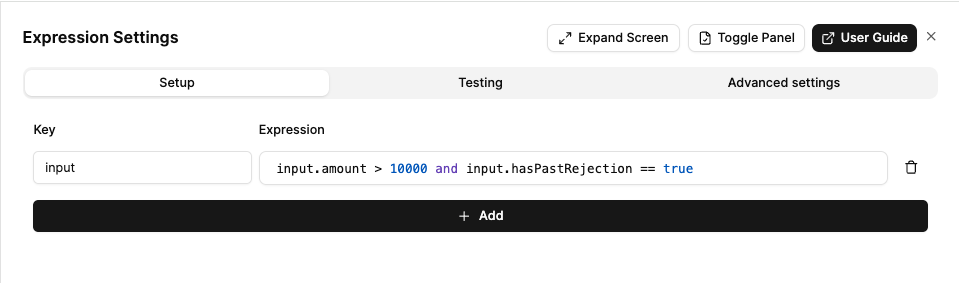
Let’s say you want to check if a grant request is considered high risk.
Expression Node Setup:
Sample input:
{
"input": {
"amount": 20000,
"hasPastRejection": true
}
}Simulation Result:
Based on the sample input, the expression evaluates to true because both conditions are satisfied: the amount (20000) exceeds 10000, and hasPastRejection is true. This boolean result can be used by subsequent nodes, such as a Switch Node (see Routing Based on Funding Amount example), to route the workflow based on the risk assessment.
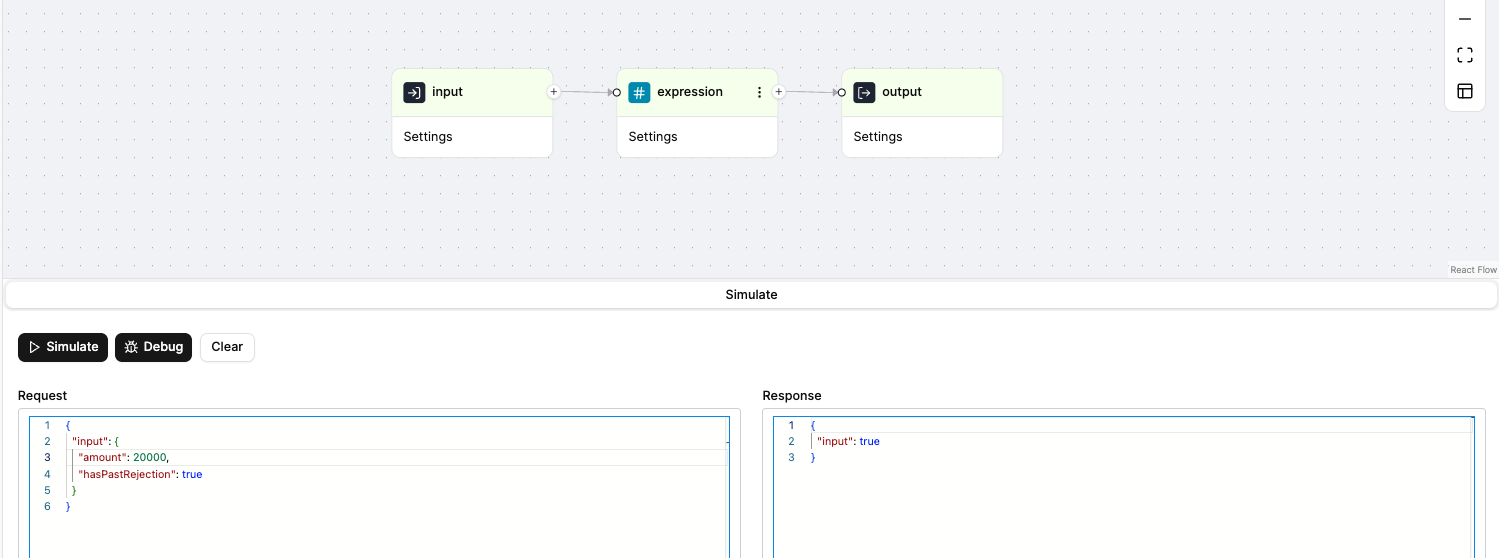
Note: The workflow shown in the simulation result has been simplified to focus on the Expression Node functionality for better understanding.
When to Use It?
Use Expression Node when:
- You want to make a quick check or transformation.
- You need to calculate something simple like age group, amount thresholds, or matching keywords.
- You want to flag or mark data without writing a full Function Node.
- You need to evaluate conditions in decision logic.
- You need to apply the same expression to multiple items using loop mode.
Tip: The node expects the expression to return a single value. For complex logic with multiple steps, consider Function Node instead.
