Manage subscriptions
This section guides how subscription admins can do the following for an existing subscription:
- View subscription details
- Edit subscription details
- Subscribe to other SGTS Products
- Cancel subscription
Audience
- Primary and secondary subscription admins of a TechBiz account.
- Billing admin of a TechBiz account.
Note: The Billing admin of a TechBiz account can view the account and subscription details but cannot edit the details.
Prerequisites
- You need a non-SE GSIB or Comet device or GMD.
- You need to be logged in to the TechBiz portal.
- An approved TechBiz account.
View subscription details
Billing and subscription admins can view the subscription plans and their details of the Products subscribed using a TechBiz account.
To view the subscription details
From the left navigation menu, click Subscription Accounts.
Select APPROVED from the Status dropdown list to view all the approved accounts.
Select the required account.
In the top navigation bar, click SUBSCRIBED PRODUCTS.
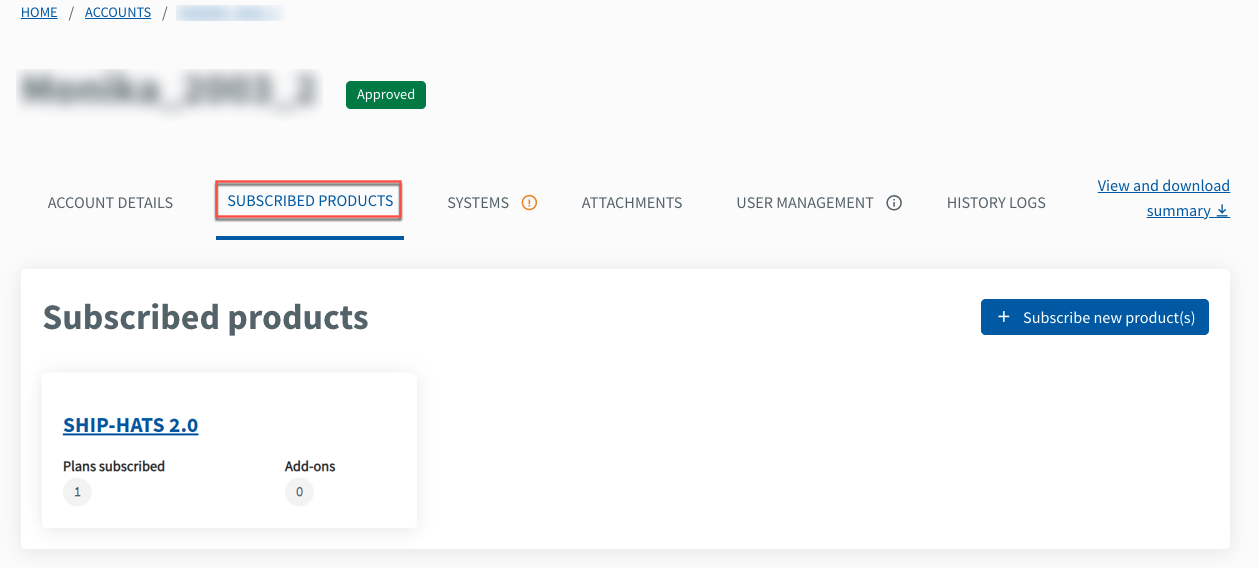
Select the required Product(s) to view. For example, SHIP-HATS.
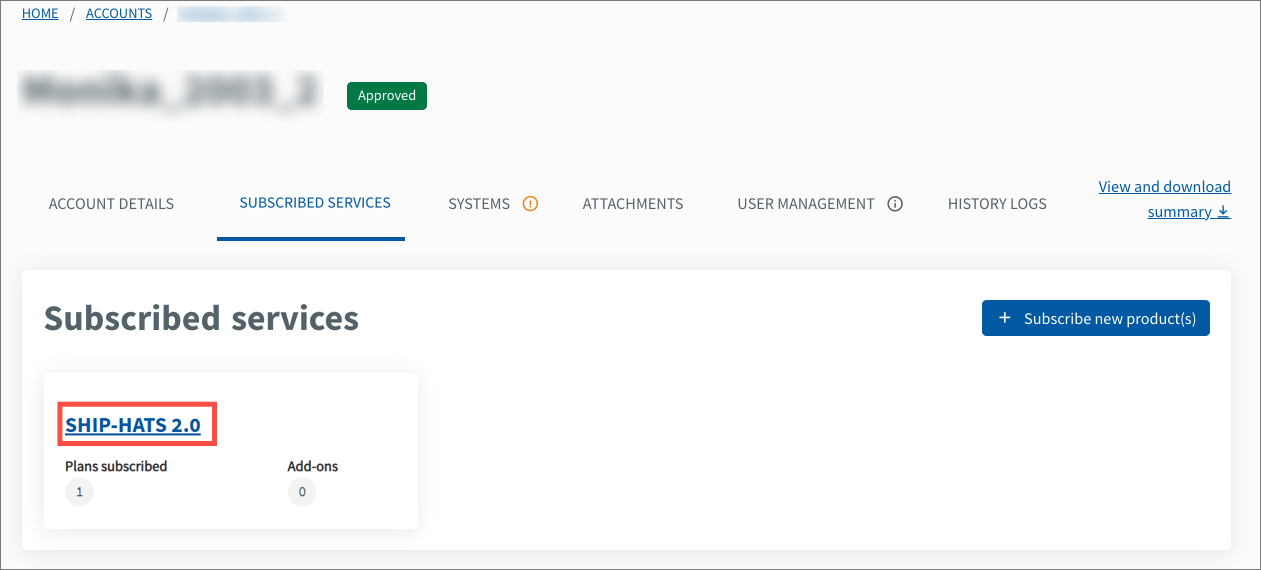
To view the plan details of an SGTS Product, select the required Product and click the Plan name.
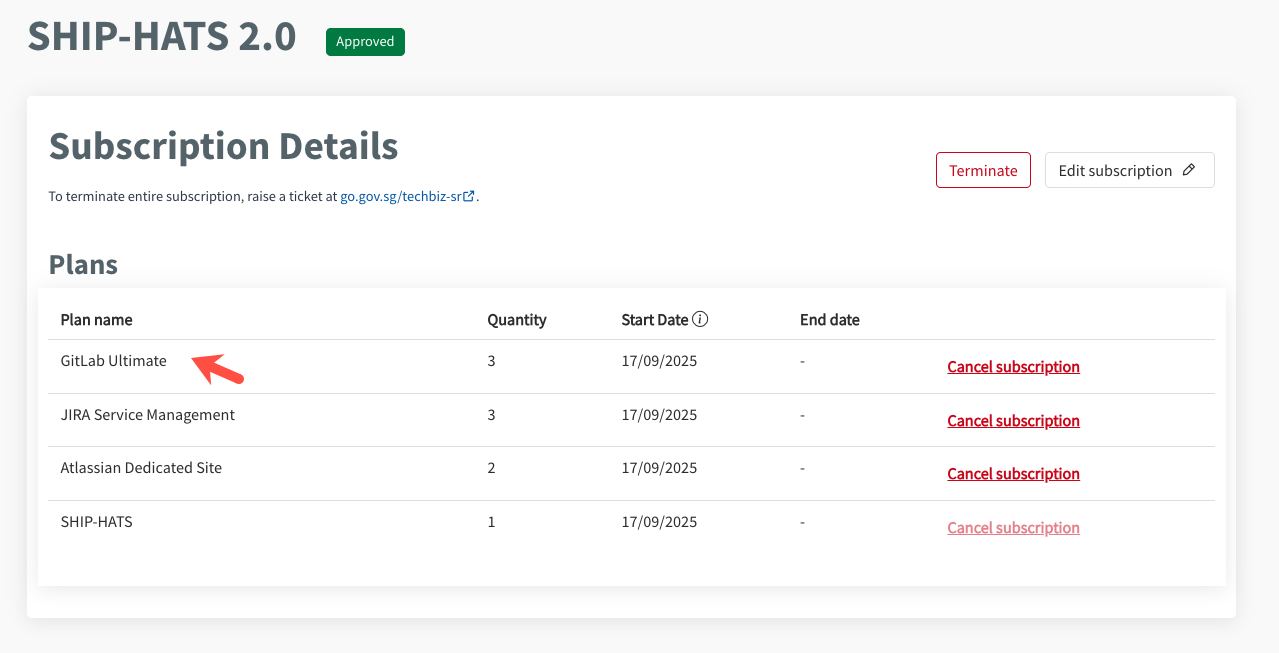
The Plan details are displayed.
Note: The Edit subscription and Cancel subscription options are not available for Billing admins.
Edit subscription details
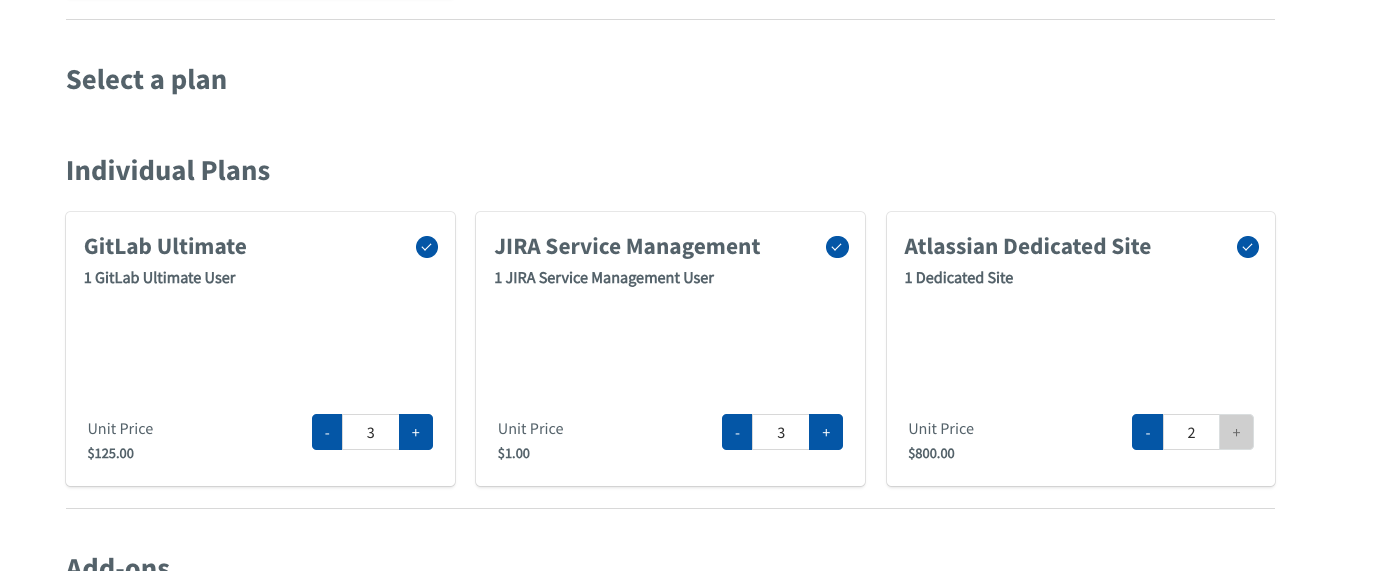
Subscription admins can edit subscription details such as subscription plans, add-ons, and promotional codes. They can also subscribe to additional products using the same TechBiz account.
To edit subscription details
From the left navigation menu, click Subscription Accounts.
Select APPROVED from the Status dropdown list.
Select the required account.
In the top navigation bar, click SUBSCRIBED PRODUCTS.
Select the required Product. For example, SHIP-HATS.
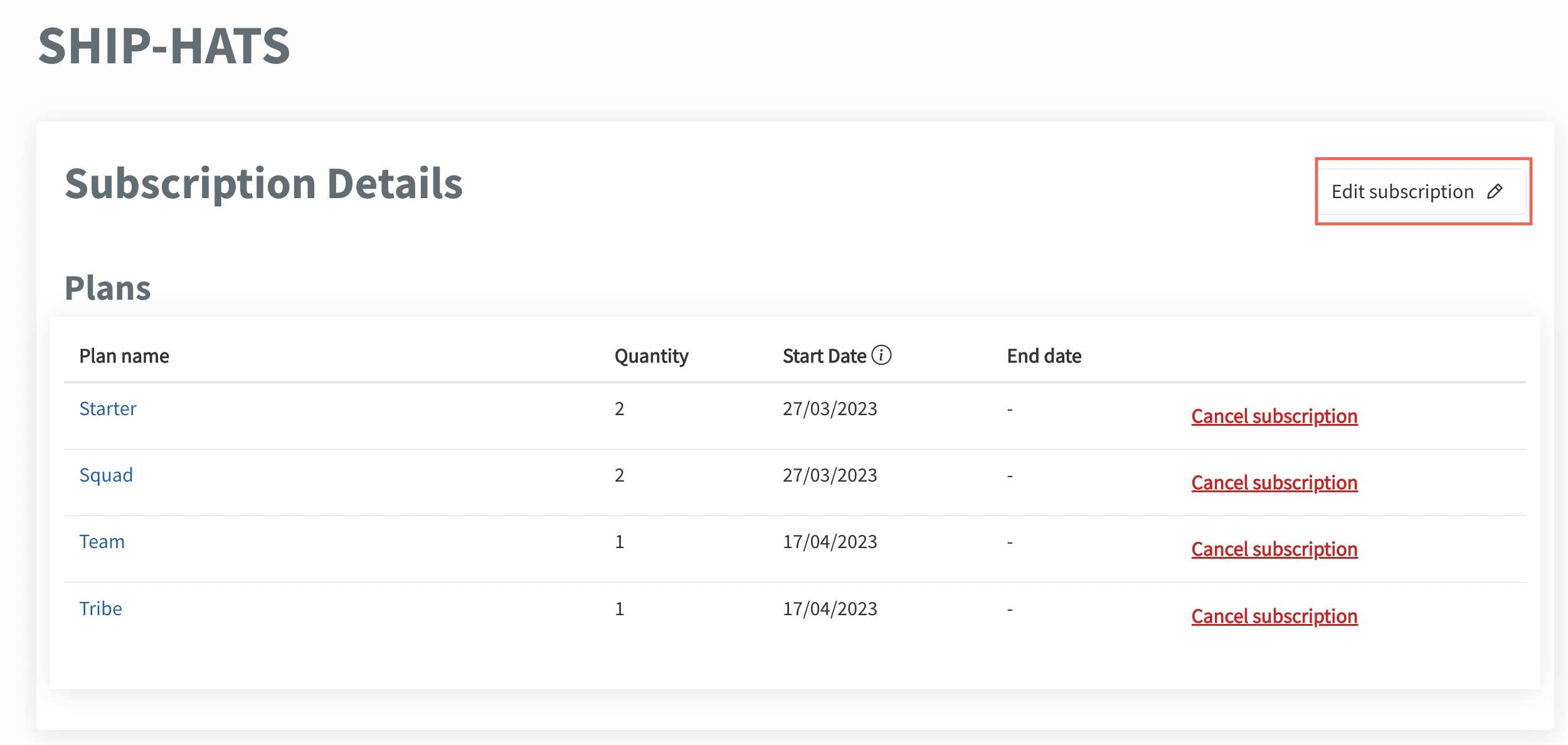
Click Edit subscription.
Adjust plans and add-ons
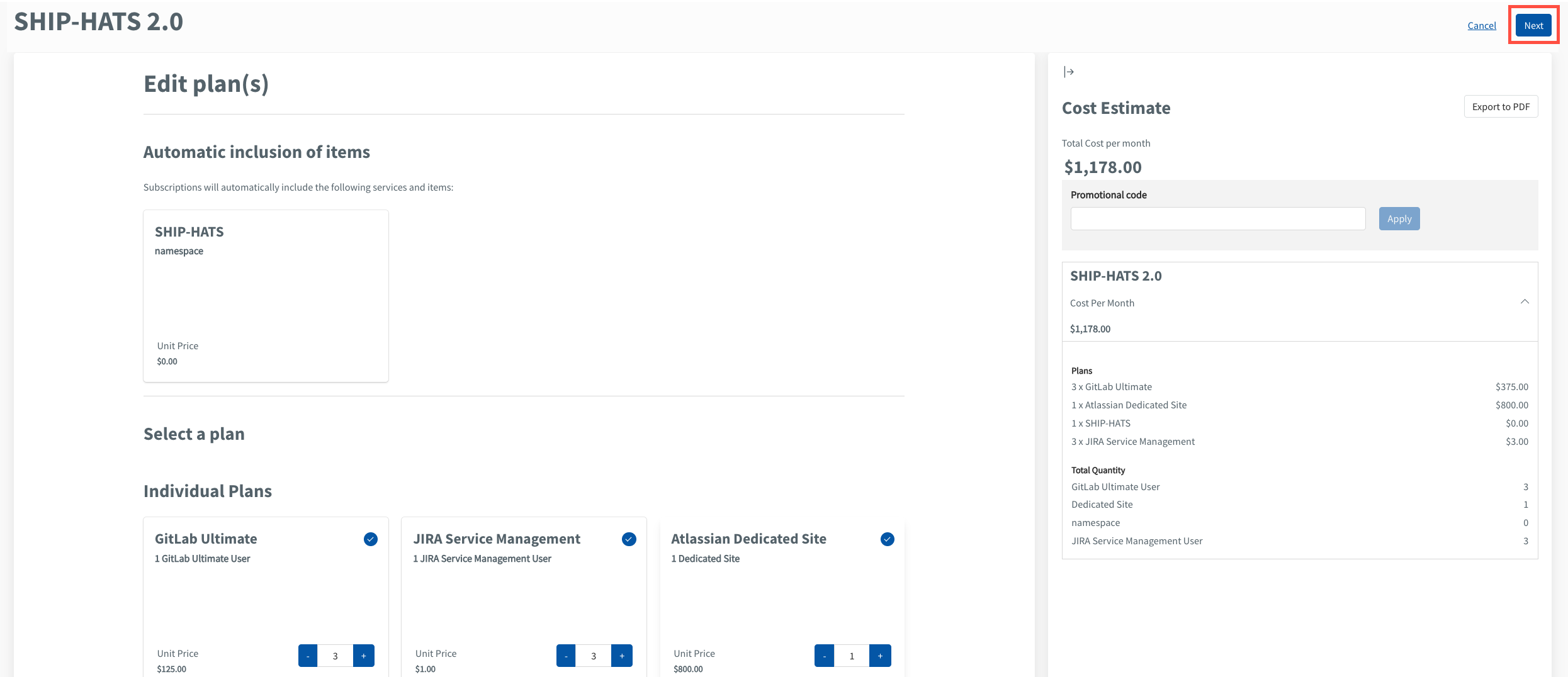
Update the required plans and add-ons.
Click Next.
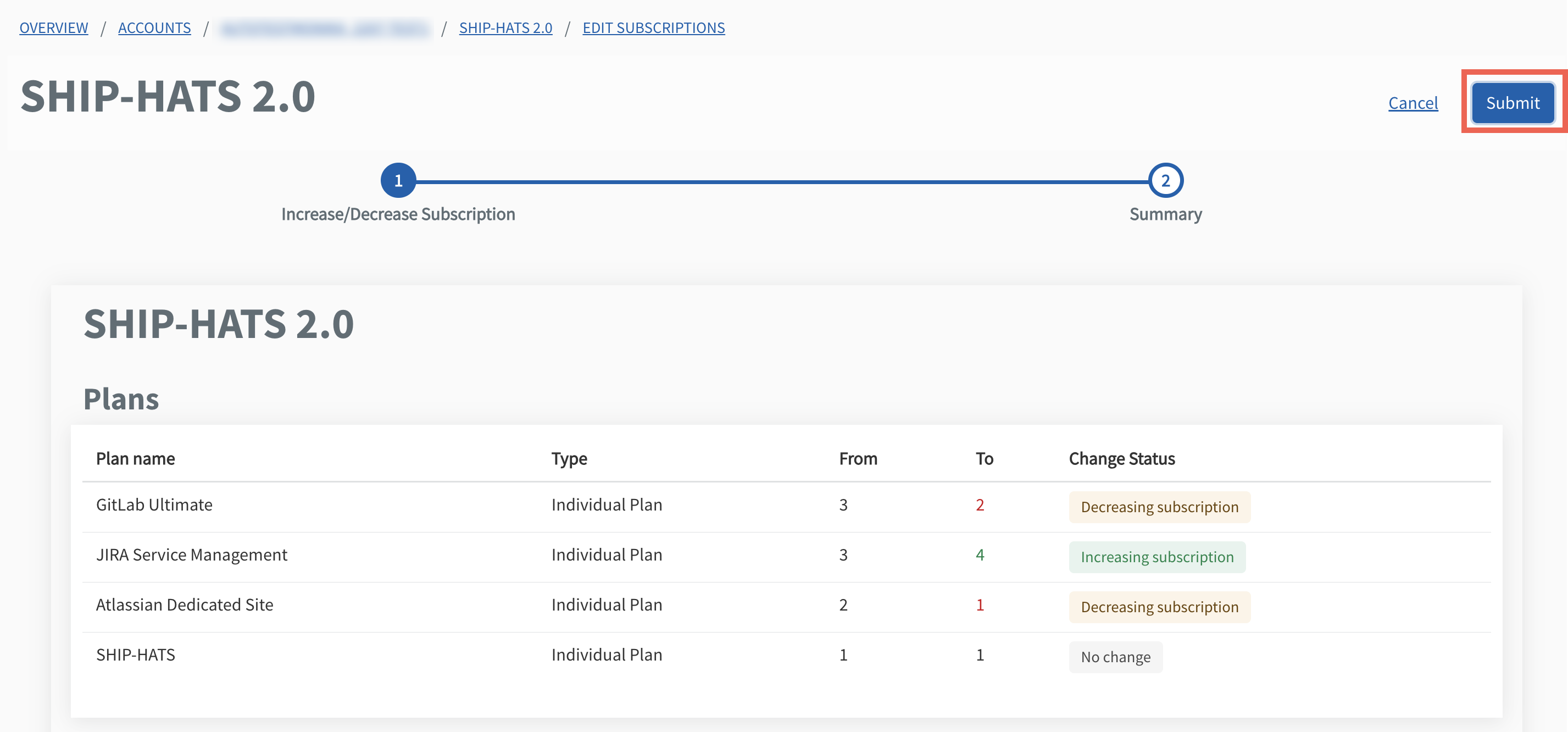
Review the changes and click Submit.
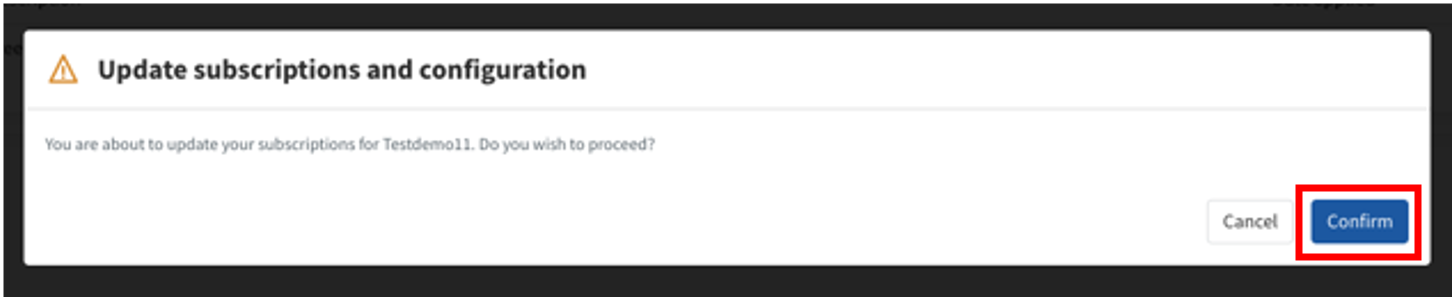
When prompted, click Confirm.
Apply a promotional code
Enter the promotional code in the Promotional Code field and click Apply.
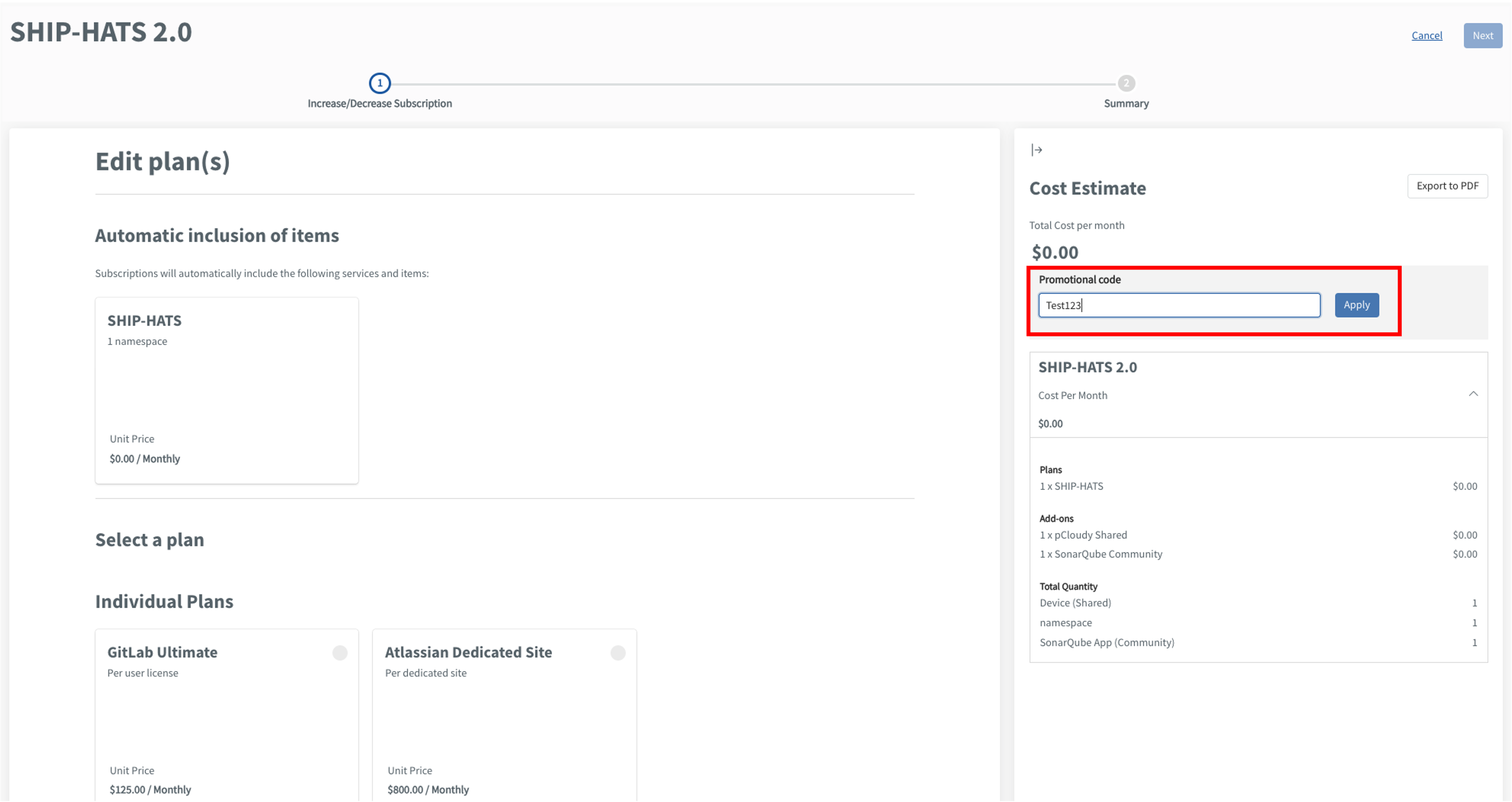
Click Apply.
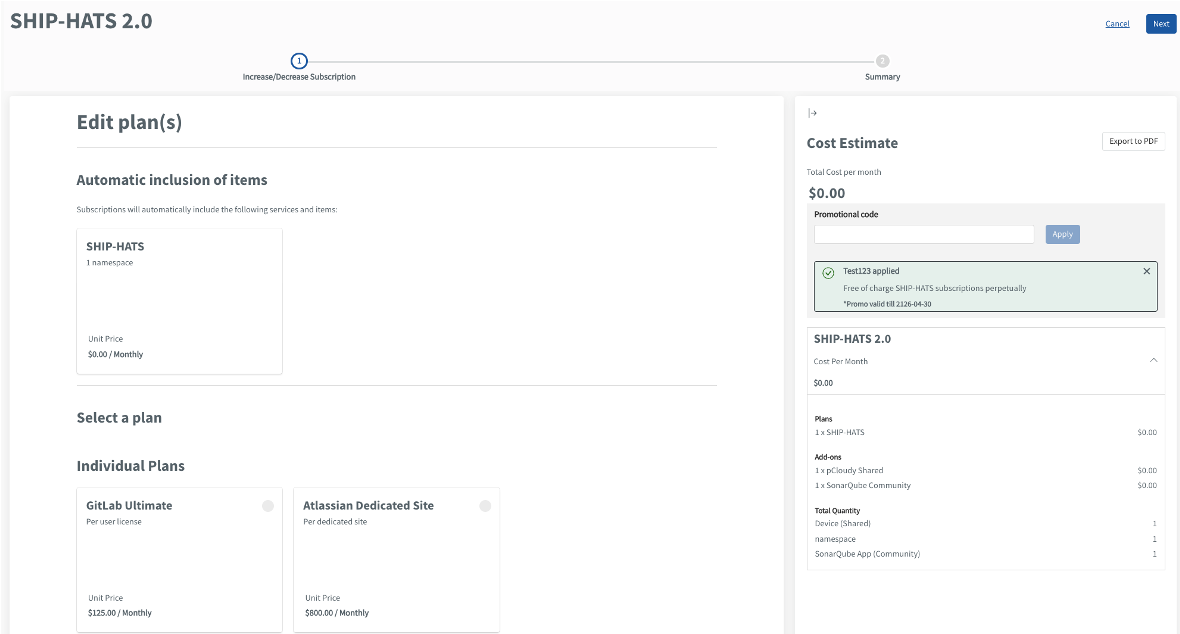
Click Next.
Review the changes and click Submit.
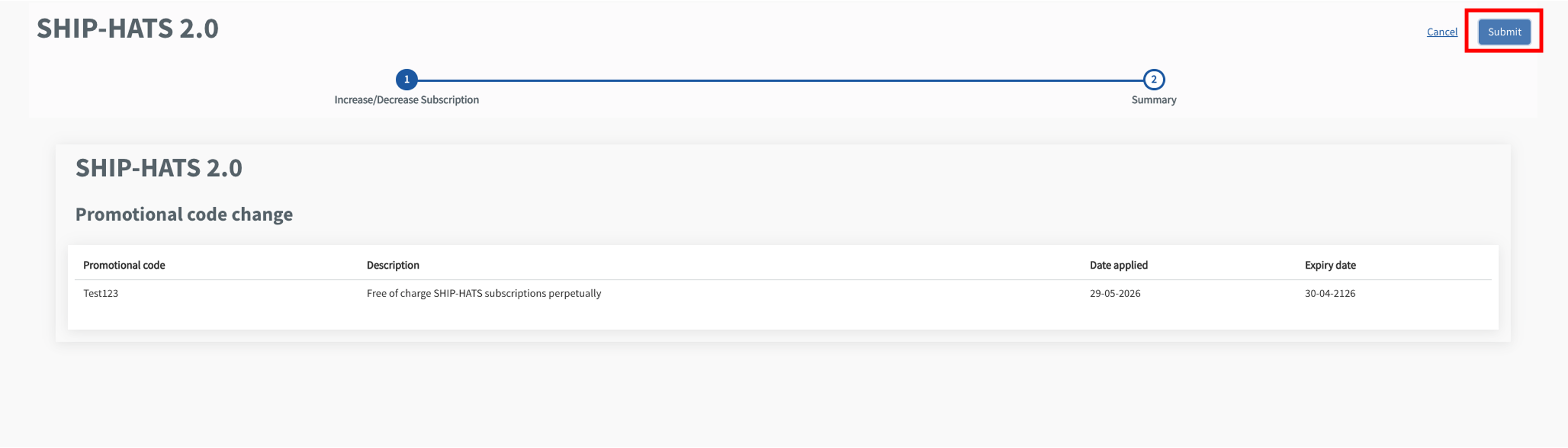
When prompted, click Confirm.
Subscribe to other SGTS Products
Subscription admins can subscribe to other SGTS Products using the TechBiz portal.
To subscribe to other SGTS Products
From the left navigation menu, click Subscription Accounts.
Select APPROVED from the Status dropdown list to view all the approved accounts.
Select the required account.
In the top navigation bar, click SUBSCRIBED PRODUCTS.
Click Subscribe new service(s).
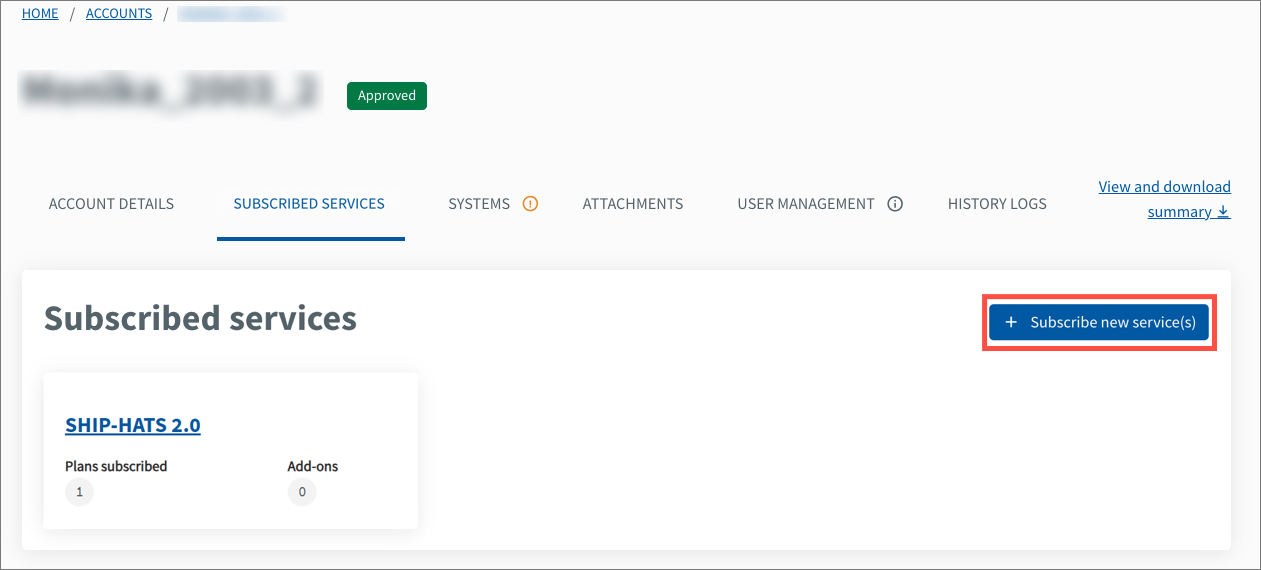
Select the required SGTS Products and click Next.
For more information, go to Create subscription account and follow from Step 4 onwards to complete the subscription.
Cancel subscription
To cancel your subscription, raise a Service Request.
