Create system
A TechBiz system allows agencies to share usage of their Singapore Government Tech Stack (SGTS) Product subscriptions which can be configured and managed individually. A system is connected to a TechBiz account. An account can have multiple systems. Refer to the FAQ for more information.
Agencies need to add and configure TechBiz systems to manage the subscribed SGTS Products.
This sections guides how subscription admins can create a TechBiz system using a TechBiz account.
Audience
- Subscription admins of a TechBiz account.
Prerequisites
- You need a [non-SE GSIB or Comet device or GMD.
- You need to be logged in to TechBiz portal.
- An approved TechBiz account.
To create a TechBiz system
From the left navigation menu, click Subscription Accounts.
Select the required TechBiz account.
In the top navigation bar, click SYSTEMS.
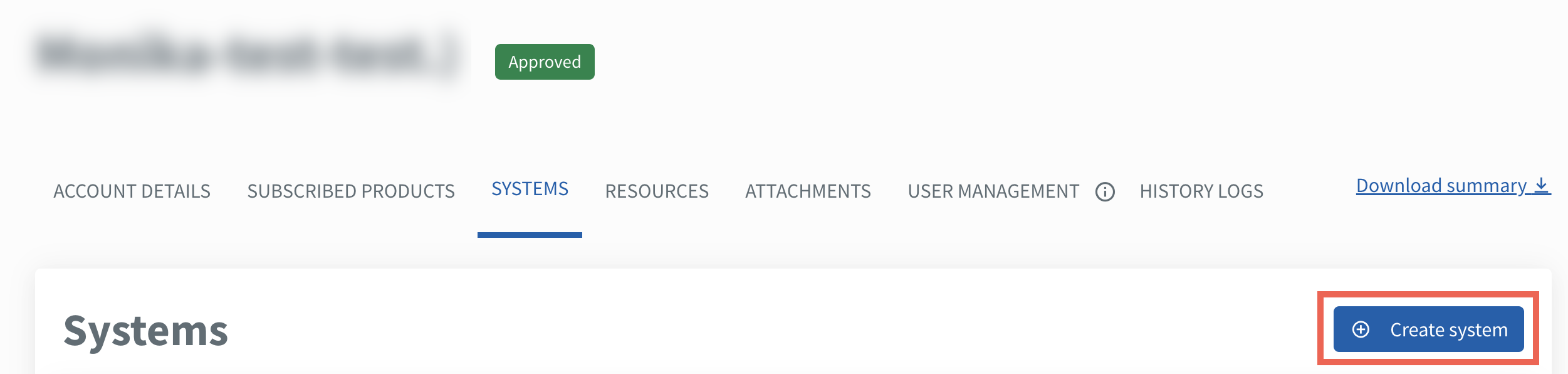
Click Create system.
Enter the following details.
Note: Unless mentioned otherwise, all fields are mandatory.
Field Name Description System name Enter the system name.
Note: System name can have a minimum of 1 character and maximum of 50 characters.TechBiz system ID A unique TechBiz system ID is automatically generated and cannot be edited. The TechBiz system ID is common across all subscribed SGTS Products under this account. System Description Enter the description of the system. GovAssure SubSystem ID Agencies must indicate their GovAssure SubSystem ID if their system is live. Select Yes, I have a GovAssure SubSystem ID or No, I do not have a GovAssure SubSystem ID yet.
Note: For more information, approach your assigned GovAssure Agency Coordinator. Refer to Agency Coordinator List (accessible via intranet).Agency name and GovAssure SubSystem The Agency name and GovAssure SubSystem dropdown lists, and the Sub-system description, will be available if Yes, I have a GovAssure SubSystem ID is selected. Select your Agency name and GovAssure SubSystem. The Sub-system description will automatically appear.
Note: If you are unable to locate your GovAssure SubSystem ID, click No, I do not have a GovAssure SubSystem ID yet and update it when it is available.Enter the technical admin details.
Field Name Description Technical admin A Technical admin can edit and manage systems. This section allows you to enter the details of the Technical admin. There can be up to three technical admins.
Note: Public officers and vendors can be technical admins.Email address Enter the organisation email address of the Technical admin. First name, Last name, Contact number and Organisation. Enter the first name, last name, contact number and the organisation of the Technical admin. Click Add another to add more technical admins.
Click Next.
Review the system details and click Submit.
The new system will appear on the Systems page.
Proceed to Create and configure Resources complete the configuration.
