Create and configure Resources
Agencies must create and configure their Resources in TechBiz for their subscribed products. Each product may use different terms for what a Resource means, so the labels and descriptions will change depending on the product you select.
Note: Field names such as Resource name, type, or description will automatically reflect the terminology specific to the product you choose (e.g. Organisation for APEX, Deployment for StackOps, Project for CFT).
View the full list of product-specific resource terminology →
You must create a System before creating a Resource.
To create and configure a Resource:
- From the left navigation menu, click Subscription Accounts.
- Select the required TechBiz account.
- In the top navigation bar, click RESOURCES.
- Click Create Resource.

- Select the Product.
- Select the Resource type, if applicable.
Note: This selection is not applicable for SHIP-HATS.
Enter a Resource name:
- Must begin with a letter or digit.
- Must include at least one letter.
- Allowed characters:
.,&,_,*,@,/,-, spaces, and parentheses. - Maximum 50 characters.
- Cannot consist only of the following words:
default,dev,local,prod,production,stackops - These words are allowed as part of longer names (e.g.
prod-server1).
A Resource short name will be automatically generated. You can edit it before submission but not after.
Provide a Resource description (max 255 characters).
Fill in any other fields shown on screen (e.g. contact email).
Select one or more Systems to tag to this Resource.
Note: StackOps only allows tagging one System per Resource.
- (Optional) Add Tags to categorise and filter your Resources:
- Tags are case-insensitive.
- Tags cannot contain colons
:. - Maximum 255 characters each.
- Click Submit.
A success message will confirm your Resource has been created.
Product-specific instructions
Some products will show extra fields depending on what they require.
This step is not applicable for SHIP-HATS.
To manage Resources, go to the SHIP-HATS portal.
You will be asked to fill in additional deployment details:
| Field | Description |
|---|---|
| This is a system in production | Tick if the deployment is for a live system. |
| Cloud Service Provider | Select your cloud provider. |
| Elastic Version Number | Lists available versions based on your provider. |
| Deployment Size | Choose from: extra small, small, medium, or large. |
| Sizing Details | Appears once a size is selected. Includes memory, storage, instance type, and number of zones. Need a custom size? Raise a service request. |
Delete deployment
To delete a deployment, follow these steps:
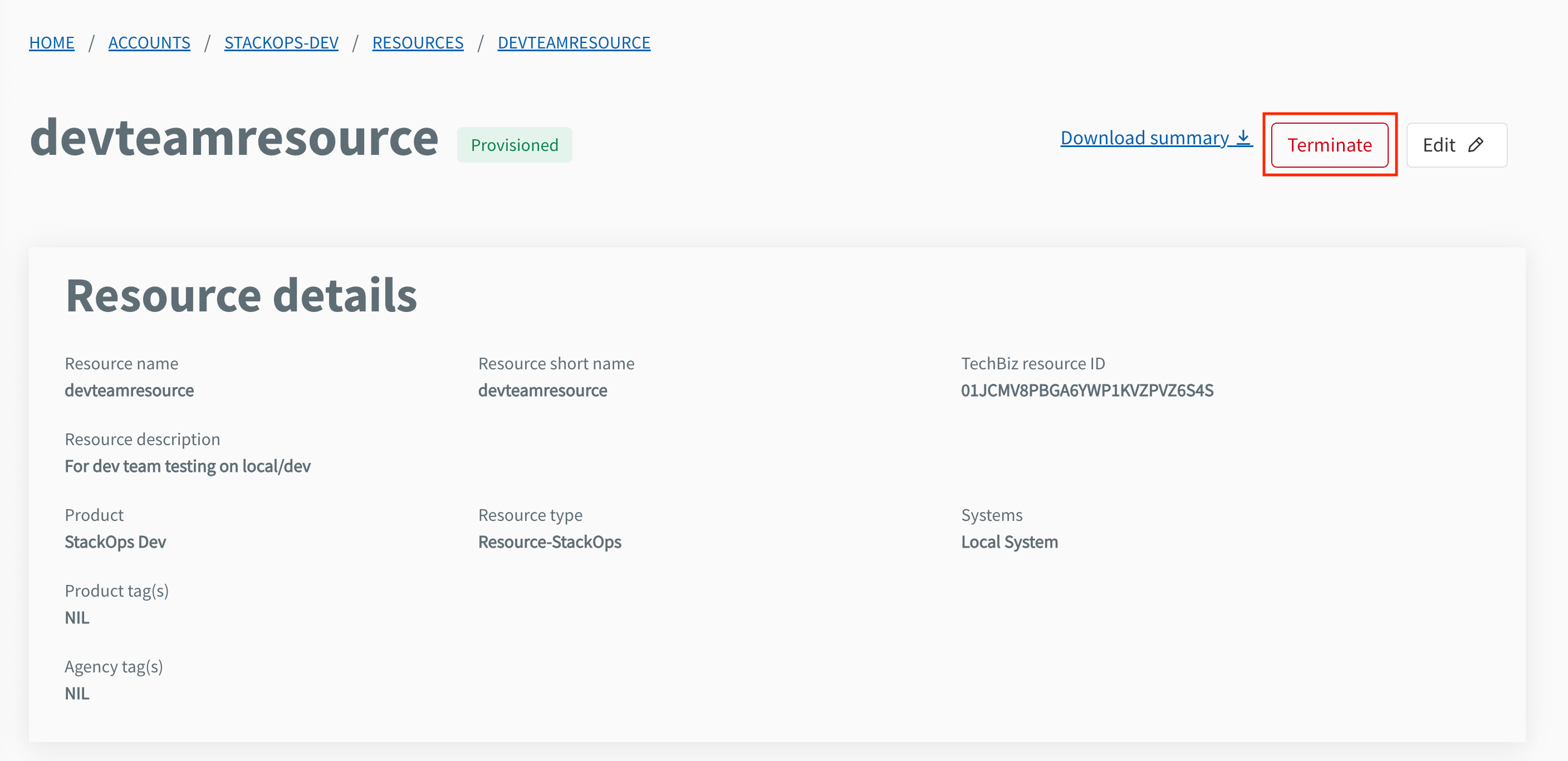
- From the Console portal, navigate to the target resource.
- Select Terminate.
- Enter the resource name and select Confirm to proceed.
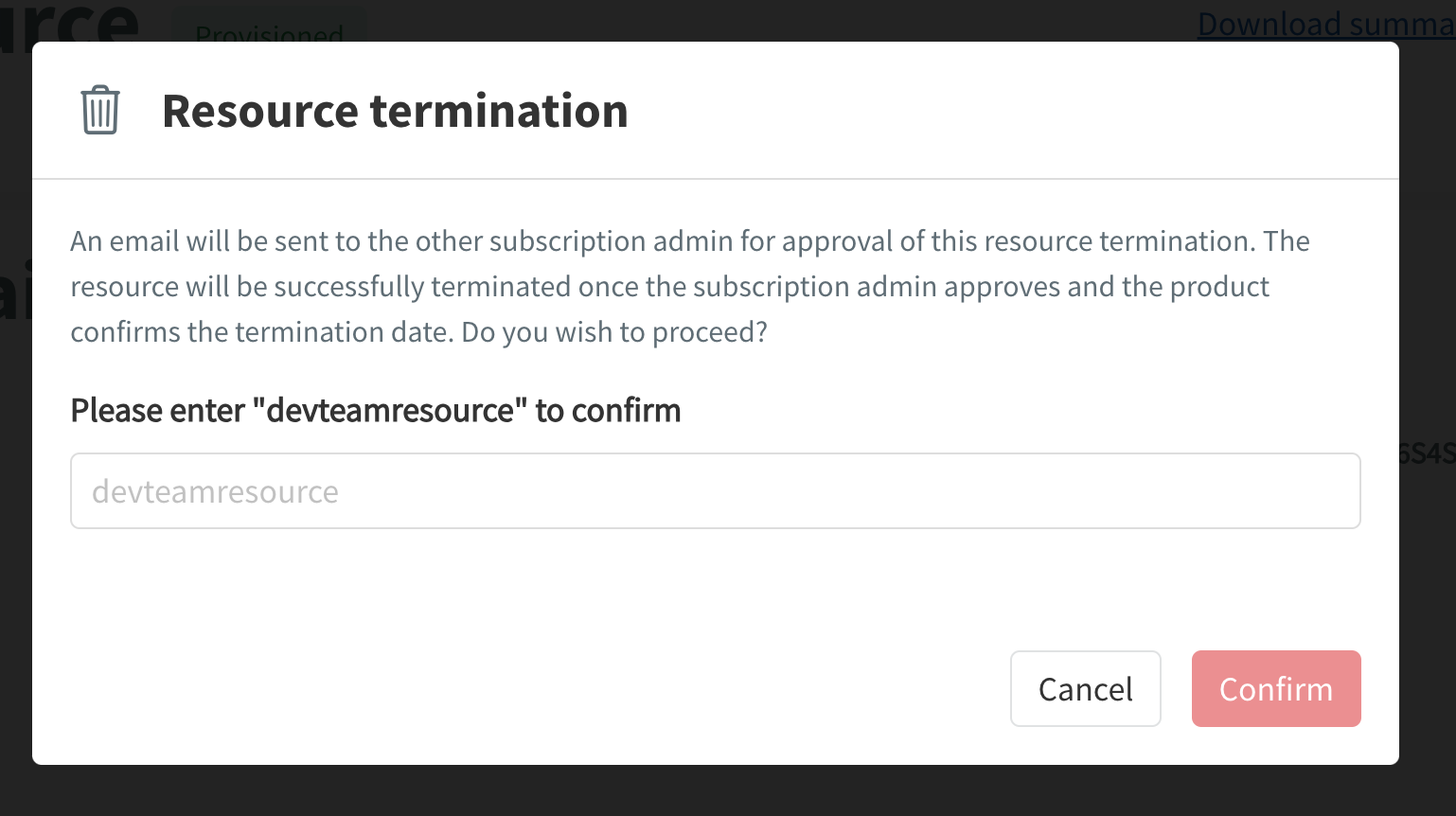
- A notification email will be sent to the subscription admin for approval. Once approved and the termination date is confirmed, the resource will be deleted.
Note
All data will be deleted when the resource is terminated. Ensure you back up your data beforehand if required.
For more details on what happens when a deployment is deleted, refer to the Elastic documentation.
You will be asked to fill in the following fields:
| Field | Description |
|---|---|
| Project name | Enter the name for your CFT Project. Allowed characters: - Uppercase letters: A–Z - Lowercase letters: a–z - Digits: 0–9 - Space - Underscore ( _ ) - Hyphen ( - ) - Period ( . ) - Forward slash ( / ) - Parentheses: ( ) |
| Project short name | Auto-generated. You may edit before submission. |
| Project description | Briefly describe the purpose of this Project. |
| Existing Project ID (Migration) | (Optional) Enter if you are migrating from a previous setup. |
The Project name can only include the following characters:
- Uppercase letters:
A–Z - Lowercase letters:
a–z - Digits:
0–9 - Space
- Underscore (
_) - Hyphen (dash) (
-) - Period (dot) (
.) - Forward slash (
/) - Parentheses:
(and)
Note: Avoid using other special characters (such as
@,#,!,*) in the project name.
You will be asked to fill in the following fields:
| Field | Description |
|---|---|
| Organisation name | Enter the organisation name. |
| Short name | Auto-generated. You may edit before submission. |
| Organisation description | Brief description of the organisation’s purpose. |
| Primary Contact Email | Enter the main point of contact. |
| Secondary Contact Email | (Optional) Enter an additional contact. |
You will be asked to fill in the following fields:
| Field | Description |
|---|---|
| Systems | Select the system that the servers belong to within the account. |
| GASSP ID | Select the GASSP ID associated with the servers. |
| Upload server(s) list | Upload a CSV file containing the list of servers. You can download the Excel template provided to ensure the correct format. Uploading the file will generate the server records automatically. Removing the file will remove the generated records. |
| New server(s) | Alternatively, manually add servers one by one using the New server(s) button. |
