Configure SonarQube project settings
Project administrators can configure analysis behaviour and review issues directly in the SonarQube portal.
This topic explains how to:
- Configure project versioning
- Rename untagged analysis
- Configure new code settings
- Filter issues
Configure versioning
Project versioning allows teams to compare analysis results across different releases.
Prerequisites
Ensure the following:
- You have Administrator permission for the SonarQube project.
Steps
- Update your CI/CD pipeline to include the following parameter when running the Sonar scanner:
Add the parameter
-Dsonar.projectVersion=<version>to your CI/CD pipeline when running the Sonar scanner.Example:
-Dsonar.projectVersion=1.2.0Run the CI/CD pipeline.
After the scan completes, SonarQube associates the analysis results with the specified version.
For details on configuring pipelines for SonarQube scans, see
Run SonarQube scans.
Rename untagged analysis
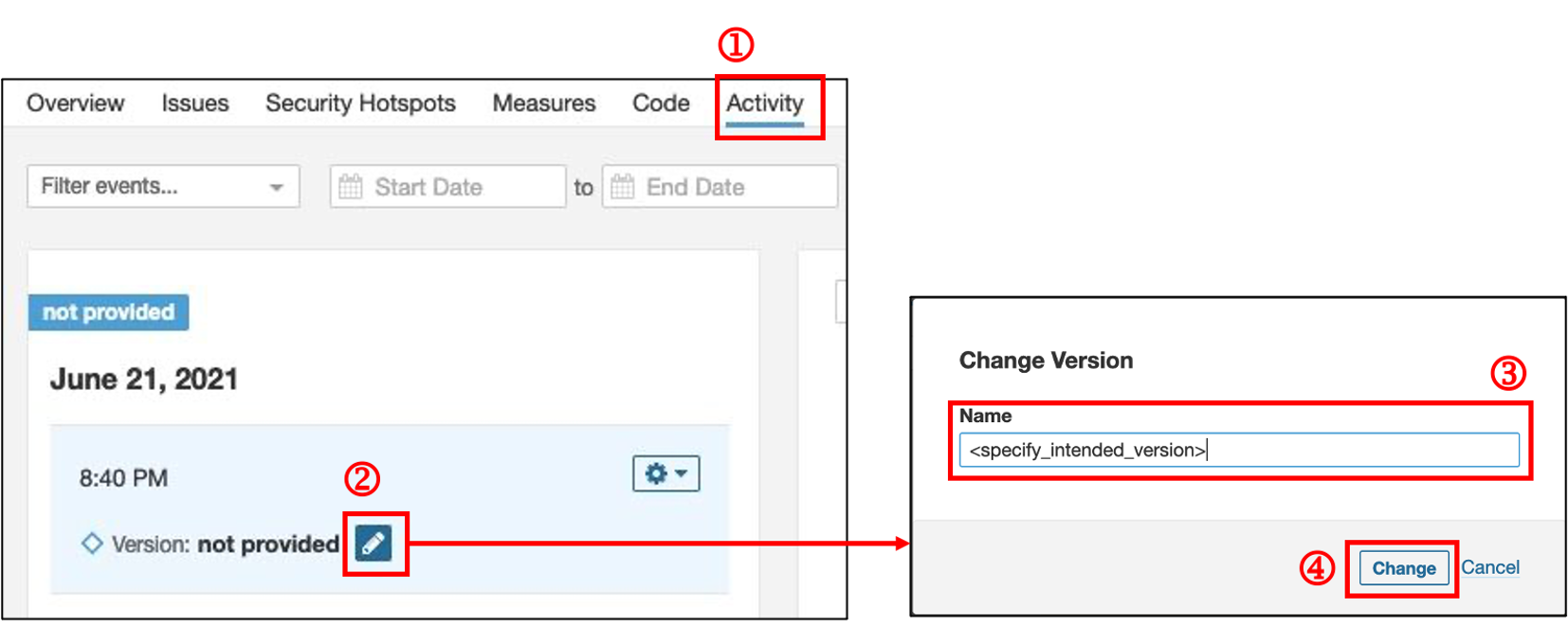
If an analysis was run without specifying a project version, you can rename it manually in SonarQube.
Steps
Open the required project.
Click the Activity tab.
Locate the analysis you want to rename.
Click the pencil icon next to the analysis.
In the Name field, enter the version name.
Click Change to apply the changes.
Configure new code settings
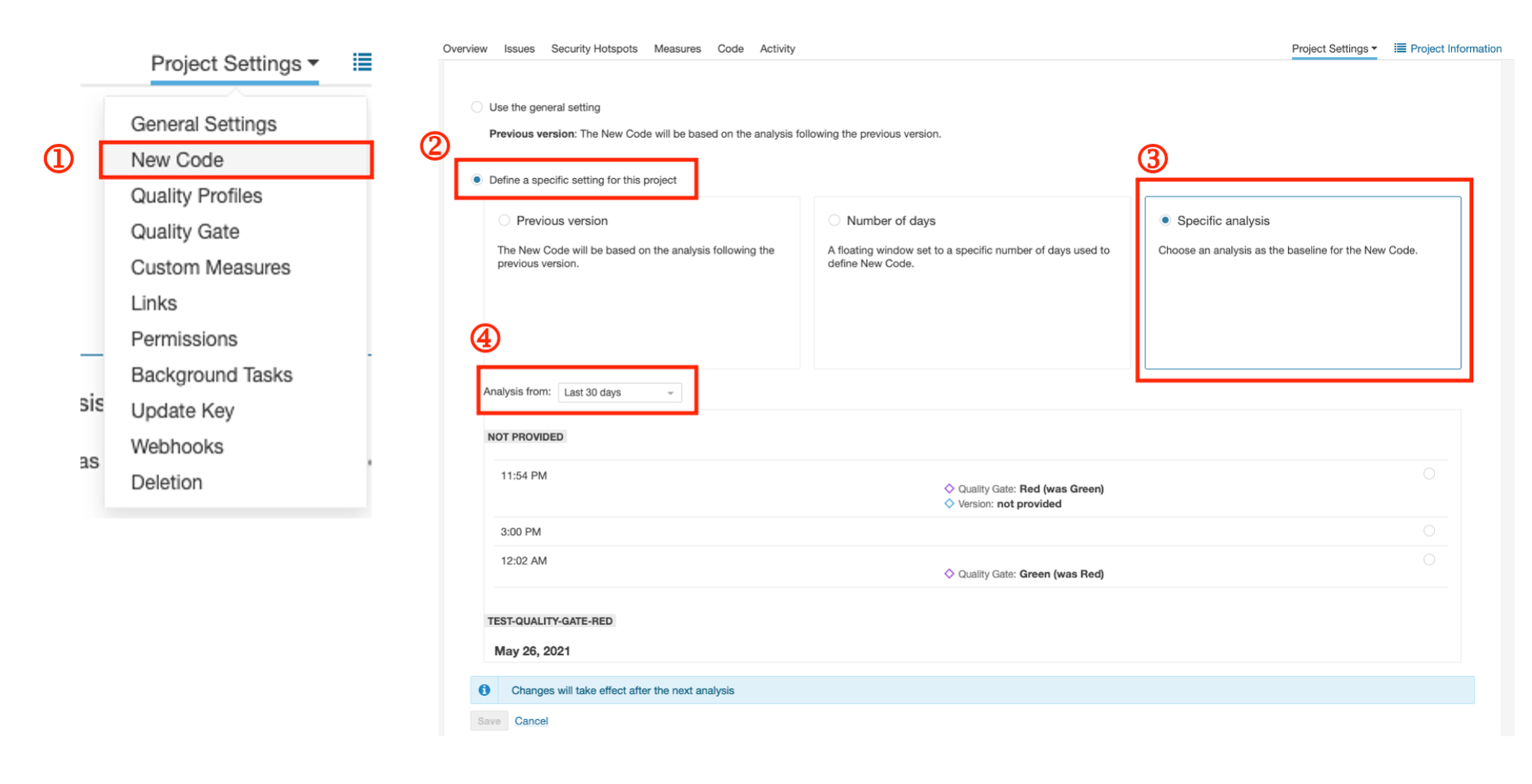
New Code settings define which code changes SonarQube considers as new during analysis.
Note: By default, SonarQube defines new code based on the previous analysis.
Steps
Log in to the SonarQube portal and open the required project.
Click Project Settings.
Select New Code.
Click Define a specific setting for this project.
Choose one of the following options:
- Number of days
- Specific analysis
In the Analysis from dropdown, select the required baseline.
Filter issues
You can filter issues in SonarQube to review specific findings during code analysis.
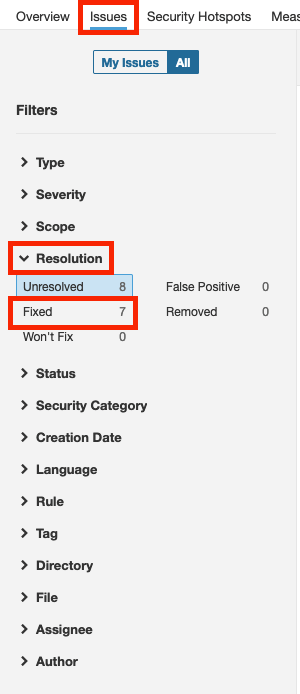
Filter by resolution
Open the Issues view in the SonarQube project.
Click Resolution.
- Select Unresolved to view open issues.
- Select Fixed to view resolved issues such as bugs, vulnerabilities, or code smells.
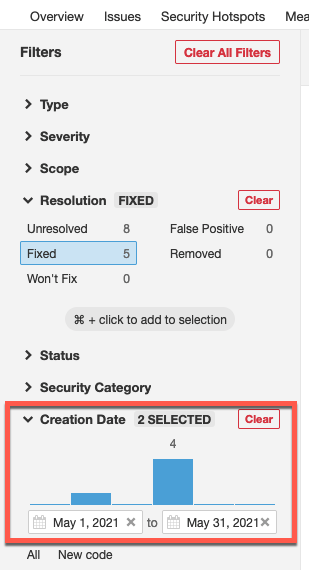
Filter by creation date
To filter issues by date:
- Locate the Creation Date filter.
- Select the required start date and end date.