Set up and start using Claude Code (WOG)
For: WOG and GovTech AR users
Before you can set up Claude Code, your Subscription Admin needs to provision it to you. If Claude Code has not been provisioned to you, contact your Subscription Admin or Reporting Officer (RO).
Note: If you are a GovTech Public Officer or intern, see Request and set up Claude Code for the appropriate onboarding guide.
Prerequisites
Ensure you have:
- An active TechPass account
- A Government Managed Device (GMD) compliant with SEED
- Claude Code provisioned to you by your Subscription Admin
- Completed the mandatory agentic AI training
- Verified that your project’s code classification and sensitivity level supports Claude Code
- WARP Always-On: The WARP Always-On policy is being progressively rolled out to SEED devices. WARP is automatically enabled and cannot be turned off when you onboard to agentic AI coding tools. If there are issues with WARP setup, contact SEED support.
If you already have Claude Code configured with existing credentials or connections, remove them before proceeding.
Step 1 - Access Claude Code
Log in to Console.
From your profile menu, select My tools.
Click the Claude Code card.
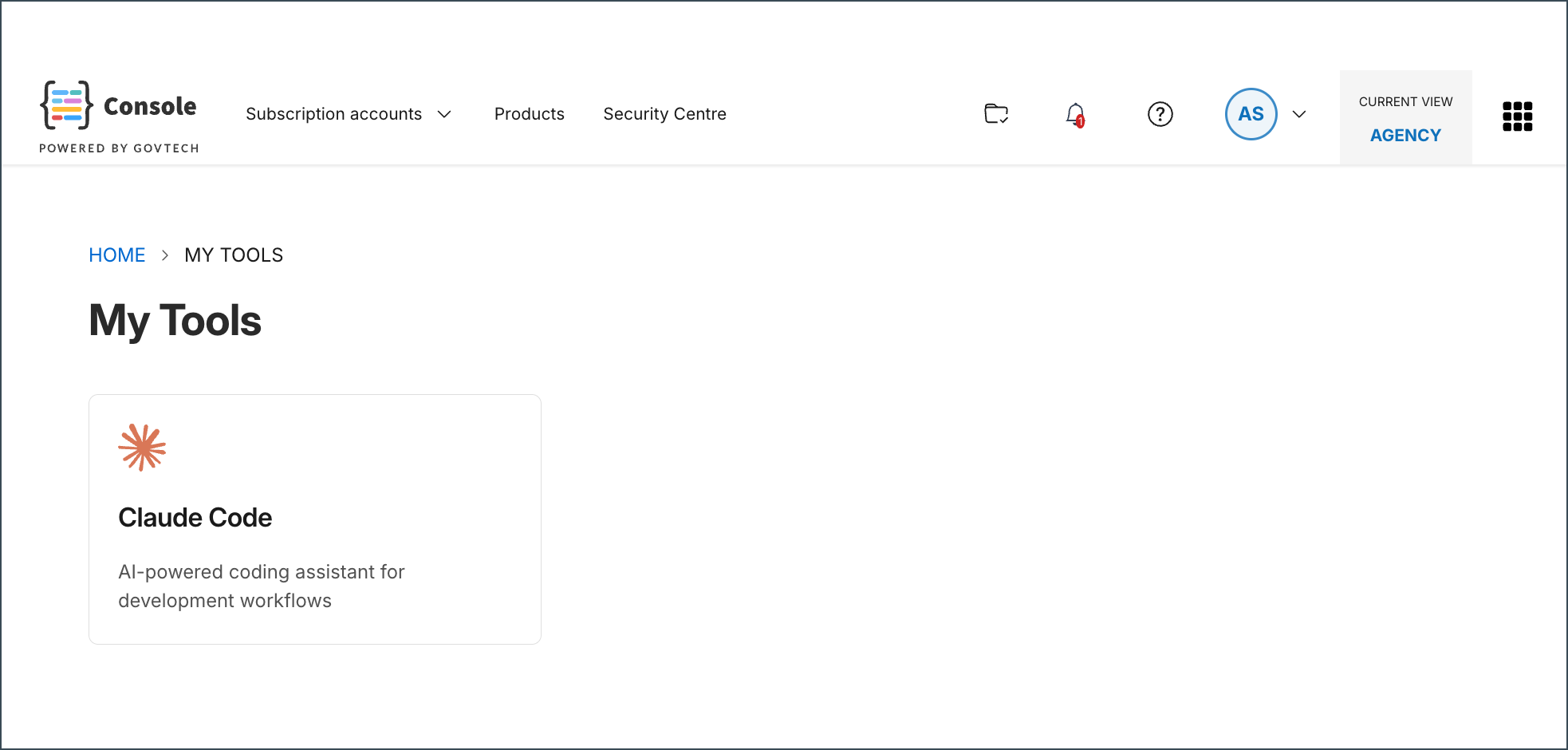
Note: If the Claude Code card is not displayed, contact your Subscription Admin or Reporting Officer (RO) to confirm that Claude Code has been provisioned to you.
Step 2 - Generate an API key
Select the subscription account to use.
Note: If Claude Code has been provisioned through multiple subscription accounts, select the account you want to use, generate an API key for it, and repeat the onboarding steps for each account.
Select Generate API key.
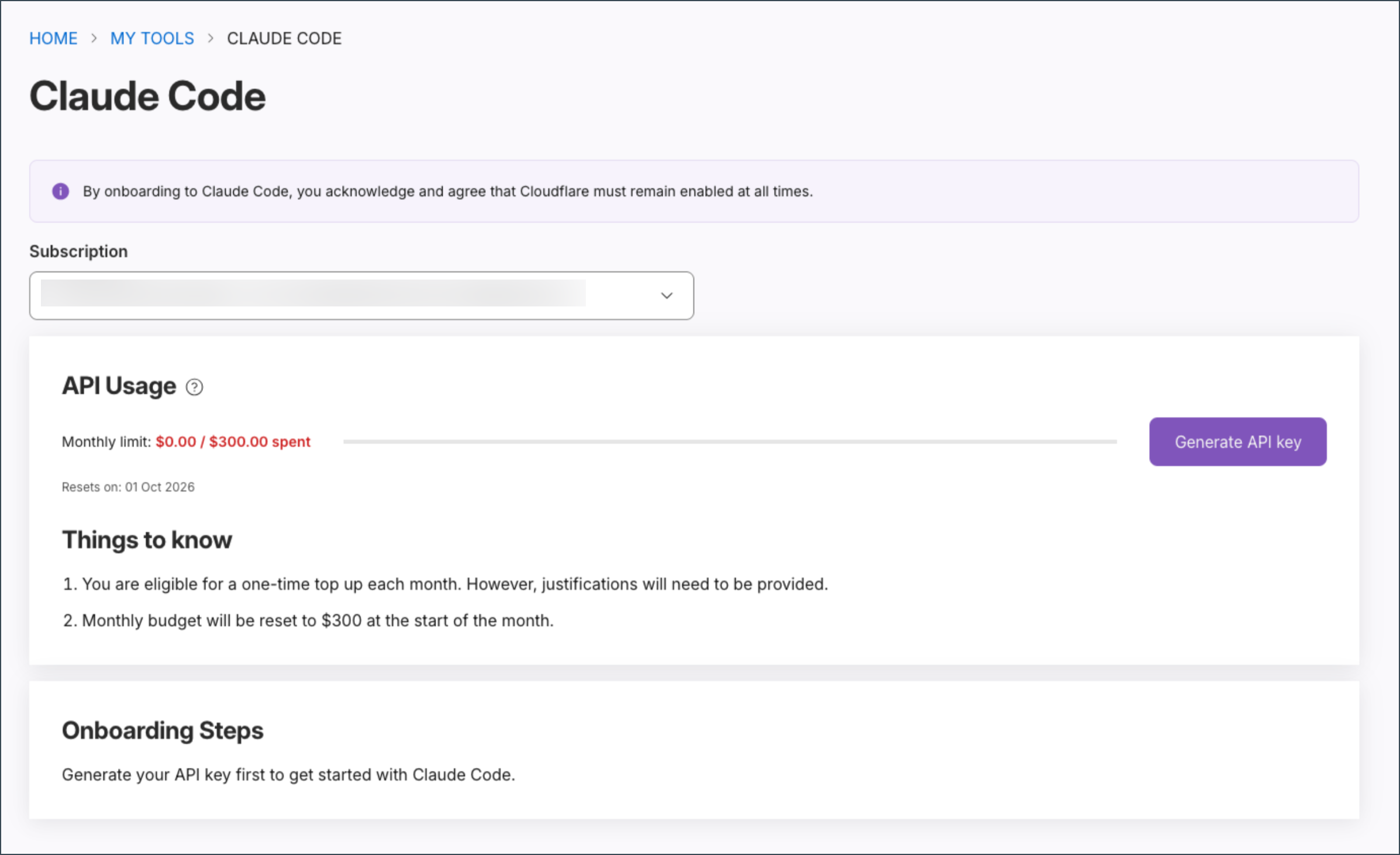
Copy the API key and store it in a secure location.
Important: The API key is displayed only once. Save it before leaving the page.
- Select Done.
Step 3 - Complete onboarding steps
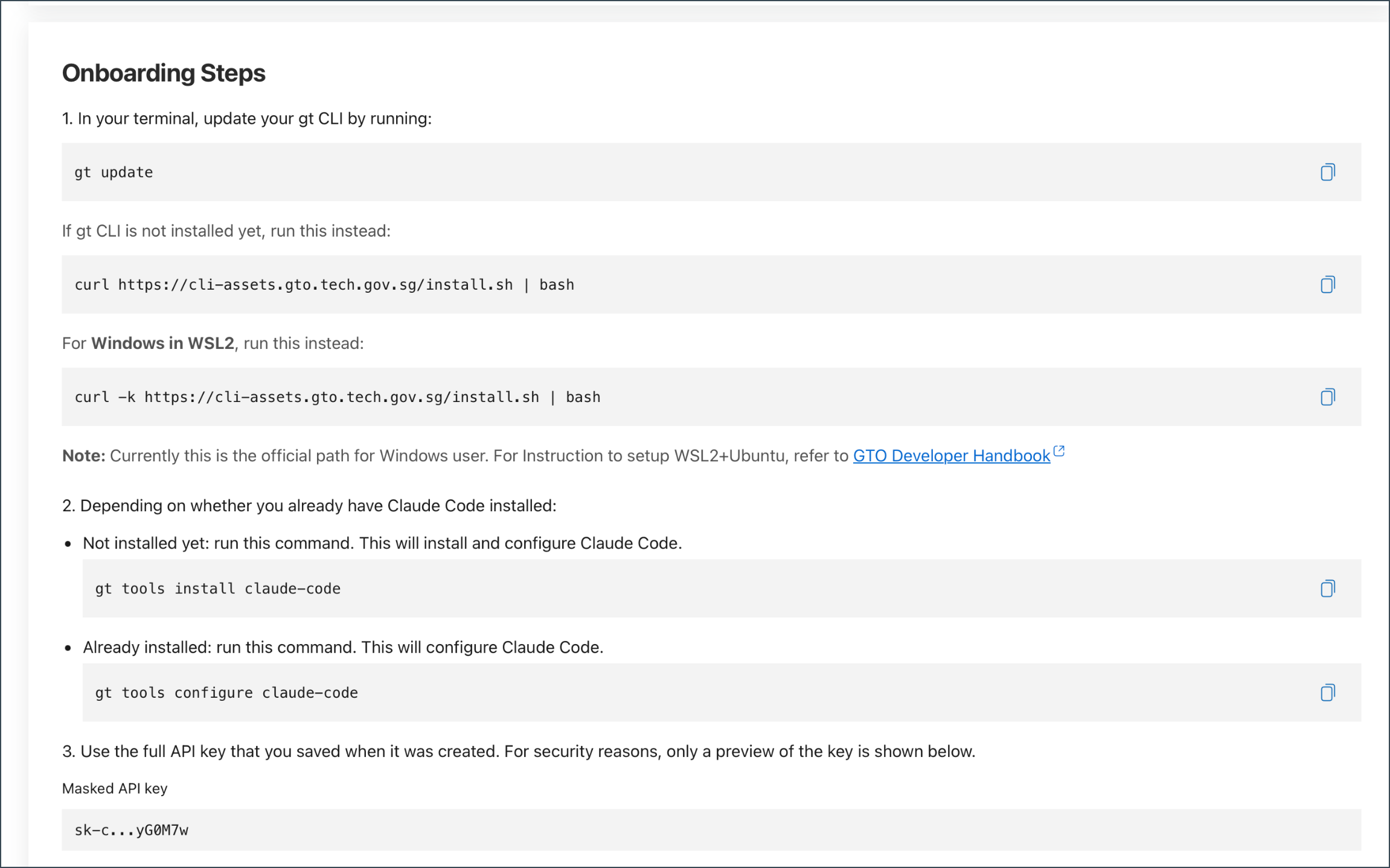
The onboarding steps in Console may change over time. Always follow the latest instructions displayed in Console.
Follow the Onboarding steps displayed in Console for your operating system.
Run the commands shown in the order provided.
When prompted, paste the API key.
Step 4 - Verify installation
Run the following command:
claude.Verify that Claude Code starts successfully.
Manage Claude Code
Manage your API key
From the Claude Code card in Console (My tools > Claude Code), you can:
- Revoke your API key
- Generate a new API key
Budget limits
For an overview of token spend limits, see Pricing and budgeting.
To extend your budget to $1,000/month, click Top up from the Claude Code card in Console (My tools > Claude Code) and complete the survey.
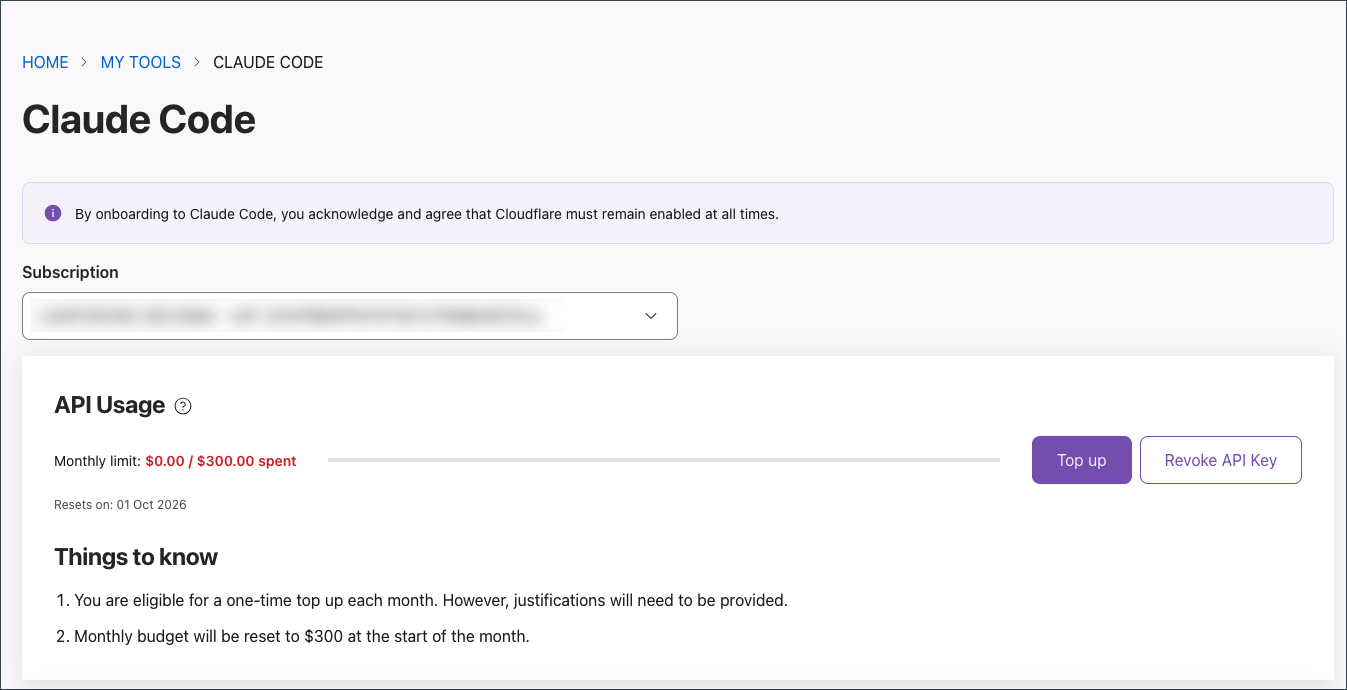
If usage exceeds $1,000/month, submit a request through the support channels for case-by-case review.
Next steps
- Review Claude Code best practices
- To monitor usage, see Monitor Claude Code usage and charges.
- For higher fidelity analytics on Claude Code usage across your agency, see the AI Impact Dashboard.
Remove existing Claude Code credentials and config
If you already have Claude Code configured with any credentials or connections, remove them before completing this setup to prevent conflicts.
Claude subscriptions
If you were using a claude.ai subscription (Claude Pro, Max, Team, or Enterprise):
- Inside Claude Code, run the
/logoutcommand. - Alternatively, in your terminal, run
claude auth logout.
Other connection methods
If you know how Claude Code was previously set up, simply undo those changes — you don’t need to read further.
If you’re not sure, check these files for existing Claude Code settings:
~/.zshrc~/.claude/settings.json- VS Code user settings
Depending on which connection method you were using, expand the relevant section below to see what to remove.
Remove the following environment variables from your shell config (e.g. ~/.zshrc):
# Always remove
CLAUDE_CODE_USE_BEDROCK
AWS_REGION
# Remove these too, depending on how you set it up
AWS_BEARER_TOKEN_BEDROCK
AWS_ACCESS_KEY_ID
AWS_SECRET_ACCESS_KEY
AWS_SESSION_TOKEN
AWS_PROFILE
CLAUDE_CODE_SKIP_BEDROCK_AUTH
CLAUDE_CODE_MAX_OUTPUT_TOKENS
MAX_THINKING_TOKENS
ANTHROPIC_SMALL_FAST_MODEL
ANTHROPIC_SMALL_FAST_MODEL_AWS_REGION
ANTHROPIC_DEFAULT_OPUS_MODEL
ANTHROPIC_DEFAULT_SONNET_MODEL
ANTHROPIC_DEFAULT_HAIKU_MODEL
ANTHROPIC_MODEL
DISABLE_PROMPT_CACHING
ANTHROPIC_CUSTOM_HEADERSRemove the following from ~/.claude/settings.json:
# Settings keys
awsAuthRefresh
awsCredentialExportRemove the following environment variables from your shell config (e.g. ~/.zshrc):
# Always remove
ANTHROPIC_BASE_URL
# Remove these too, depending on how you set it up
ANTHROPIC_API_KEY
ANTHROPIC_AUTH_TOKEN
ANTHROPIC_SMALL_FAST_MODEL
ANTHROPIC_DEFAULT_OPUS_MODEL
ANTHROPIC_DEFAULT_SONNET_MODEL
ANTHROPIC_DEFAULT_HAIKU_MODEL
ANTHROPIC_MODEL
DISABLE_PROMPT_CACHING
DISABLE_PROMPT_CACHING_HAIKU
DISABLE_PROMPT_CACHING_OPUS
DISABLE_PROMPT_CACHING_SONNET
ANTHROPIC_CUSTOM_HEADERS
CLAUDE_CODE_API_KEY_HELPER_TTL_JSRemove the following from ~/.claude/settings.json:
# Settings keys
apiKeyHelperRemove the following environment variables from your shell config (e.g. ~/.zshrc):
# Always remove
CLAUDE_CODE_USE_VERTEX
ANTHROPIC_VERTEX_PROJECT_ID
# Remove these too, depending on how you set it up
CLOUD_ML_REGION
CLAUDE_CODE_SKIP_VERTEX_AUTH
VERTEX_REGION_CLAUDE_* (for various model versions)
ANTHROPIC_SMALL_FAST_MODEL
ANTHROPIC_DEFAULT_OPUS_MODEL
ANTHROPIC_DEFAULT_SONNET_MODEL
ANTHROPIC_DEFAULT_HAIKU_MODEL
ANTHROPIC_MODEL
DISABLE_PROMPT_CACHING
DISABLE_PROMPT_CACHING_HAIKU
DISABLE_PROMPT_CACHING_OPUS
DISABLE_PROMPT_CACHING_SONNETRun Preferences: Open User Settings (JSON) from the Command Palette (Cmd+Shift+P) and remove any entries that reference the environment variables listed above. Settings to look for include claudeCode.environmentVariables and terminal.integrated.env.* blocks. For example:
{
"claudeCode.environmentVariables": [
{
"name": "CLAUDE_CODE_USE_BEDROCK",
"value": "1"
},
{
"name": "AWS_REGION",
"value": "ap-southeast-1"
},
{
"name": "AWS_BEARER_TOKEN_BEDROCK",
"value": "redacted"
},
{
"name": "CLAUDE_CODE_MAX_OUTPUT_TOKENS",
"value": "4096"
},
{
"name": "MAX_THINKING_TOKENS",
"value": "1024"
},
{
"name": "ANTHROPIC_DEFAULT_OPUS_MODEL",
"value": "global.anthropic.claude-opus-4-5-20251101-v1:0"
},
{
"name": "ANTHROPIC_DEFAULT_SONNET_MODEL",
"value": "global.anthropic.claude-sonnet-4-5-20250929-v1:0"
},
{
"name": "ANTHROPIC_DEFAULT_HAIKU_MODEL",
"value": "global.anthropic.claude-haiku-4-5-20251001-v1:0"
}
],
"terminal.integrated.env.linux": {
"CLAUDE_CODE_USE_BEDROCK": "1",
"AWS_REGION": "ap-southeast-1",
"AWS_BEARER_TOKEN_BEDROCK": "redacted",
"CLAUDE_CODE_MAX_OUTPUT_TOKENS": "4096",
"MAX_THINKING_TOKENS": "1024",
"ANTHROPIC_DEFAULT_OPUS_MODEL": "global.anthropic.claude-opus-4-5-20251101-v1:0",
"ANTHROPIC_DEFAULT_SONNET_MODEL": "global.anthropic.claude-sonnet-4-5-20250929-v1:0",
"ANTHROPIC_DEFAULT_HAIKU_MODEL": "global.anthropic.claude-haiku-4-5-20251001-v1:0"
},
"terminal.integrated.env.osx": {
"CLAUDE_CODE_USE_BEDROCK": "1",
"AWS_REGION": "ap-southeast-1",
"AWS_BEARER_TOKEN_BEDROCK": "redacted",
"CLAUDE_CODE_MAX_OUTPUT_TOKENS": "4096",
"MAX_THINKING_TOKENS": "1024",
"ANTHROPIC_DEFAULT_OPUS_MODEL": "global.anthropic.claude-opus-4-5-20251101-v1:0",
"ANTHROPIC_DEFAULT_SONNET_MODEL": "global.anthropic.claude-sonnet-4-5-20250929-v1:0",
"ANTHROPIC_DEFAULT_HAIKU_MODEL": "global.anthropic.claude-haiku-4-5-20251001-v1:0"
}
}The exact environment variables depend on which connection method you were using — refer to the relevant section above.
