AI Impact Dashboard
The AI Impact Dashboard gives developers and managers visibility into how Claude Code is being used across their organisation. It surfaces API spend (in SGD), usage volume (requests and tokens), and productivity signals such as session quality and tool call activity.
Data is refreshed daily and reflects activity up to the previous day’s midnight.
Who this dashboard for
- Developers — monitor your own API spend, token usage, and coding activity in the Dashboard.
- Managers — view and compare your direct reports’ usage and costs in My Team.
- TechBiz subscription admins — track spending and usage across accounts in My Subscriptions.
Access the dashboard
You must have at least one linked account (EQUIP or Console) to view usage data.
Sign in at go.gov.sg/dps-ai-dashboard using your TechPass credentials.
After signing in, the Dashboard is displayed. Use the left sidebar to navigate between views.
| View | Visible to | Shows data when |
|---|---|---|
| Dashboard | All users | User has at least one linked account |
| My Team | All users | User has direct reports in Thunderbird |
| My Subscriptions | All users | User has TechBiz subscriptions with admin rights |
| APD Metrics | Users with APD Metrics access | Refer to Agent Prime Directives |
| Administration | Administrators only | — |
Dashboard
The Dashboard is your personal usage view.
Use the month picker at the top to select which calendar month to display — all panels update together when you change the month.
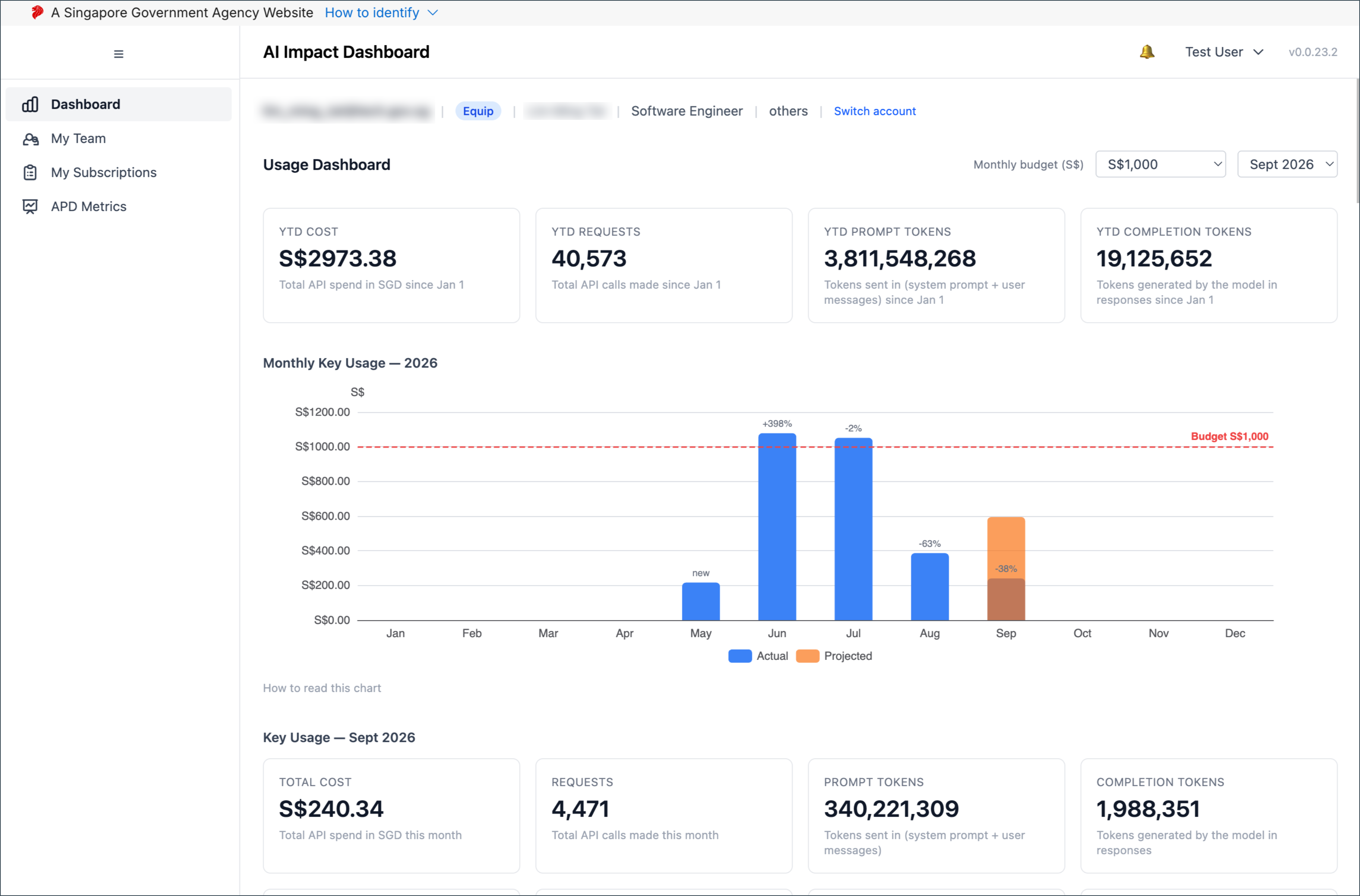
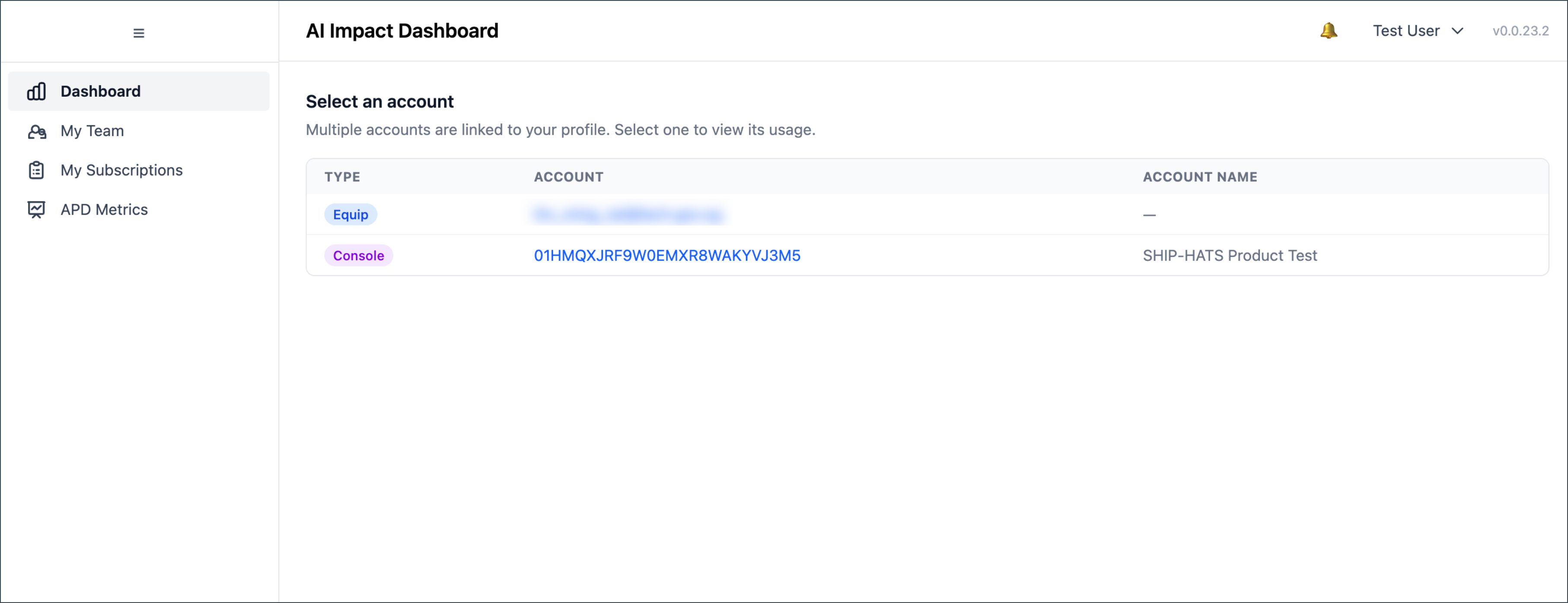
If you have more than one account (EQUIP or Console), an account selector appears above the metrics. Click a row to load data for that account. To switch accounts, click Switch account in the profile strip.
Most metric panels include a Show Data Table toggle that reveals the underlying figures behind the charts. The toggle is off by default, and toggling one panel does not affect others.
Cost metrics
| Metric | Description |
|---|---|
| YTD Cost | Running total of API spend from the start of the year to the end of the selected month |
| Monthly Cost | Bar chart of cost per month, with month-over-month percentage change |
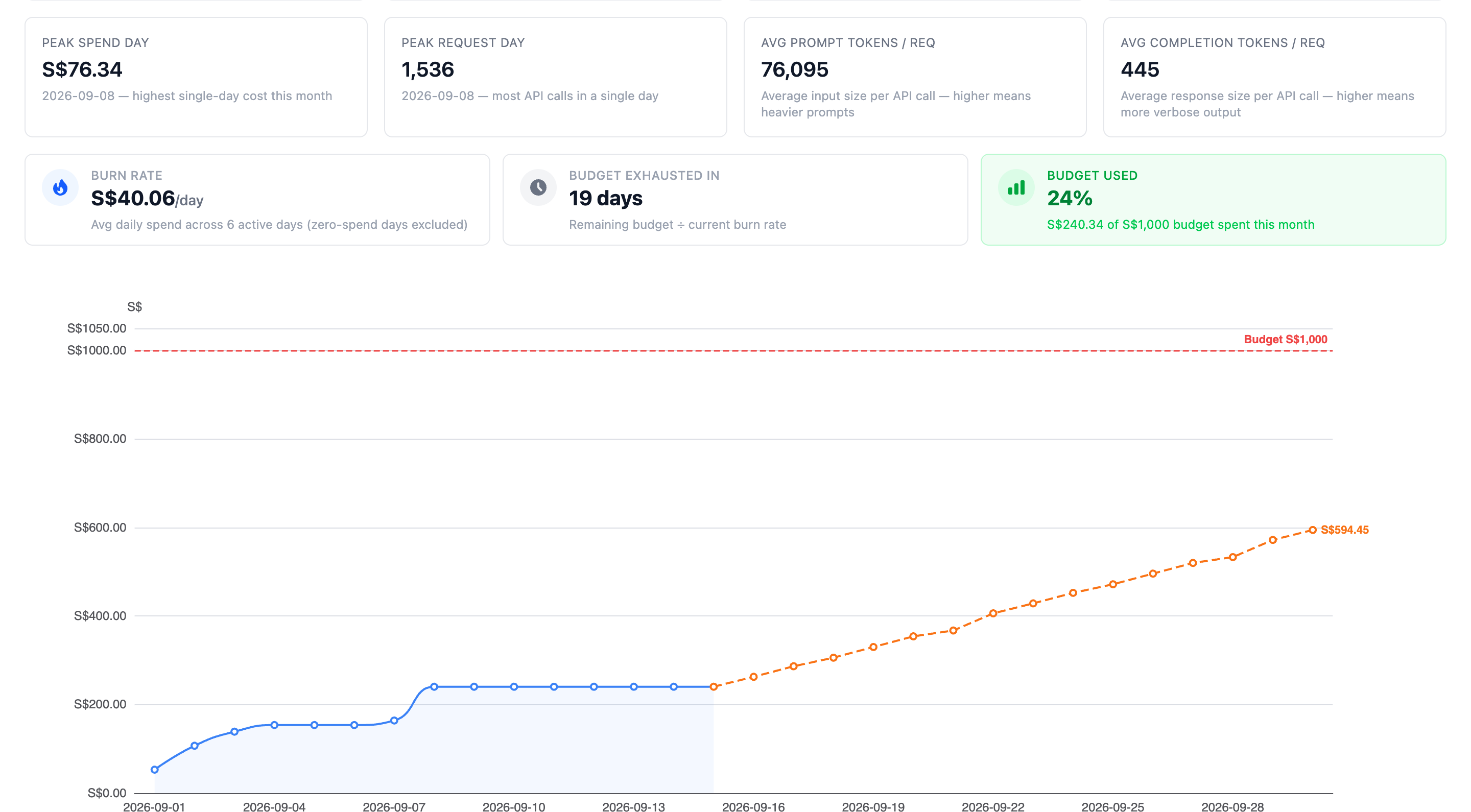
| Projected Cost | Estimate of the current month’s likely spend by month-end, weighted by day-of-week usage patterns |
| Burn Rate | How quickly you are spending relative to your configured monthly budget |
| Peak Spend Day | The day in the selected month with the highest API spend |
Use the Monthly budget dropdown at the top of the Dashboard to set a budget for the Burn Rate indicator. The budget is a visual reference only — it does not trigger alerts or blocks. It offers preset amounts, a custom free-text field, and an Account Default option. Account Default reflects the opening budget set at the start of the month; use the custom field if the budget changes mid-month.
Usage metrics
| Metric | Description |
|---|---|
| YTD / Monthly Requests | Number of API calls made |
| Prompt / Completion Tokens | Input and output tokens that determine cost |
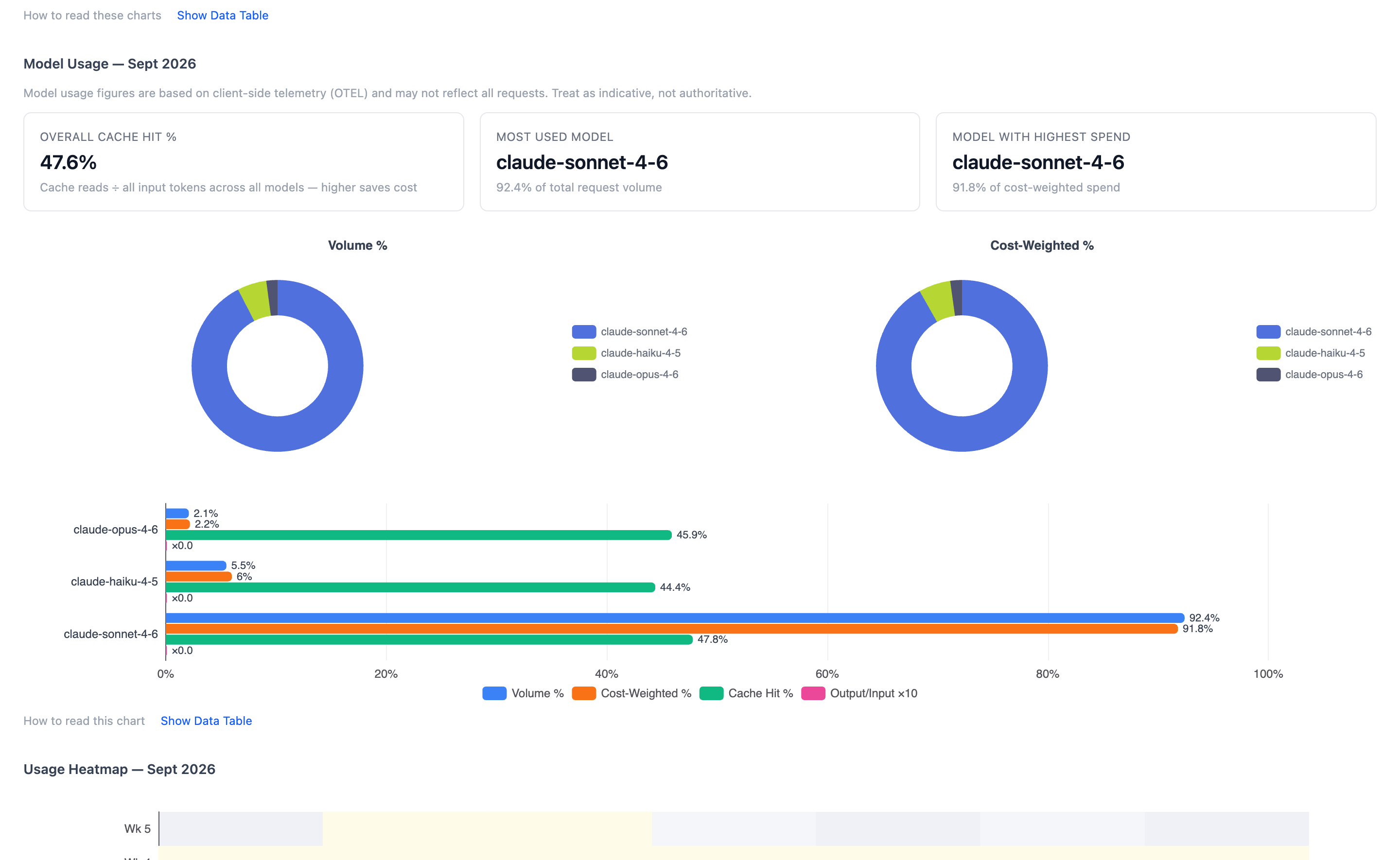
| Cache Hit Percentage | Proportion of requests served from prompt cache, reducing API charges |
| Peak Request Day | The day in the selected month with the highest request count |
Model breakdown
Claude Code uses different models (Haiku, Sonnet, Opus) for different tasks. The model breakdown panel shows the proportion of requests and tokens handled by each model, along with cost per request. Months with a higher share of Opus usage will have higher costs.
Session quality and tool call metrics
Additional panels appear when the following feature flags are enabled on your account:
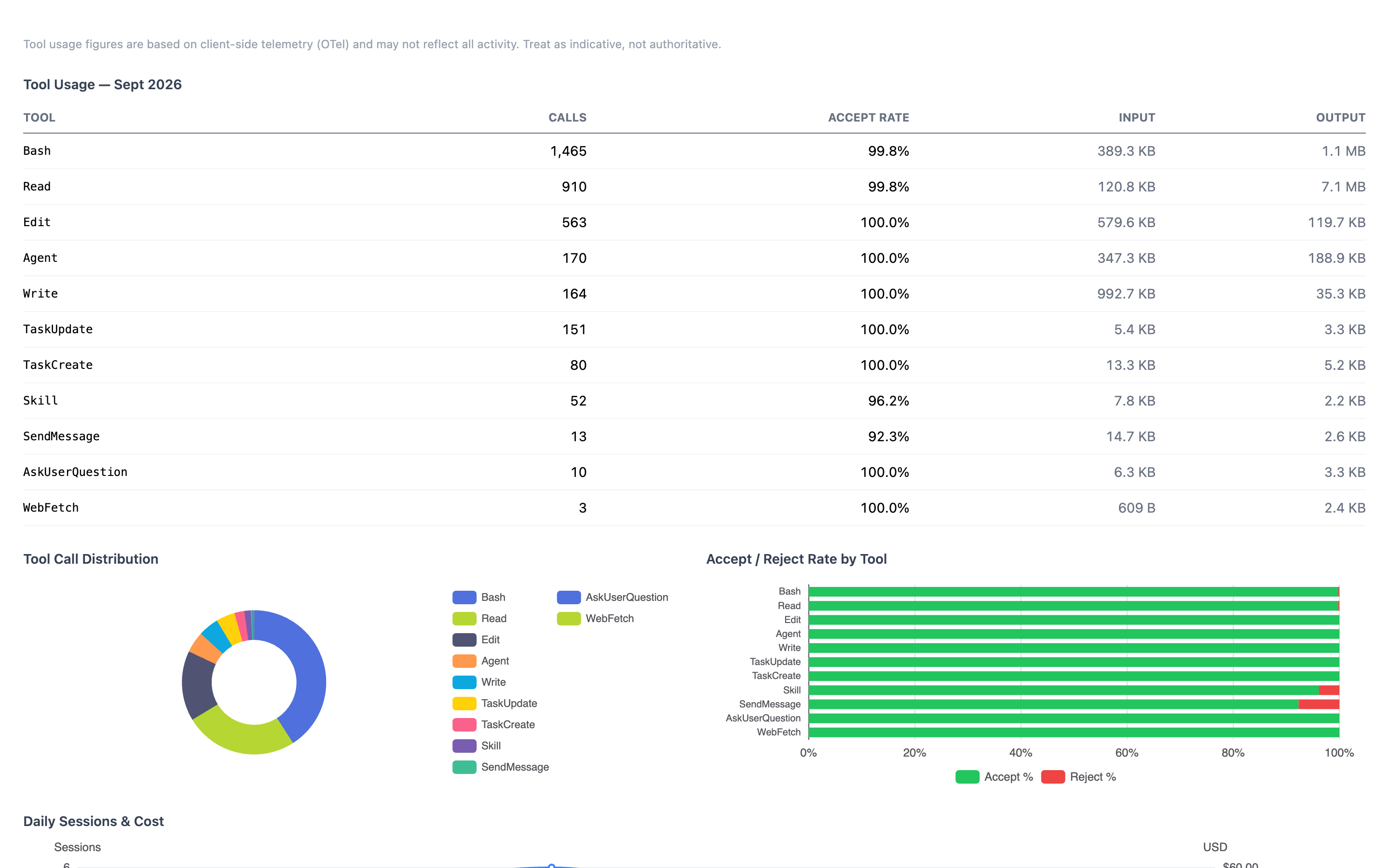
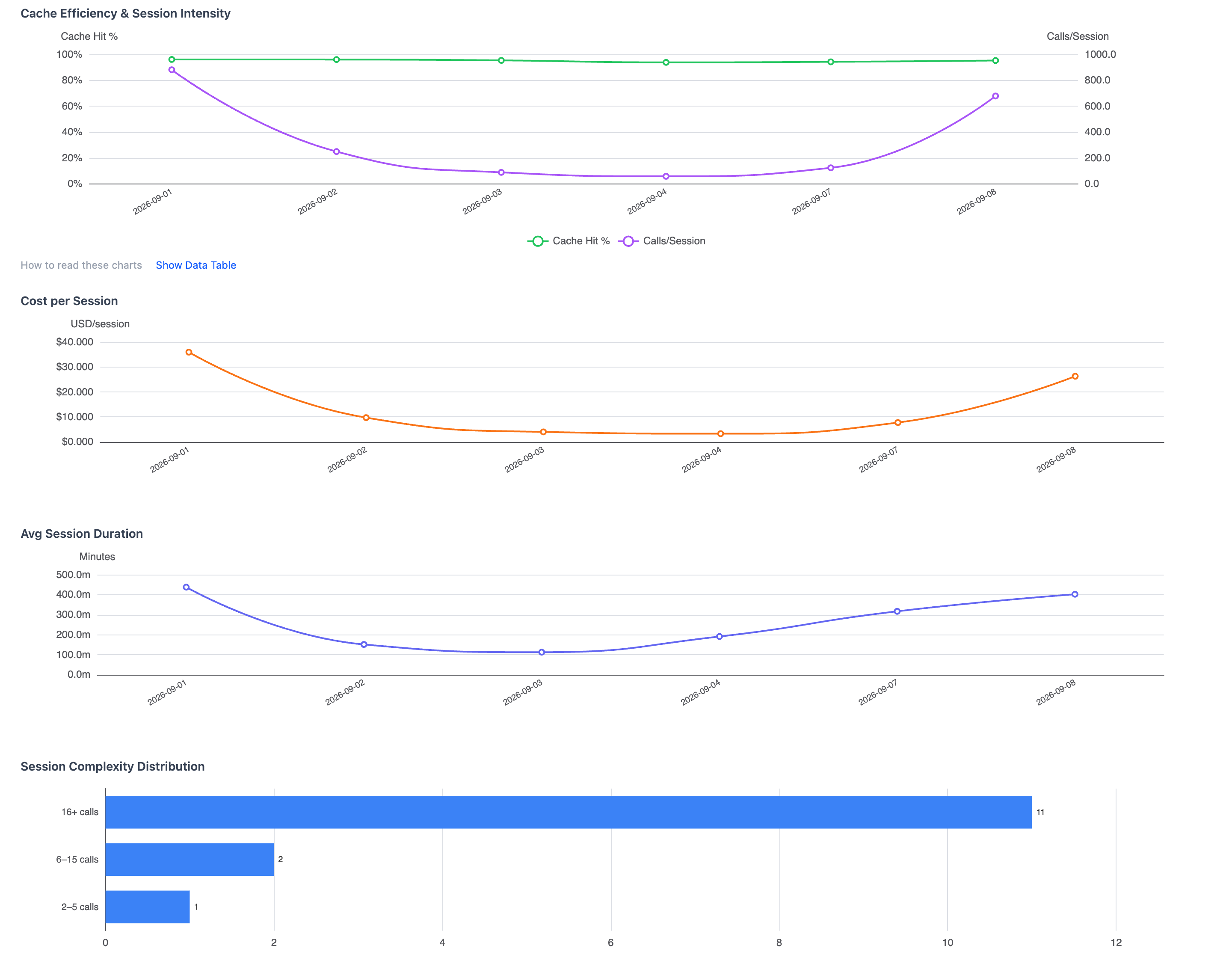
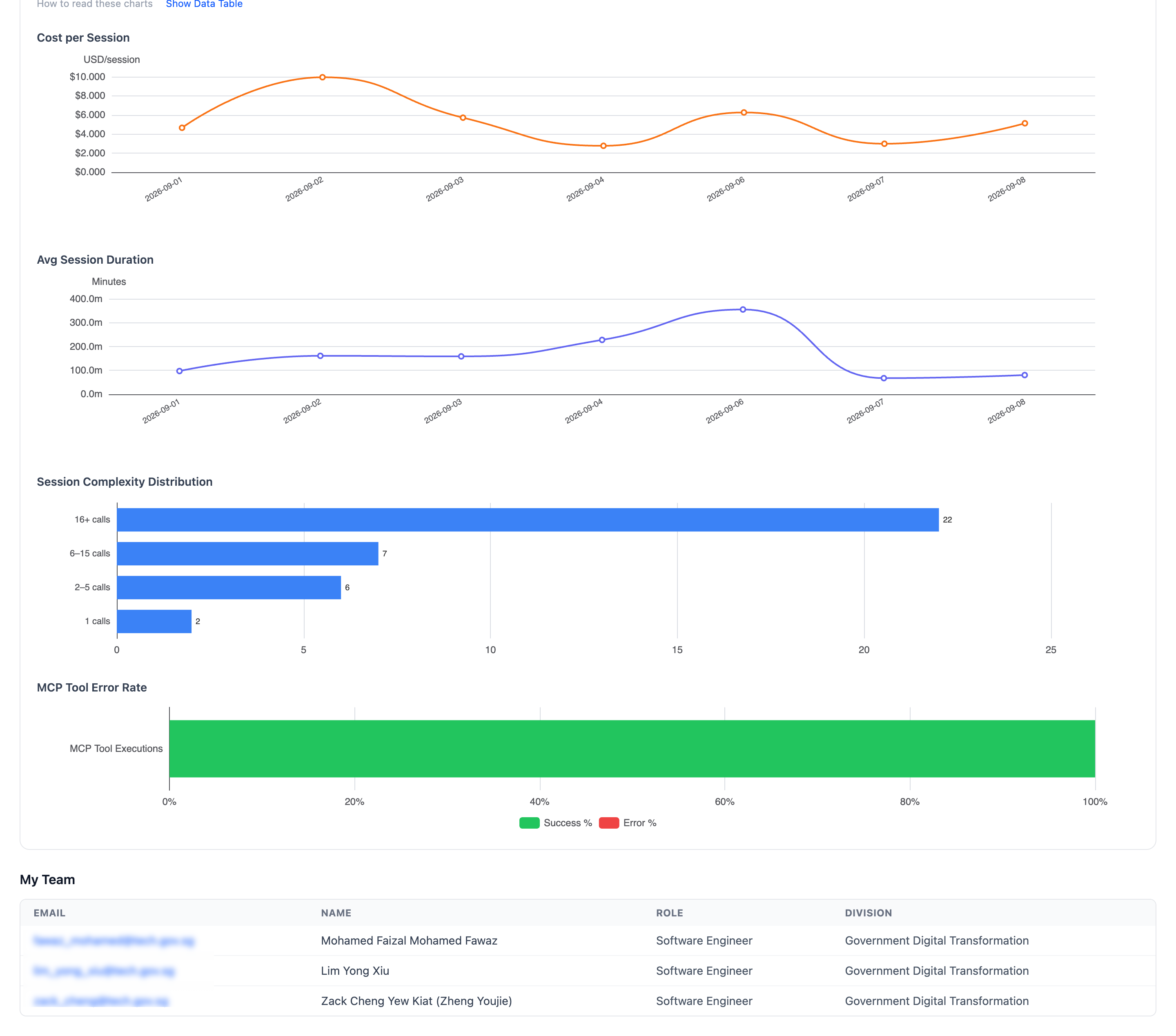
otel_tool_usage— shows a breakdown of the specific Claude Code tool calls (file read/write, terminal commands, MCP plugin calls) made during sessions.otel_quality_metrics— shows the following panels:- Cost per Session — average API spend per Claude Code session
- Average Session Duration — how long a typical session runs, indicating whether users are completing meaningful tasks
- Session Complexity Distribution — sessions broken down by complexity level, based on the number and variety of tool calls made
- MCP Tool Error Rate — proportion of MCP tool calls that result in an error; a rising rate may indicate issues with a connected tool or plugin
Contact your administrator if you expect to see these panels but they are not visible.
My Team
The My Team view is for managers and shows cost and usage data for your direct reports, based on organisational data from Thunderbird. If you have no direct reports recorded in Thunderbird, the view will be empty.
Click a team member’s name on the left to load their individual usage panels on the right. If the member has multiple accounts, an account picker appears.
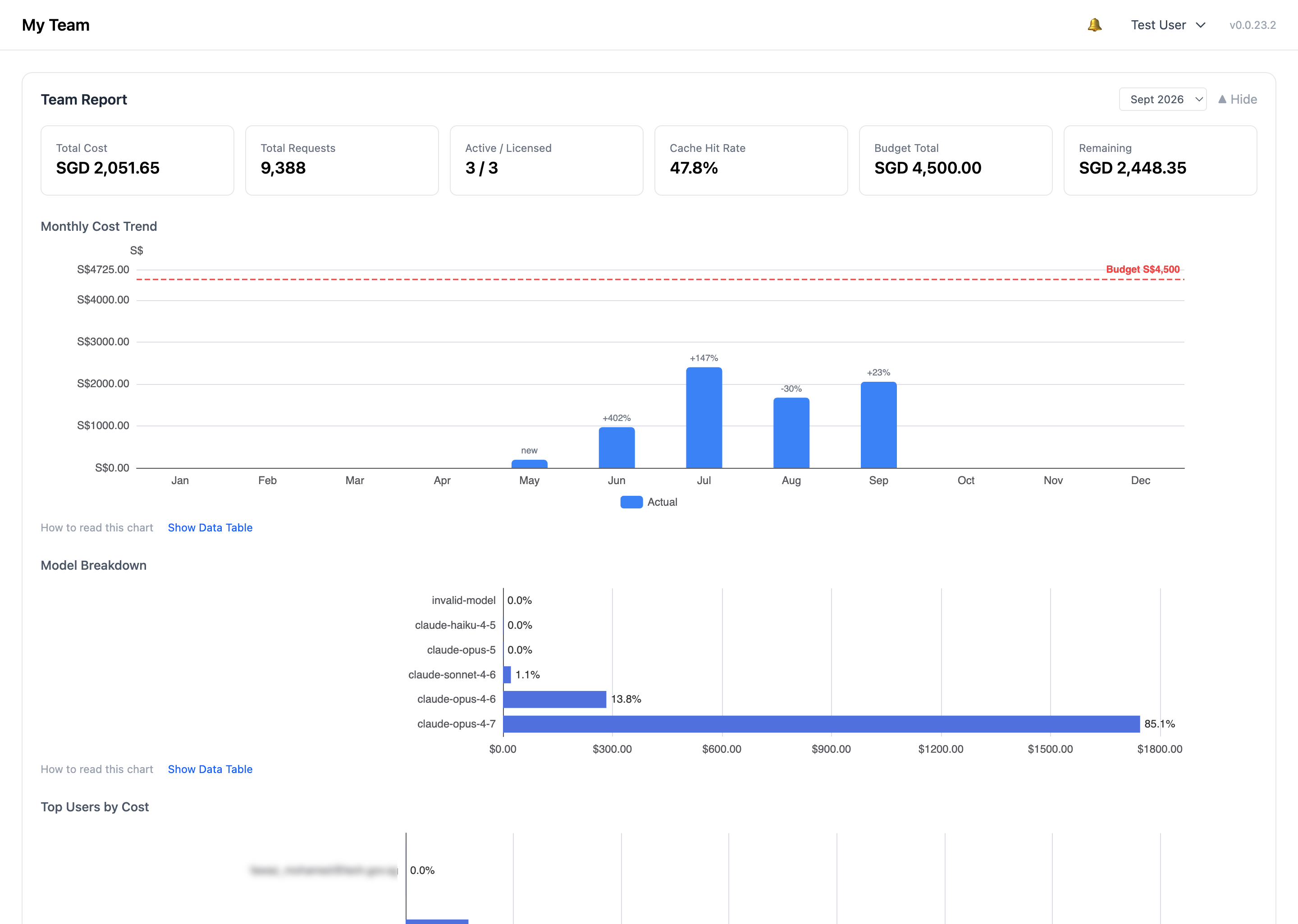
The Team Report section provides an aggregate view of your team’s activity for a selected month. It shows:
- Monthly Cost Trend — combined team spend per month, with an optional budget reference line
- Model Breakdown — spend per Claude model across the team
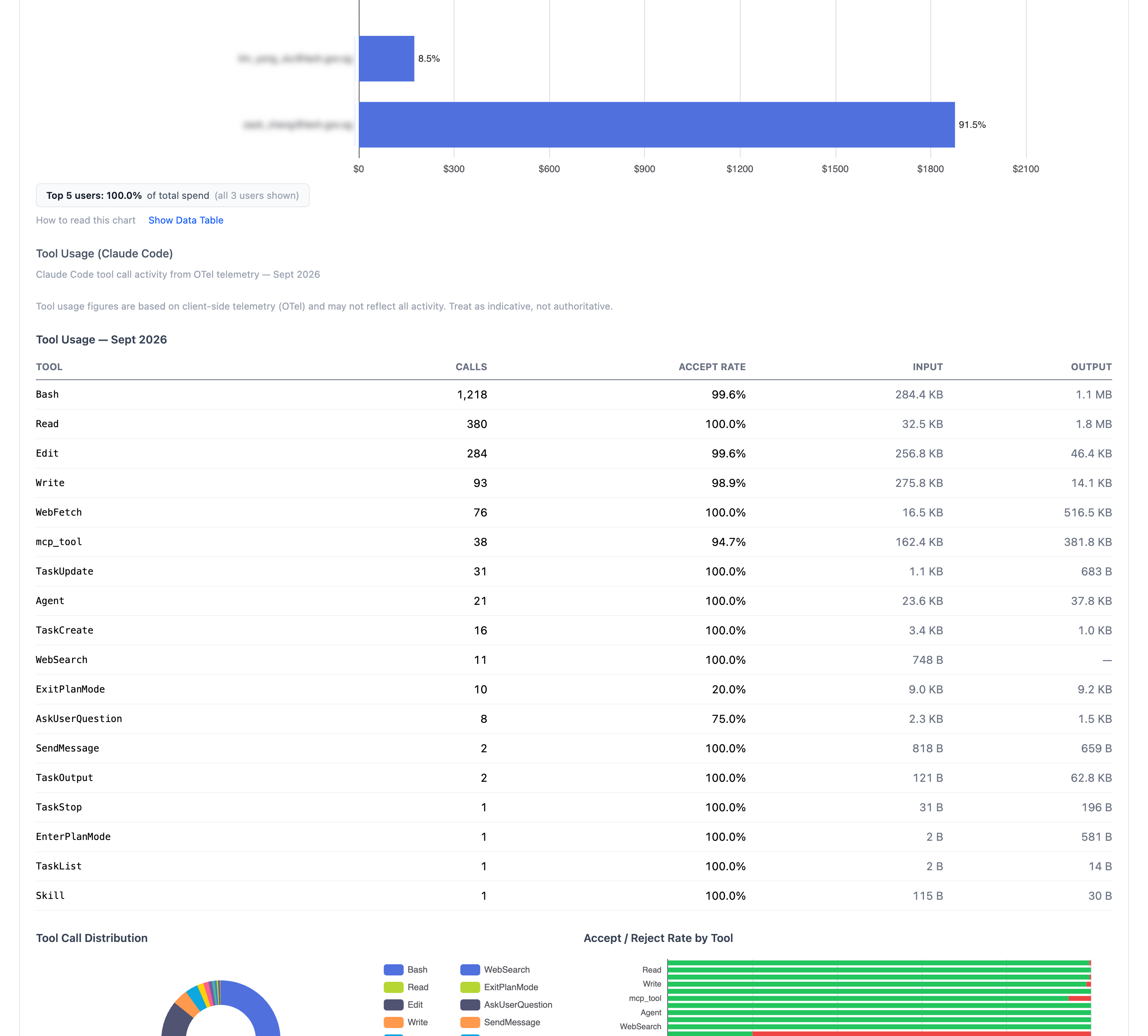
- Top Users by Cost — team members ranked by API spend (up to 10 users), with each member’s share of total team spend
- Tool Usage — aggregated Claude Code tool call activity (requires
otel_tool_usage)
The Team Report has its own month picker, independent of the individual member view, so you can compare different periods without navigating away.
My Subscriptions
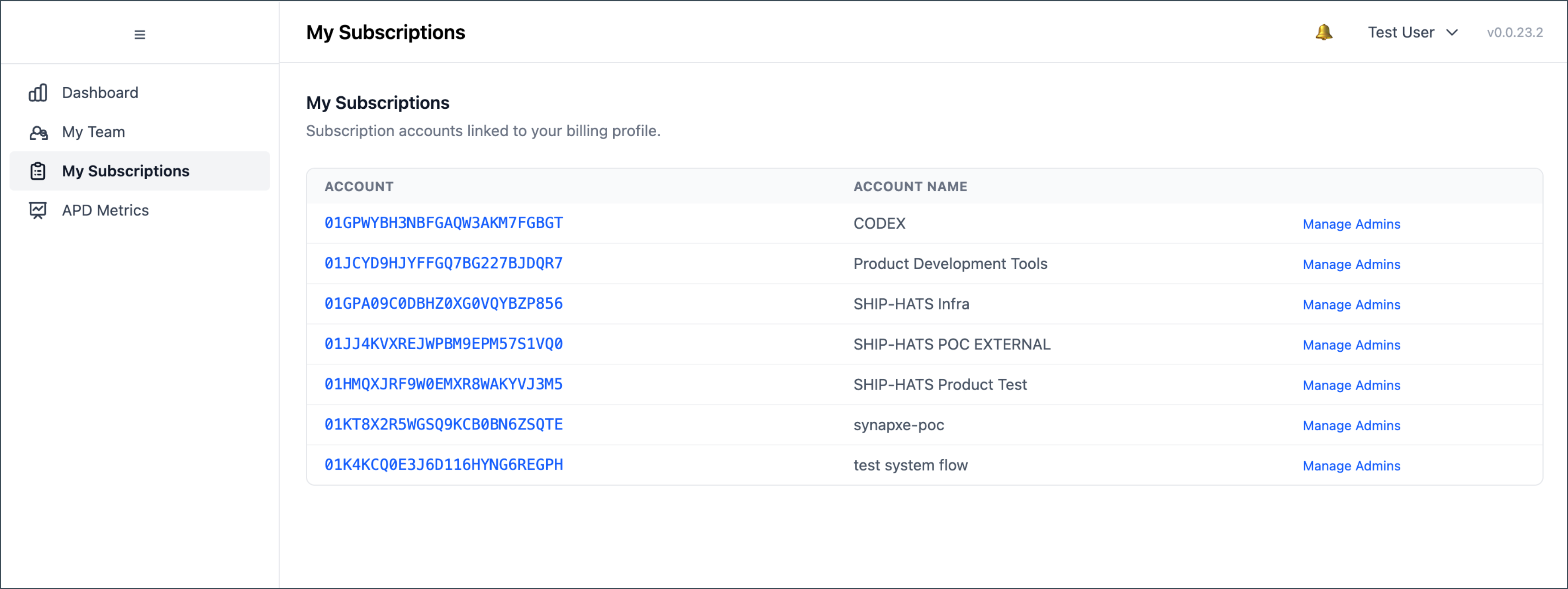
The My Subscriptions view is for TechBiz subscription admins. It shows aggregate spending and usage at the subscription level, with a per-user breakdown.
Click a subscription row to load its metrics.
- Within a selected subscription, a table lists each user’s cost, request count, and token usage for the selected month — useful for identifying heavy users or Opus usage outliers.
- This view is read-only; you cannot modify user settings or access from here.
A Team Report section (same components as My Team) is also available, scoped to users within the subscription. It has its own independent month picker, so you can view subscription-level aggregate data for a different period than the per-user breakdown.
If you expect to see subscription data but the view is empty, contact your TechBiz subscription owner to request admin rights.
Delegate admin access
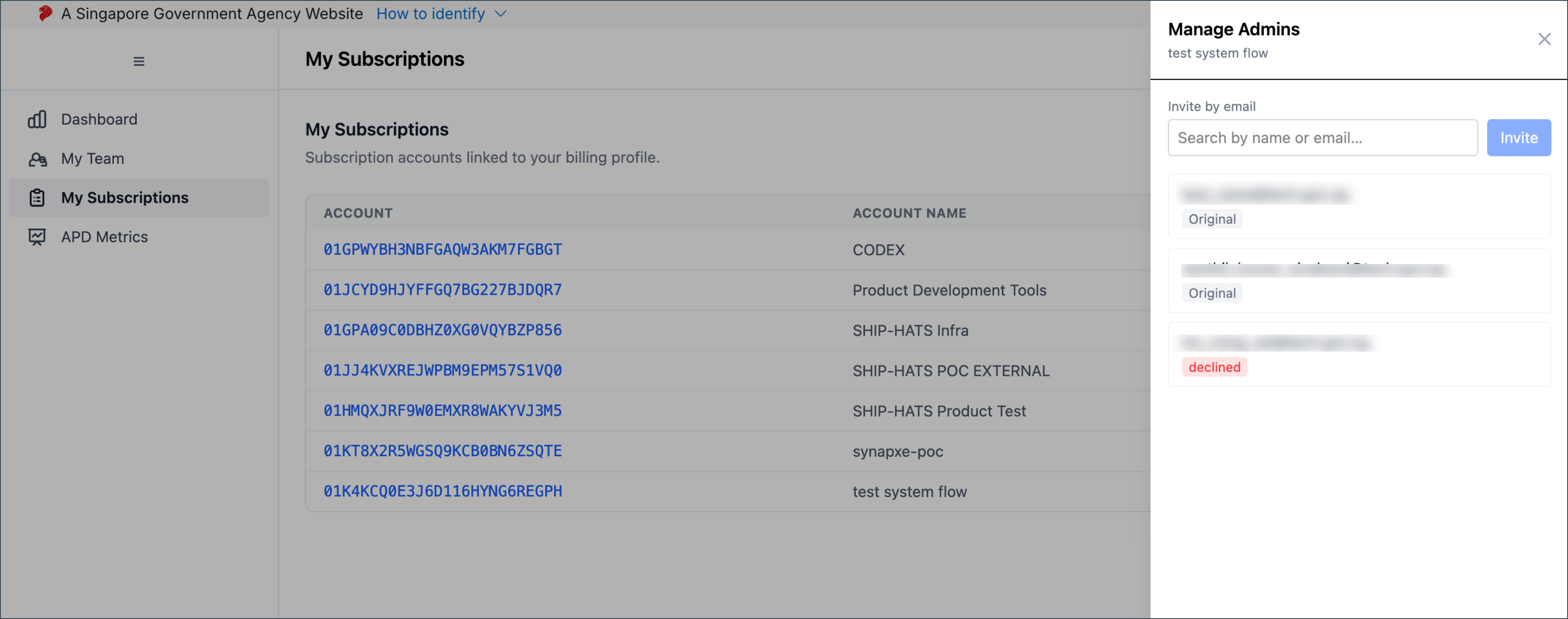
When the techbiz_custom_admin feature is enabled, subscription admins can invite other users as custom admins for specific subscriptions. Custom admins have the same read access as full admins for those subscriptions, without broader TechBiz admin rights.
APD Metrics
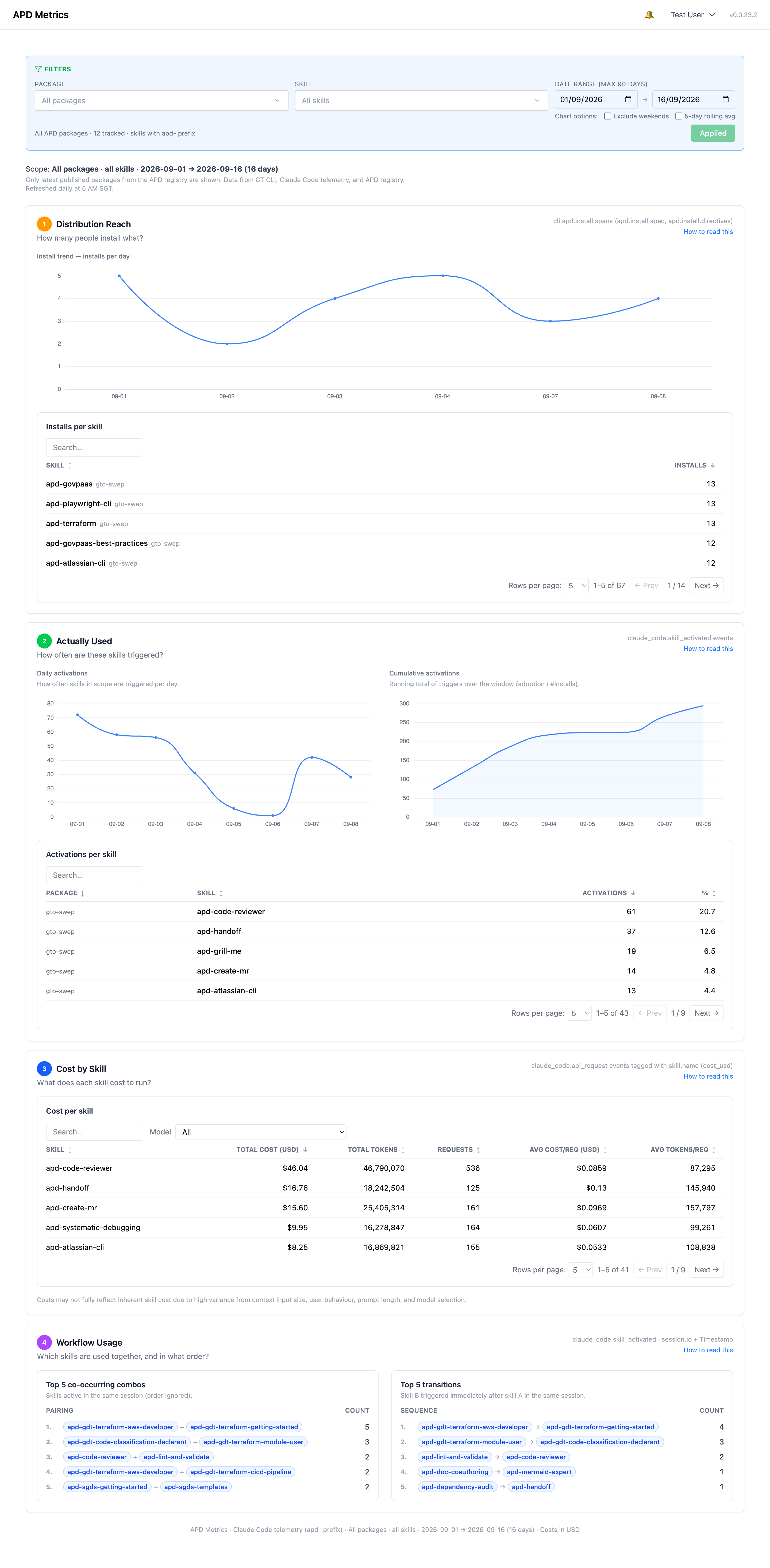
The APD Metrics view shows adoption and usage data for Agent Prime Directives (APD) skills across your organisation.
User settings
Access your settings from the user menu (top right) > User Settings.
| Setting | Description |
|---|---|
| Dashboard layout | Switch between Default and Compact mode |
| Feature toggles | Override platform defaults for individual features |
Feature toggles have three states:
- On — the feature is explicitly enabled for you.
- Off — the feature is explicitly disabled for you.
- System default — you defer to the platform-wide default set by your administrator. If the administrator later changes the default, your setting updates automatically. Use this unless you have a specific reason to override.
Clear local cache
If the dashboard shows stale data after a data update, clear the browser cache from the user menu > Clear Local Cache. You can clear all cache entries at once, or expand sections to clear only specific pages or individual keys. This does not affect any server-side data.
