Request and set up Claude Code (GovTech Public Officers and Interns)
This guide helps the following users to request access and set up Claude Code:
- GovTech Public Officers
- GovTech Interns
If you are a Whole of Government (WOG) user or a GovTech augmented resource (AR), see Get started with Claude Code (WOG).
Before you begin
The WARP Always-On policy is being progressively rolled out to SEED devices.
When this is applied:
- WARP is automatically enabled.
- WARP cannot be turned off.
- The policy is applied immediately when you onboard to agentic AI coding tools.
Prerequisites
Before requesting access, ensure that you have:
- An active TechPass account.
- A Government Managed Device (GMD) compliant with SEED.
- Completed the mandatory agentic AI training.
- Verified that your project’s code classification and sensitivity level supports Claude Code.
Step 1: Request Claude Code
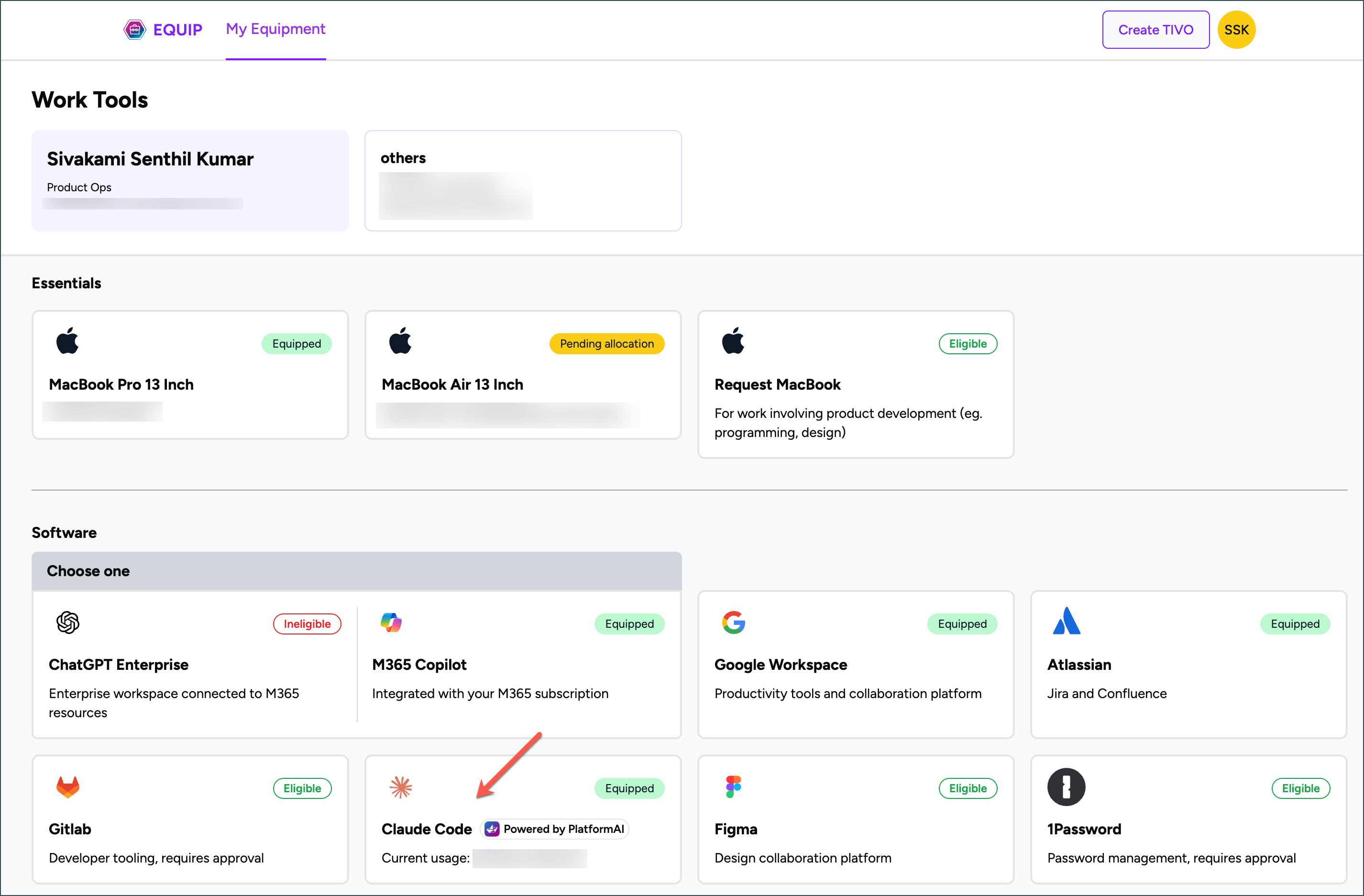
Go to the Equip portal.
In Software section, go to Claude Code.
Note
The Work Tools, Essentials, and eligible Software displayed in the Equip portal may vary depending on the logged-in user.
Check the status displayed on the card:
- Eligible → Indicates you can request for Claude Code. Select the card to request Claude Code.
- Equipped → Indicates Claude Code has already been provisioned. Proceed to Step 2: Set up Claude Code.
Step 2: Set up Claude Code
On the Equip portal, when the Claude Code card shows Equipped, complete the following steps:
Open the Claude Code card in the Equip portal.
Retrieve your PlatformAI API key.
Click Onboarding steps and follow the instructions for your operating system.
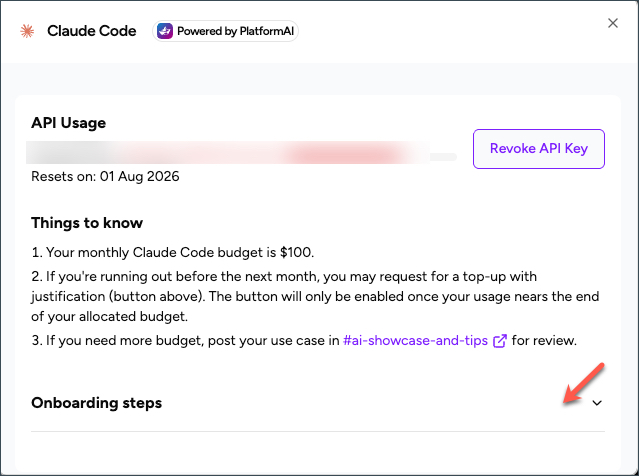
When prompted during setup, paste your PlatformAI API key to complete the configuration.
Manage Claude Code in Equip
After onboarding, you can use the Equip portal to:
- Monitor usage – View your current Claude Code usage and budget. For detailed usage and cost information, see Monitor Claude Code usage and charges.
- Revoke or rotate your PlatformAI API key – Manage your API key when required.
