Extract
The Extract Node allows you to parse and extract data from various file formats. The node accepts base64-encoded input data and transforms it into a structured, usable format for subsequent workflow steps. It is commonly used after a Webhook, API call, or file upload to convert raw data into JSON objects or arrays.
Supported extraction operations:
All operations transform base64-encoded strings into their respective data formats:
- CSV - Parse CSV files into structured arrays of objects with or without column headers as keys
- JSON - Extract and transform JSON data structures
- Word - Extract content from Word documents into string
- Excel - Parse and extract data from Excel spreadsheets into structured arrays of objects with or without column headers as keys. By default only the first worksheet is read; enable Extract all sheets to pull data from every sheet in the workbook (see Extracting All Sheets from Excel)
- PDF - Extract text and data from PDF documents into string
How Does It Work?
Setup Steps:
- Build your workflow using Graph Edit Mode (minimum setup: input node → extract node → output node, but you can add more nodes as needed)
- Click on the extract node settings to open its configuration
- Configure the following data:
- Select the input source (e.g., data from webhook, API call, or file upload)
- Define how the data should be transformed:
- Selecting the operation (e.g. Extract from CSV, JSON, etc.)
- Enter based64 data
Output:
The Extract Node returns the transformed data in the following format:
{
"data": "<<extracted-data-based-on-the-selected-operation>>"
}The data field contains the extracted and reformatted data based on the configured extraction rules. This can include extracted values from nested objects, parsed content from different formats (e.g., CSV, JSON, XML), or restructured data ready for use by subsequent nodes in the workflow.
Note: The extract node will always return the variable name as data.
Examples
Extracting Data from JSON
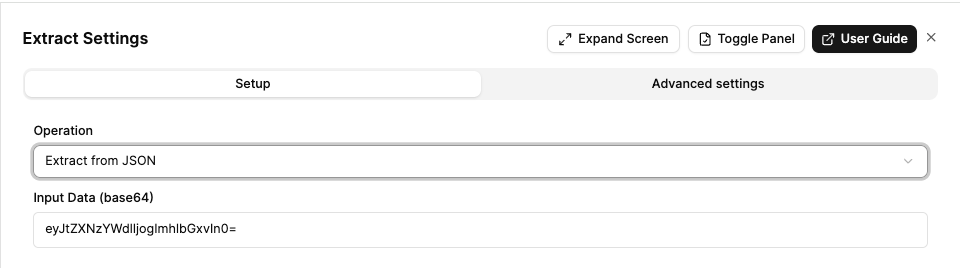
This example demonstrates how to use the Extract Node to extract specific fields from a JSON object.
Node Settings
Input
eyJtZXNzYWdlIjogImhlbGxvIn0=Output:
{
"data": {
"message": "hello"
}
}The extracted data is available in the data field and can be used by subsequent nodes in the workflow.
Extracting Data from a CSV Upload
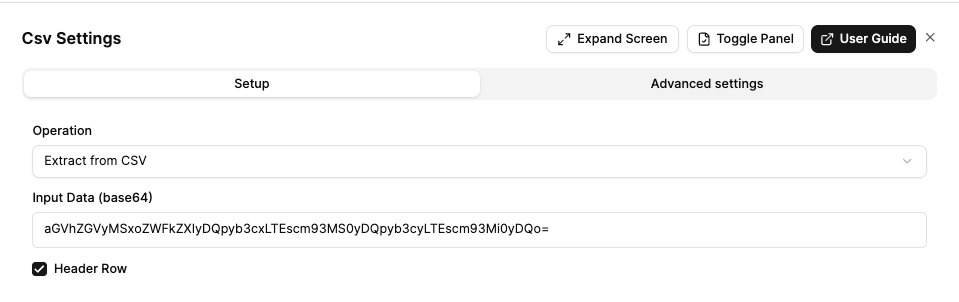
This example demonstrates how to use the Extract Node to parse and extract data from a CSV file upload.
Node Settings
Input
aGVhZGVyMSxoZWFkZXIyDQpyb3cxLTEscm93MS0yDQpyb3cyLTEscm93Mi0yDQo=Output:
{
"data": [
{
"header1": "row1-1",
"header2": "row1-2"
},
{
"header1": "row2-1",
"header2": "row2-2"
}
]
}The extracted CSV data is parsed into a structured array of objects and available in the data field for subsequent nodes in the workflow.
Extracting All Sheets from Excel
By default, the Excel operation reads only the first worksheet and returns a flat array of rows (the same as previous behaviour). To pull data from every worksheet in one go, tick the Extract all sheets checkbox that appears when the operation is set to Excel.
When Extract all sheets is enabled, the output shape changes: data becomes an object with a sheets array, where each entry contains the sheetName and that sheet’s data rows (in workbook order).
Output (Extract all sheets enabled):
{
"data": {
"sheets": [
{
"sheetName": "EOM",
"data": [
{ "name": "John", "age": "30", "city": "New York" },
{ "name": "Jane", "age": "25", "city": "London" }
]
},
{
"sheetName": "Equipment",
"data": [{ "asset": "EQ-0451", "cost": "18500" }]
},
{
"sheetName": "Blank",
"data": []
}
]
}
}Note: The Header Row option is applied to each sheet independently. Empty sheets return an empty data array ([]). A single-sheet workbook is still wrapped in the sheets array when this option is on.
Sheet limit: A workbook can contain at most 256 sheets when using Extract all sheets. Workbooks exceeding this limit will fail with an error.
When to Use It?
Use Extract Node when:
- Your incoming data is of a different data format.
- You need to align data formats across systems (e.g. clean
APIorCSVinput). - You want to simplify or extract key fields for logic in the next step.
- You are working with external systems (
Webhook,CFT, etc.) and require simple preprocessing.
