Email Approval
The Email Approval Node initiates an email request to designated recipient(s) and the workflow will wait and only continue after a decision Approve or Reject is returned. This is commonly used in Government workflows where a reviewer, such as a supervisor or approving officer, must evaluate and approve a submission before the process proceeds. This service is provided by the Console team, refer to the API specification.
Important: Simulation is not supported for Email Approval. Please use Run Workflow to test your workflow.
Maximum Wait Time: This node has a maximum wait time of 7 days. If no response is received within 7 days, the workflow will be considered as failed.
Console Support: For any enquiries or issues related to Console, please reach out to the Console Service Desk via go.gov.sg/console-support.
How Does It Work?
Restriction:
- Only Government emails (i.e. Techpass AAD and WOG AAD) are allowed. Personal emails, hive.gov.sg are not allowed.
- The approver and requester must be different individuals. The same person cannot approve their own request.
- For security reasons, links in the email content and image links must be from domains ending with
gov.sg.
Setup Steps:
- Build your workflow using Graph Edit Mode (minimum setup: input node → approval node → output node, but you can add more nodes as needed)
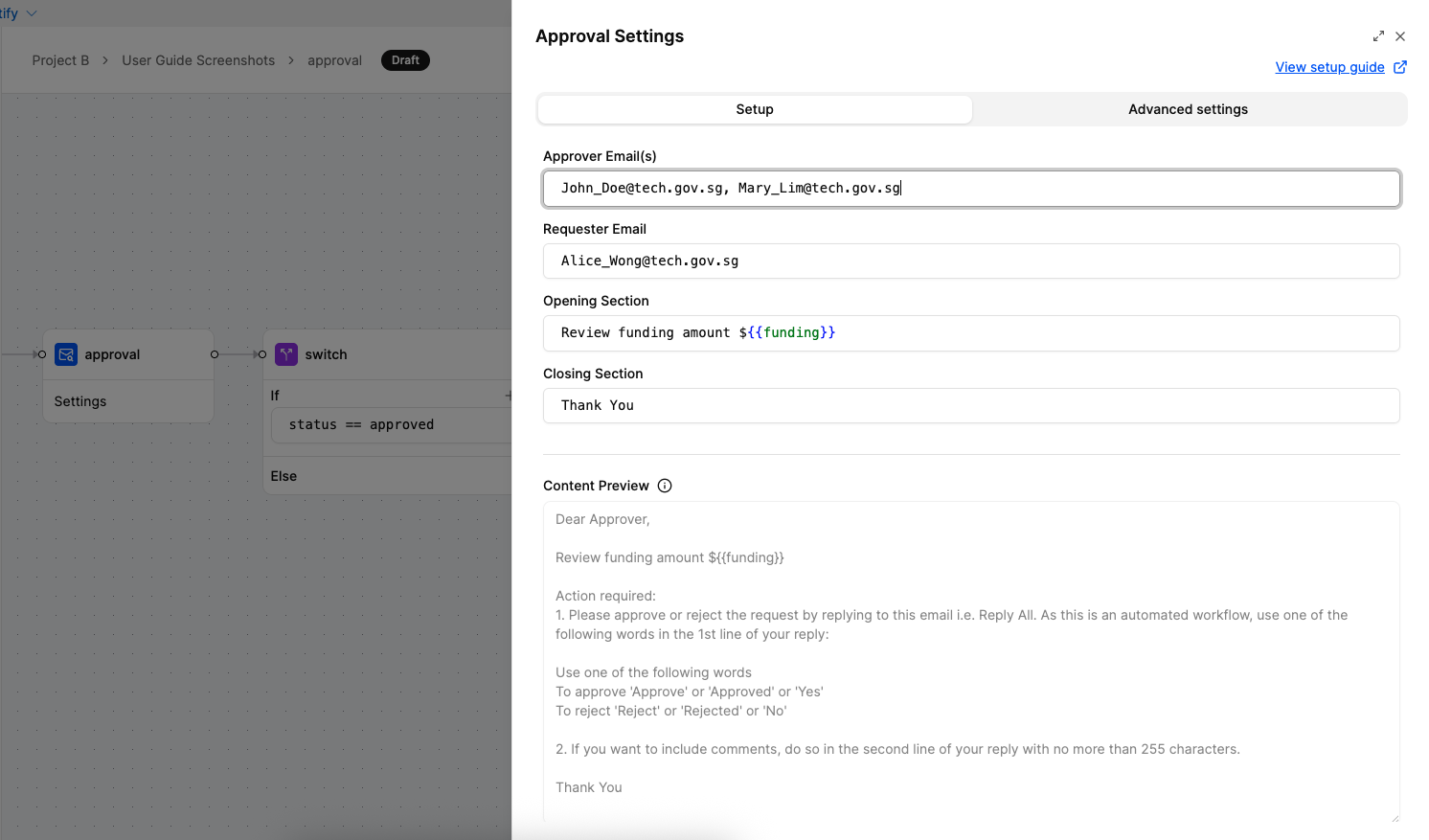
- Click on the approval node settings to open its configuration
- Configure the following data:
- Approver: Who receives the email. Accepts one or more email addresses, separated by commas (e.g.
alice@tech.gov.sg, bob@tech.gov.sg). Each entry must be a valid email address. Whitespace around commas is trimmed automatically. - Requester: Who triggered the workflow. Accepts exactly one email address. The requester must be a different individual from all approvers — the same email cannot appear in both fields (checked case-insensitively).
- Email content:
- Opening section: Custom text (e.g., “Please review the following funding request.”)
- Closing section: Optional custom note (e.g., “Let us know if you need more details.”)
- Approver: Who receives the email. Accepts one or more email addresses, separated by commas (e.g.
You can edit the opening and closing sections, but the middle approval block is fixed to ensure the system can properly read the response.
Dear Approver,
<<Input from opening section>>
Action required:
1. Please approve or reject the request by replying to this email i.e. Reply All. As this is an automated workflow, use one of the following words in the 1st line of your reply:
Use one of the following words
To approve 'Approve' or 'Approved' or 'Yes'
To reject 'Reject' or 'Rejected' or 'No'
2. Optionally, include your remarks on the 2nd line of your reply in the following format: "Remarks: <your remarks>". Use exactly one line for the remarks.
<<Input from closing section>>Output:
The Approval Node is an asynchronous operation that pauses the workflow until the approver responds via email.
When the activity is executed:
- An approval email is sent to the approver with Approve/Reject options
- An informational email is sent to the requester notifying them that approval has been requested
How Approvers Respond:
The approver must Reply All to the email and use specific wording in the first line:
- To Approve: Use “Approve”, “Approved”, or “Yes”
- To Reject: Use “Reject”, “Rejected”, or “No”
Note: The approval word must be on the first line of your reply. Optionally, add your remarks on the second line in the format
Remarks: <your remarks>(one line only); this is returned asapprover.remarksin the output.
Once the approver responds via email, the workflow continues based on the configured nodes. The Approval Node returns the approval result. For example:
{
"approver": {
"email": "approver@tech.gov.sg",
"name": "Jane Doe",
"remarks": "Approved, looks good."
},
"requestor": {
"email": "requester@tech.gov.sg",
"name": "John Smith"
},
"status": "approved",
"updatedAt": "2025-10-13T10:30:00Z"
}Status Values:
- approved - The request was approved by the approver
- rejected - The request was rejected by the approver
- pending - The approval is still awaiting a response
- cancelled - The approval request was cancelled before completion
- failed - The approval process encountered an error
- completed - The approval process has been completed (legacy status)
The next node can access data directly using the field names (e.g., status, approver.email, approver.name, approver.remarks, requestor.email, requestor.name, updatedAt).
If the Approval Node is the endpoint (no subsequent nodes configured), the workflow completes after receiving the response. Otherwise, the output determines which workflow path to follow next (typically used with a Switch Node to route based on approval status).
Examples
Configuring Approval for Welfare Funding Applications
This example shows how to set up an Approval Node for reviewing welfare funding requests.
Attachments
The Approval Node supports file attachments in the approval email. Expand the Attachments section in the node settings to configure.
Restrictions:
- Maximum 5 files per email
- Maximum 4 MB per file
- Allowed file types:
.pptx,.xlsx,.docx,.gif,.png,.jpg,.jpeg,.csv,.txt
Configuration:
Each attachment requires two fields:
| Field | Description |
|---|---|
| File Name | The file name with extension (e.g., report.pdf) |
| Data | The file content as a base64-encoded string |
Click Add Attachment to add more files (up to the 5-file limit). Each attachment can be removed individually using the delete button.
Tip: You can use dynamic variables (e.g., {{{input.fileData}}}) in the Data field to pass base64-encoded file content from previous nodes in the workflow.
Troubleshooting
Bad Request or Validation Error
The following are the most common causes of a 400 Bad Request or validation error when configuring or triggering the Email Approval node.
Approver email field
| Cause | What to check |
|---|---|
| Field is empty | Ensure at least one approver email is provided. |
| Invalid email format | Each entry must be a properly formatted email address (e.g. user@domain.gov.sg). Check for typos, missing @, or stray characters. |
| Invalid separator | Use a comma (,) to separate multiple emails. Semicolons, newlines, or spaces alone are not accepted. |
Requester email field
| Cause | What to check |
|---|---|
| Field is empty | A requester email is required. |
| Multiple emails provided | The requester field accepts exactly one email address. Move additional addresses to the approver field. |
| Invalid email format | Ensure the value is a single valid email address. |
Cross-field conflict
| Cause | What to check |
|---|---|
| Requester and approver are the same person | The requester and every approver must be different individuals. Remove or change the overlapping email. The check is case-insensitive. |
Attachments
| Cause | What to check |
|---|---|
| Missing file name | Every attachment must include a non-empty fileName with the correct extension. |
| Missing or empty base64 data | The data field must be a valid, non-empty base64-encoded string. |
| Too many attachments | A maximum of 5 attachments is allowed per email. |
| File too large | Each attachment must be 4 MB or less. |
| Unsupported file type | Only the following extensions are accepted: .pptx, .xlsx, .docx, .pdf, .gif, .png, .jpg, .jpeg, .csv, .txt. |
Email domain restrictions
The platform enforces domain-level restrictions on email addresses and links:
- Only Government emails (Techpass AAD and WOG AAD accounts) are accepted. Personal email addresses and
hive.gov.sgare not allowed. - Links in the email content and image links must be from domains ending with
.gov.sg.
When to Use It?
Use Approval Node when:
- A human must review and approve before action is taken.
- You need a lightweight approval system using email (no separate system needed).
- You want to log who approved/rejected and when.
- You need to attach supporting documents (reports, forms, images) to the approval email for the reviewer’s reference.
Tip: You can use dynamic variables in the email (e.g. {{{input.name}}}).