Template Library
The Template Library provides pre-built workflow and decision blueprints that help you start building automations faster. Instead of creating entities from scratch, select a template that matches your use case and customise it to your needs.
Accessing the Template Library
From your project explorer:
- Click the Use Template button
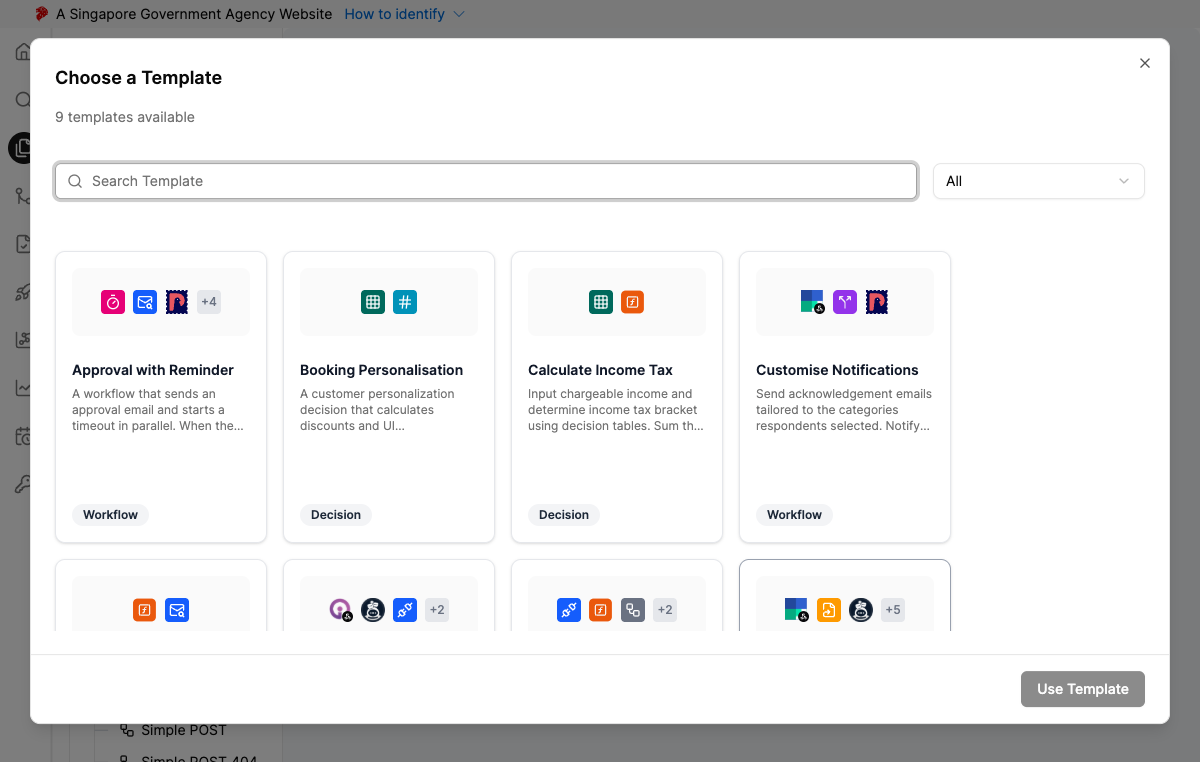
- The Template Library modal opens, displaying the available templates
Browsing Templates
Search
Use the search bar at the top of the modal to find templates by name, description, or tags.
Filter by Entity Type
Filter templates using the entity type tabs:
| Filter | Shows |
|---|---|
| All | All available templates |
| Workflow | Workflow templates only |
| Decision | Decision templates only |
Tags
Templates are tagged to help you find relevant blueprints:
- Node type tags — Based on the nodes used in the template (e.g., Slack, Email Approval, API)
- Category tags — Describe the use case or domain
Template Types
Individual Templates
Individual templates create a single entity (one workflow or one decision). Select the template, optionally rename it, and a new entity is created with pre-configured nodes and connections.
Bundle Templates
Bundle templates create multiple related entities with dependencies already wired up. For example, a bundle might include a workflow that calls a decision, creating both entities with the connection pre-configured.
Bundle templates may create more than one item in your project. Review the template description to understand what entities will be created.
Using a Template
- In the project explorer, click Use Template
- Browse or search for the desired template
- Click on a template card to select it
- (Optional) Enter a custom name for the new entity
- Confirm creation
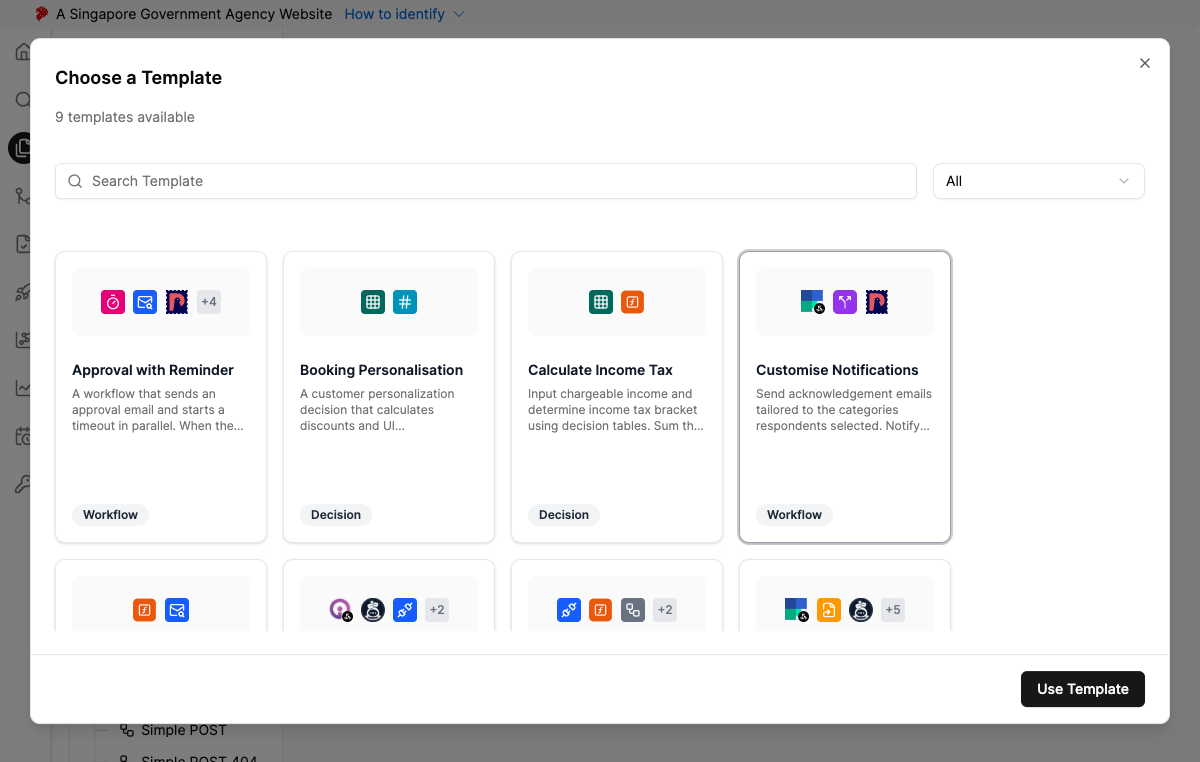
After creation, open the entity and modify it like any other workflow or decision — adjust nodes, change configurations, and adapt the template to your specific requirements.
Available Templates
| Template | Type | Description |
|---|---|---|
| Email Approval | Workflow | Sends an approval request via email and routes based on the response |
| Calculate Income Tax | Decision | Computes income tax based on configurable rules and brackets |
| Resume Screening | Workflow | Automates initial resume screening with configurable criteria |
| Booking Personalisation | Decision | Personalises booking recommendations based on user preferences |
| Customise Notifications | Workflow | Routes and customises notifications across multiple channels |
| Manage Citizen Feedback | Workflow | Processes and routes citizen feedback through defined stages |
| Approval With Reminder | Workflow | Approval flow with automated reminders for pending approvals |
| Retrieve GatherSG Email Attachment | Workflow | Retrieves and processes email attachments from GatherSG |
| Product Scorecard | Decision | Scores products based on configurable evaluation criteria |
| Classify & Summarise Enquiries | Workflow | Classifies incoming enquiries and generates a concise summary for faster triage |
New templates are added periodically. Check the Change Log for announcements.
Next Steps
After creating an entity from a template:
- For Workflows: Continue with Configure Workflow Trigger to set up your entry point, then Configure Workflow Nodes to customise the pre-built steps.
- For Decisions: Continue with Configure Decision Trigger to set up the decision input, then Configure Decision Nodes to modify the logic.
