Create JSM projects
Subscription Admins (SAs) and Project Admins (PAs) can create Jira Service Management (JSM) projects for a SHIP-HATS project.
Prerequisites
Ensure the following:
- You are a Subscription Admin (SA) for the subscription, or a Project Admin (PA) for a SHIP-HATS project within the subscription.
- Your subscription includes Jira Service Management (JSM).
To verify this, see View tools included in a SHIP-HATS subscription. - At least one SHIP-HATS project exists in the subscription.
For steps to confirm this, see View SHIP-HATS projects. - At least one Project Admin (PA) for the SHIP-HATS project has a JSM licence.
If no Project Admin currently has a JSM licence:
- Contact your Subscription Admin (SA) to provision JSM licences.
- If the subscription has not subscribed to JSM, the SA must first subscribe to JSM.
Before you begin
Review available JSM project templates to choose the template that best fits your service workflow.
For details, see Atlassian documentation on project templates.
⚠️ After a JSM project is created, the project key cannot be changed.
Steps
In Console, go to Products > SHIP-HATS, and select the required subscription to open the Workspace.
For detailed steps, see Access Workspace.
Click Tools > Jira Service Management.
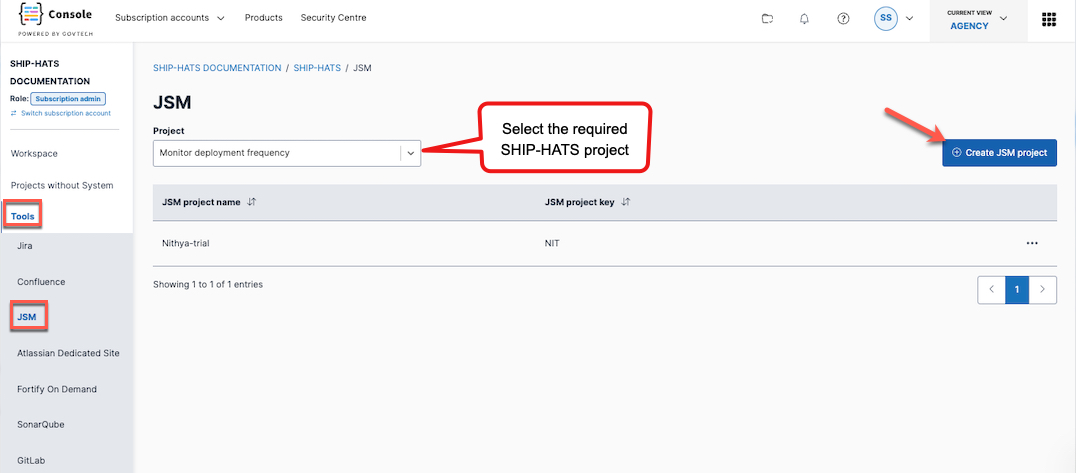
Select the SHIP-HATS project for which you want to create the JSM project.
Existing JSM projects for the SHIP-HATS project (if any) are displayed.
Click Create JSM project.
Enter the required details.
Field Description Project name Specify a meaningful name for the JSM project. Allowed characters: a–z, A–Z, 0–9, ( ) - . _.
Examples:
✓Helpdesk-Portal
✓IT Support (Internal)
✗Helpdesk/Portal(contains/)
✗IT Support@HQ(contains@)Project key Enter a unique key that identifies the JSM project. The key must:
- Be 2–10 characters long
- Start with a letter (A–Z)
- Contain only uppercase letters (A–Z) and numbers (0–9)
Examples:
✓ITSM
✓SUPPORT1
✗1ITSM(cannot start with a number)
✗helpdesk(must use uppercase letters)
✗IT-SUPPORT(contains-)Project template Select the template that best matches your service management workflow. Click Add.
The newly created JSM project appears under the selected SHIP-HATS project.
Each JSM project automatically includes a service portal, which customers use to submit and track service requests.
Project administrators can configure who can access the portal and submit requests.
See Manage portal access.
