Webhook notifications
What are webhooks in CFT?
Webhooks are automated notifications sent from CFT to your system. These notifications contain payloads that include detailed information about a file transfer.
How do webhooks work?
If you have set up a webhook with CFT and subscribed to file event notifications, CFT will send details like the file ID, workflow ID, and file status to your designated webhook endpoint URL. The details are sent in JSON format.
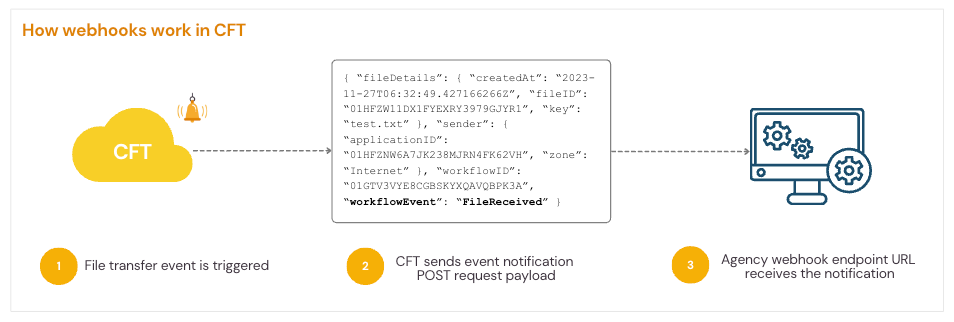
For example, if you subscribed to the File Received event, CFT will send a POST request with file details in the payload. This way, the sender knows that the file has been successfully uploaded to CFT.
How do I set up webhook notifications?
In a nutshell, you will need to:
Step 1 - Set Up Your Webhook Endpoint: Configure a webhook endpoint on your (agency) system, making sure it is accessible either publicly or via your intranet.
Step 2 - Set up the Webhook in the CFT Admin Portal: In the CFT Admin Portal workflow setup, register your webhook endpoint and select the notifications you want to receive. Refer to the Webhooks setup section.
Step 3 - Receive Notifications: Ensure your webhook endpoint is properly set up to receive and handle the notifications.
What kind of information can I receive from the webhook?
You can choose to receive notifications or subscribe to any of the following events:
| Event | Description |
|---|---|
| File Received | The file was successfully received. |
| File Decrypt Failure | The file decryption failed. |
| File Signature Verification Failure | The file has an incorrect or missing signature. |
| File Not Clean | The file was found to have some issues during scanning. |
| File CDR Failure | The CDR scanning failed. |
| File Encrypt Failure | The file encryption failed. |
| File Ready For Download | The scan was completed and the file is ready for download. |
| Sanitised File Ready For Download | The file has been scanned and sanitised using CDR and is ready for download. |
| File Bypass Failed | The file was found to not be encrypted, which is required for Scan Bypass. |
| File Signing Failure | Something went wrong with the file signing process. |
When these events occur in the workflow, CFT sends the file details such as file ID, workflow ID, and file status to the configured endpoint in JSON format.
Note: When encryption or decryption is enabled in a transfer, the receiverKey value is included in the File Ready for Download and Sanitised File Ready For Download payload. This value indicates the new filename.
Transfer flow with webhook notifications
Example file transfer process:
Sender uploads encrypted file
CFT receives the file successfully
a.
FileReceivedwebhook sentCFT decrypts file
a. Failure:
FileDecryptFailurewebhook sent, transfer stops hereb. Success: continue to next step
CFT verifies signature
a. Failure:
FileSignatureVerificationFailurewebhook sent, transfer stops hereb. Success: continue to next step
CFT scans file
a. Failure:
FileNotCleanwebhook sent, transfer stops hereb. Success: continue to next step
CFT signs file
a. Failure:
FileSigningFailurewebhook sent, transfer stops hereb. Success: continue to next step
CFT encrypts file
a. Failure:
FileEncryptFailurewebhook sent, transfer stops hereb. Success: continue to next step
CFT uploads clean file to receiver temporary storage
a.
FileReadyForDownloadwebhook sent
Webhook technical flow
a. CFT generates a Webhook Signature or x-cft-signature using the SHA-256 hash function, based on:
- The Webhook Password as an HMAC key
- An HMAC digest of the request payload
b. CFT sends the webhook notifications as a POST request to the Webhook Endpoint URL with the x-cft-signature in the header of the request.
Sample webhook notification payload
The webhook payload is sent as an HTTP POST request and received in JSON format. Refer to the sample webhook payload below.
POST /payload HTTP/2
Host: localhost:4567
x-cft-signature: sha256=d57c68ca6f92289e6987922ff26938930f6e66a2d161ef06abdf1859230aa23c
Content-Type: application/json
Content-Length: 6615
{
"fileDetails": {
"createdAt": "2022-06-13T13:50:31.80841112Z",
"fileID":"01G5EN8ZTVSWF851D36K7PAHZ2",
"key":"02c623ad-62e0-4e62-b8e3-e8f65b70a3fe.jpg"
},
"sender": {
"applicationID": "01G4ES2BT2SGZD9CZX3FHTJ7N8",
"zone":"Internet"
},
"workflowID":"01G4ES1N3F7M0GCG7454PZFGWJ",
"workflowEvent":"FileReadyForDownload"
}Refer to Sample payloads for more examples.
Guidelines
For successful receival of the notification:
- Acknowledge receipt promptly: Ensure your webhook endpoint responds with a 200 OK or 201 Created status code as soon as the notification is successfully received and processed. This prevents CFT from retrying the notification.
For idempotency implementation in webhook handler:
- Check for duplicates: Before processing a new notification, check if the same notification has already been processed in your records. If it has, acknowledge the notification with a 200 OK status but skip re-processing the event.
For retrieving notifications that were not sent successfully:
- Retrieve file event notifications in the workflow: If the delivery of the notification fails, CFT will automatically retry sending it again up to 3 times within 30 minutes. If it still fails, you can use the Notifications API to retrieve all notifications in a workflow, including those that were not delivered successfully.
Note: The Notifications API is only available for HTTPS applications.
