Manage keys
Note: Managing keys requires the Tenant Manager role.
In the Keys section of the admin portal, you can create and manage your keys.
Understanding key types
Select the key type from the tabs below to determine which type of key you need.
Use this if you encrypt the file before sending and want CFT to decrypt it for scanning. If you do not want CFT to decrypt the file, you can choose to bypass scanning.
How it works:
- Tenant generates a sender key pair directly in the CFT Admin Portal and saves the Sender (public) key. For more information, see Create keys.
- Tenant (sender side) uses the CFT-generated Sender (public) key to encrypt the file before sending.
- CFT stores the Sender (private) key.
- CFT uses the Sender (private) key to decrypt the file after it is uploaded.
Use this if you want CFT to encrypt the file before sending it to the receiver.
How it works:
- Tenant generates a key pair externally.
- Tenant uploads the Receiver (public) key to the CFT Admin Portal as the Receiver key. For more information, see Create keys.
- CFT uses the Receiver (public) key to encrypt the file before it is ready for the receiver.
- Tenant (receiver side) uses the private key to decrypt the file.
Use this if you want CFT to verify the signed file from the sender.
Important: A Sender Key is also required — CFT must decrypt the file before it can verify the signature.
How it works:
- Tenant generates a signature key pair for signing externally. (PGP only)
- Tenant uploads the public key to the CFT Admin Portal as the Sender signature verification key. For more information, see Create keys.
- Tenant (sender side) uses the Sender signature verification (private) key to sign the file before sending.
- CFT decrypts the file using the Sender key before verification.
- CFT verifies the signature using the Sender Signature Verification (public) key before scanning.
Use this if you want CFT to sign the file on your behalf before sending it to the receiver.
Important: A Receiver Key is also required — CFT must encrypt the file after signing it.
How it works:
- Tenant generates a key pair directly in the CFT Admin Portal and saves the public key. For more information, see Create keys.
- CFT signs the file using the Receiver File Signing (private) key after scanning.
- CFT encrypts the signed file using the Receiver (public) key.
- Tenant (receiver side) uses the public key to verify the signature.
Create keys
To create a new key:
From the sidebar, click Keys.
From the Project Selection dropdown, select a project.
Click Create Key.
Enter the following key information.
Field Description Key Name Specify the name used to identify your key. Key Type Specify the key type. For more information, see Understanding key types.
• Sender - For decryption.
• Receiver - For encryption.
• Sender Signature Verification - For file signature verification.
• Receiver File Signing - For file signing after scanning.Encryption Standard Specify the encryption standard type: PGP or SLIFT.
Note: For Sender Signature Verification and Receiver File Signing key types, only PGP is currently supported.Rotate By Specify the target date for rotating this key. The key remains functional after this date, but rotation is strongly advised. The minimum value is 1 year after the key creation date.
Note: Public certificates and keys generated by CFT have a default and recommended validity of one year. Do not input a validity of more than one year without first contacting CFT for the required waivers and processes.Rotation Reminder Specify when the rotation reminder notification is sent. The default value is 1 month before the Rotate By date. Key Tags Specify a tag for grouping your keys. Tags are optional. 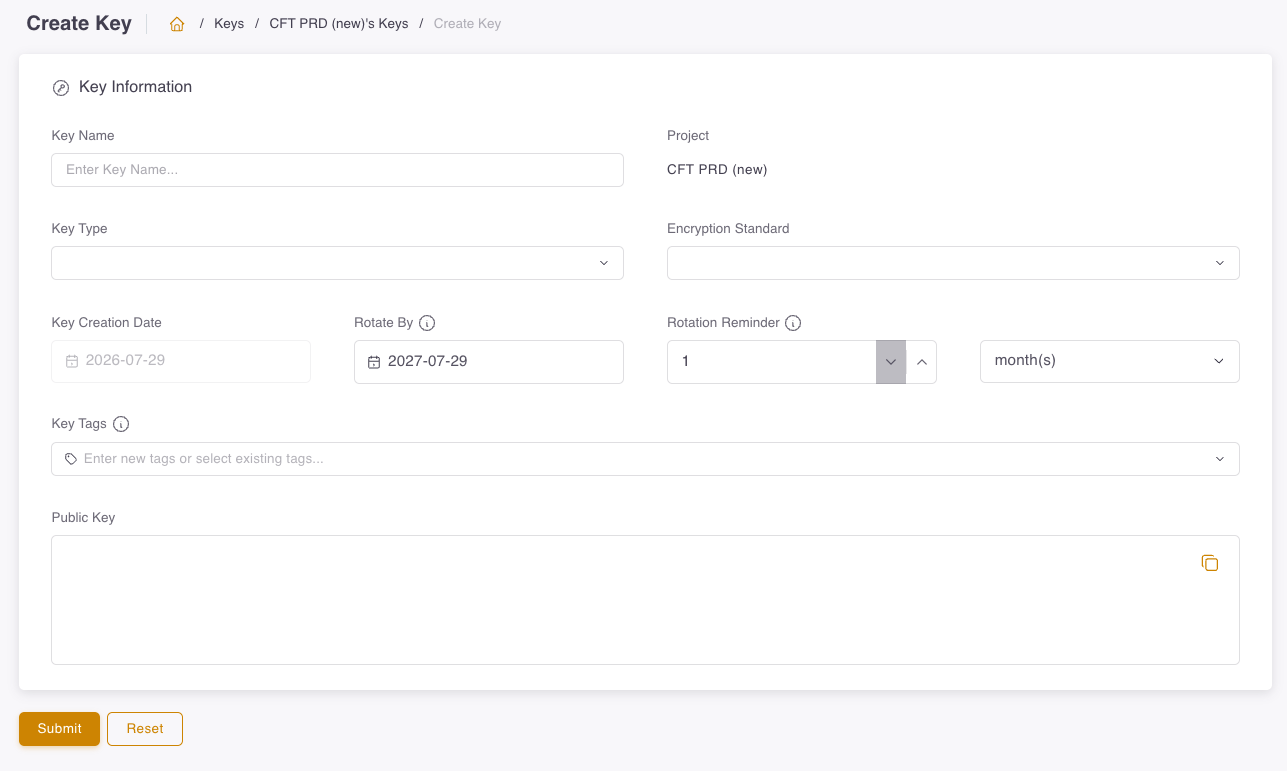
Do one of the following:
If you are creating a Sender Decryption key
Click Submit. The details are saved and a Public Key is generated. Use this Public Key to encrypt your file.If you are creating a Receiver Encryption key
Enter your Public Key, then click Submit to save.If you are creating a Sender Signature Verification key
Enter your Public Key, then click Submit to save. Use the Private key to sign the file.If you are creating a Receiver File Signing key
Click Submit. The details are saved and a Public Key is generated. Use this Public Key to encrypt your file.
For more information, see PGP and SLIFT.
Next step
Proceed to enable and configure your keys in a workflow. For more information, see Manage workflows.
View key details
To view key details:
From the sidebar, click Keys.
Select a project from the dropdown list. A list of the keys in the project appears, including the Rotation Status and Rotate By columns.
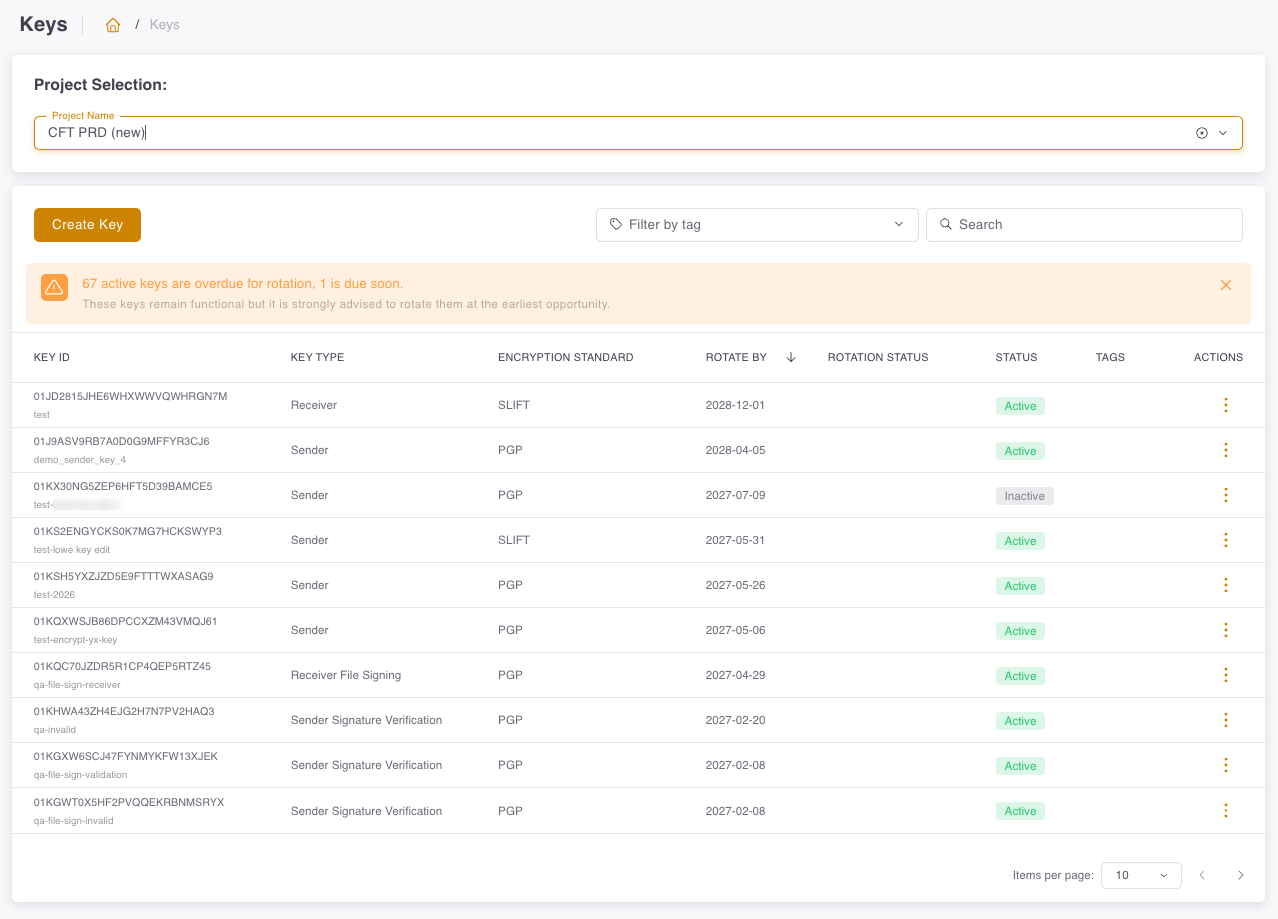
The Rotation Status column indicates whether a key is overdue for rotation, due soon, or within its rotation period (blank).
Note: Keys that are overdue or due soon remain functional, but rotation is strongly advised at the earliest opportunity.
Select a key from the list. To search for a specific key, enter the key name in the search box.
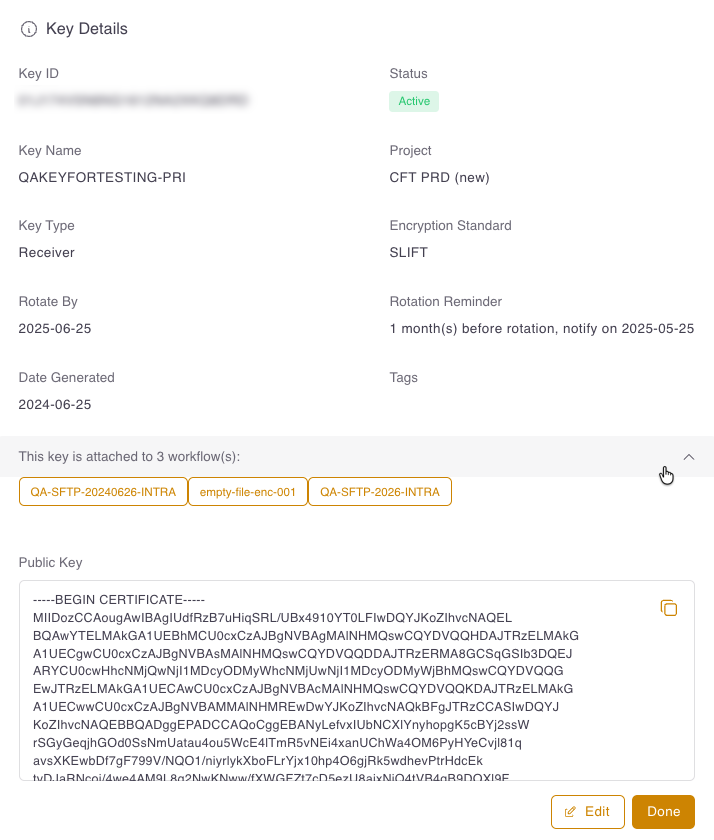
The key details page shows essential information about your key, including the full public key string. To check whether the key is attached to a workflow, click the toggle button to view all associated workflows.
Modify keys
To modify a key:
Click the Actions menu icon of the key you want to modify.
Choose one of the following actions:
View Details — View key details, and choose to edit the key.
Edit — Make changes to the key.
Edit Tags — Update the tags assigned to the key.
Deactivate — Deactivate the key. Only available if the key is not attached to any workflow.
Activate — Re-activate a deactivated key. Not available for keys with an Overdue rotation status.
Note: Overdue keys cannot be activated. Create a new key instead.
Rotate keys
Key rotation is a manual process. When a key is marked Overdue or Due soon, create a new key and update any workflows using the old key.
To rotate a key:
- Create a new key to replace the existing one.
- View the key details of the old key to identify all workflows it is attached to.
- In each workflow, replace the old key with the new key. For more information, see Manage workflows.
- Once the old key is no longer attached to any workflow, deactivate and delete it.
Note: To rotate a sender key with zero downtime, add the new key as a second sender decryption key in the workflow before removing the old one. Once the new key is in place, the sender application can begin encrypting with it at any time — files encrypted under either key continue to be accepted. When all in-flight files encrypted under the old key have been processed, remove the old key from the workflow, then deactivate and delete it. For more information, see Configure file encryption and decryption.

Deactivate and delete keys
To delete a key, it must first be deactivated. Deactivation is only possible if the key is not attached to any workflow.
To deactivate and delete a key:
- View the key details to confirm the key is not attached to any workflow.
- Click the Actions menu icon of the key you want to delete.
- Click Deactivate. Confirm when prompted.
- Click the Actions menu icon again, then click Delete. Confirm when prompted.
