Configure workflows
In the Workflows section of the admin portal, you can create and modify your workflows.
Note: Tenant Users require approval from the Tenant Manager to create and edit workflows. Refer to User roles for more information.
Create workflows
To create a workflow, follow these steps:
On the dashboard or from the sidebar, click Workflows.
From the Project Selection drop down, select a project from the dropdown list.
Click Create Workflow.
Enter the required workflow details.
Additionally, you can configure the following:
a. If you want CFT to decrypt encrypted files prior to scanning and then re-encrypt them after scanning, configure file encryption and decryption.
Note: Currently, only PGP encryption standard is supported.
b. If you want to set up additional file transfer options, you need to configure the file transfer policy.
c. If you want to receive updates on the file transfer, configure the webhook notifications.
Click Submit to create the workflow.
Note: If you have a Tenant User role, your new workflow is reflected as Pending in the admin portal until a Tenant Manager approves it.
Configure workflow details
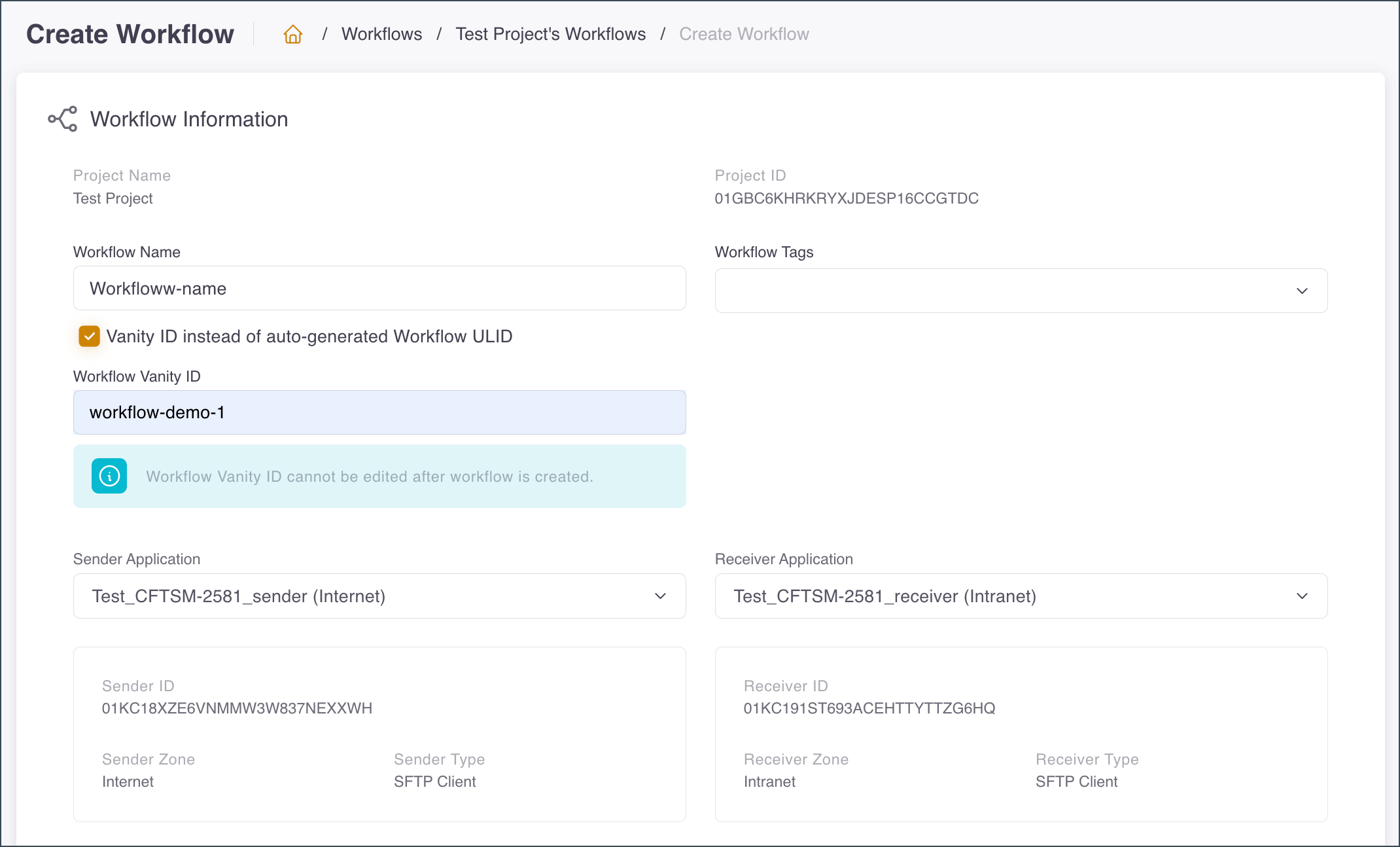
Enter the following details.
| Field | Description | Required |
|---|---|---|
| Workflow Name | A unique name for your workflow in the project. See Allowed characters for Workflow Name. | Yes |
| Workflow Vanity ID | An optional ID that you can specify instead of the auto-generated workflow ULID. You need to use alphanumerics and dashes and enter at least 8 characters. To enable this field, select the Use Vanity ID instead of auto-generated Workflow ULID checkbox. Note: The Workflow Vanity ID should be unique across the CFT platform, cannot be reused, and cannot be edited after a workflow is created. For more information, refer to Modify workflows. |
Yes, if enabled |
| Workflow Tags | A tag for grouping your workflows. | No |
| Sender Application | The application that represents the sender in the workflow. | Yes |
| Receiver Application | The application that represents the receiver in the workflow. | Yes |
Allowed characters for Workflow Name
Take note that the Workflow Name can only include the following characters:
- Uppercase letters: A–Z
- Lowercase letters: a–z
- Digits: 0–9
- Space
- Underscore (
_) - Hyphen (dash) (
-) - Period (dot) (
.) - Forward slash (
/) - Parentheses:
(and)
Configure file transfer policies
You can set up the file transfer policies in this section.
| Field | Description | Notes |
|---|---|---|
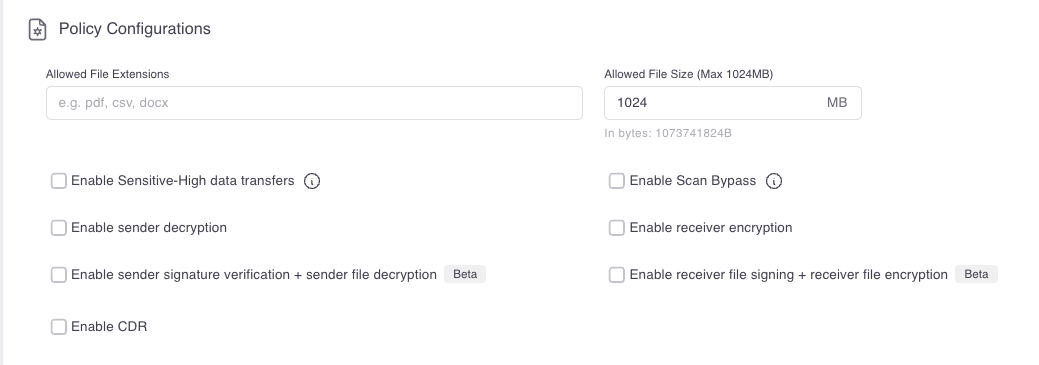
| Enable Sensitive-High data transfers | Allows files with Sensitive-High data classification to be transferred through CFT. | Important: You must choose between two modes: with scanning or without scanning. Each mode has different terms and additional requirements. Refer to Sensitive-High transfers for detailed guidance on enabling this feature. |
| Enable Scan Bypass | Allows encrypted or password-protected files to be transferred through CFT without undergoing malware scanning. | Files should be encrypted or password-protected to bypass malware scanning. Refer to Scan Bypass for more information. |
| Enable sender decryption | Decrypts files that were encrypted with a CFT-generated key. | For more details refer to Configure file encryption and decryption. |
| Enable receiver encryption | Encrypts files after scanning with a key registered in CFT. | For more details refer to Configure file encryption and decryption. |
| Enable sender signature verification + sender file decryption | Verifies the sender signature with a CFT-generated signature verification key. | For more details refer to Configure file encryption and decryption. |
| Enable CDR | Disarms all active content, such as macros, form inputs, and external links. | This option disables active content in .docx, .xlsx, .pptx, .csv, .jpg, .png, .txt, and .pdf files. Enabling CDR is especially recommended for .pdf and .docx files. |
| Allowed File Extensions | Specifies the file extensions that are permitted to be sent in the transfer. For example, enter: pdf, csv, docx | This option is only required if the Sender application in the workflow is an HTTPS Client. Note: If you enabled a sender decryption setup, you need to add pgp (PGP) or p7 (SLIFT) file extensions. |
| Allowed File Size | Specifies the maximum file size that is allowed to be sent in the transfer. | This options is only required if the Sender application in the workflow is an HTTPS Client. These are the default maximum limits: • HTTPS Application: 1 GB • HTTPS Single-Page Application: • Internet: 50MB • Intranet: 500MB Refer to Technical Specifications and Baselines for the details on CFT file size limits. |
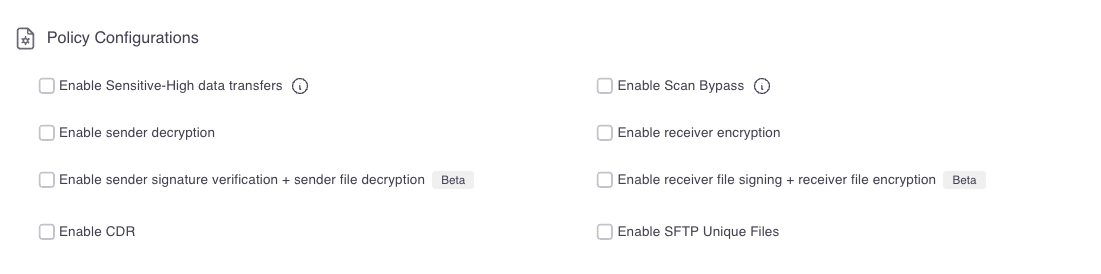
| Enable SFTP Unique Files | When enabled, the SFTP sender application can upload duplicate files without overwriting existing ones. To do so, each newly uploaded file is placed in a sub-folder named with the unique File ID, ensuring that every file is stored separately and identified distinctly. | This option is only available for SFTP Sender applications. When disabled, duplicate files will be overwritten by default. |
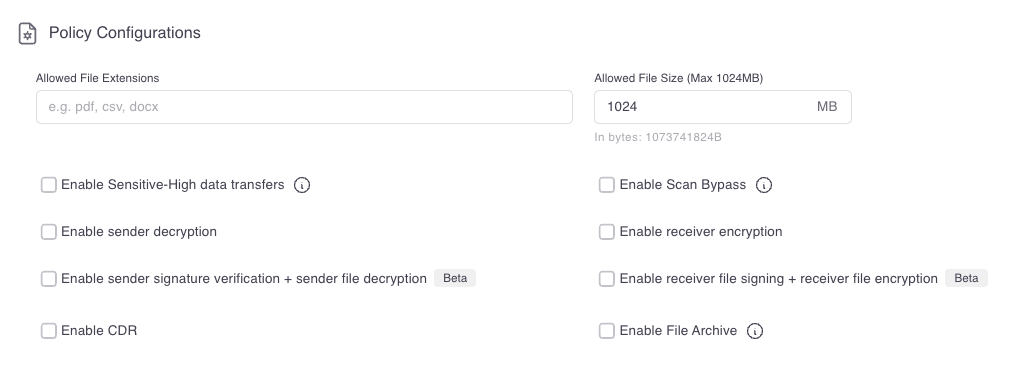
| Enable File Archive | By default, an active SFTP scheduler job will repeatedly transfer the same files to the SFTP Server Receiver application. When the Enable File Archive feature is enabled in a workflow, CFT automatically archives the files that have already been successfully uploaded to the SFTP Server Receiver application. The next job runs will not include any files that have previously been sent to the Receiver application. |
This option is only available when the Receiver application in the workflow is an SFTP Server. Important: When the File Archive feature is enabled, ensure that the lcd command in your SFTP job script is set to the default path: lcd ./$OUTGOING. Changing lcd to a different directory will result in incorrect file paths during archiving. |
If you have an HTTPS Sender application, these are the available configurations:
If you have an SFTP Sender application, these are the available configurations:
If you have an SFTP Server Receiver application, these are the available configurations:
Configure file encryption and decryption
Note: Before you proceed, ensure that you have previously created sender or receiver keys in your project. You can continue to create your workflow first and enable these configurations later.
To set up file encryption and decryption in a workflow transfer, configure the details below.
| Field | Description | Notes |
|---|---|---|
| Enable sender decryption | Decrypts files from the sender using the selected key. Note: Ensure that your file is encrypted using the Public key generated when creating the Sender key. |
Requires a Sender key. |
| Enable receiver encryption | Encrypts files to the receiver using the selected key. | Requires a Receiver key. |
| Decryption Type | Specifies the type of file decryption to be done to the file before scanning. | Select from PGP or SLIFT type. |
| Encryption Type | Specifies the type of encryption to be done to the file after scanning. | Select from PGP or SLIFT type. |
| Select key | Selects the sender or receiver key to be used for encryption or decryption. | Only keys created in the same project are displayed. |
| Format | Specifies the PGP key format. This is only required when receiver encryption is selected. | Select from Binary or Armored format. |
Note: The + Add New Key button (Beta) below the sender decryption key slot allows you to configure up to two sender decryption keys in the same workflow, enabling zero-downtime key rotation. Once the new key is added to the workflow, the sender application can begin encrypting with it at any time — files encrypted under either key continue to be accepted without coordination. Both keys must use the same decryption type. The same key cannot be selected in both slots.
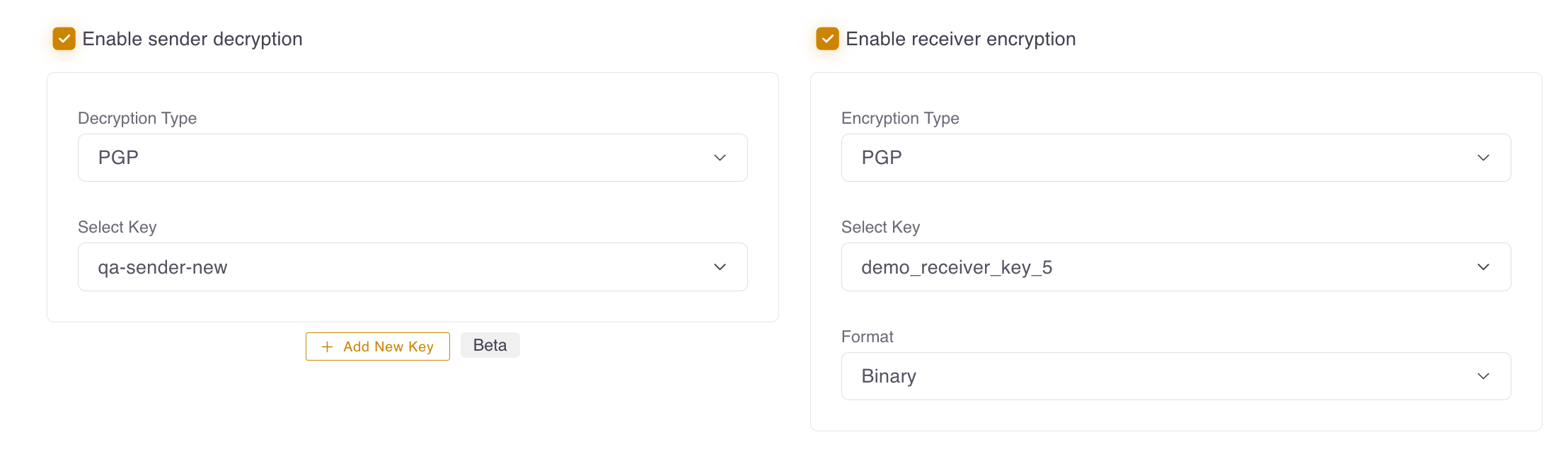
For more information, refer to PGP and SLIFT.
Configure sender signature verification + sender file decryption (Beta)
Note: Before you proceed, ensure that you have previously created a sender key and a sender signature verification key in your project. You can continue to create your workflow first and enable these configurations later.
| Field | Description | Notes |
|---|---|---|
| Enable sender decryption | Decrypts files from the sender using the selected key. This is automatically enabled when Enable sender signature verification + sender file decryption is enabled. Note: Ensure that your file is encrypted using the Public key generated when creating the Sender key. |
Requires a Sender key. |
| Decryption type | Specifies the type of sender decryption key. | Select from PGP or SLIFT type. |
| Enable sender signature verification + sender file decryption | Verifies files from the sender using the selected signature verification key. Note: Ensure that your file is encrypted using the Public key generated when creating the Sender signature verification key. |
Enabling this automatically enables sender decryption too, Requires a Sender signature verification key. |
| Encryption type | Specifies the type of sender signature verification key. | For now, only PGP is supported. |
| Select key | Selects the sender decryption key and sender signature verification key. | To create keys in the CFT Admin Portal, refer to Manage keys. |
| Format | Specifies the PGP key format for the sender signature verification key. | Select from Binary or Armored format. |
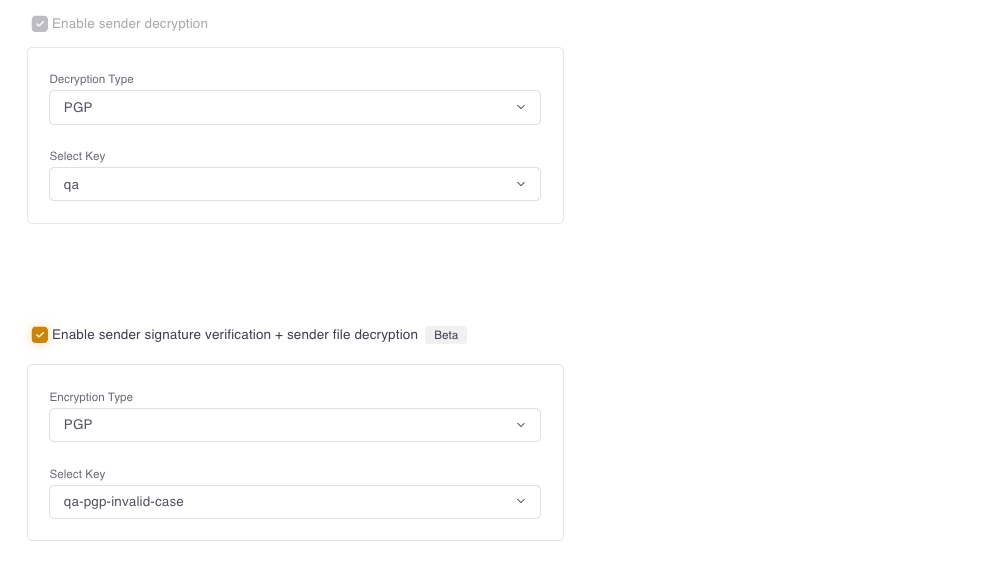
For more information, refer to File Signature Verification.
Configure receiver file signing + receiver encryption (Beta)
Note: Before you proceed, ensure that you have previously created a receiver key and a receiver file signing key in your project. You can continue to create your workflow first and enable these configurations later.
| Field | Description | Notes |
|---|---|---|
| Receiver encryption | ||
| Enable receiver encryption | Encrypts the file using the selected key. This is automatically enabled when Enable receiver file signing + receiver encryption is enabled. | Requires a Receiver key. |
| Encryption type | Specifies the type of receiver key. | For now, only PGP is supported. |
| Select key | Selects the receiver key. | To create keys in the CFT Admin Portal, refer to Manage keys. |
| Format | Specifies the PGP key format for the receiver key. | Select from Binary or Armored format. |
| Receiver file signing | ||
| Enable receiver file signing + receiver encryption | Signs the file using the selected key. | Requires a Receiver key. |
| Encryption type | Specifies the type of receiver file signing key. | For now, only PGP is supported. |
| Select key | Selects the receiver file signing key. | To create keys in the CFT Admin Portal, refer to Manage keys. |
| Format | Specifies the PGP key format for the receiver file signing key. | Select from Binary or Armored format. |
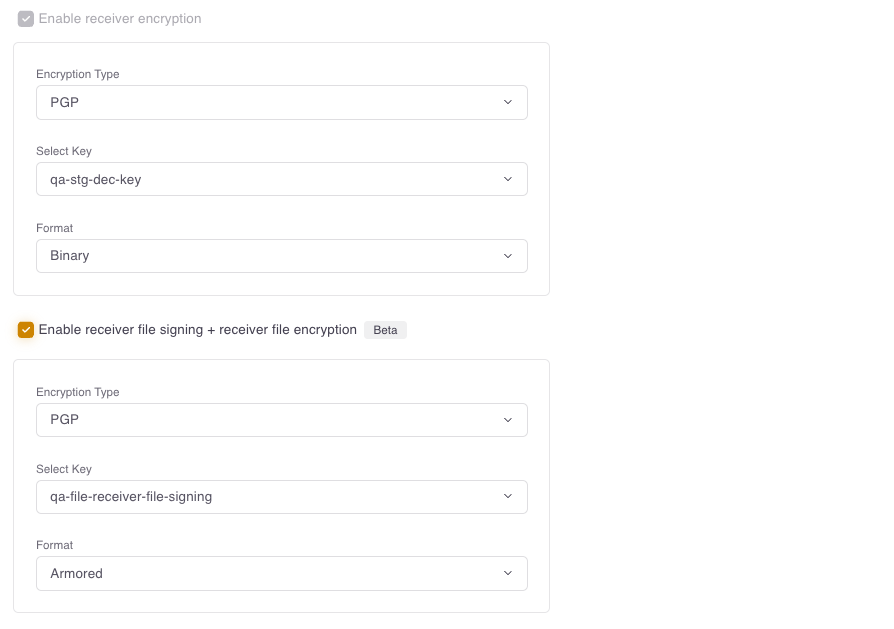
For more information, refer to File Signing.
Configure webhook notifications
Note: Before you proceed, ensure that you have previously created webhook notifications in your project. For more information, refer to Manage notifications.
To set up webhook notifications within a workflow, click + Add Webhook.
| Field | Action | Required |
|---|---|---|
| Webhook | Select the webhook that you want to enable from the list. | Yes |
| Event Subscription | Select the event that you want to be notified on | Yes, at least one |
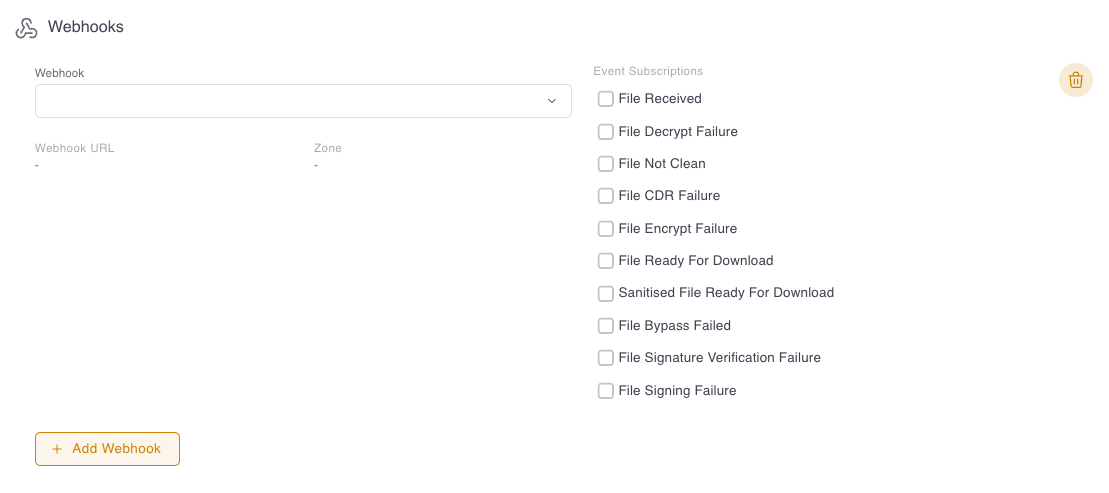
The following event notification subscriptions are available:
- File Received
- File Decrypt Failure
- File Signature Verification Failure
- File Not Clean
- File CDR Failure
- File Encrypt Failure
- File Ready for Download
- Sanitised File Ready for Download
- File Bypass Failed
- File Signing Failure
For more details on these webhook events, refer to Webhooks.
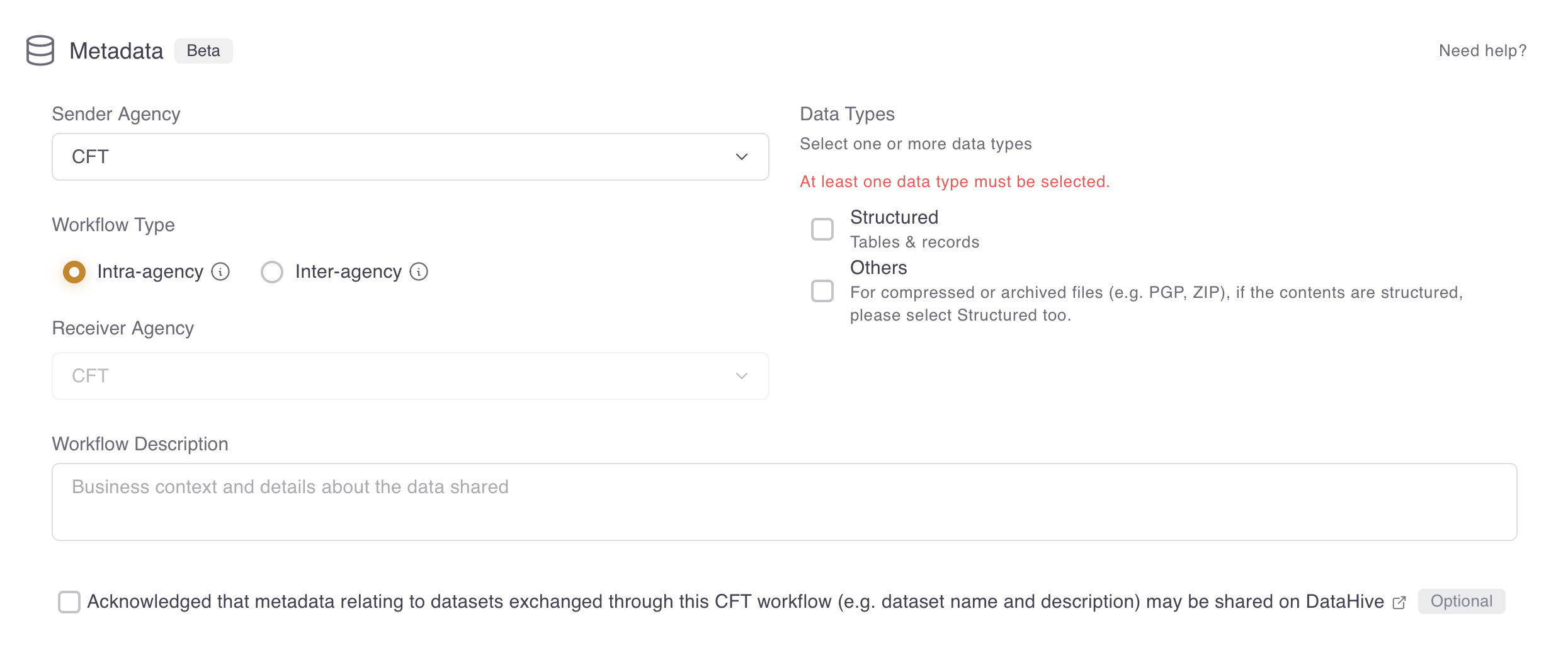
Workflow metadata (Beta)
The Workflow Metadata section captures business context about the data shared in this workflow.
Enter the following details.
| Field | Description | Required |
|---|---|---|
| Sender Agency | The agency sending data in the workflow. | Yes |
| Workflow Type | Specifies whether the workflow transfers data within the same agency (Intra-agency) or between different agencies (Inter-agency). | Yes |
| Receiver Agency | The agency receiving data in the workflow. | Yes, if workflow type is inter-agency |
| Workflow Description | Business context and details about the data shared. | Yes |
| Data Types | The type(s) of data being transferred. Select at least one option: • Structured — tables and records • Others — compressed or archived files (e.g. PGP, ZIP). If the contents are structured, select Structured as well. |
Yes, at least one |
| DataHive acknowledgement | Acknowledge that metadata relating to datasets exchanged through this workflow (e.g. dataset name and description) may be shared on DataHive. | No |
View workflows
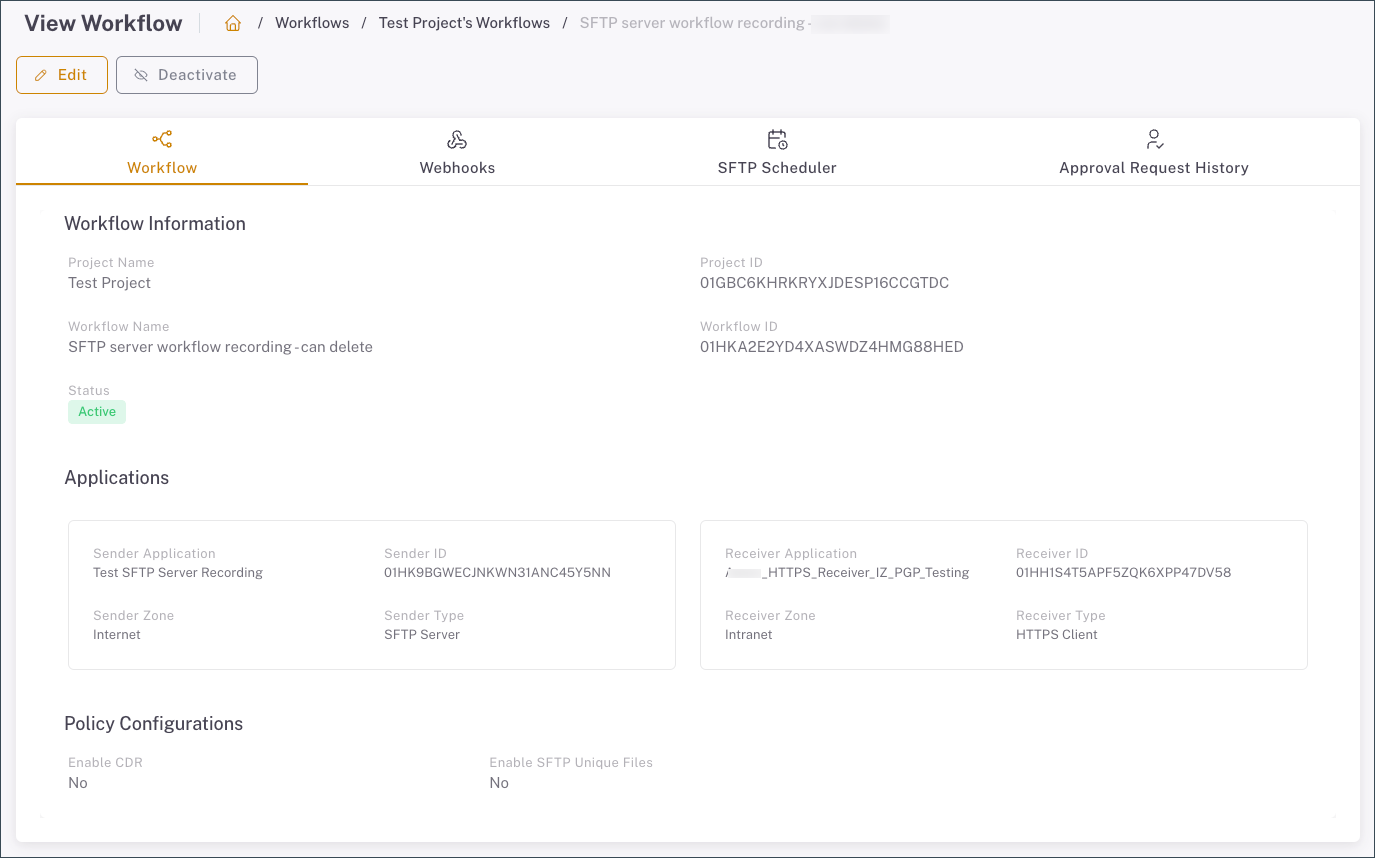
To view workflow details, follow these steps:
- From the sidebar, click Workflows.
- Select a project from the dropdown list. A list of the workflows in the project is displayed.
- Select a workflow from the list. The View Workflow page is displayed. To search for a specific workflow, enter the application name in the search box.
The View Workflow page contains the following tabs.
| Tab | Description |
|---|---|
| Workflow Information | Displays the workflow information. |
| Webhooks | Displays the webhooks configured in the workflow. |
| SFTP Scheduler | Displays the SFTP Scheduler jobs. This is only displayed for workflows with SFTP Server applications. |
| Approval Requests History | Displays the workflow requests and their approval status. |
Modify workflows
To modify a workflow, follow these steps:
View the list of workflows in your project.
Click the Actions menu icon of the application you want to modify.
Choose one of the following actions:
- View Details - View application details, and choose to edit or delete the application.
- Edit - Make changes to the workflow details.
- Edit Tags - Make changes to the workflow tags.
- Deactivate - Deactivate an active workflow.
- Activate - Activate an inactive workflow.
- Delete - Delete a workflow. The workflow should be inactive before it can be deleted.
Important: When a workflow is deleted, the Vanity ID of the deleted workflow cannot be reused in a new workflow.
Important: Before deleting a workflow with a SFTP server application, disable and delete the jobs in the SFTP Scheduler page.
Modifying applications in a workflow
You can modify the Sender and Receiver applications when editing a workflow, provided that the new applications selected are in the same zone as the original applications.
Important: If you want to replace an SFTP Server application (sender or receiver) with a different application, first disable and delete all active jobs to prevent unintended execution.
Workflow deactivation error
You may encounter an error when trying to deactivate your workflow. This is often caused by invalid characters in your Workflow Name. To fix this error, update your Workflow Name to use only the allowed characters for Workflow Name and then try deactivating it again.
Approve or reject workflow requests
Tenant Managers can approve or reject the following workflow requests:
- Create workflows
- Edit workflows
- Deactivate workflows
- Activate workflows
To manage workflow requests, follow these steps:
Click the Mailbox icon on the Dashboard to view requests. A list of requests are displayed.
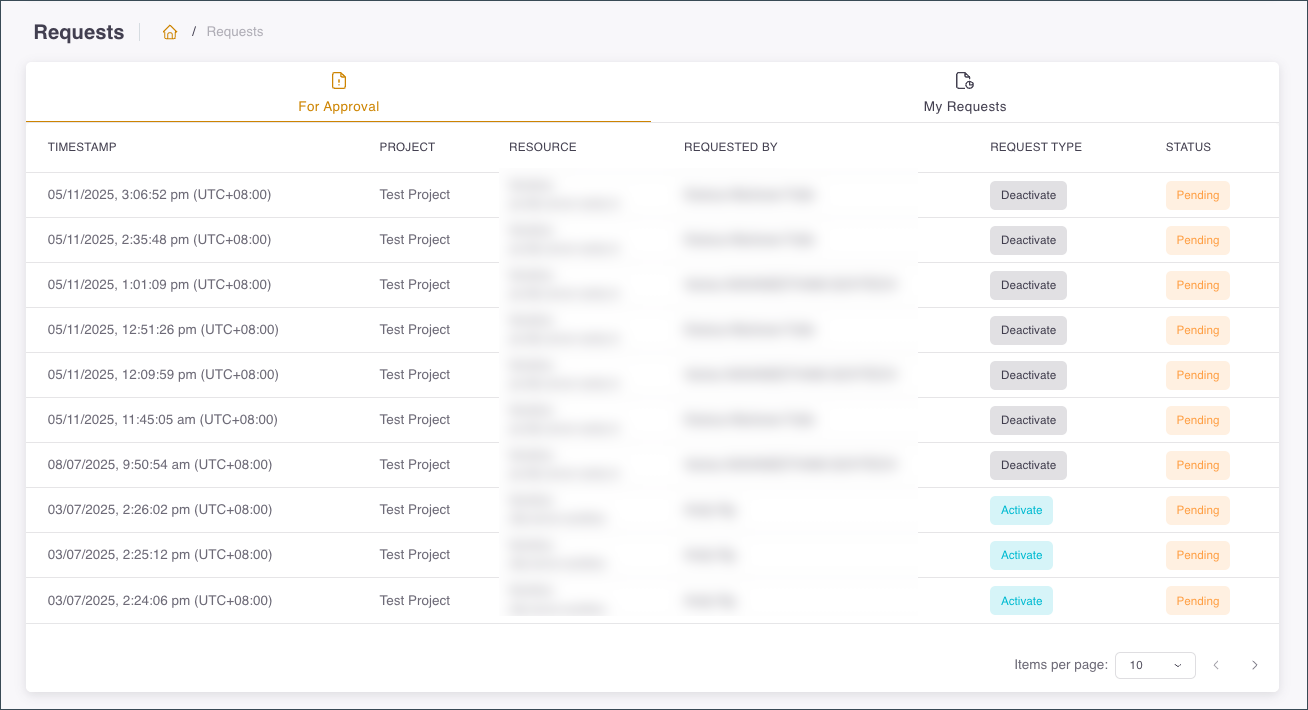
Click on any open requests. The request prompt is displayed with the workflow details.
On the request prompt, Approve or Reject the request.
