View file transfer logs
Monitor your file transfer status and other details from the File Transfers Logs page.
To view the logs of your transfers, follow these steps:
On the sidebar, click Logs.
From the Project Selection drop down, select a project. By default, the File Transfers tab is displayed.
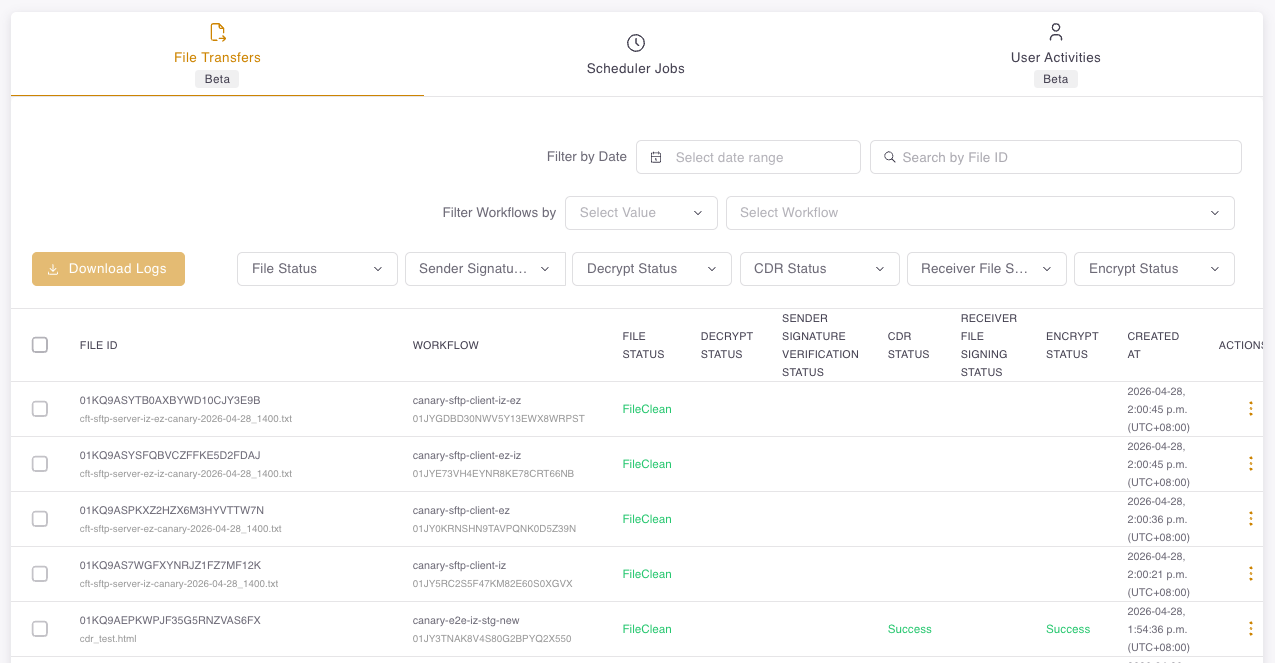
Refine your log view using these filters:
- Workflow - Filter by the transfers from a specific workflow.
- Workflow name
- Workflow ID
- Vanity ID
- Status - Filter by the file transfer status. Refer to File transfer log status for more information.
- Scan/ScanBypass status
- Sender signature verification status
- Decrypt status
- CDR status
- Receiver file signing status
- Encrypt Status
- Date range - Select from data range when the file was transferred.
- Search - Filter by File ID using the search box.
- Workflow - Filter by the transfers from a specific workflow.
Notes:
- Logs are limited to the previous 12-month period.
- For encryption, decryption, or CDR status failures, refer to Troubleshooting Data Security Issues.
View file transfer details
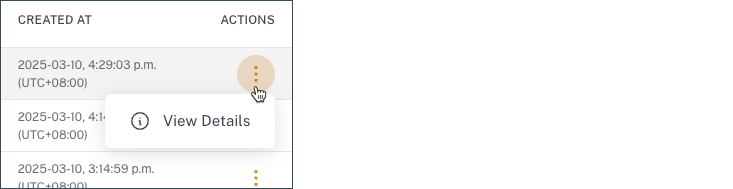
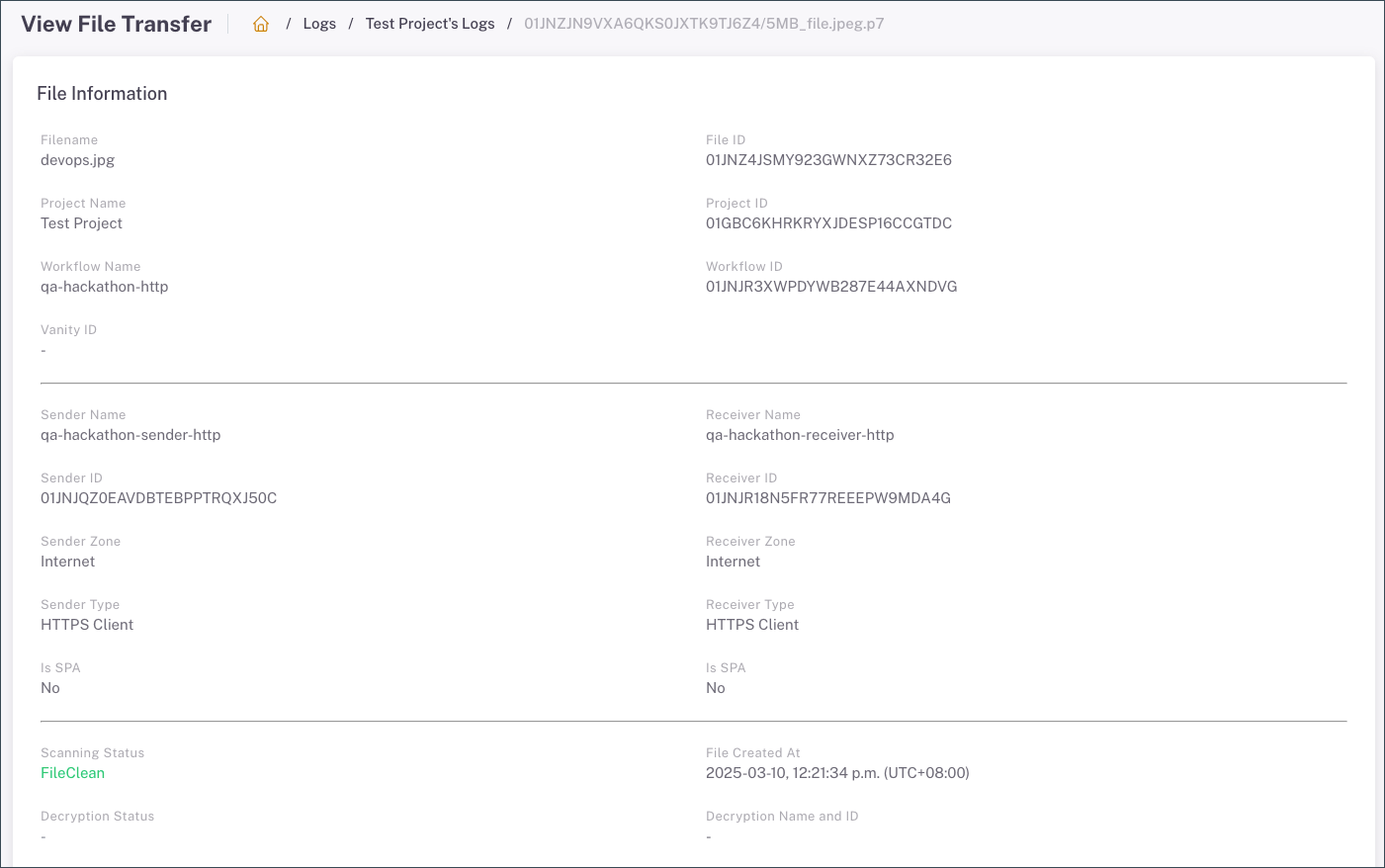
Click the Actions menu and click View Details or Download Log to view more information.
Download multiple logs
To download multiple logs, use the checkboxes to select specific entries or choose all logs displayed on the current page, and then click Download Logs. You can choose between .zip or .csv formats.
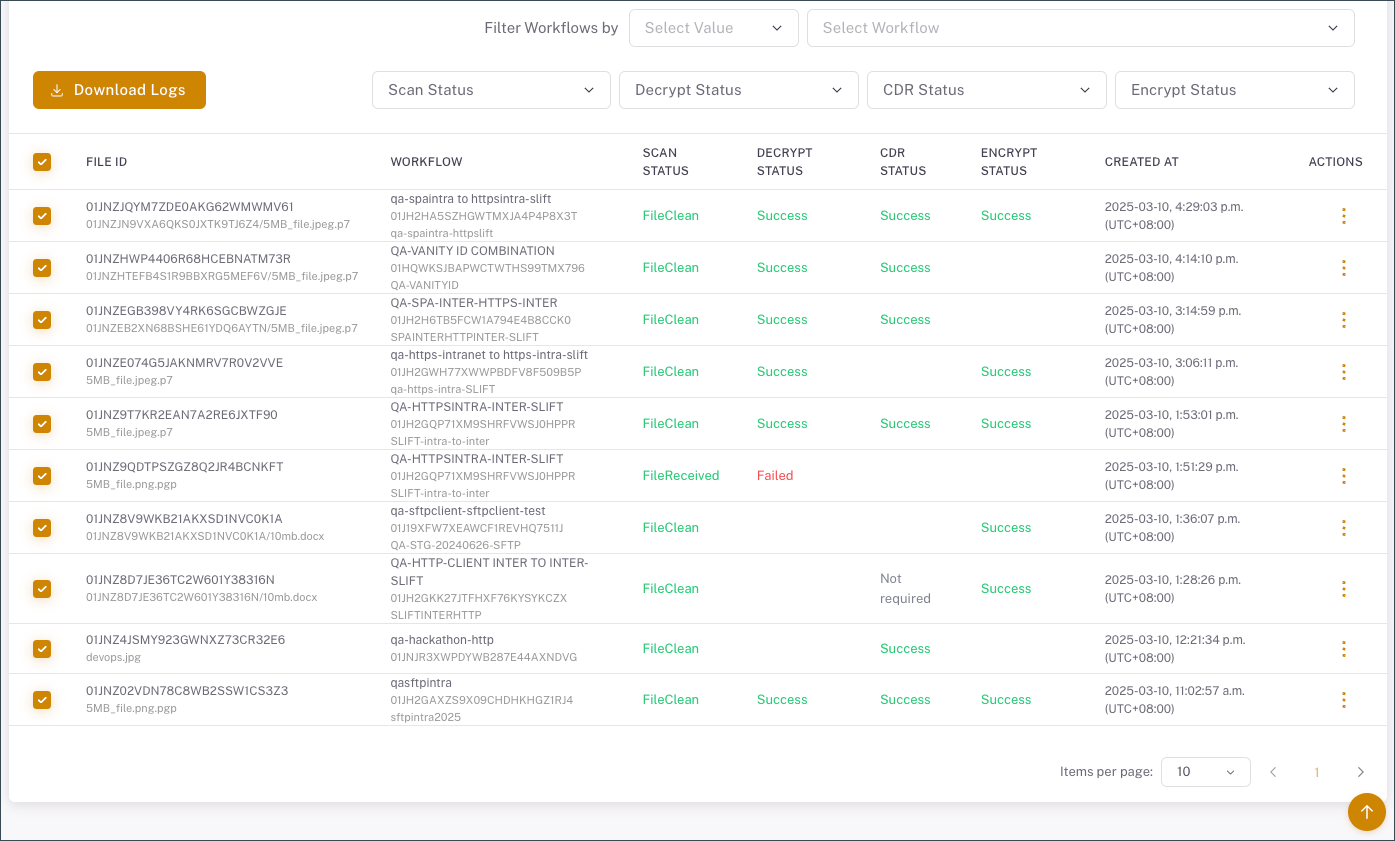
Adjust the Items per page setting to view and download more entries at once.
