Configure applications
In the Applications section of the admin portal, you can create and modify your applications.
Create applications
Note: Unless mentioned otherwise, all fields are required.
To create an application, follow these steps:
From the sidebar, click Applications.
From the Project Selection drop down, select a project from the dropdown list.
Click Create Application.
In the Application Information section, enter your Application Name, and then select the Application Zone and Application Type.
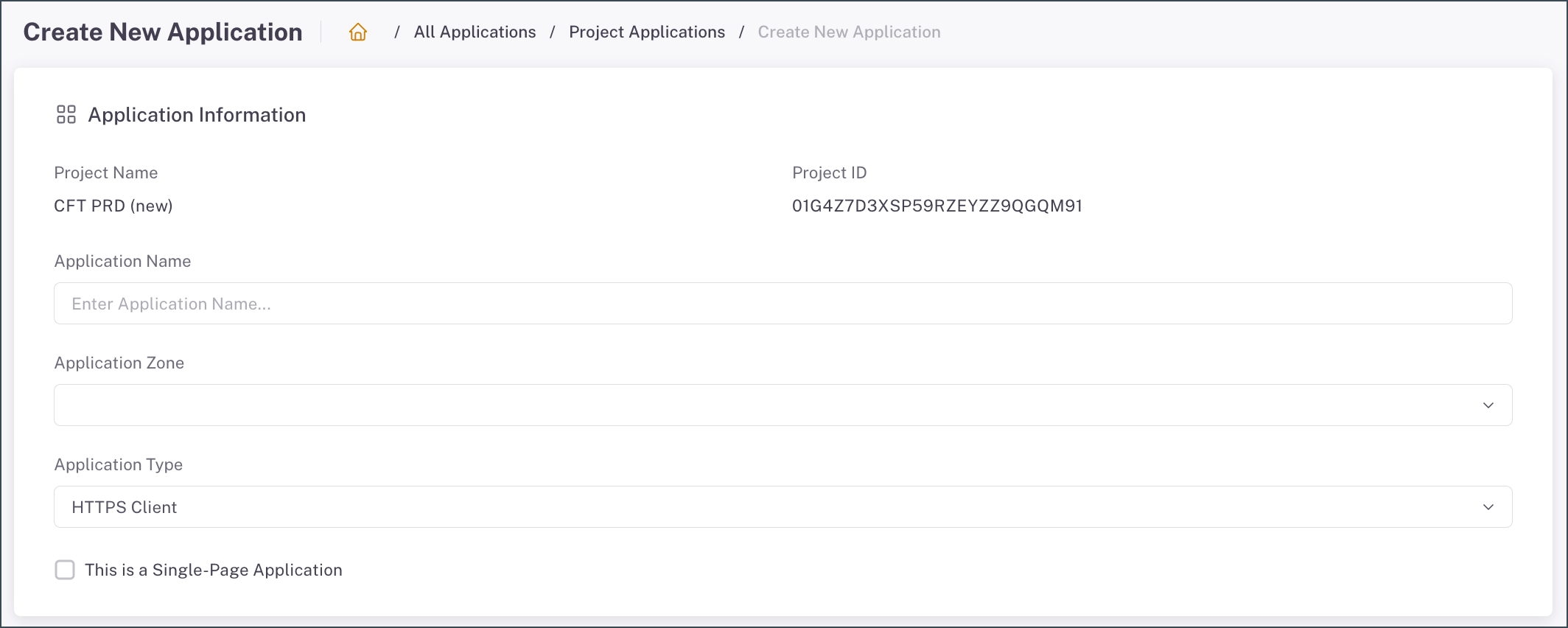
Application Type Description HTTPS Client The HTTPS Client application makes API file transfer requests to the CFT API server. If your application is a Single-Page Application (SPA), click the This is a Single-Page Application check box. SFTP Client The SFTP Client application connects to the CFT SFTP server using SSH protocol to perform file upload and download on the server. SFTP Server The SFTP Server application can allow CFT to connect as an SFTP Client to perform scheduled SFTP file transfer jobs. Proceed to Generate application credentials.
Generate application credentials
To generate or register Application Credentials, enter the details based on the application type. The credentials will take effect when an application is integrated with a workflow.
Select one of the tabs below to see the steps to generate credentials for your application type.
To generate HTTPS Client credentials
Click Submit, then click OK. The credentials are generated.
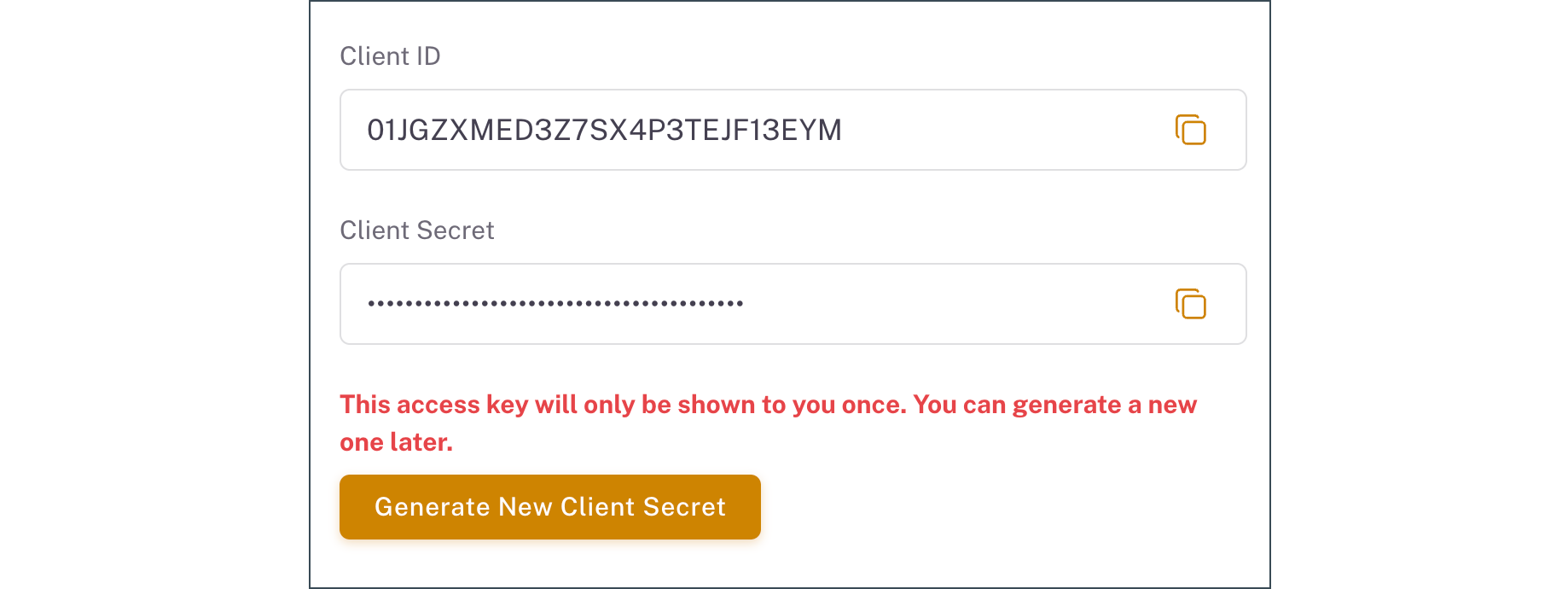
Copy the newly generated client credentials: Client ID and Client Secret. These credentials are used to connect to the CFT API server.
If you need to change the Client Secret, click Generate New Client Secret.
To register SFTP Client credentials and generate SSH Username
In the SFTP Client Credentials section, select one of the following authentication options from the SFTP Authentication Method drop-down:
SSH Key ONLY
SSH Key AND Password
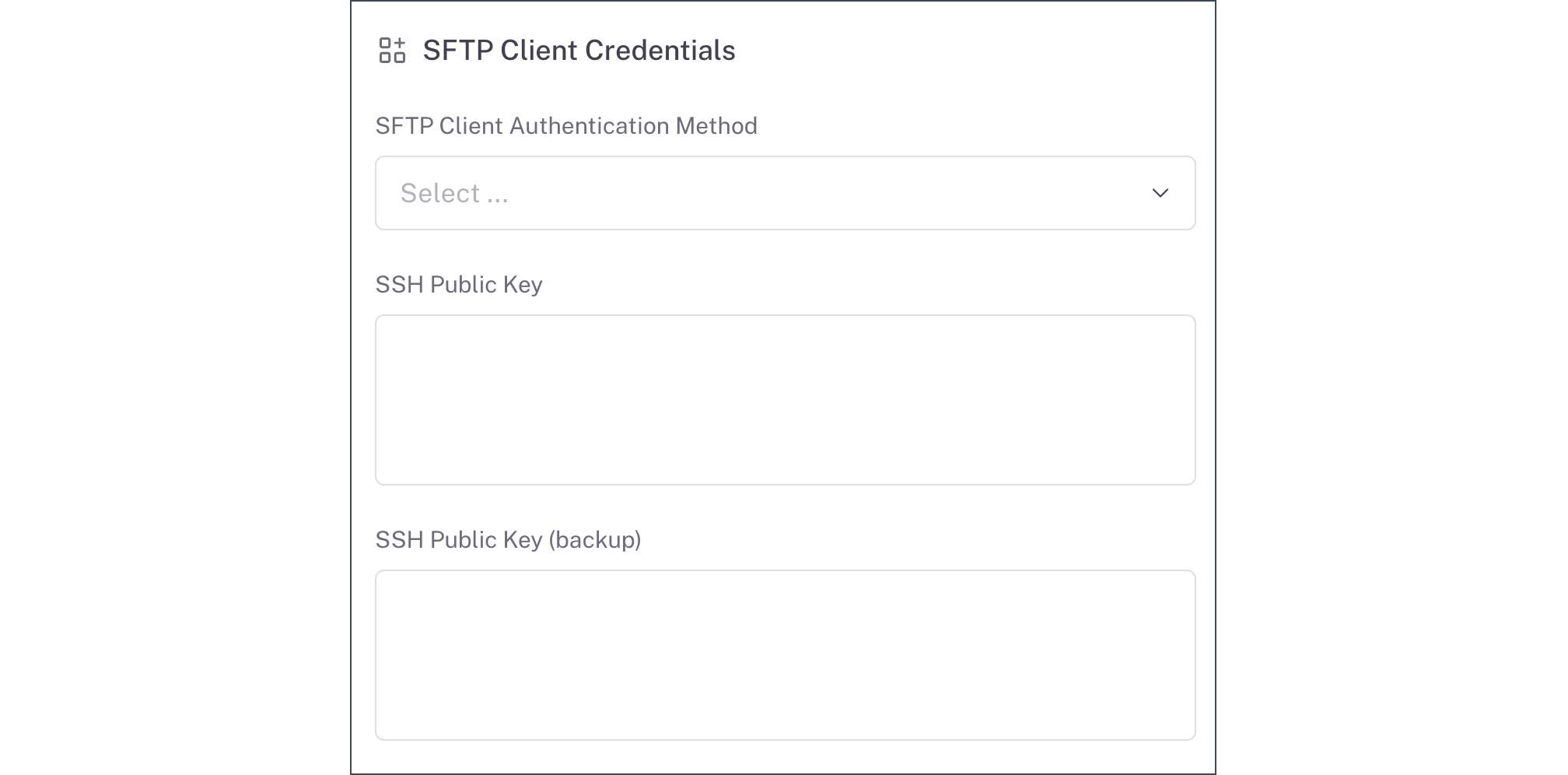
Enter the following details:
Field Description SSH Public Key Your SSH Public Key. We recommend using RSA or ED25519 SSH Key types. SSH Public Key (backup) Your SSH Public Key backup. This is optional, and used for key rotation. Click Submit, then click OK. The SFTP credentials are generated.
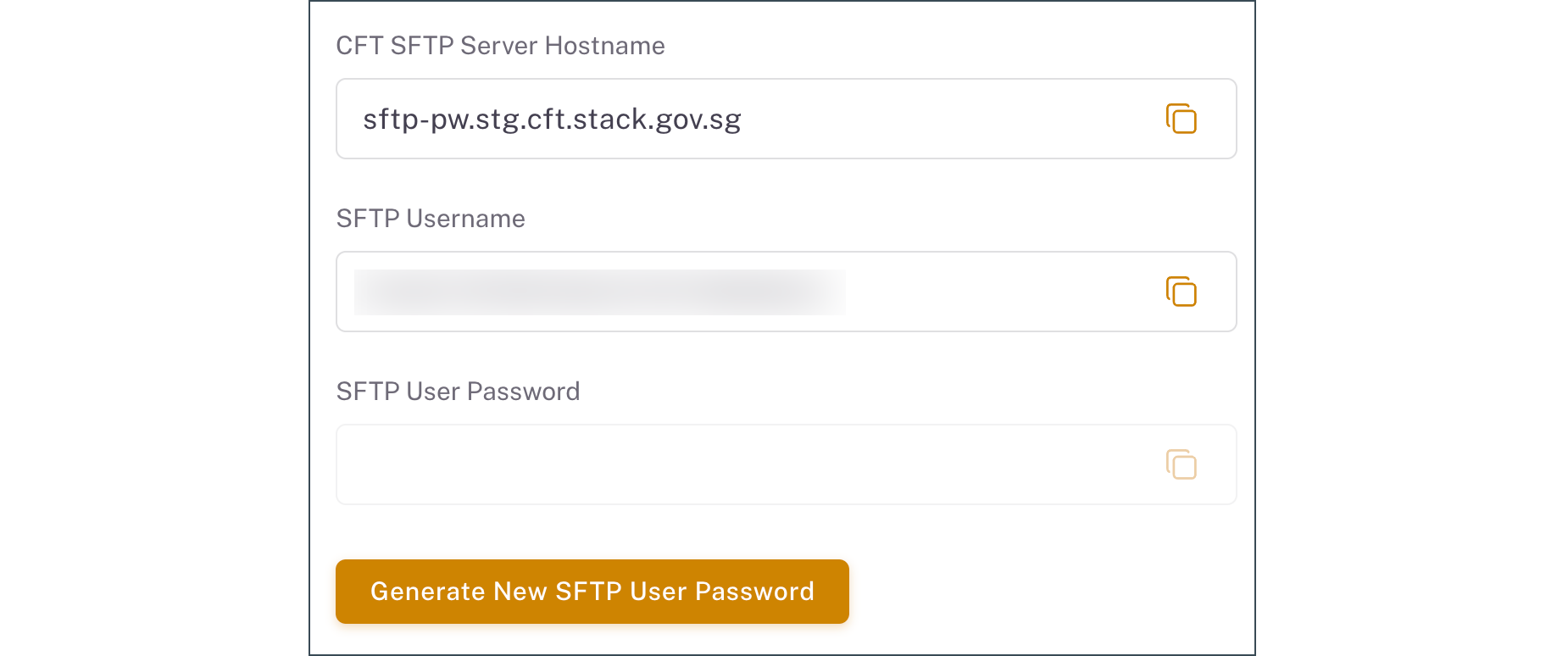
Copy the credentials generated.
- CFT SFTP Server Hostname
- SFTP Username
- SFTP User Password (if this option was selected)
To register SFTP Server credentials and generate SSH Key Pair
- Enter the SFTP Server Hostname:Port. Your SFTP Server hostname and the port number, separated by a
:symbol. Note: If your SFTP Server is located in the intranet zone, you need a.gov.sghostname.
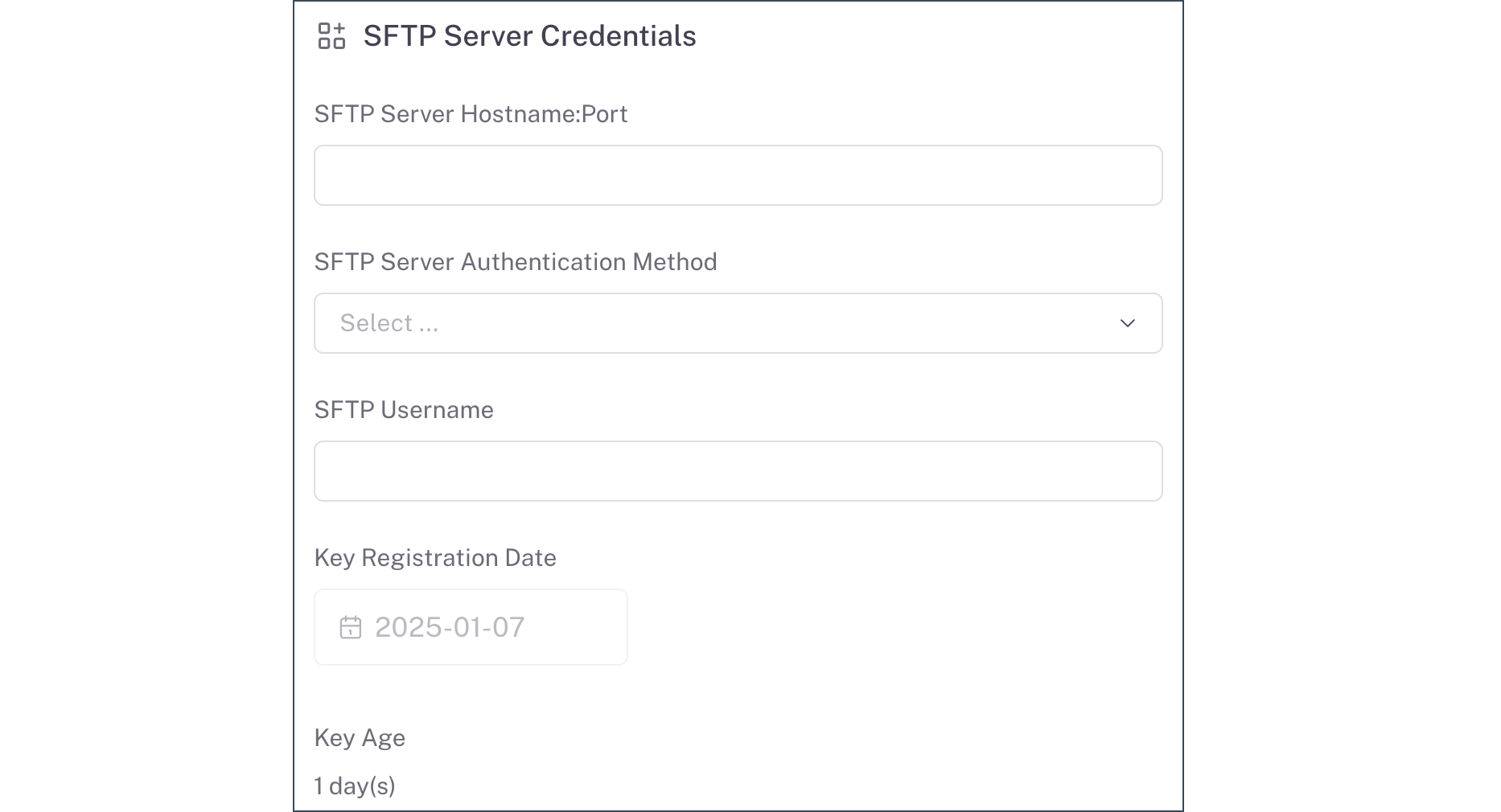
Select one of the following authentication options for your SFTP Server from the Authentication Method drop-down:
- SSH Key ONLY
- SSH Key AND Password
Enter the rest of the SFTP Server details:
Field Description SFTP Username The username used to log in to the SFTP server. SFTP Password The password used to log in to the SFTP server. Note: Only required for SSH Key and Password Authentication method. Click Submit, then click OK. The SSH Public Key is generated.
Note: Keys generated by CFT have a default validity of 1 year.
Copy the SSH User Public Key generated.
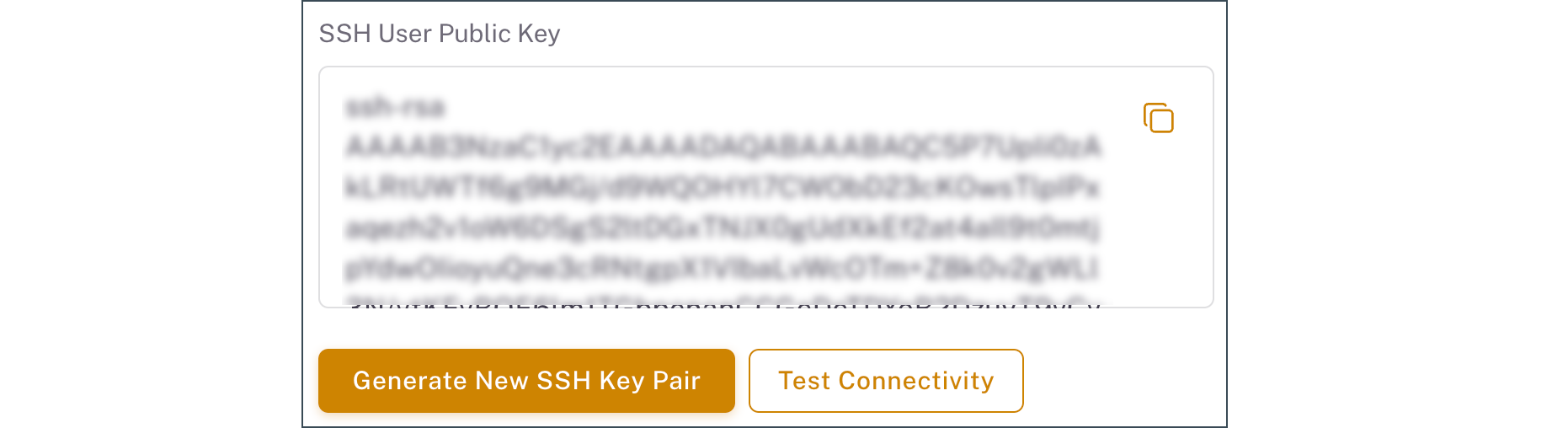
To generate a new SSH Public Key, click Generate New SSH Key Pair.
To test the connectivity between your SFTP Server and the CFT SFTP Client, click Test Connectivity.
Important: Ensure that you have (1) added your application in a Workflow in the Admin Portal and (2) added the generated SSH user public key to your SFTP server before you test the connectivity. For more information, refer to AWS documentation.
View applications
To view application details, follow these steps:
From the sidebar, click Applications.
Select a project from the dropdown list. A list of the applications in the project is displayed.
Select an application from the list. To search for a specific application, enter the application name or ID in the search box.
Modify applications
To modify an application, follow these steps:
View the list of applications in your project.
Click the Actions menu icon of the application you want to modify.
Choose one of the following actions:
- View Details - View application details, and choose to edit or delete the application.
- Edit - Make changes to the application.
- Delete - Delete the application in the project
Note: Applications that are actively linked to any workflow in the project cannot be deleted. To proceed to delete an application, remove or unlink the application from any linked workflows first.
