Get invited and onboard to TechPass
This guide is for users who are invited to onboard to TechPass.
If you are eligible for self sign-up, use the TechPass Account Portal instead.
Check eligibility →
This guide covers how to request a TechPass account and complete onboarding after receiving an invitation.
- Alternatively, public officers with a non-SE GSIB or Comet device can access the TechBiz Portal to request for TechPass and SEED provisioning, which is optional.
- For more information, see TechBiz documentation.
Audience
Users who are invited to create a TechPass account.
Prerequisites
You need the following to get invited to TechPass and complete the onboarding:
- An organisational email address with standard mailbox.
- TechPass does not support WOG LiteMail or ZMail accounts. If you are using one of these account types, upgrade to a standard mailbox before requesting for TechPass.
Before you start
You will:
- Request a TechPass account through your project manager or reporting officer.
- Receive an invitation email.
- Complete registration and onboarding.
Step 1: Request for TechPass account
Contact your project manager or the reporting officer to request for the provisioning of TechPass and SEED (optional for onshore users, mandatory for offshore users).
To access services such as SGTS and GCC 2.0 resources through an Internet Device, you need to onboard that device to SEED.
Project manager or the reporting officer invites you to TechPass.
Note: Invitation module in TechBiz Portal will sunset soon. Please start using TechPass or Console Portals for account invitation.
If the invitation is successful, you will receive an email notification. The onboarding process differs based on how you were invited:
Invitation via TechPass Portal, TechPass Account Portal or Console Portal:
- You will receive an email containing a link to complete your registration.
- Follow the instructions in Step 2: Complete the registration below.
- Failure to register within 5 days invalidates the link and will require a new invitation.
Invitation via TechBiz Portal:
- Your TechPass account will be provisioned immediately.
- You will receive an email with your username and initial password via SMS.
- Skip to Step 3: Sign in using your password to continue.
Step 2: Complete the registration
Note: This step only applies to users invited via the TechPass Portal, TechPass Account Portal or Console Portal. If you were invited via the TechBiz Portal, your account is already provisioned. Proceed to Step 3: Sign in using your password.
Open the registration link sent to your email and fill in the form to complete the registration.
The following information are required:
- First Name
- Last Name
- Mobile Number
- Department
- Password (create your own secure password)
- *Offshore Reporting Officer Name & Email
- *Offshore Company Address
*only applicable to offshore users who do not belong to an Offshore Development Centre (ODC).
After completing the registration form, your TechPass account will be provisioned.
If your request for TechPass provisioning is successful:
- A TechPass account is provisioned for you and is in pending state.
- You will receive an account created email from TechPass containing your username. Note that you should use this username to log in, rather than your email address.
- Check your junk/spam folder if you do not see the email in your inbox.
- For users invited via TechPass Portal, TechPass Account Portal or Console Portal: You have set up your own password during registration.
- For users invited via TechBiz Portal: We’ll send the initial password by SMS to the registered mobile number.
- You need to activate the account within 30 days, otherwise we will terminate your TechPass account and you will need to make a new account provisioning request again.
⚠️ If you are using a China mobile number and were invited via TechBiz Portal: Due to SMS Sender ID restrictions in China, the
gov.sgsender may be blocked and you may not receive the initial password.
Refer to reset password for instructions. If the issue persists, raise a service request.
If your request for SEED provisioning is successful:
- We’ll send the SEED onboarding email immediately.
- This email is valid only for 30 days.
- Ensure that you have activated your TechPass account before proceeding to onboard your Internet Device to SEED.
- If your SEED onboarding email has expired, create a service request with TechPass to receive the SEED onboarding invitation email again. For more information, see SEED - Onboarding FAQ.
Step 3: Sign in using your password
Go to the required Docs portal environment and click Login.
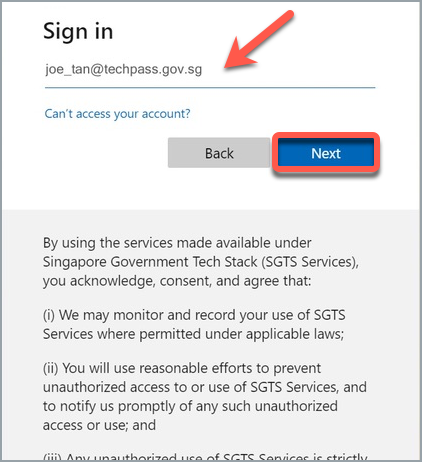
Enter your TechPass username and click Next.
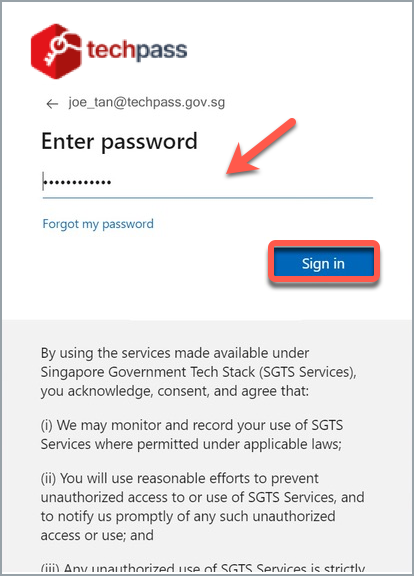
Enter your password and click Sign in.
- Invitation via TechPass Portal, TechPass Account Portal or Console Portal: Use the password you created during registration.
- Invitation via TechBiz Portal: Use the initial password sent to you via SMS.
Click Next to configure MFA for your TechPass account.

Step 4: Configure Multi-Factor Authentication (MFA) for TechPass account
This section guides you to configure Microsoft Authenticator as your MFA. Microsoft Authenticator is required for the following reasons:
- It supports Passwordless sign ins.
- It supports Number Matching to protect you from MFA Fatigue attacks and increases the security of your account.
- Microsoft constantly improves its MFA security policies to protect its users.
TechPass accounts will be secured using Passwordless sign ins via MS Authenticator. Authy and Google Authenticator will not be supported.
Raise a ticket with us if there are special circumstances where you cannot bring your mobile device into your work premises.
Install Microsoft Authenticator on your mobile phone.
Click Next on your computer.

On your mobile phone, open Microsoft Authenticator and select + Add account > Work or School account.
Select Scan a QR code.
Go back to your computer and click Next.

Scan the QR code on your computer screen and click Next. Your TechPass account gets activated and linked to the Authenticator app.

A number is shown on your browser.

On the Authenticator app, enter the number shown, and select Yes to authenticate your sign-in.

On your computer, click Next.
Choose the country code, enter your phone number and click Next.

Enter the six-digit code sent to your mobile phone through text message and click Next.

Your mobile phone is registered successfully to this account. Click Next.

When you see a success message, click Done. Now you are prompted to reset your initial password.

Step 5: Reset your initial password
Note: This step only applies if you were invited via the TechBiz Portal and received an initial password via SMS. If you set up your own password during registration (TechPass Portal, TechPass Account Portal or Console Portal invitation), you can skip this step.
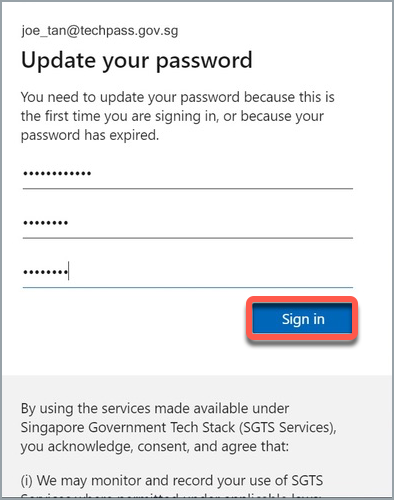
Enter your initial password, new password and retype the new password to confirm.
Click Sign in to proceed to accept the Terms of Use.
Step 6: Accept the terms and conditions
Read the Privacy Policy and click Accept.
Read the Terms of Use and click Accept. You have successfully onboarded to TechPass.
If you had requested for SEED provisioning and is successfully provisioned to you, read the MDM AUP Policy and click Accept.
- Upon accepting the terms and conditions, you are successfully onboarded to TechPass.
- If you had requested for SEED to be provisioned, you may proceed to onboard your Internet Device to SEED.
- Before you onboard your Internet Device to SEED, seePrerequisites for onboarding your device to SEED.
Step 7: Enable Passwordless sign-in in mobile app
Mandatory for TechPass Staging and Production environments.
Passwordless authentication offers several advantages over traditional password-based systems:
- Reduced attack surface: Eliminates risks from password theft, reuse, phishing, and brute-force attacks.
- Improved user experience: Users do not need to remember complex passwords or manage frequent resets. Authentication is faster and less error-prone.
- Stronger security posture: Modern passwordless methods use cryptographic keys, biometrics, and device-bound credentials, which are more secure than passwords.
- Simplified access: Users can securely access corporate resources from various devices, supporting organizational security policies.
More information about passwordless.
In the Microsoft Authenticator app, select the TECHPASS account. If you are using the TechPass Staging environment, select GDS TECHPASS STG instead.
Select on Set up Passwordless sign-in requests

Enter TechPass account password when prompted in the Microsoft Authenticator app and tap on Sign in.

MFA will be prompted and your mobile phone will receive a push notification to approve the sign-in.
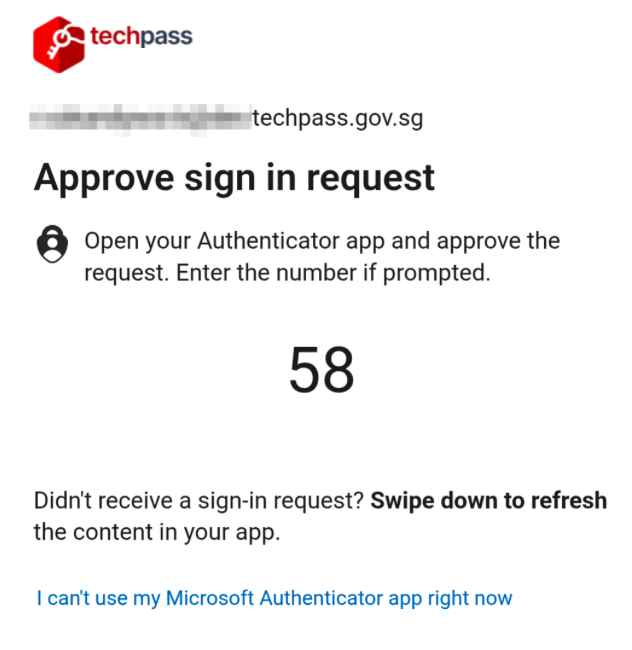
Open the Authenticator notification and approve the sign-in by selecting Yes.
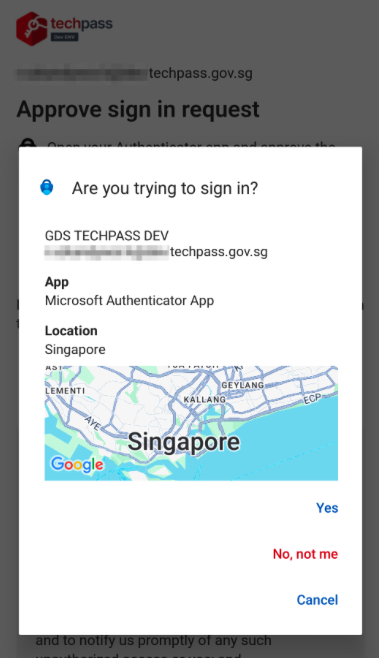
Proceed with passwordless setup when displayed by selecting on Continue.

The Authenticator app will prompt you for phone passcode or biometric. Proceed with the authentication.
Account added page will be displayed when the passwordless setup is done. You may select Done.

Step 8: Enable Microsoft Authenticator App lock
This step is to ensure that App Lock is enabled in the Microsoft Authenticator.
On the Microsoft Authenticator app, access the Settings.
For Android, open the menu via the three-dot icon and select Settings.

For iOS, open the sidebar and select Settings.

Enable the App Lock if not yet enabled.
The app will prompt you for phone passcode or biometric. Proceed with the authentication.