Register Intune Device ID
If you have a GSIB device, your SEED onboarding is successful only when you register your Intune device ID on the TechPass Portal.
Audience
Users with a non-SE GSIB device and onboarding their Internet Device to SEED.
If you are a public officer with an SE-GSIB device, to register your Intune device ID, create a service request.
Prerequisites
You need the following to register your Intune Device ID on the TechPass Portal:
- An active TechPass account.
- A non-SE GSIB device.
- Intune Device ID of the Internet Device. For more information, see SEED documentation:
To register Intune device ID
Log in to the TechPass Portal.
On the TechPass Portal, at the top right, go to your user name and click My Account. Your Profile details are displayed.
Click Onboard device to SEED and follow the on-screen instructions to submit this Intune Device ID.

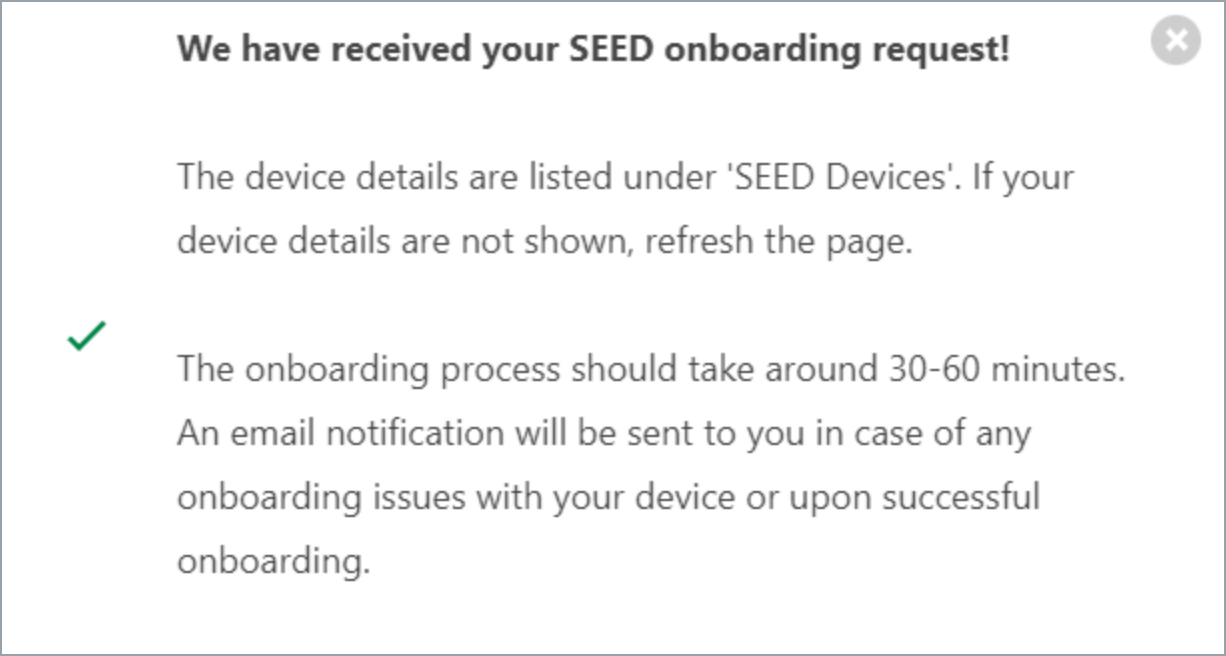
You will receive the following confirmation message.
Your Internet Device record is listed under the SEED Devices with the following details:
- Device name
- Operating system of the device
- Serial number
- Intune Device ID
- Date and time when the onboarding was triggered or when the device was successfully onboarded
- Onboarding status 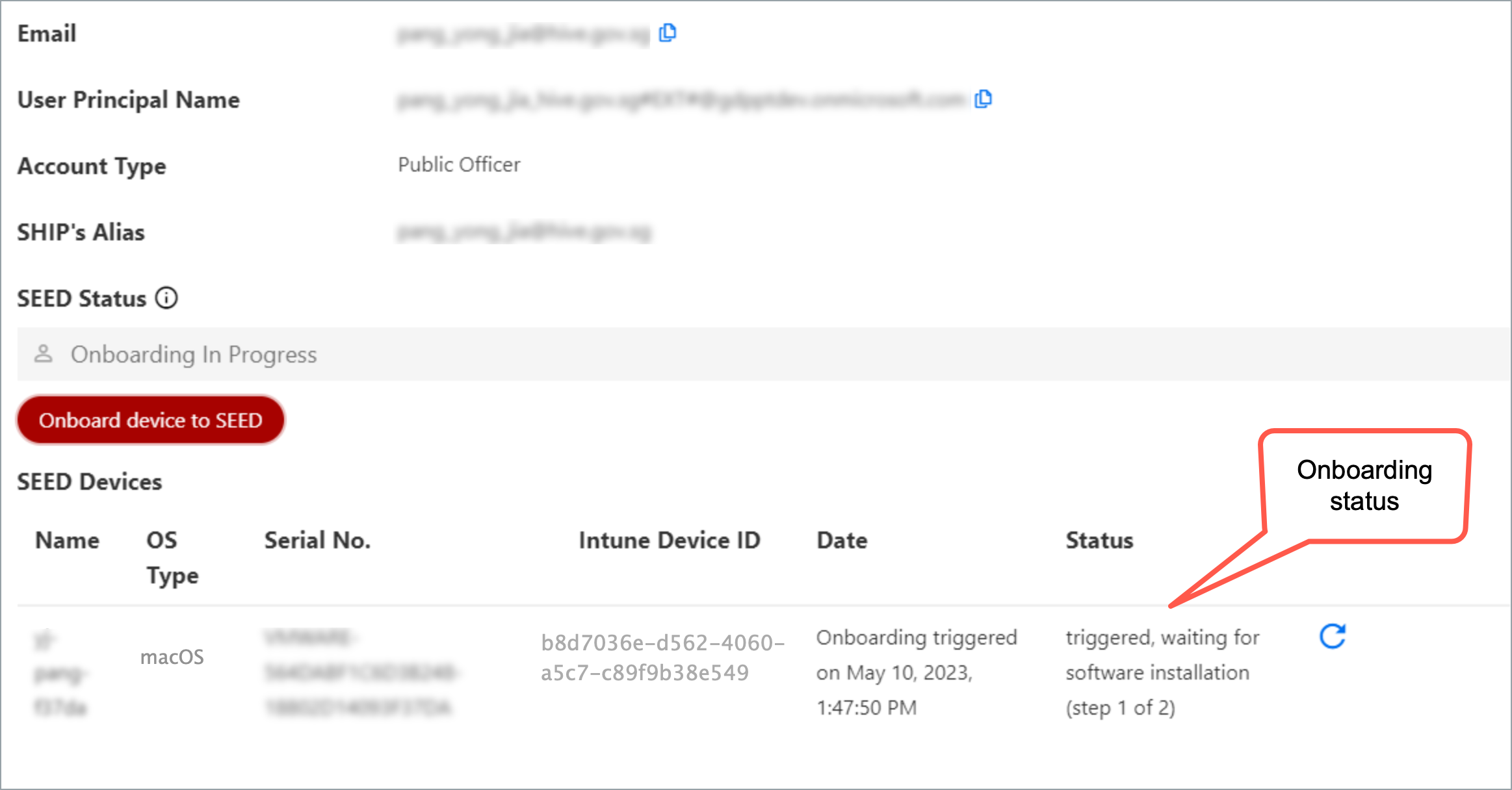
Ensure the device you are onboarding is connected to the Internet to allow Intune to install the required software and configurations.
After 30-60 minutes, check your inbox(organisational email address) for any emails regarding your onboarding status.
Choose the appropriate step:
a. If you have received a successfully onboarded email, skip the remaining steps in this section and proceed to Step 3: Verify installation.
b. If you have not yet received the successfully onboarded email or if you have received a failed onboarding email, complete the following step on the TechPass Portal.
Refer to the table to understand the possible onboarding statuses and the action required:
| Status | Description | Action required |
|---|---|---|
| triggered, waiting for software installation(step 1 of 2) | SEED onboarding has been triggered on the device and is waiting for the software installation to be completed. | 1. Using your non-SE GSIB device, go to the TechPass Portal. 2. Hover over your account name and click My Account. Your profile details are displayed. 3. Go to the SEED Devices section and click the refresh icon. If the software installation is successful, the status changes to software installed, waiting for backend onboarding(step 2 of 2). |
| software installed, waiting for backend onboarding(step 2 of 2) | Required software has been installed on the device and waiting for backend onboarding. | 1. Using your non-SE GSIB device, go to the TechPass Portal. 2. Hover over your account name and click My Account. Your profile details are displayed. 3. Go to the SEED Devices section and click the refresh icon. If the backend onboarding is successful, the status changes to onboarded. |
| onboarded | Your SEED onboarding is successful. | Proceed to step 8 in this section. |
| failed(Reason for failure) | Your SEED onboarding failed due to the error mentioned within the parentheses. | 1. Using your non-SE GSIB device, go to the TechPass Portal. 2. Hover over your account name and click My Account. Your profile details are displayed. 3. Go to the SEED Devices section. The suggested action to resolve the failure is generally mentioned within the parentheses. 4. Complete the suggested action. |
- Check your inbox(organisational email address) to see if you have received the successfully onboarded email.
If you don’t receive this email after two hours, submit an incident request.