Verify Passwordless Setup
This article guides you on how to verify that passwordless sign-in is set up correctly.
Audience
Users with @techpass.gov.sg accounts who have set up passwordless sign-in (all TechPass enviroments, including @stg.techpass.gov.sg).
Step 1: Open Microsoft Account Security Info
Option 1: via My Account in TechPass Portal
TechPass Portal is only accessible via Comet, non-SE GSIB, or SEED device.
If you’re using MOE GSIB or other device, refer to Option 2.
For Staging environment, TechPass Portal is only accessible via SEED device.
Log in to TechPass Portal. For Staging environment: TechPass Portal Staging.
Hover over your account name and click My Account.

Hover over the setting icon and click Manage Sign-In Methods.
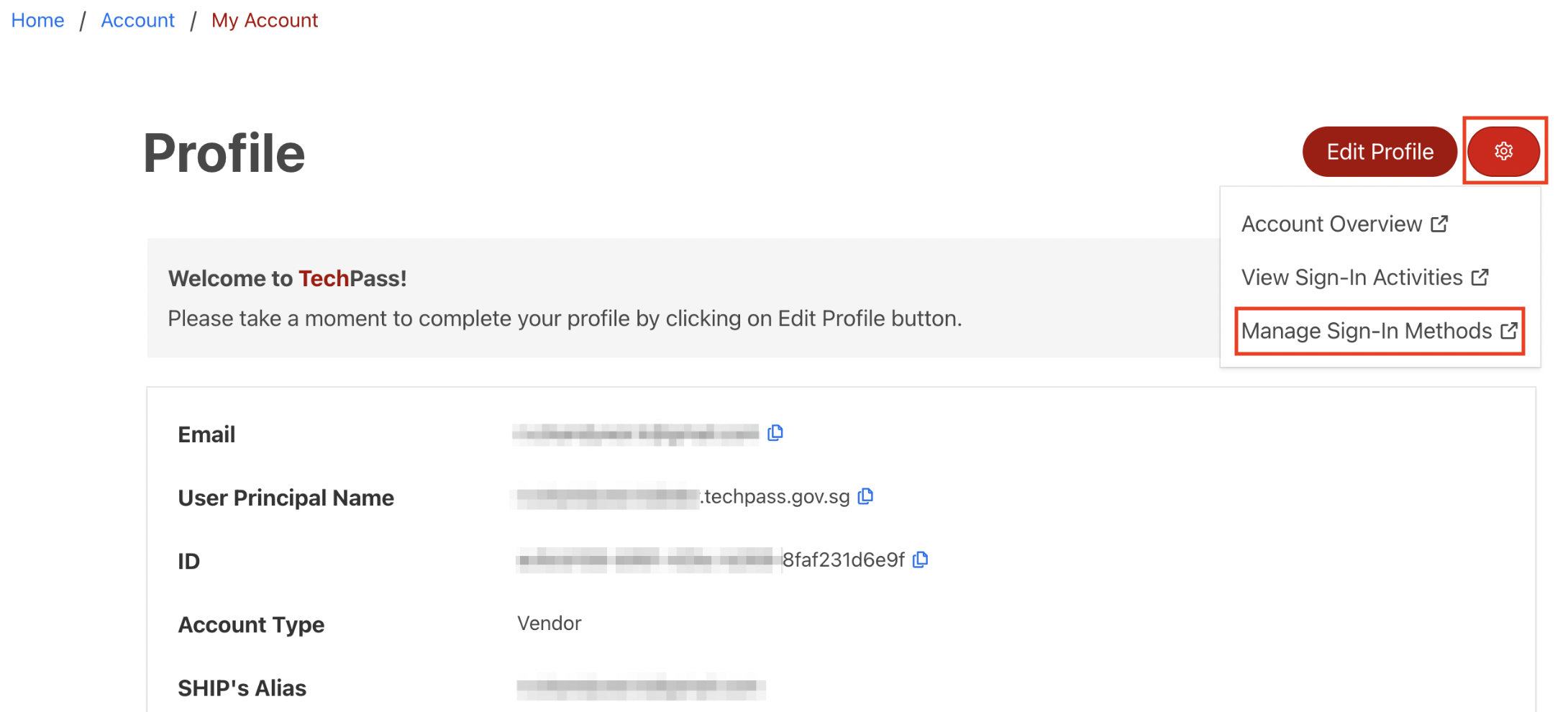
Microsoft account security info will be displayed.
Option 2: directly access Microsoft Account Security Info
Access Microsoft Account Security Info via this URL: https://aka.ms/mfasetup.
It may prompt for account selection. Select the correct account used for TechPass.
Microsoft account security info will be displayed.
Step 2: Verify that Microsoft Authenticator Passwordless sign-in is listed
Verify that Microsoft Authenticator Passwordless sign-in linked to your device is in the list.

If you do not see it:
- If you see Microsoft Authenticator Push multi-factor authentication, follow Enable Passwordless sign-in in mobile app.
- If you do not see any Microsoft Authenticator entry, follow Setup Passwordless Sign-In.
Step 3: Open the Microsoft Authenticator app and verify Passwordless sign-in is listed
On the Microsoft Authenticator app on your mobile phone, select the TECHPASS account.
Verify that under Ways to sign in or verify, you see Passwordless sign-in requests.

If you do not see it, follow Enable Passwordless sign-in in mobile app.