Enable your account
Audience
Use this guide if your TechPass account is disabled.
Your account may be disabled if you have not signed in for 90 consecutive days.
Prerequisites
Before you start, make sure you:
- Have your registered email address
- Can access that email inbox
Request an enable-account email
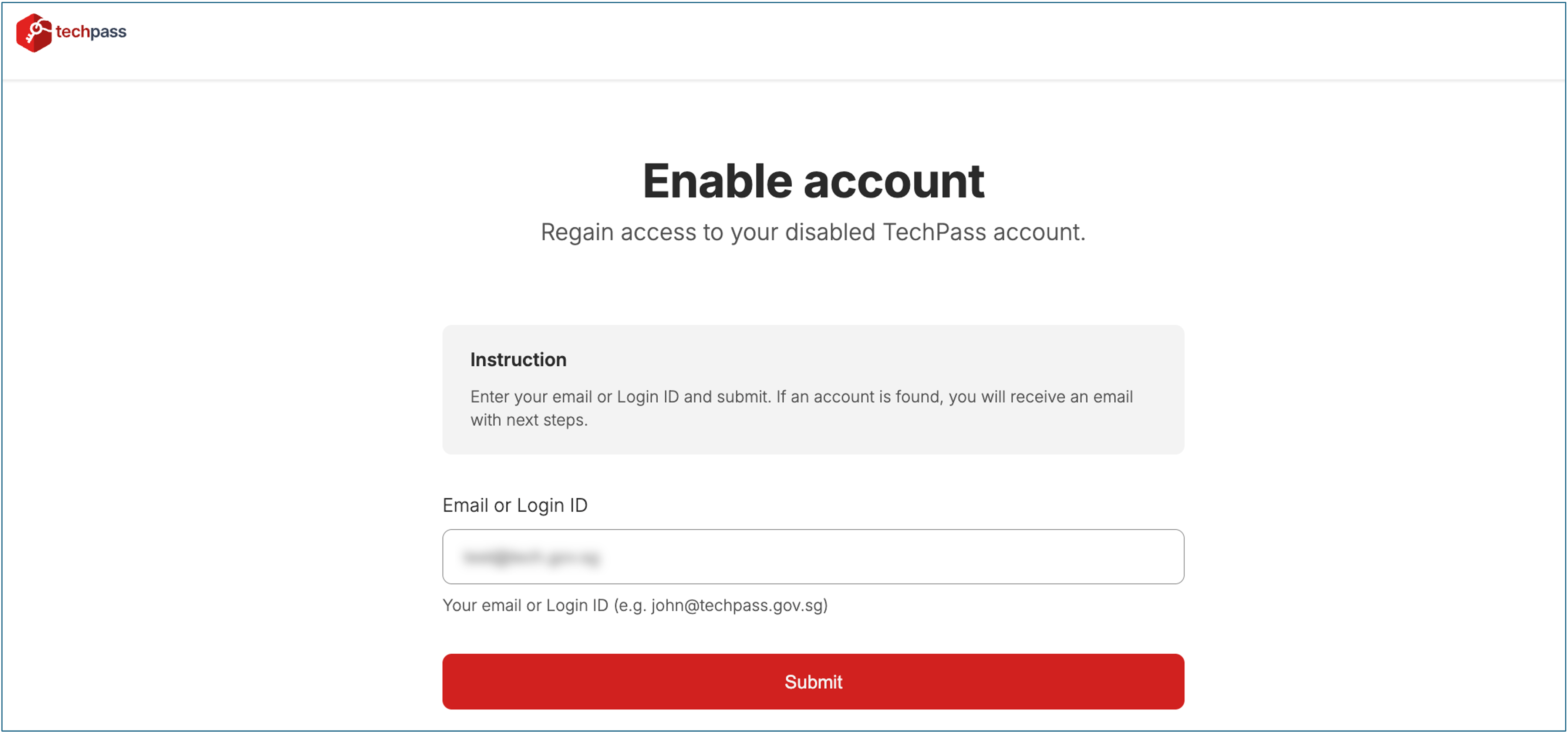 |
- On the TechPass Account Portal, select Enable account.
- Enter your email address or Login ID [TechPass User Principal Name (UPN)].
- Select Submit.
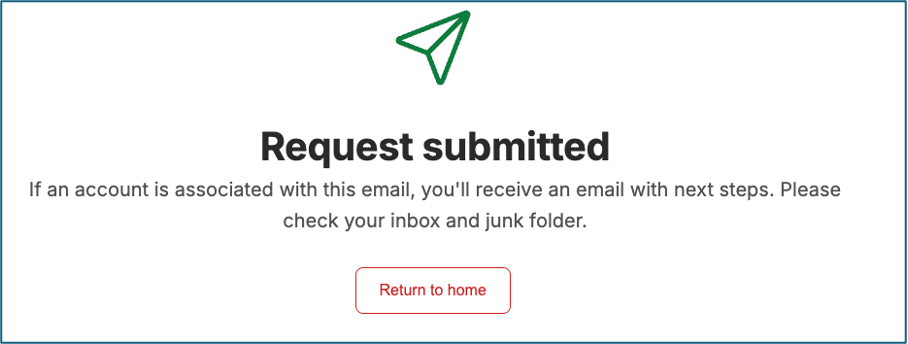
A confirmation message appears.
If you see an error, see Form validation errors.
 |
What happens next
- If your account can be enabled automatically, you will receive an email with a link to enable your account.
- If your account is already active, you will receive a confirmation email.
- If further checks are required, you will receive instructions by email on the next steps.
Enable your account
- Check your email inbox.
- If needed, check your Junk or Spam folder.
- Open the enable-account email.
- Select the link in the email.
If the link is valid, your account will be enabled.
Link not working, or email not received? See Expired enable link or Verification email not received.
Troubleshooting
Form validation errors
You may see validation errors if:
- Required fields are empty
- Information does not meet the required format
Correct the highlighted fields and submit again.
Expired enable link
If the enable link has expired, restart the enable-account process to request a new email.
Verification email not received
If you do not receive the verification email:
Check your Junk or Spam folder.
Wait a few minutes and try again.
Ensure you entered the correct email address or Login ID.
Need more help
If your account cannot be enabled automatically, follow the instructions in the email to contact support.