Reset MFA via TechPass Account Portal
You do not need to sign in to use this feature.
Audience
Use this guide if you need to reset the multi-factor authentication (MFA) for your TechPass account.
Prerequisites
Before you start, make sure you have your TechPass email address or Login ID.
What to expect
You will:
- Open the Reset MFA page
- Enter your email or Login ID
- Answer a question (if you entered your TechPass ID or a company email address)
- Reset your MFA
Open the Reset MFA page
 |
- Go to the TechPass Account Portal.
- Under Help with access, select Reset MFA.
Enter your email or Login ID
 |
In Email or Login ID, enter your TechPass email address or Login ID.
The portal then shows instructions below the form.
Answer a question
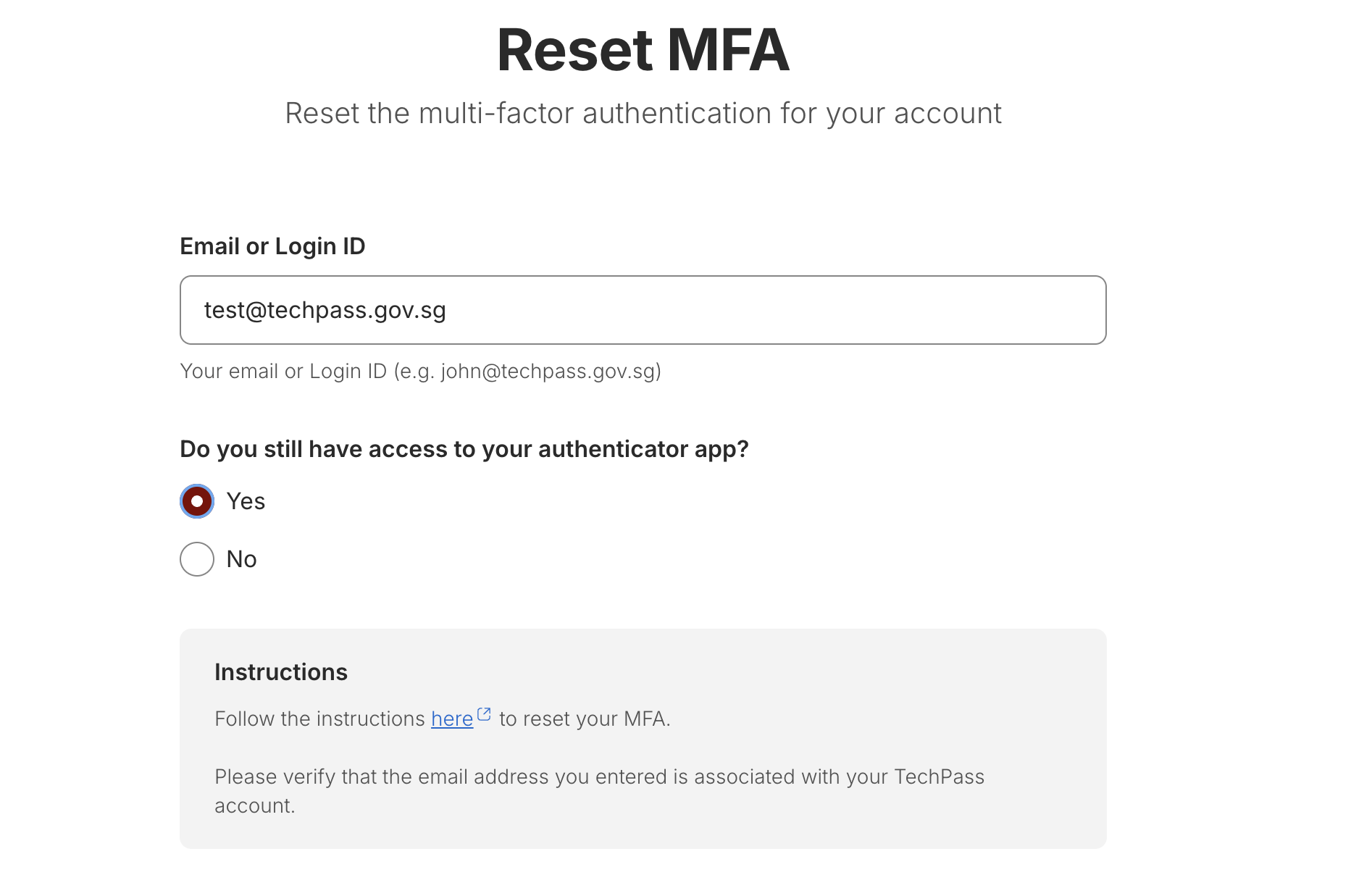
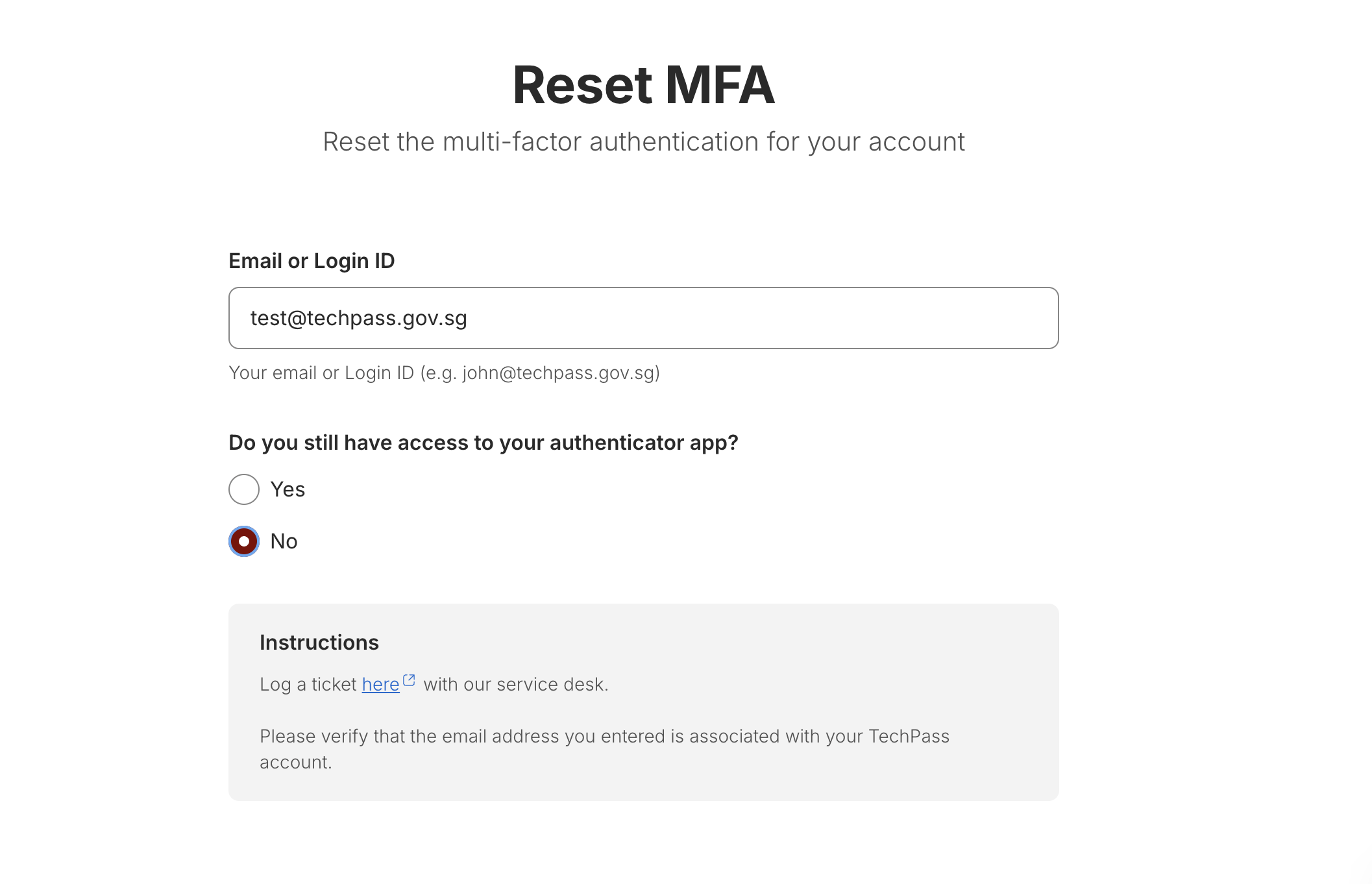
If you entered your TechPass ID (the one ending in @techpass.gov.sg) or a company email address, the portal asks whether you still have access to your authenticator app.
 |
Under Do you still have access to your authenticator app?, select Yes or No.
Reset your MFA
Government email
You must have your previous mobile phone to authenticate your login. If you have lost or formatted it, or cannot authenticate using it, contact your Agency Facility Manager Service Desk (AFM SD) to remove the MFA configured for your profile.
Follow these steps to reset your MFA:
- Go to Microsoft Security info.
- If prompted, sign in to your account.
- On the Security info page, select + Add sign-in method.
- In Add a method, select Authenticator app and select Add.
- Select Next.
- Follow the on-screen instructions and select Next.
- Download and install Microsoft Authenticator on your new phone.
- In the app, add an account and choose Work or school account.
- Select Scan a QR code on the app.
- Scan the QR code displayed on your computer using your new phone and select Next.
- A notification is sent to your new phone and a number is shown in your browser. In the Authenticator app, enter the number.
- Select Yes or Done on the app.
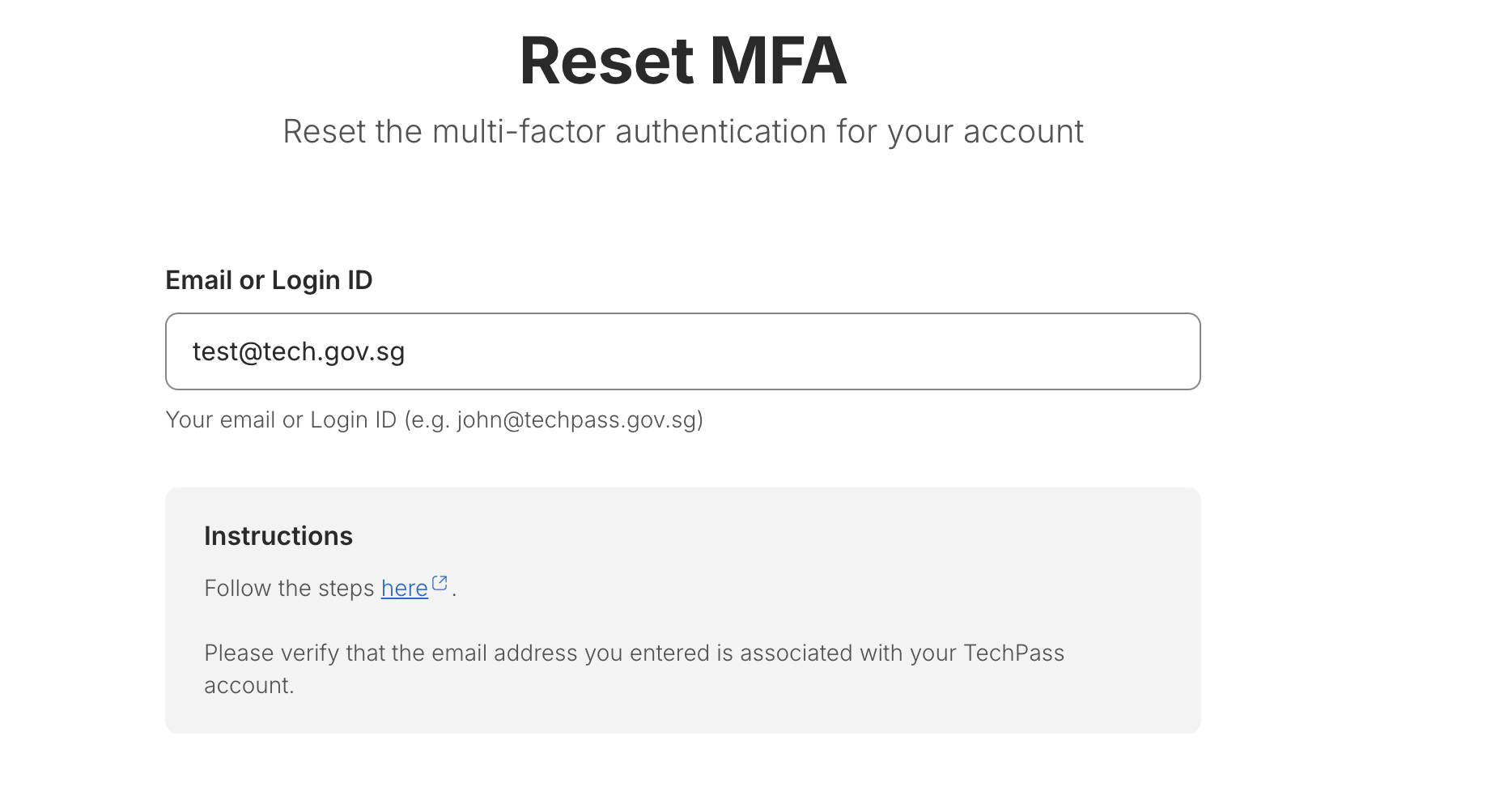 |
With authenticator app access
You must have your previous mobile phone to authenticate your TechPass login.
Follow these steps to reset your MFA:
- Install Microsoft Authenticator on your new phone.
- Add your new phone and enable passwordless sign-in.
- After you have verified that passwordless sign-in works on your new phone, remove the Microsoft Authenticator linked to your old phone.
 |
Without authenticator app access
In the instructions, select here to log a ticket with the service desk.
 |
Troubleshooting
The instructions do not match my account
Check that you entered the correct email address or Login ID. The portal chooses the instructions from the domain you enter.
Need more help
If you cannot reset your MFA, raise a service request.