Subscribe to Claude Code and add users (WOG)
For: Subscription Admins and Technical Admins (WOG and GovTech)
This guide describes how Subscription Admins and Technical Admins with the Subscription Admin or Technical Admin role can subscribe to Claude Code and manage users through Console. This includes GovTech admins adding ARs.
- Before you begin: Subscribe to SHIP-HATS — if your agency does not have a subscription yet
- Steps 1–2: Subscribe to Claude Code — Subscription Admins only
- Step 3: Add users — Subscription Admins and Technical Admins
Note: If you are a GovTech Public Officer or intern, see Request and set up Claude Code for the appropriate onboarding guide.
Prerequisites
Before you begin, ensure that you have:
- A SHIP-HATS subscription
- A TechPass account
- The Subscription Admin or Technical Admin role in TechBiz
- Your team members’ TechPass accounts
Step 1 - Select a SHIP-HATS subscription
(Subscription Admin only)
- Log in to Console and go to Subscription accounts.
- Select the subscription you want to add Claude Code to.
Step 2 - Add Claude Code
(Subscription Admin only)
On the SUBSCRIBED PRODUCTS tab, click the vertical ellipsis (⋮) for SHIP-HATS product, and select Manage subscriptions.
Click Edit subscription.
Under Individual Plans, select Claude Code.
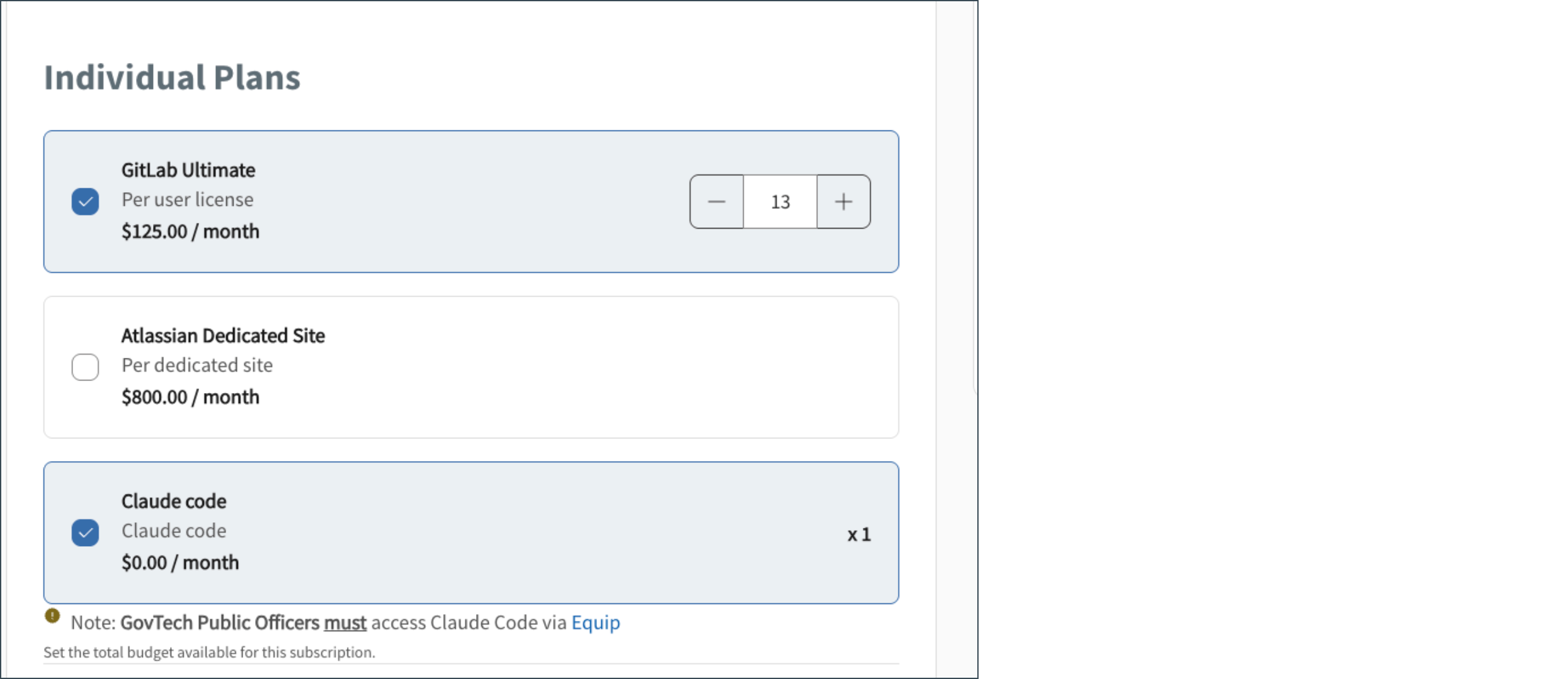
After the request is processed, Claude Code is added to the subscription.
Step 3 - Add users
Note: Users without an active TechPass account will not appear in search results.
From the subscription page, go to the USER MANAGEMENT tab.
If your subscription contains multiple products, select SHIP-HATS 2.0 from the Products filter.
Expand Claude Code and select Manage to go to the Claude Code User Management page.

Select Add users.

Search for and select the users to add.
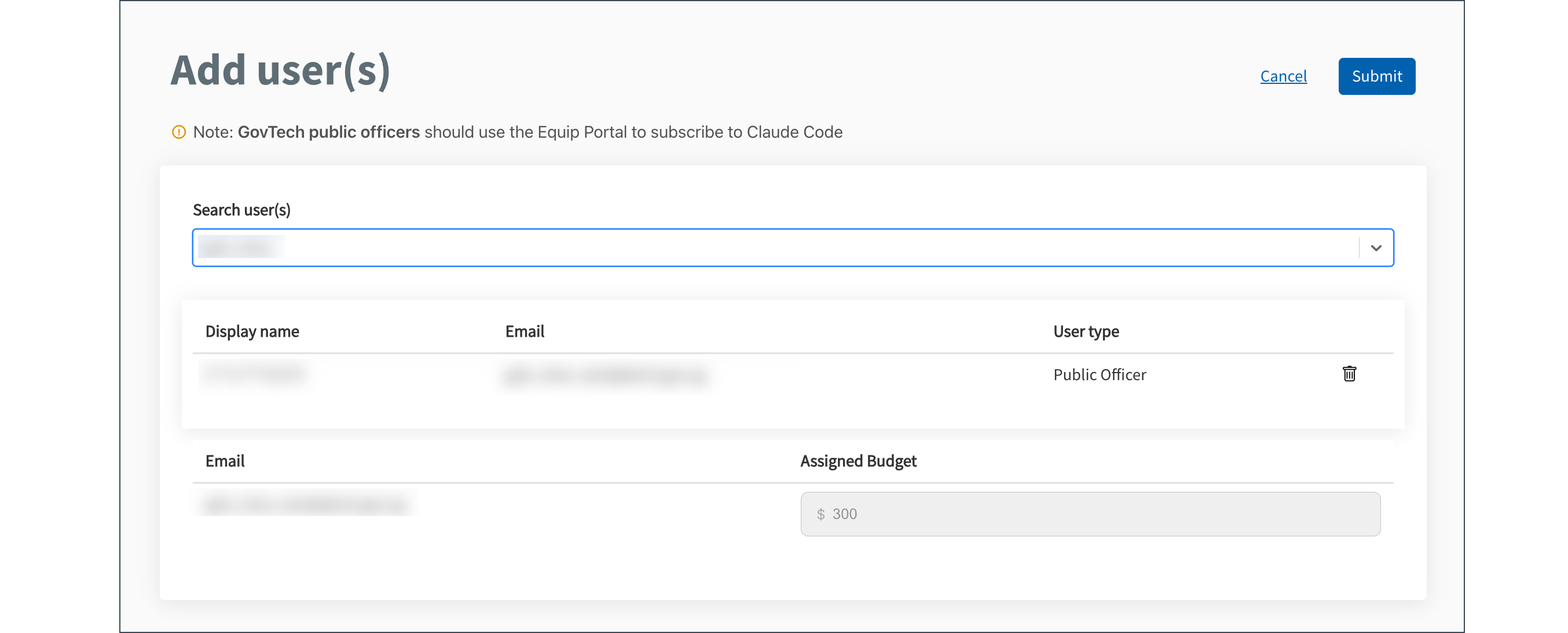
Click Submit. Added users can now generate an API key and start using Claude Code.
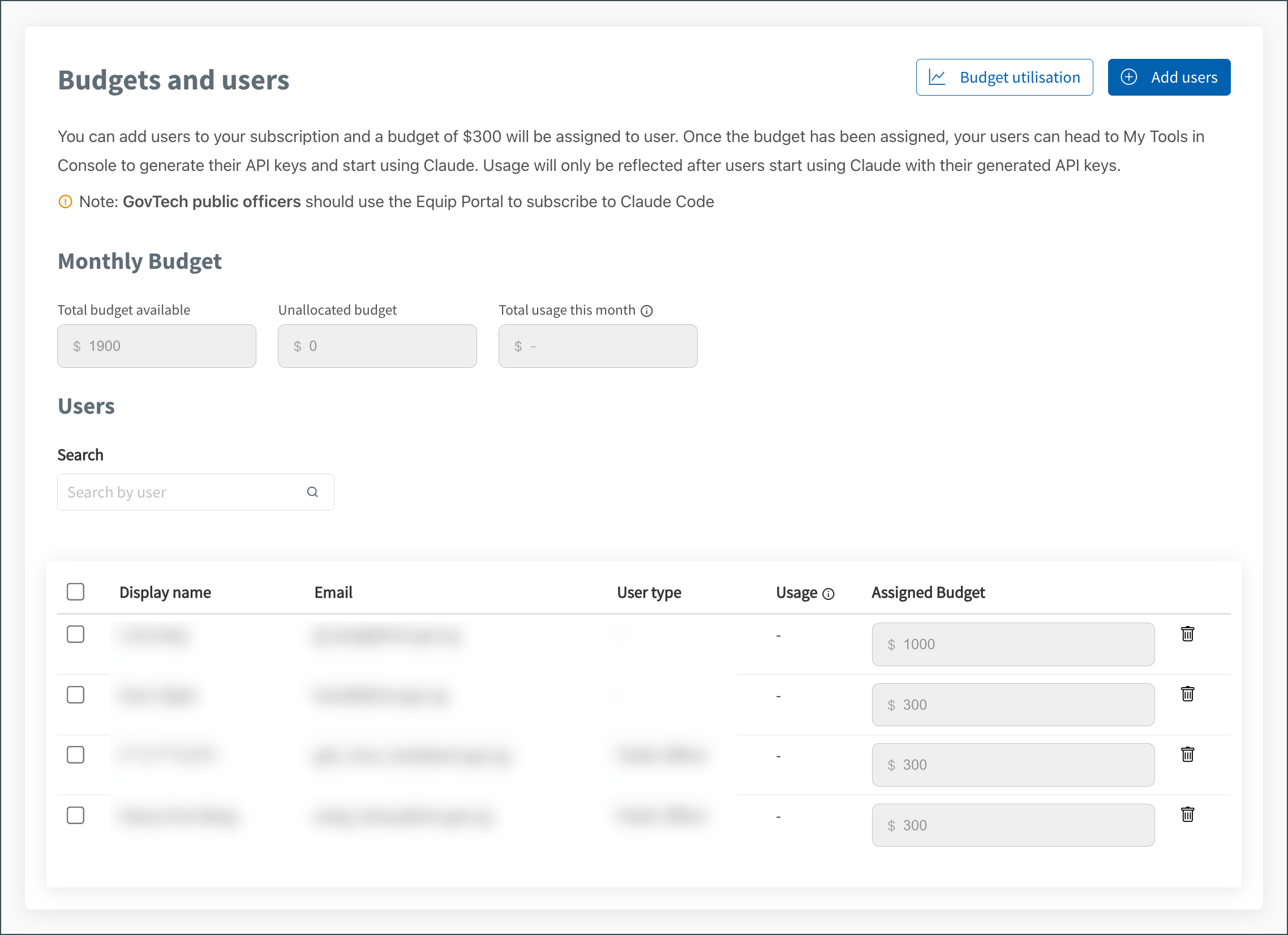
From the Claude Code User Management page, you can view each user’s usage and remove users. Usage will only be reflected after users start using Claude with their generated API keys.
Next steps
Share the Set up and start using guide with your project team members to complete their setup.
To view usage and charges for your team, see Monitor Claude Code usage and charges.
For higher fidelity analytics on Claude Code usage across your agency, see the AI Impact Dashboard.
