Create a GitLab group
Subscription Admins (SAs) and Project Admins (PAs) can create a GitLab group for a SHIP-HATS project using Console.
Note: Each SHIP-HATS project can have only one GitLab group. For details on how groups, subgroups, and projects are structured, see GitLab groups, subgroups, and projects.
Before you begin
Each SHIP-HATS project can have only one GitLab group.
The group created in Console is placed within a SHIP-HATS-managed GitLab hierarchy. The below illustration is an example to explain the GitLab group hierarchy in SHIP-HATS.
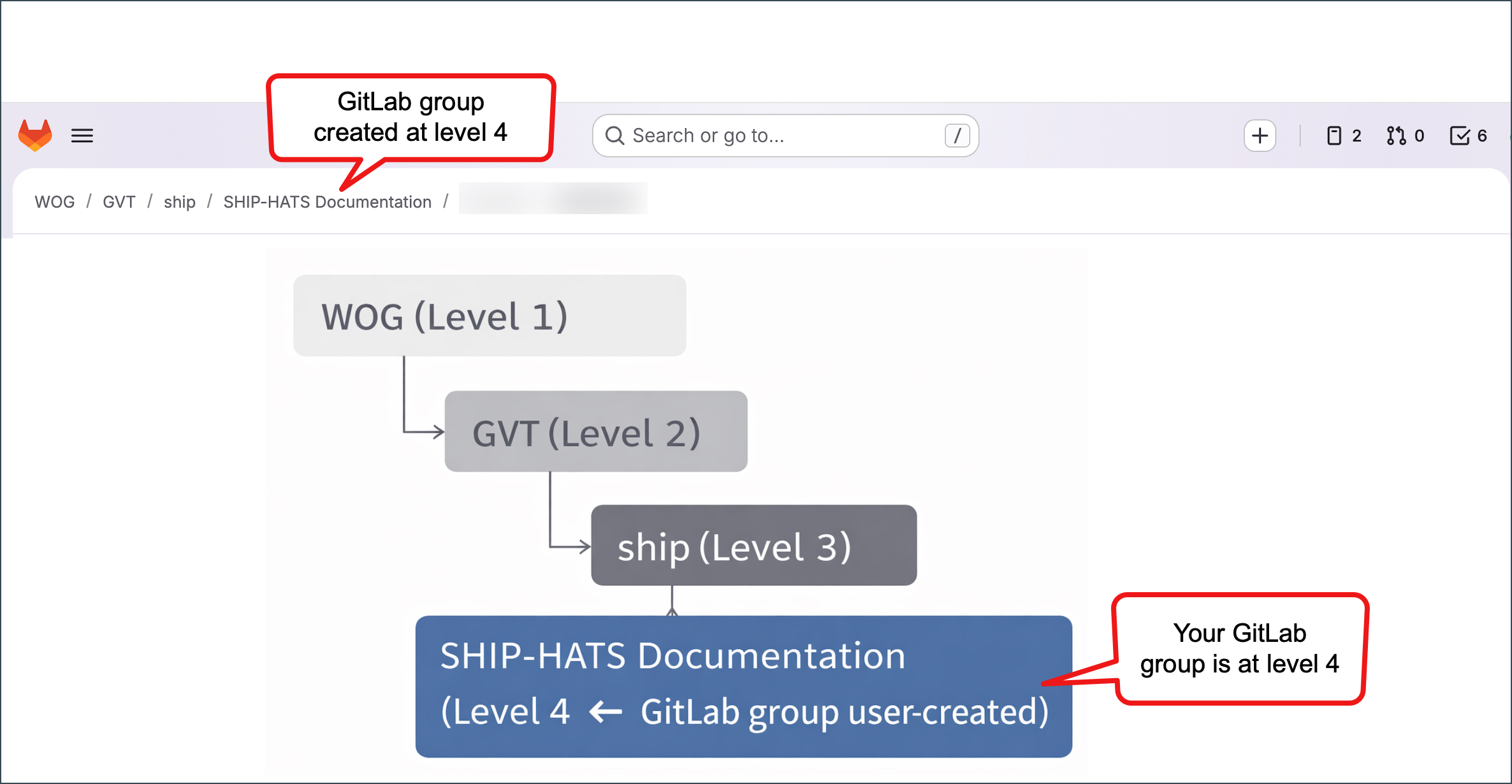
You can create subgroups and projects within this group directly in GitLab.
For details, see GitLab groups, subgroups, and projects.
Prerequisites
Ensure the following:
- You are using a non-SE GSIB, COMET, or GMD (SEED) device.
- You are a Subscription Admin (SA) for the subscription, or a Project Admin (PA) for a SHIP-HATS project within the subscription.
- Your subscription includes GitLab Ultimate.
To verify, see View tools included in a SHIP-HATS subscription. - At least one SHIP-HATS project exists in the subscription.
To verify, see View SHIP-HATS projects. - At least one Project Admin (PA) for the SHIP-HATS project has a GitLab licence.
If no Project Admin has a GitLab licence:
- Ask your SA to provision GitLab licences.
- If the subscription has not subscribed to GitLab, the SA must first subscribe to GitLab.
Steps
Log in to Console.
Go to Products > SHIP-HATS and select the required subscription to open the Workspace.
For details, see Access Workspace.In the left navigation, go to Tools > GitLab.
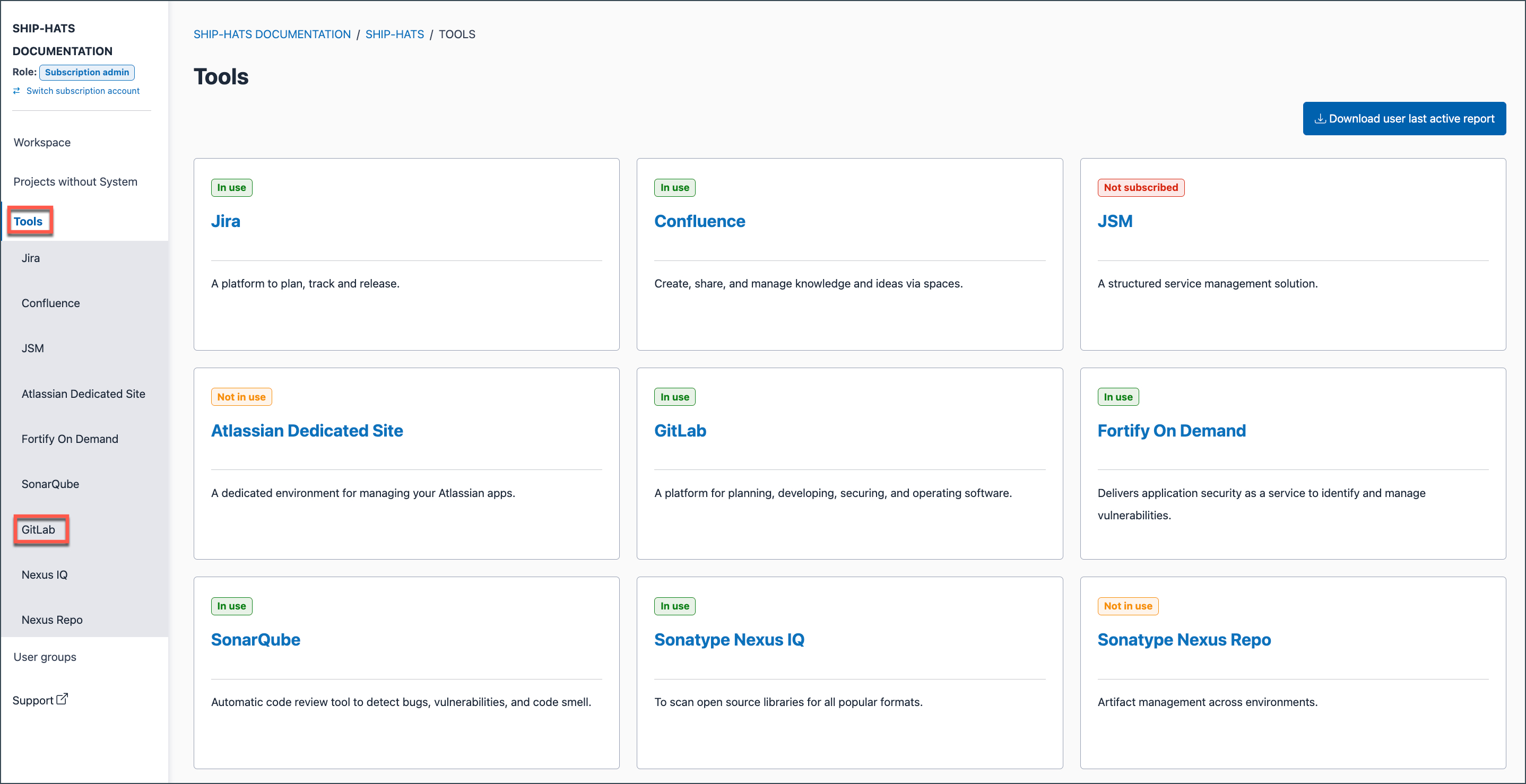
Select the SHIP-HATS project for which you want to create the GitLab group.
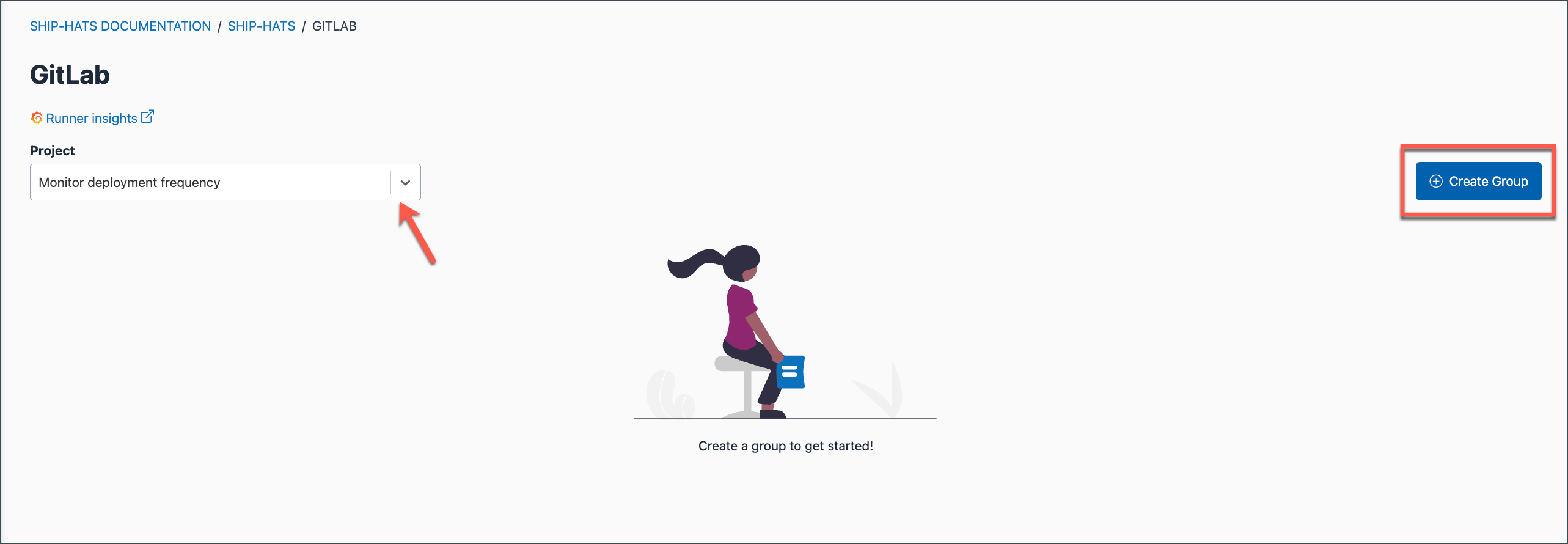
Click Create group.
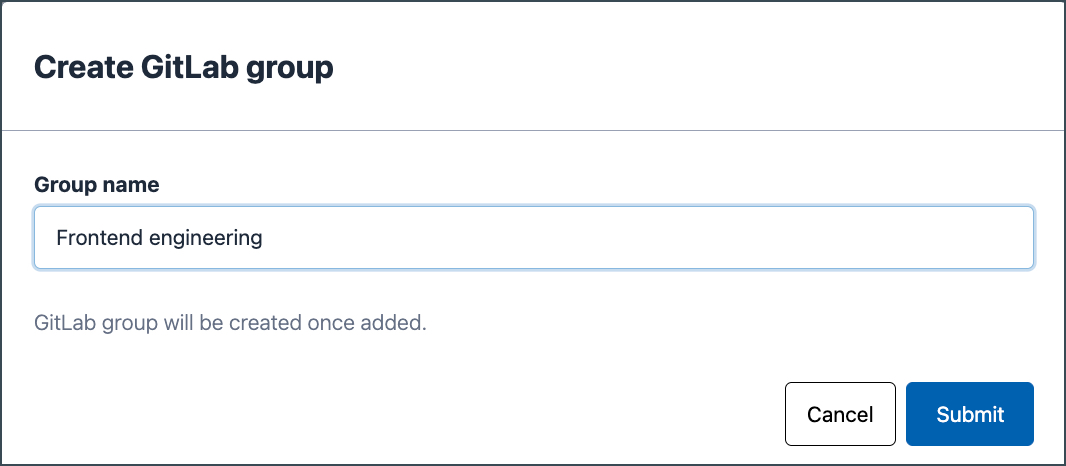
Enter the Group name.
- Allowed characters: letters (a–z, A–Z), digits (0–9), space,
.,_,-, and parentheses() - Must be at least 2 characters
- Cannot start with
-
Valid examples Invalid examples DevOps_Team-Team(starts with-)Frontend engineering!Project(unsupported symbol)Project-1.2a(less than 2 characters)- Allowed characters: letters (a–z, A–Z), digits (0–9), space,
Click Submit.

The new GitLab group appears under the selected SHIP-HATS project. Project Admins can now create subgroups, repositories, and manage members within the group.
What you can view in Console:
- SAs and PAs can view the GitLab group linked to a SHIP-HATS project and up to three subgroups or projects.
- To view all subgroups and projects, go to GitLab.
- What you can access in GitLab depends on your assigned role (Owner, Maintainer, or Developer).
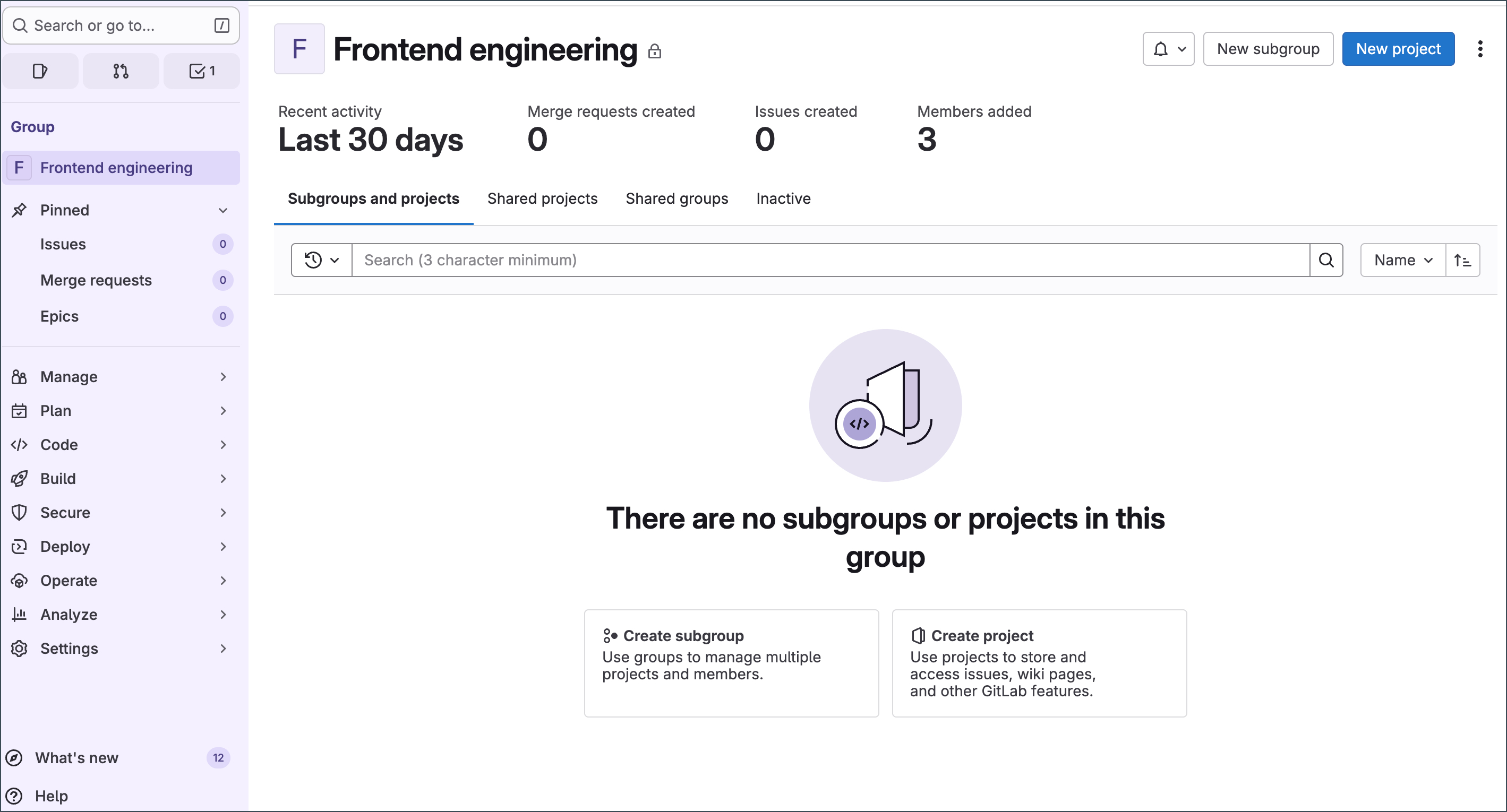
After creating a GitLab group, you can organise repositories using subgroups within the group.
For an overview of how groups, subgroups, and projects are structured, see GitLab groups, subgroups, and projects.
To create subgroups, see Create GitLab subgroups.
Note: GitLab groups and subgroups created under GovTech-owned SHIP-HATS subscriptions may be accessible to eligible GovTech users under Open Data Access. For details, see Open Data Access for GitLab repositories.
