Set up agency-hosted GitLab runners
This topic is for SHIP-HATS users who intend to set up a agency-hosted GitLab runner.
This registration process is only supported in GitLab Runner 15.10 or later. This registration process is not supported in GitLab Runner 15.9 or earlier and only available as an experimental feature in GitLab Runner 15.10 and 15.11. You should upgrade to GitLab Runner 16.0 or later to use a stable version of this registration process. For more details, refer to: https://docs.gitlab.com/ee/ci/runners/new_creation_workflow.html.
Overview of agency-hosted runner setup
Following are the steps involved when you set up agency-hosted runner.
| Step | Task |
|---|---|
| 1 | Ensure prerequisites |
| 2 | Retrieve runner token |
| 3 | Install and register runner |
Step 1: Ensure prerequisites
- Ensure you have access to your hosted environment or virtual machine (VM).
- Establish network connectivity for private network link via AWS VPCE for AWS or Azure Private Link for Azure.
- Confirm that your accounts are on the GCC platform (GCC 1.0 or GCC 2.0).
Step 2: Retrieve runner token
Depending on your use case, you can configure either a group runner or project runner.
Group runner: This runner is shared among all projects within the group.
Project runner: This runner is dedicated to a single project.
Go to GitLab and from the left sidebar, select Search or go to and find your group.
Select Build > Runners.
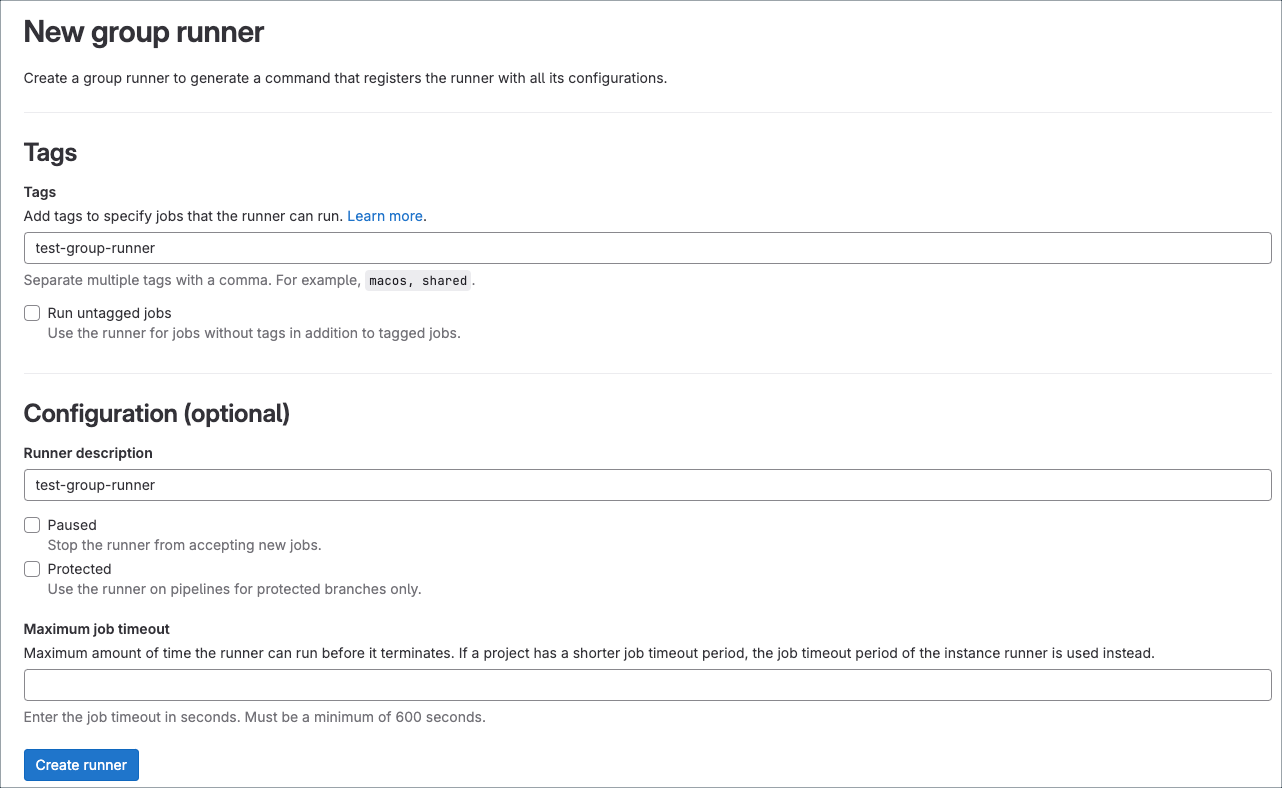
Select New group runner.

Select your preferred runner tags and additional configurations to generate the project runner authentication token.
In the Tags section, in the Tags field, enter the job tags to specify jobs the runner can run.
[Optional] In the Configuration section, add additional configurations.
Select Create runner.
Copy the registration token displayed and proceed to install the runner.
Go to GitLab and from the left sidebar, select Search or go to and find your project.
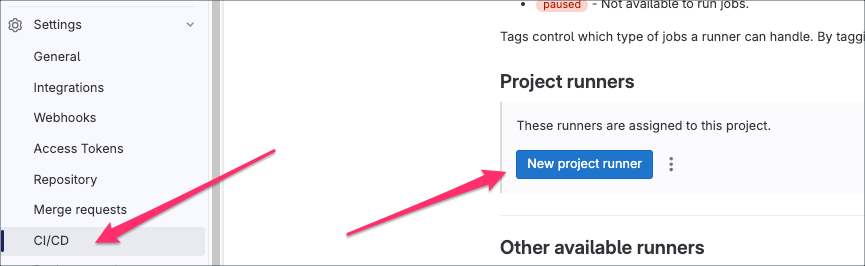
Select Settings > CI/CD.
Expand the Runners section and select New project runner.
In the Tags section, in the Tags field, enter the job tags to specify jobs the runner can run.
[Optional] In the Configuration section, add additional configurations.
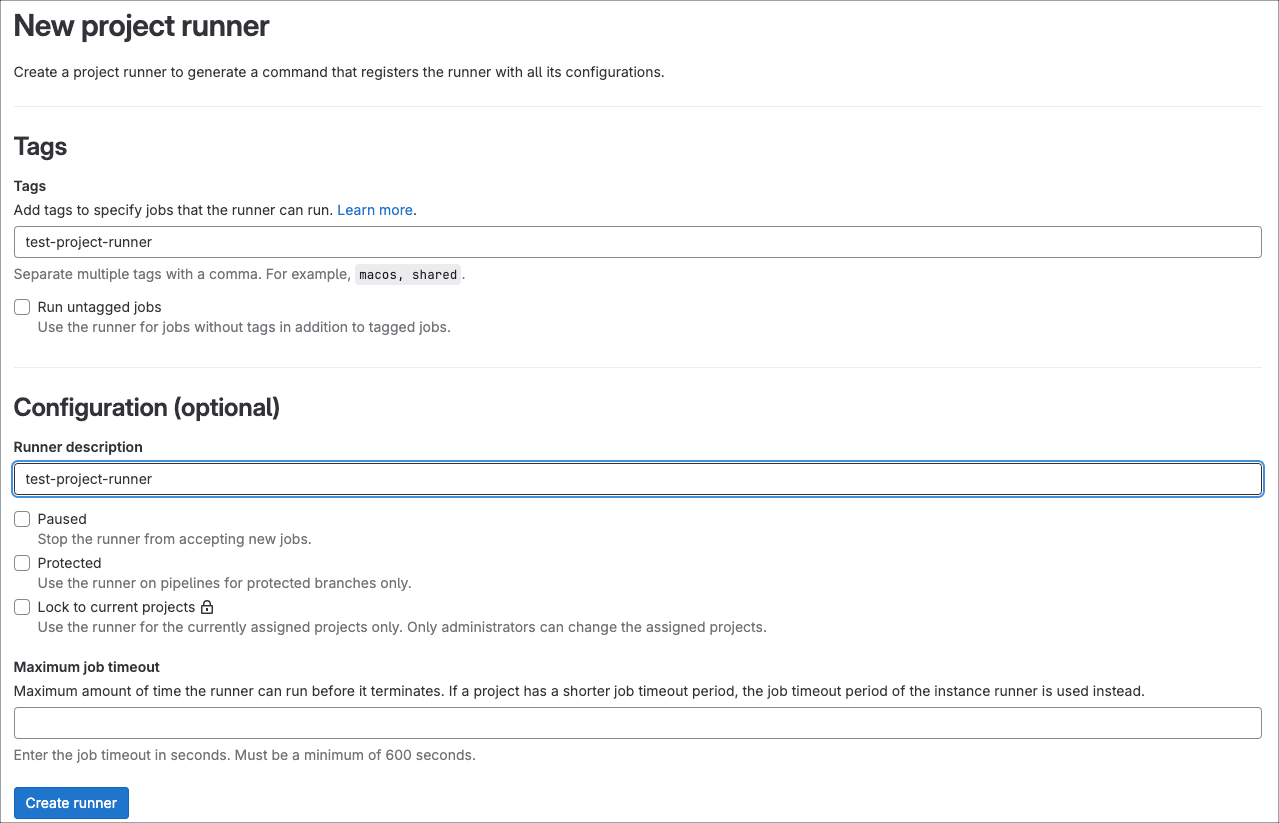
Select Create runner.
Copy the registration token displayed and proceed to install the runner.
Step 3: Install and register runner
You can install runner in the following environments based on your setup:
- Linux(amd64)
- macOS (amd64)
- Windows (amd64)
- Docker
- Kubernetes
Follow the below instructions to:
- Download the binary file
- Install the binary file
- Register the runner
Download the binary for your system using:
sudo curl -L --output /usr/local/bin/gitlab-runner https://gitlab-runner-downloads.s3.amazonaws.com/latest/binaries/gitlab-runner-linux-amd64Give it permission to execute using:
sudo chmod +x /usr/local/bin/gitlab-runnerCreate a GitLab Runner user using:
sudo useradd --comment 'GitLab Runner' --create-home gitlab-runner --shell /bin/bashInstall and run as a service using:
sudo gitlab-runner install --user=gitlab-runner --working-directory=/home/gitlab-runnersudo gitlab-runner startTo register the runner, in the following command, replace the placeholder
XXXXXXXXXXXXXXXXXXXXXXXXXXXXXXXXXXXXXXXXXXXwith your actual registration token retrieved in Step 2: Retrieve runner token:sudo gitlab-runner register --url https://sgts.gitlab-dedicated.com/ --registration-token XXXXXXXXXXXXXXXXXXXXXXXXXXXXXXXXXXXXXXXXXXXIf you encounter a
net/http: TLS handshake timeouterror during registration, follow the steps below to resolve it:
A. Open PowerShell with administrative privileges.
B. Execute the following commands to force PowerShell to use TLS 1.2:[Net.ServicePointManager]::SecurityProtocol = [Net.SecurityProtocolType]::Tls12Invoke-WebRequest -Uri https://sgts.gitlab-dedicated.com -UseBasicParsing
C. Retry the runner registration command in step 5.
Download the binary for your system using:
sudo curl --output /usr/local/bin/gitlab-runner https://gitlab-runner-downloads.s3.amazonaws.com/latest/binaries/gitlab-runner-darwin-amd64Give it permission to execute using:
sudo chmod +x /usr/local/bin/gitlab-runner
Execute the rest of the commands as the user who will run the runner.
To register the runner, in the following command, replace the placeholder
XXXXXXXXXXXXXXXXXXXXXXXXXXXXXXXXXXXXXXXXXXXwith your actual registration token retrieved in Step 2: Retrieve runner token:gitlab-runner register --url https://sgts.gitlab-dedicated.com --token glrt-XXXXXXXXXXXXXXXXXXXXXXXXXXXXXXXXXXXXXXIf you encounter a
net/http: TLS handshake timeouterror during registration, follow the steps below to resolve it:
A. Open PowerShell with administrative privileges.
B. Execute the following commands to force PowerShell to use TLS 1.2:[Net.ServicePointManager]::SecurityProtocol = [Net.SecurityProtocolType]::Tls12Invoke-WebRequest -Uri https://sgts.gitlab-dedicated.com -UseBasicParsing
C. Retry the runner registration command in step 3.Run the following commands:
cd ~ gitlab-runner install gitlab-runner start
Run PowerShell. For more details, on how to start Windows PowerShell with administrative privileges, refer to the Microsoft Documentation.
Choose a location on your system to create a new folder. For example, to create a folder named
GitLab-Runnerin the C: drive, run the following command in PowerShell to create the folder:New-Item -Path 'C:\GitLab-Runner' -ItemType DirectoryNavigate to the newly created folder by running the following command:
cd 'C:\GitLab-Runner'Download the binary file using the following command:
Invoke-WebRequest -Uri "https://gitlab-runner-downloads.s3.amazonaws.com/latest/binaries/gitlab-runner-windows-amd64.exe" -OutFile "gitlab-runner.exe"To register the runner, in the following command, replace the placeholder
XXXXXXXXXXXXXXXXXXXXXXXXXXXXXXXXXXXXXXXXXXXwith your actual registration token retrieved in Step 2: Retrieve runner token:./gitlab-runner.exe register --url https://sgts.gitlab-dedicated.com/ --token glrt-XXXXXXXXXXXXXXXXXXXXXXXXXXXXXXXXXXXXXXIf you encounter a
net/http: TLS handshake timeouterror during registration, follow the steps below to resolve it:
A. Open PowerShell with administrative privileges.
B. Execute the following commands to force PowerShell to use TLS 1.2:[Net.ServicePointManager]::SecurityProtocol = [Net.SecurityProtocolType]::Tls12Invoke-WebRequest -Uri https://sgts.gitlab-dedicated.com -UseBasicParsing
C. Retry the runner registration command in step 5.Run the following commands:
.\gitlab-runner.exe install .\gitlab-runner.exe start
To install Runner in a container, follow the instructions described in the GitLab documentation.
To install Runner in Kubernetes, follow the instructions described in the GitLab documentation.
