Windows offboarding guide
This guide provides instructions for you to offboard your Windows device onboarded to SEED.
Audience
- Users who need to offboard their Windows device from SEED.
Prerequisites
Before you begin, make sure you have the following:
- An active TechPass account
- A SEED onboarded device
- [Optional] Your Intune Device ID
Get Intune Device ID
You need your Intune Device ID during the offboarding process. Here is how to find it:
Tip
Click the triangle to view more details about each method.
- Open PowerShell and run the following commands:
$rootKey = [Microsoft.Win32.RegistryKey]::OpenBaseKey(
[Microsoft.Win32.RegistryHive]::LocalMachine,
[Microsoft.Win32.RegistryView]::Registry64
)
$enrollmentsKey = $rootKey.OpenSubKey("Software\Microsoft\Enrollments")
$intune_id = "Intune ID not found"
foreach ($name in $enrollmentsKey.GetSubKeyNames()) {
$enrollmentIdKey = $enrollmentsKey.OpenSubKey($name)
if ($enrollmentIdKey.GetValue("ProviderID") -ieq "MS DM Server") {
$intune_id = $enrollmentIdKey.OpenSubKey("DMClient\MS DM Server").GetValue("EntDMID", "Intune ID not found")
break
}
}
Write-Output $intune_id
- Take note of the Intune Device ID that is displayed on the Powershell window.
On your non-SE GSIB device, go to the TechPass portal.
On the TechPass portal, at the top right, go to your user name and click My Account. Your Profile details are displayed.
Take note of the Intune Device ID from the Profile page.
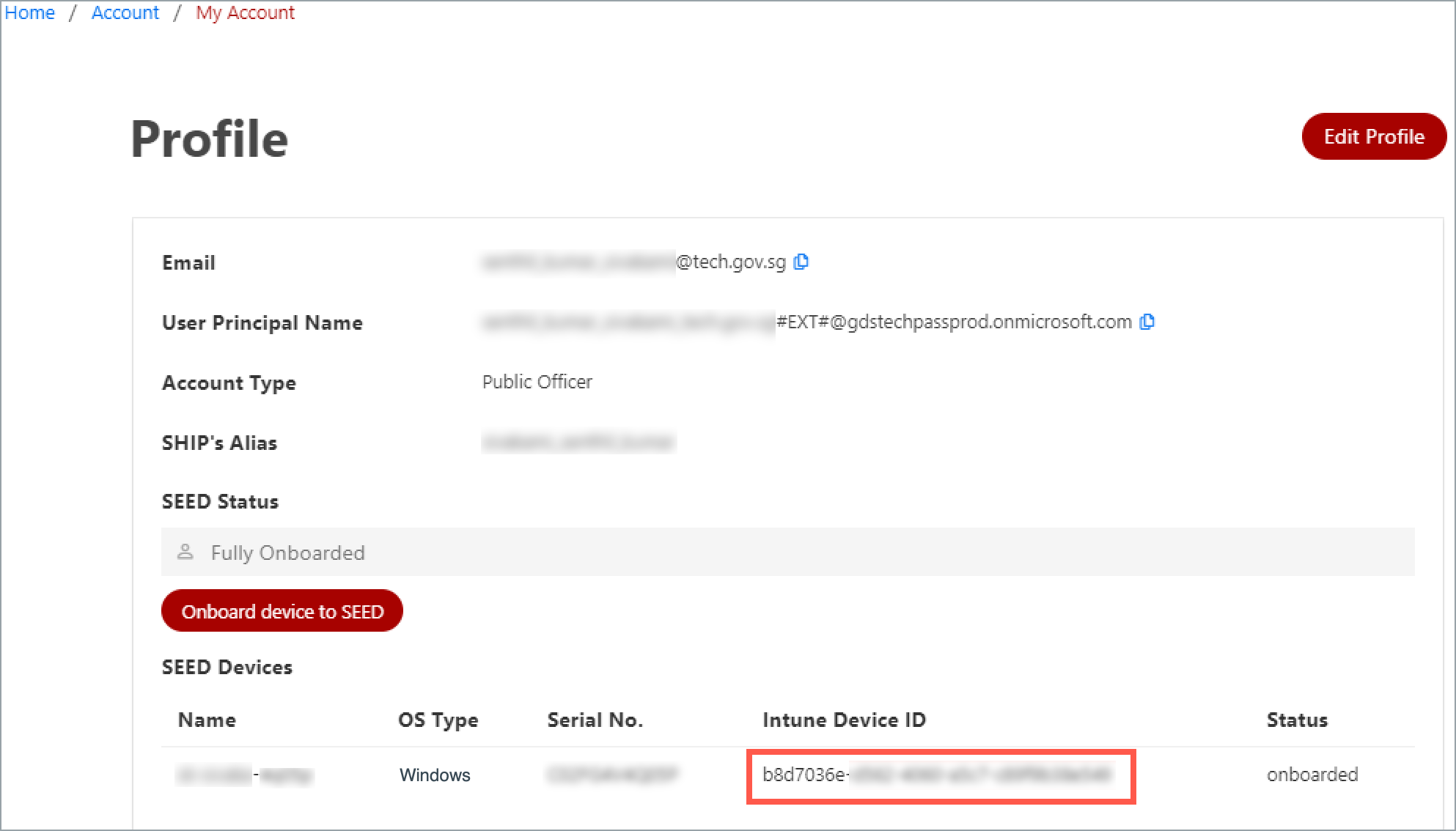
Note: Use this method if you cannot log in to your GMD or TechPass portal.
- Raise a service request to retrieve your Intune Device ID.
Note:mFor more information, refer to Offboarding FAQ.
Phase A: Offboard device from SEED components
Note: The following steps require administrator privileges. If your device has the Admin By Request (ABR) app, request admin access before starting. Refer to the ABR user workflow for instructions.
- Download the offboarding package.
Go to the folder where you downloaded the ZIP file and extract the files. You should see the following file.

Note: The file names vary with the organisation.
Right-click the unzipped folder to select Show more options > Copy as path. The folder path is now saved to your clipboard.
On Powershell, run the following command to go to the folder which has the extracted files:
cd {Path from clipboard}For example:
cd "C:\Users\testUser\Downloads\Offboarding_local_tp_windows"
To run the script, enter the following command:
powershell.exe -ExecutionPolicy Bypass .\local_windows_offboarding.ps1When you see the following success message on your Powershell, you are automatically directed to the SEED offboarding: Request to remove device record form to submit the Intune Device ID.
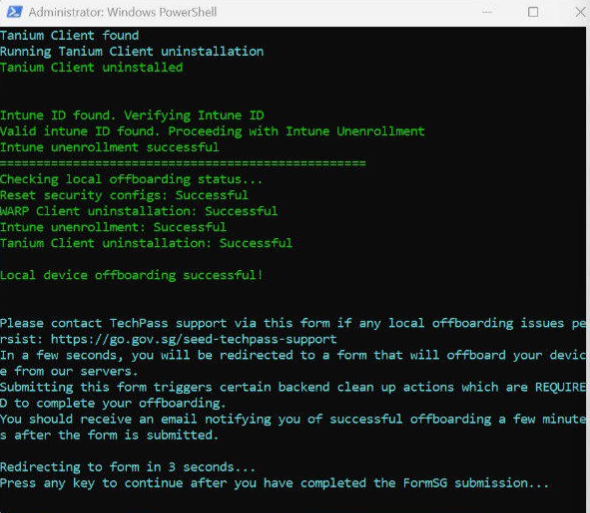

Note
- After submitting the form, go back to Windows PowerShell and follow the instructions accordingly.
- Ensure you complete the steps in Phase B immediately after Phase A. If not, your device update policy may reinstall the latest version of the deleted SEED components.
Phase B: Submit Intune Device ID to remove device record
Prerequisites
- Successful completion of Phase A: Offboard device from SEED components.
- Intune Device ID: Generally, when you successfully offboard your device from the SEED components, the Intune Device ID is automatically displayed on the SEED Offboarding: Device Record Removal form. If it is not displayed, see Get Intune Device ID.
- [Optional] If you had submitted an incident request with the TechPass and SEED support team to offboard your device from the SEED components, please have the reference number ready as we may need this information.
Submit Intune Device ID
To submit Intune Device ID:
Ensure your Intune Device ID is displayed on the form. If it is not displayed, provide it.
Enter your organisational email address in Organisational Email Address and click Verify.
Enter the OTP you receive at this email address.
Indicate if you had any issues while completing Phase A.
[Optional] If you had issues completing Phase A, we encourage you to provide the Support Ticket Number.
Click Submit. When this request is processed successfully, we send a notification via email.

Note:
- We require up to 30 minutes to process your server-side offboarding request.
- If you are still waiting to receive an email after 30 minutes, please raise a service request.
Device clean-up policy
The Device Record Clean-Up Policy aims to manage and maintain the cleanliness of device records in both the pending and onboarded tables. This documentation outlines the policy for cleaning up onboarded records, ensuring the removal of stale records, and notifying users of impending actions.
Onboarded records clean-up policy
To prevent stale records from accumulating indefinitely, the following process is established:
- After 180 days of inactivity, device records are permanently deleted.
- Users are notified via email 30 days before record deletion, with subsequent notifications everyday.
- Users can raise a service request if they encounter issues that prevent records from being deleted.
Restore my device records
You can restore your device records by simply logging in to your GMD device the next time, provided that:
- Your TechPass account is still active.
- Your MDM certificate is still valid or within 180 days after its expiry.
- Your device is configured with the required software, including Tanium, Cloudflare, Microsoft Defender, and Intune.
MDM certificate
When you onboard your Internet Device to SEED, you receive an MDM certificate that is valid for one year from the date of onboarding. The certificate is automatically renewed if you are logged in to your GMD when it expires.
Note: - Ensure that your TechPass account remains active.
If the MDM certificate expires, it can be automatically renewed by logging in to your device within 180 days from the expiration date. In such cases, re-onboarding your device to SEED is not required.
If the certificate remains expired for over 180 days, your device record is permanently deleted, preventing access to SGTS products.
