Windows post onboarding guide
After onboarding your Internet Device to SEED, follow these instructions:
Turn on Cloudflare One for Windows
Note: Ensure that your device is not connected to any other VPN, as it might conflict with Cloudflare One.
Activation steps:
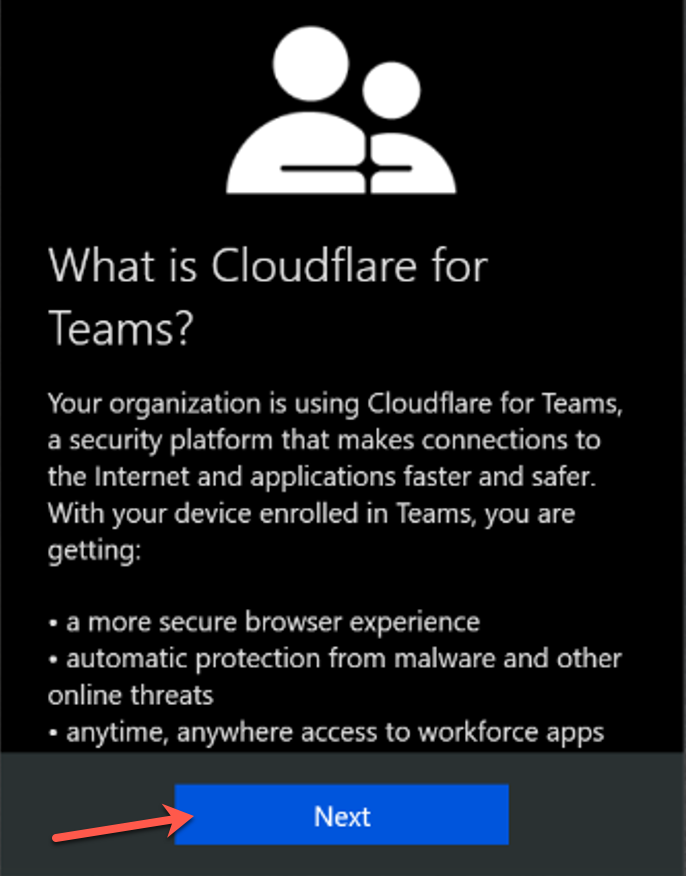
Open the Cloudflare One client from the Windows Taskbar. You will see the information page, followed by the privacy policy.
Click Next,then, Accept to agree to the Cloudflare’s privacy policy.
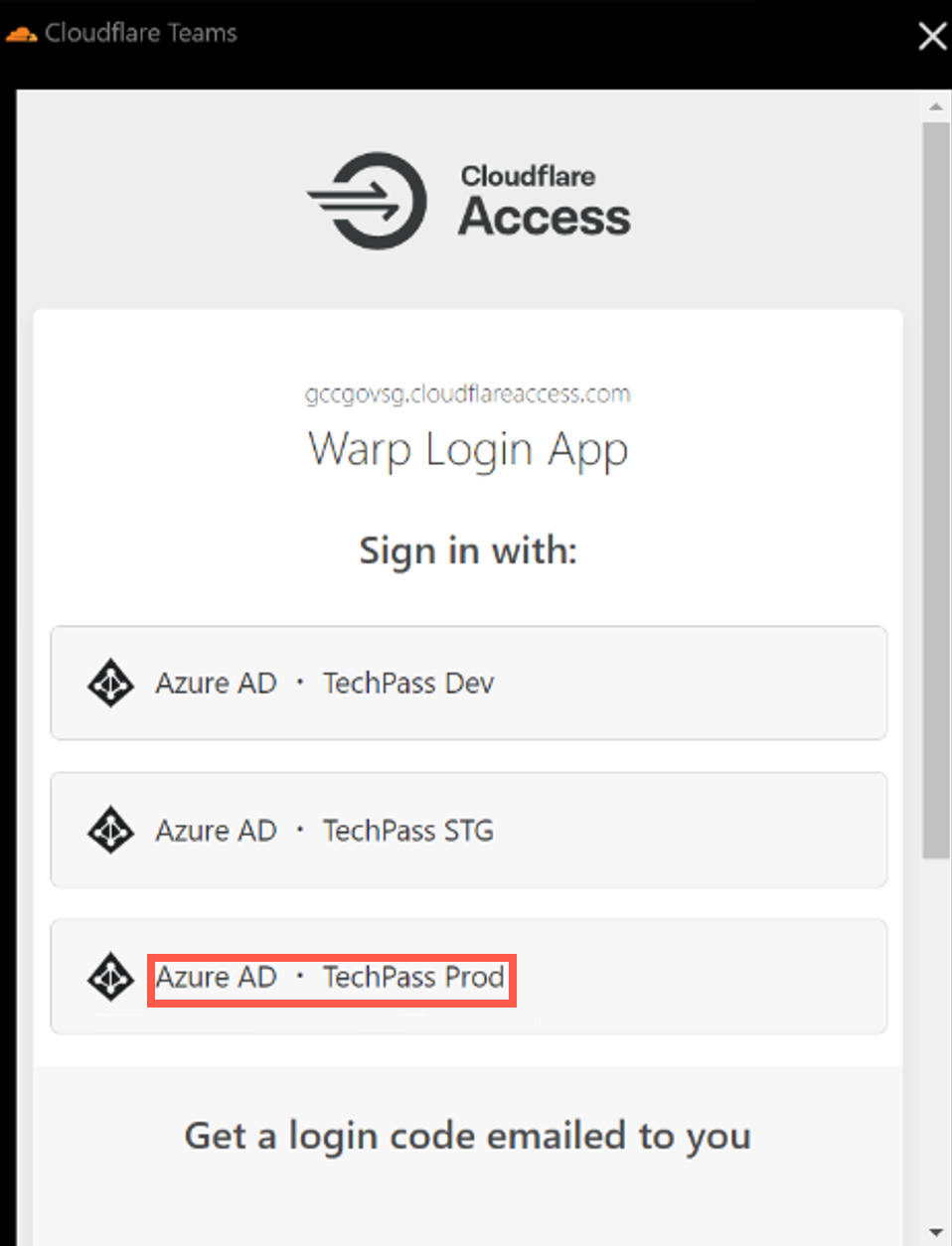
When prompted to sign in, choose Azure AD – TechPass Prod.
If you encounter an error stating that your user account is not found in the respective tenant, follow these instructions:
- Open a new browser tab
- Visit https://myaccount.microsoft.com
- Sign out of your current account
- Retry the action
Sign in using your TechPass login details.
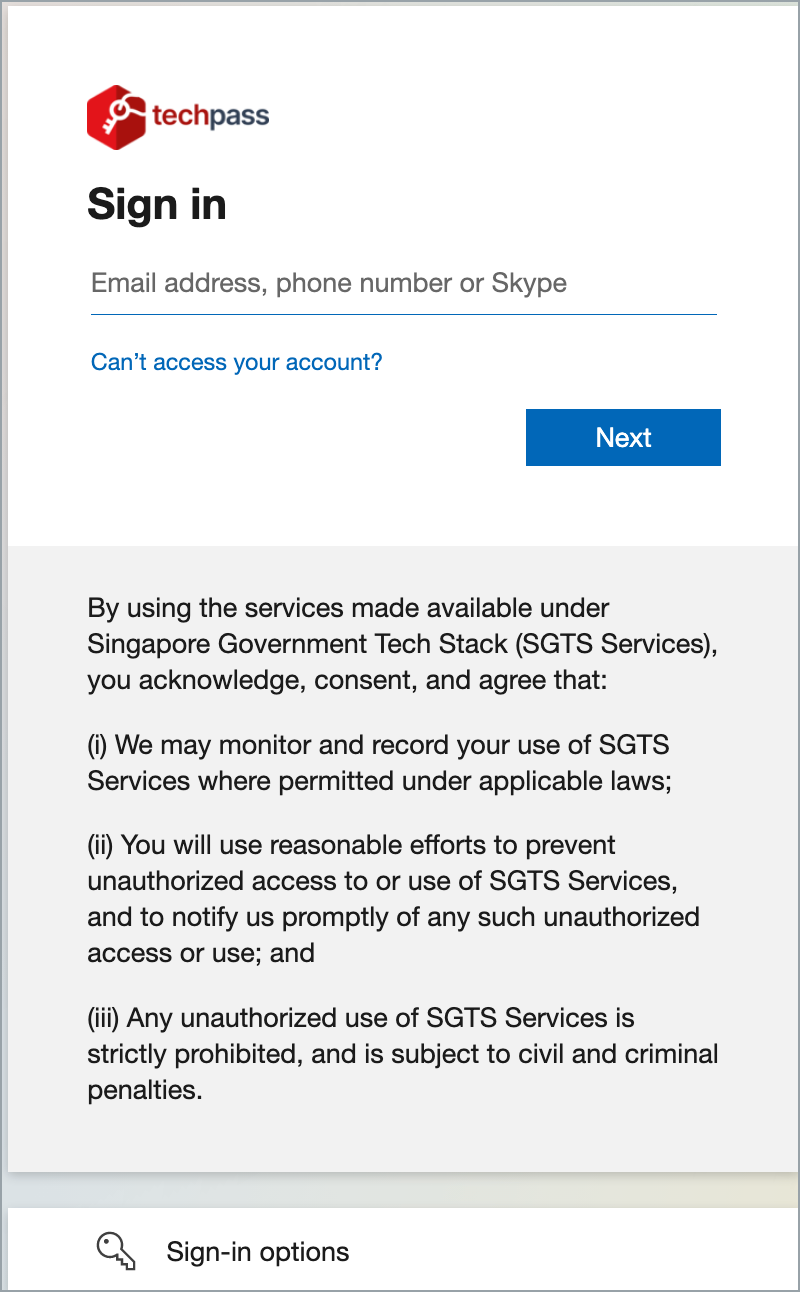
After successfully signing in, click Open Cloudflare One app to establish your Cloudflare One connection.
When the device is connected to Cloudflare One, you should see the Cloudflare One Zero Trust in the connected state.
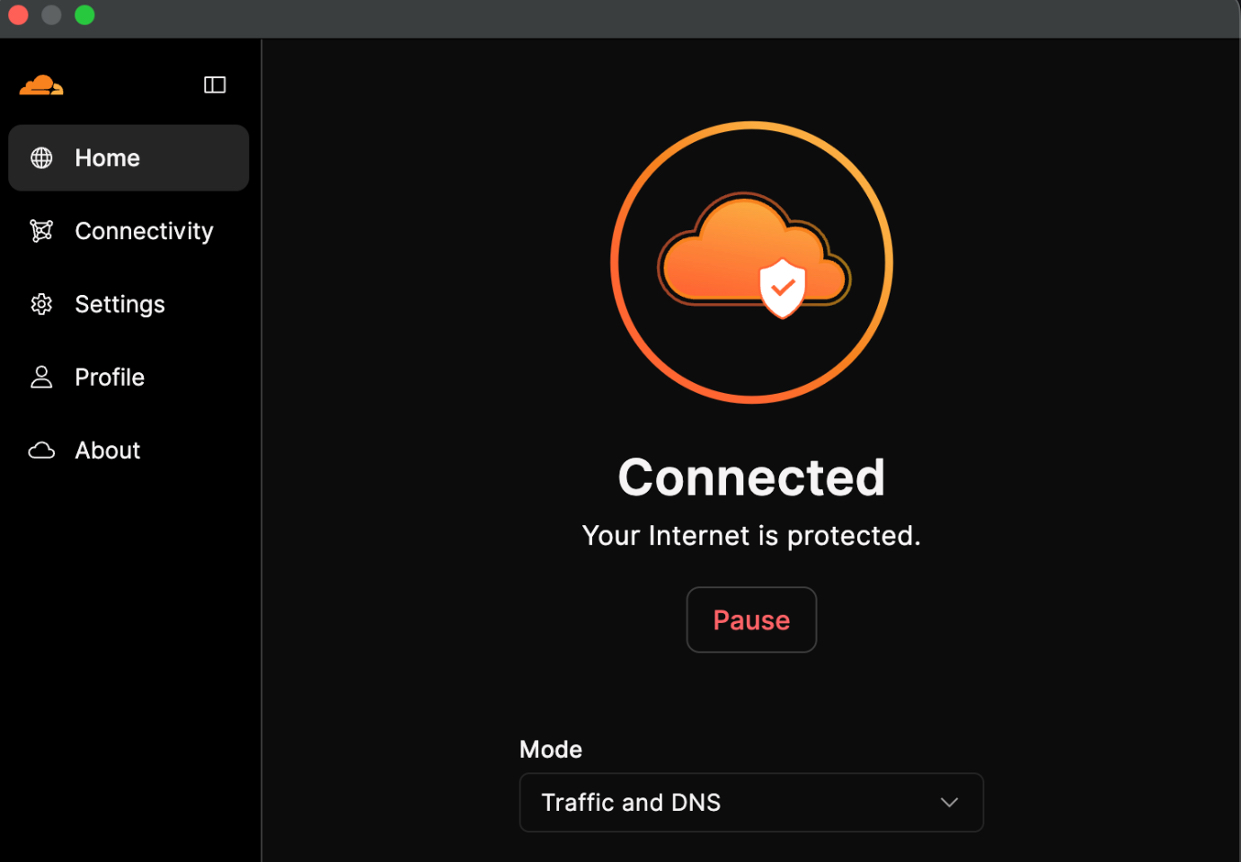
Open Cloudflare One Home, and ensure Traffic and DNS is selected. Cloudflare One is now active, safeguarding your Internet connection.
At any time, users can manually sync by going to Start > Settings > Accounts > Access work or school > Work or School Account > Info > Sync. Alternatively, Open the Company Portal app on your device, go to Settings > Sync. Wait while Company Portal syncs your device. When complete, the screen will show the timestamp of the last successful sync.
