Admin By Request (ABR) - Setup and configuration
Admin By Request (ABR) lets users request temporary local administrator access in a secure and controlled way. All actions are logged for audit.
It helps reduce risks from:
- Malware
- Accidental system changes
- Unauthorised software installation
ABR works with these controls:
- Platform SSO – Removes permanent local admin rights
- Admin By Request (ABR) – Handles admin access requests
- Cloudflare Always-On – Ensures secure network access
Before you start
Platform SSO
Platform SSO must be set up before ABR works.
Refer to the Platform SSO setup guide.
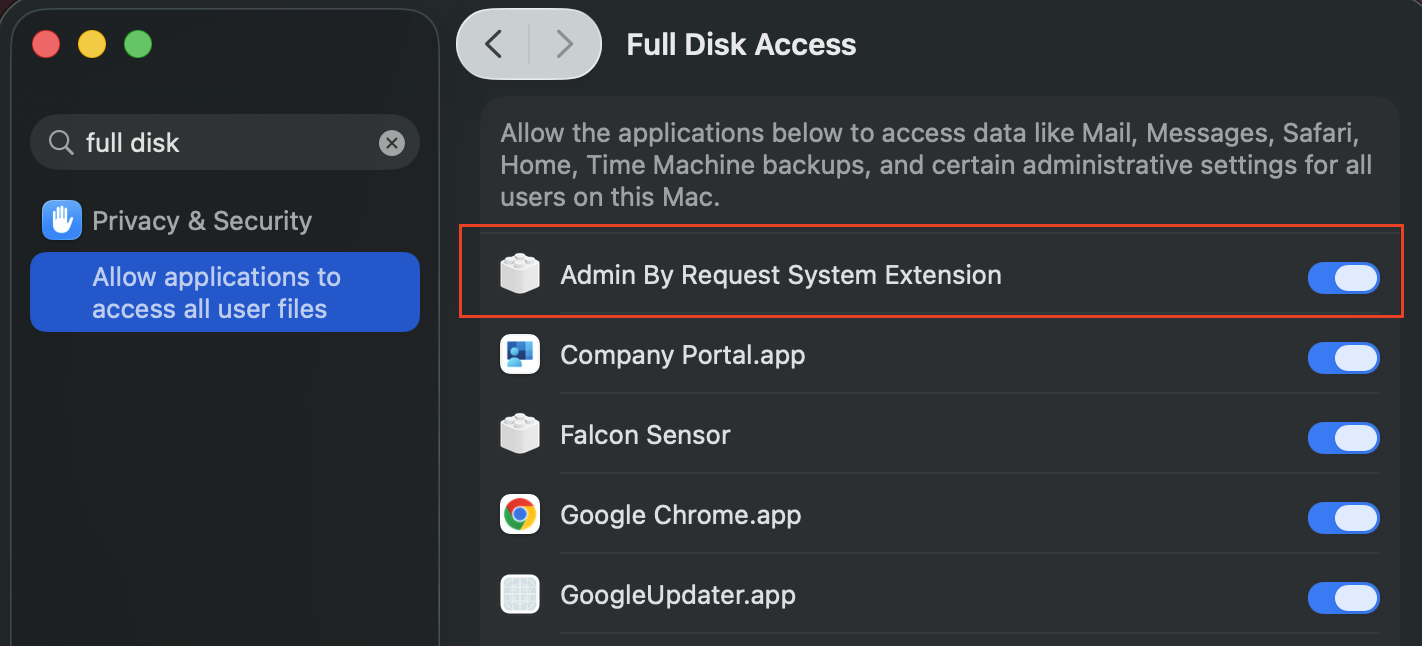
Full Disk Access
Turn on Full Disk Access in Privacy & Security for:
- Admin By Request System Extension
- Admin By Request
Note: The following steps require administrator privileges. If your device has the Admin By Request (ABR) app, request admin access before starting. Refer to the ABR user workflow for instructions.
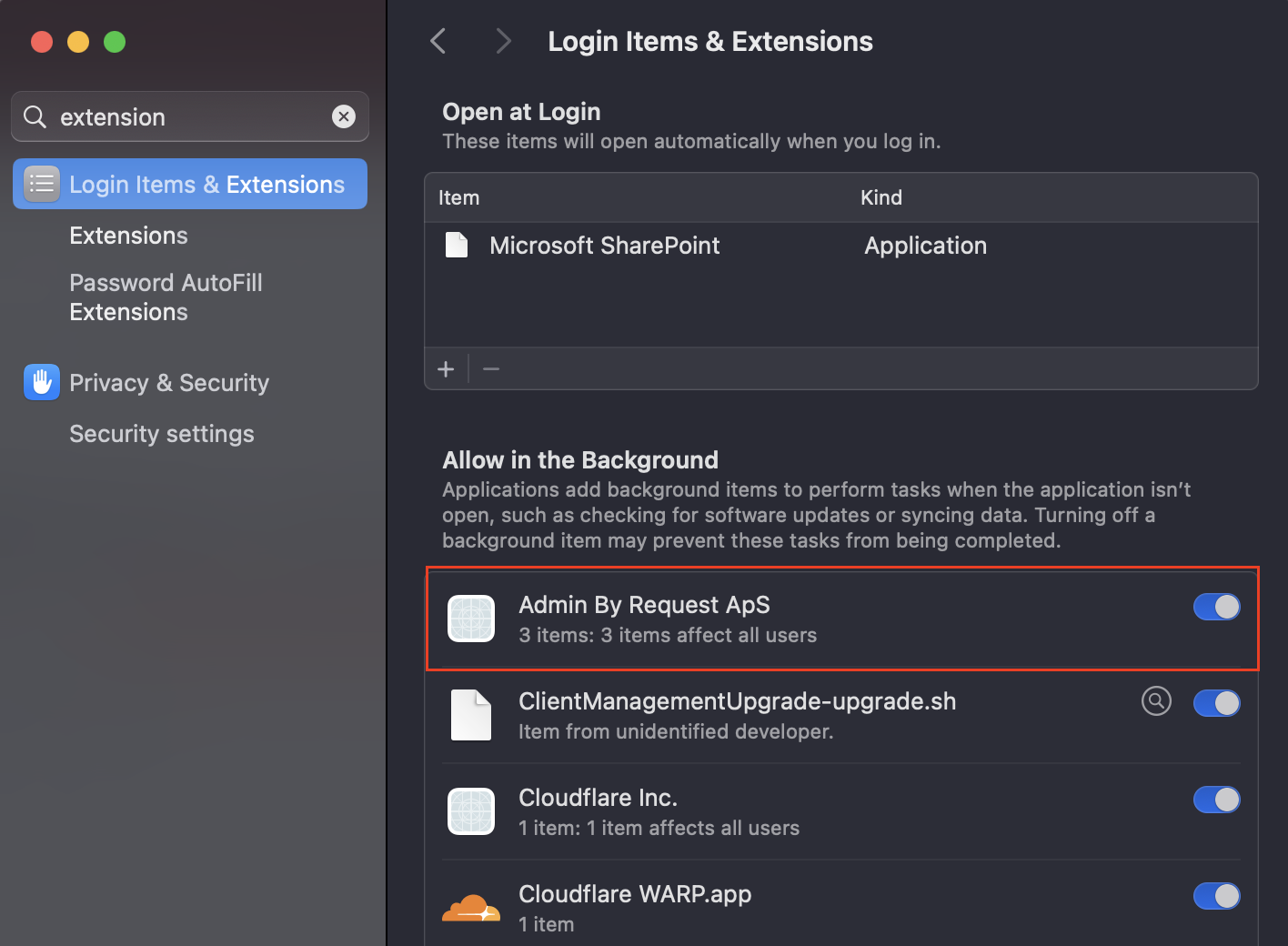
Login Items & Extensions
Allow Admin By Request ApS under Login Items & Extensions.
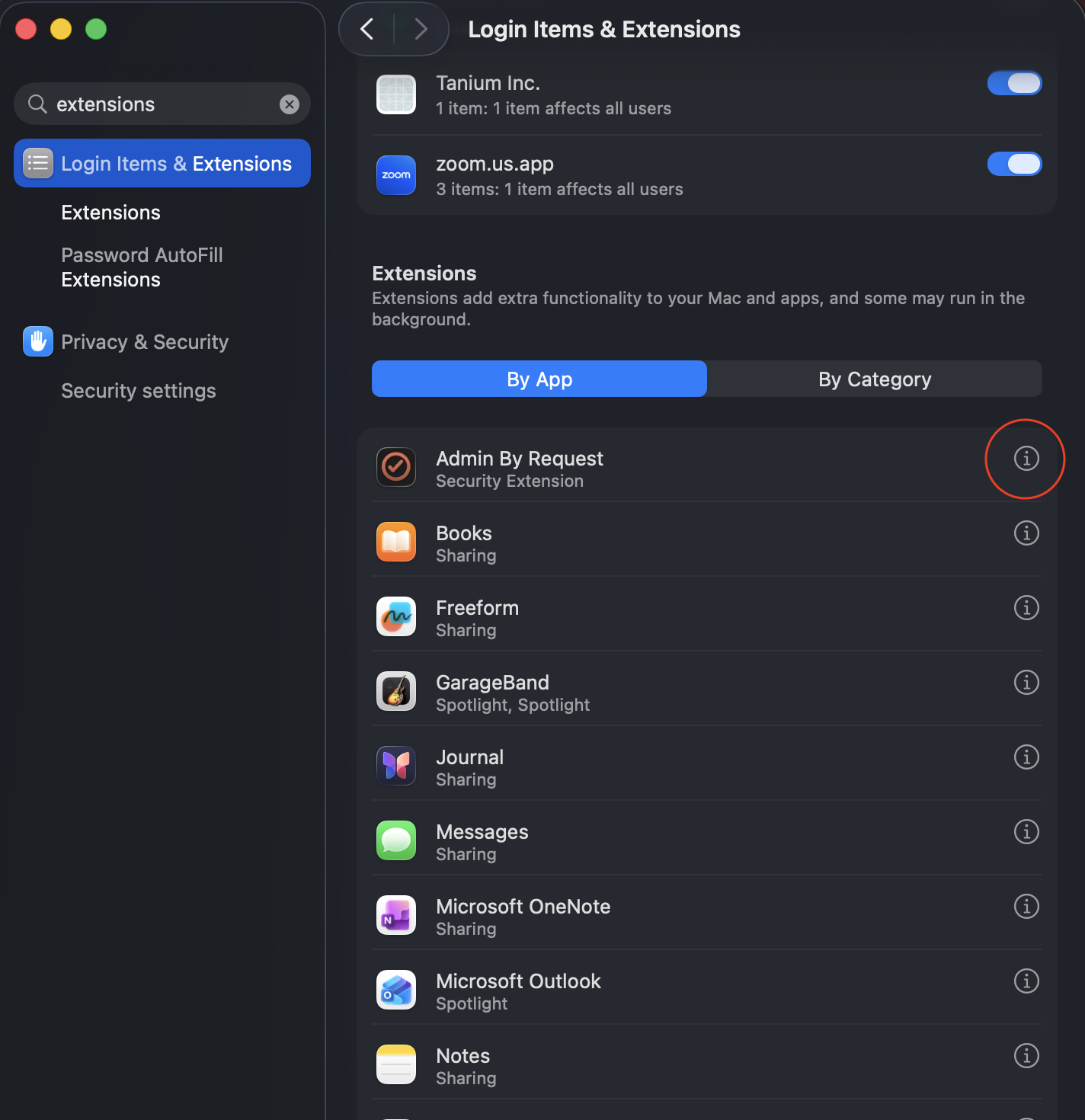
Endpoint Security Extensions
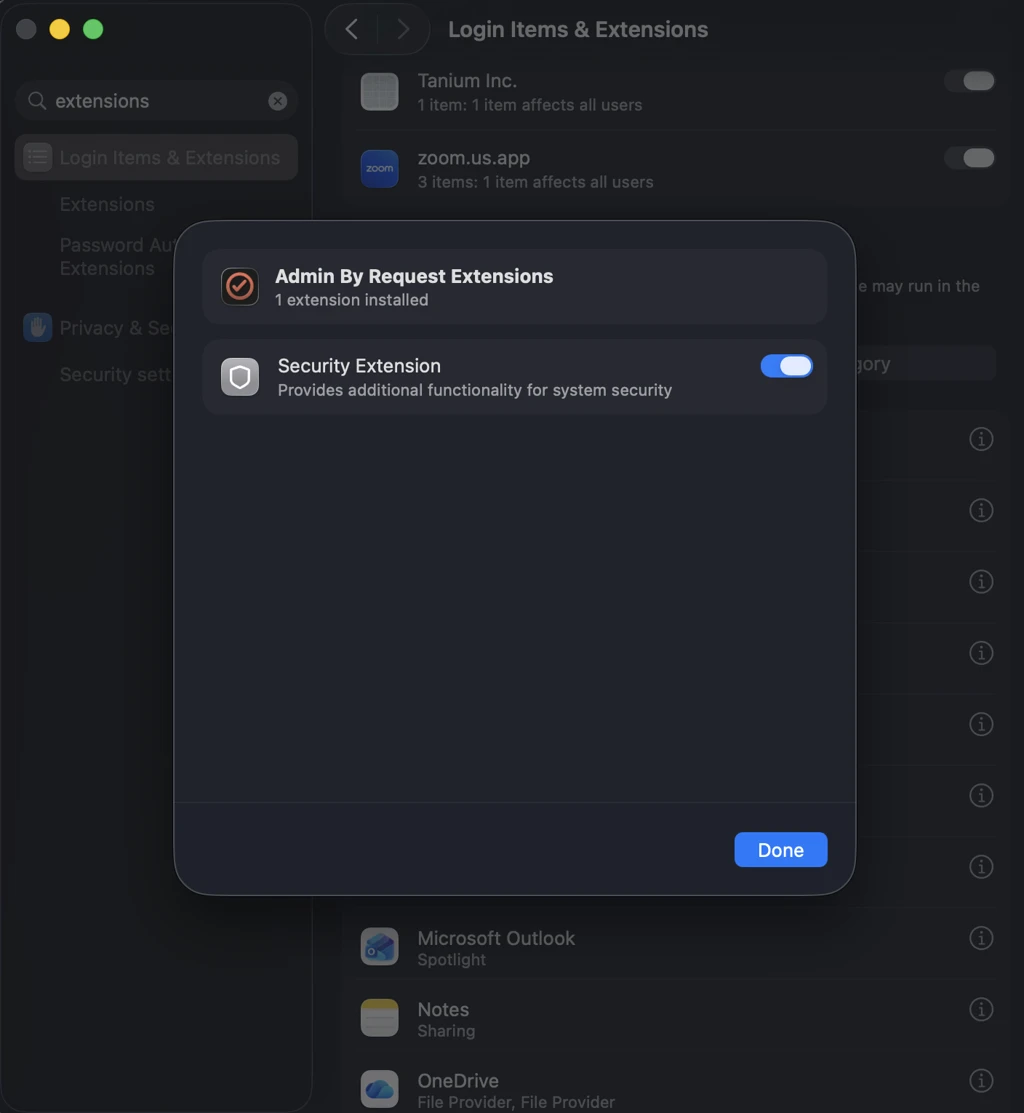
Allow the Admin By Request security extension:
- Go to Login Items & Extensions.
- Select Extensions.
- Select By App.
- Locate Admin By Request.
- Select the ⓘ (info) button.
- Turn on Security Extension, then select Done.
Check that ABR is working
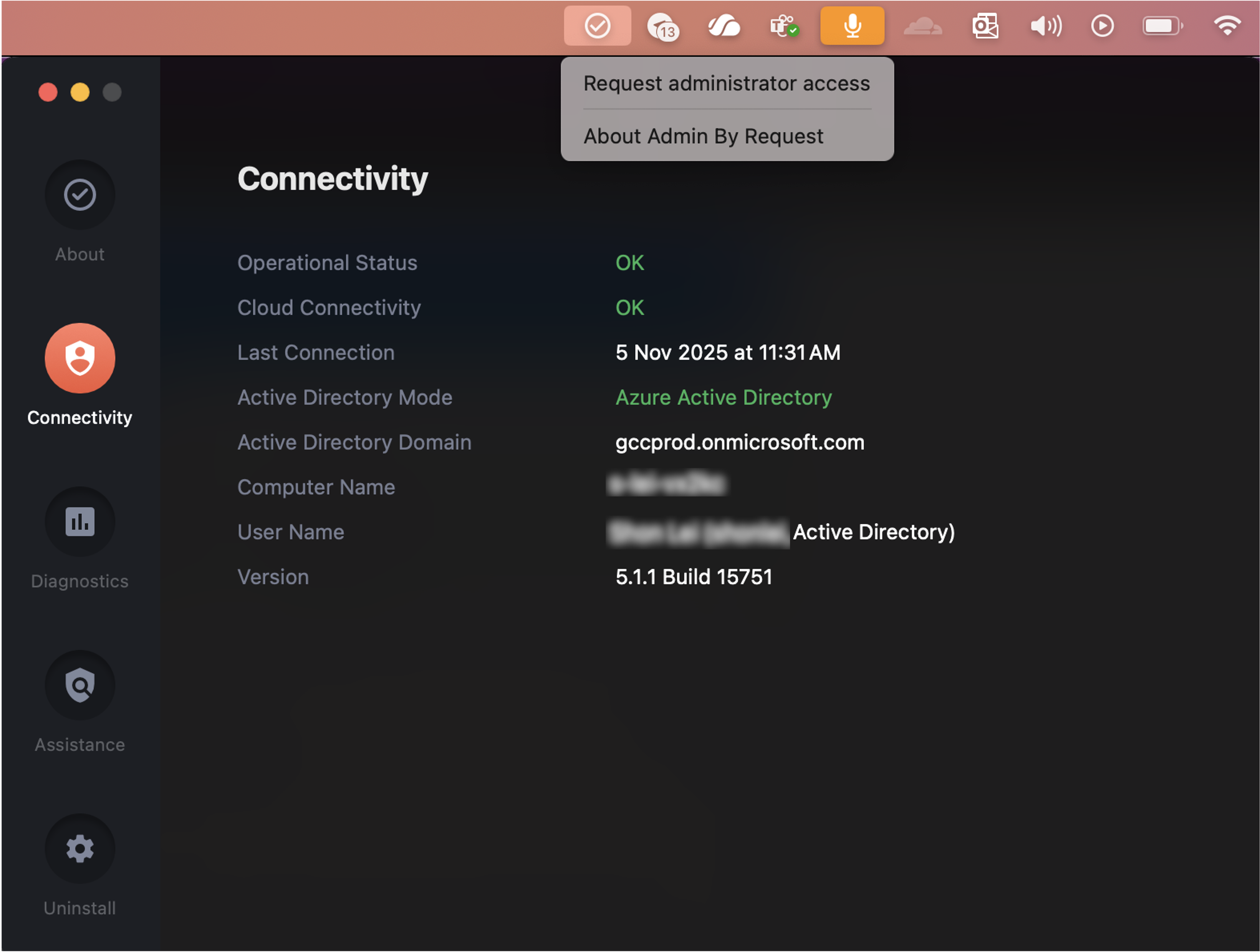
- Select the Admin By Request icon in the menu bar
- Select About Admin By Request
- Check that these statuses show OK:
- Operational Status
- Cloud Connectivity
If there is an error, see: ABR shows an error or is not working.
Ensure Cloudflare Always-On is connected
Make sure Cloudflare Always-On is connected before requesting admin access.
Troubleshooting
Use this section if ABR is not working as expected during setup.
ABR shows an error
What you might see
- Cloud Connectivity shows Red
- Active Directory Domain is empty
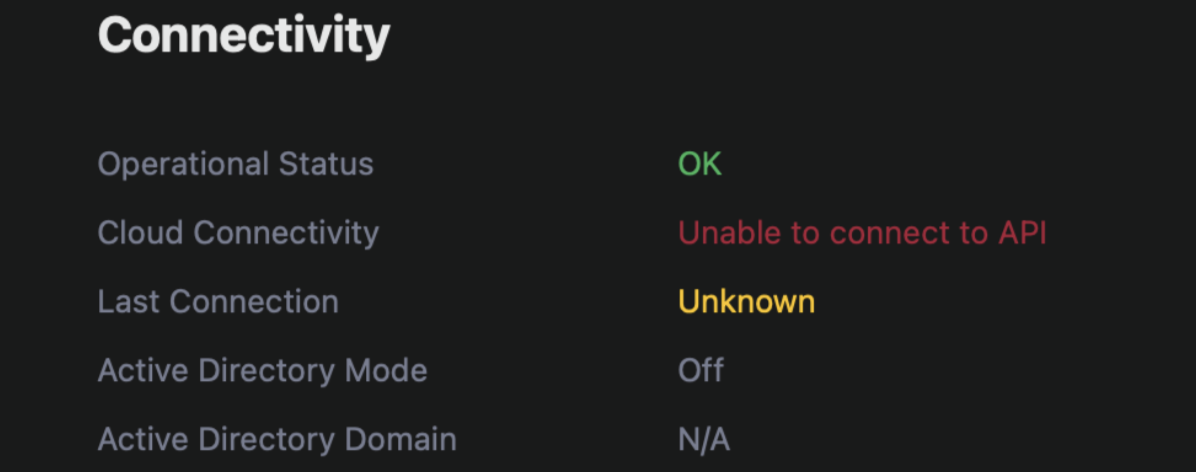
What this means ABR is unable to communicate with Entra ID.
Step 1: Check Company Portal
Open Company Portal.app
- Check for any device registration errors
- Resolve any issues shown
Step 2: Check device management profiles
- Open macOS Settings
- Go to Device Management
Confirm that the following profile exist:
- ABR-EPM-Mobileconfig
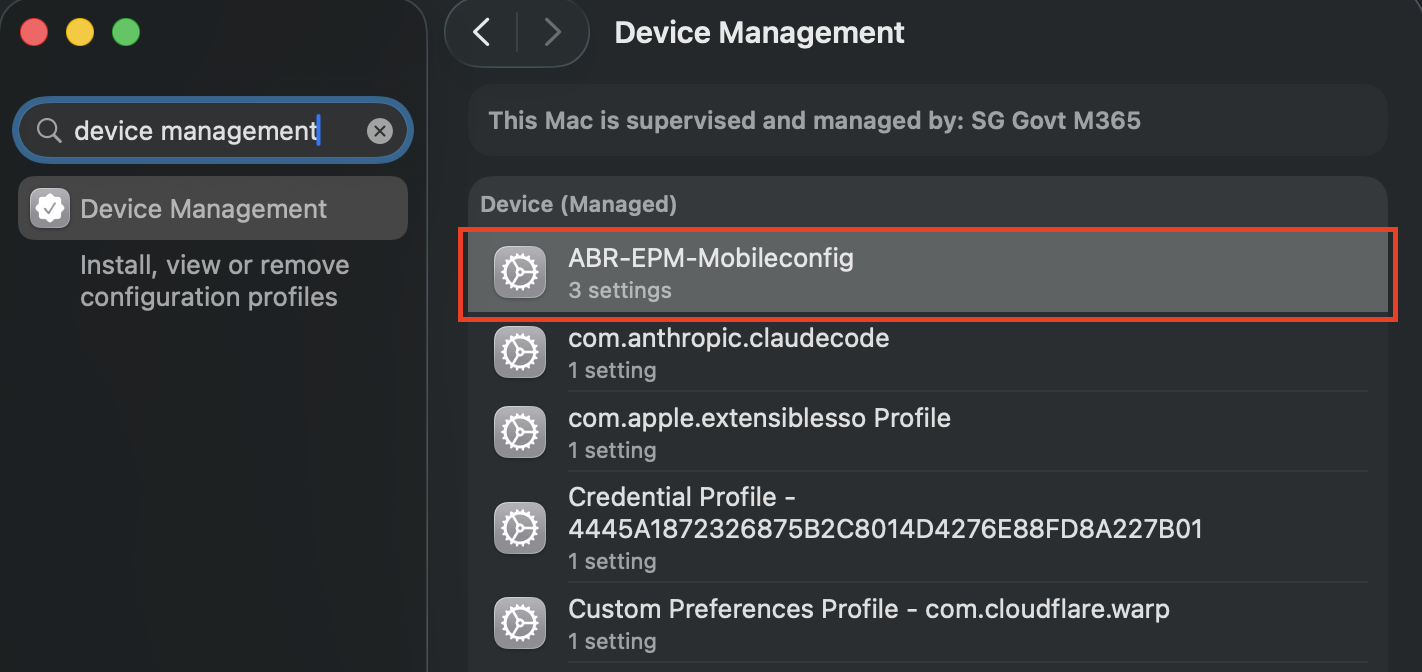
If these profiles are missing, your device may not be properly enrolled in Intune, or the required policies have not been applied to your device.
Step 3: Retry after resolving issues
After resolving any issues:
- Reopen Admin By Request
- Check that Operational Status and Cloud Connectivity show OK
If the issue persists Submit a support request via SEED ticket portal
Approval required while device is offline
What you might see
- Administrator Error message
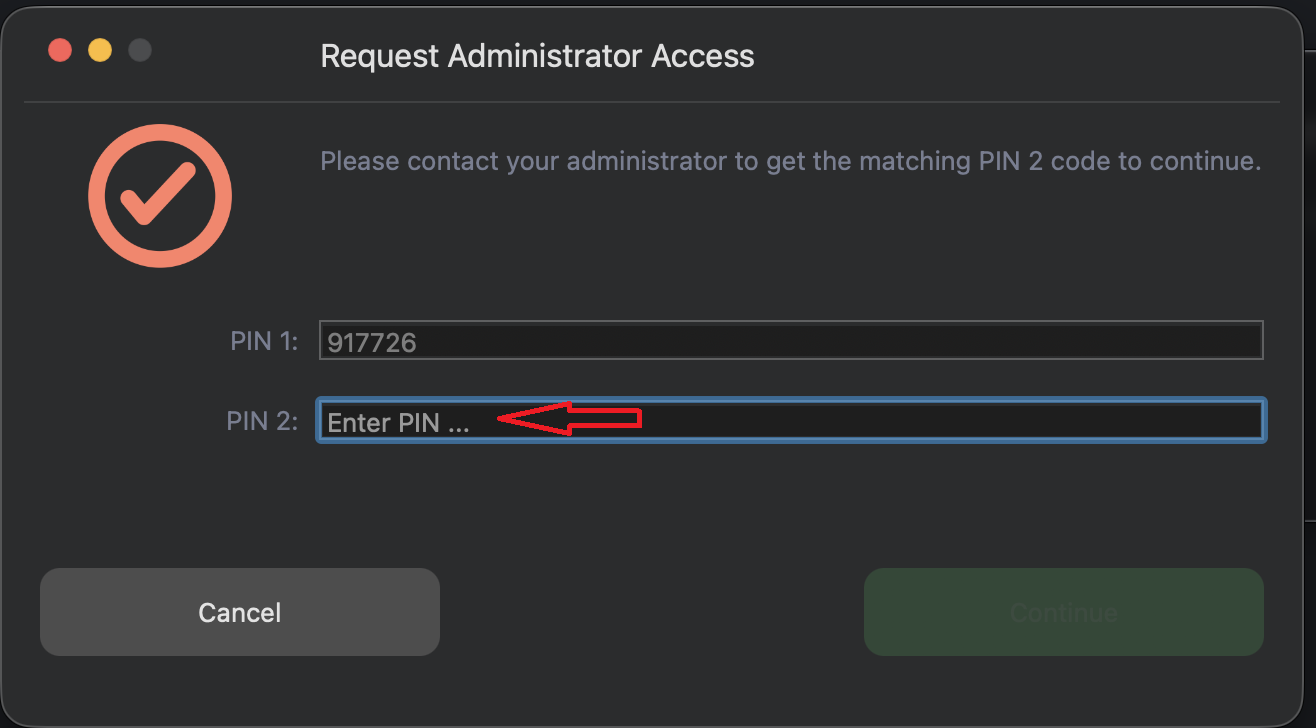
- Prompt to enter a PIN code
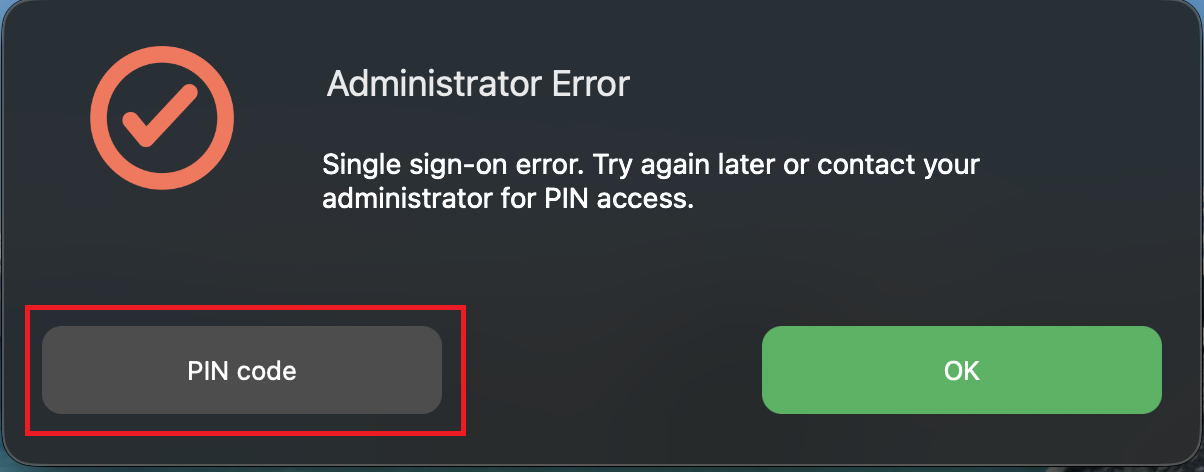
What this means Admin By Request cannot complete approval when the device is offline.
What you can do
- Note the PIN 1 shown on your ABR client.
- Submit a support request via SEED ticket portal and include PIN 1.
- You will receive PIN 2 to complete the request.
Remove ABR (uninstall)
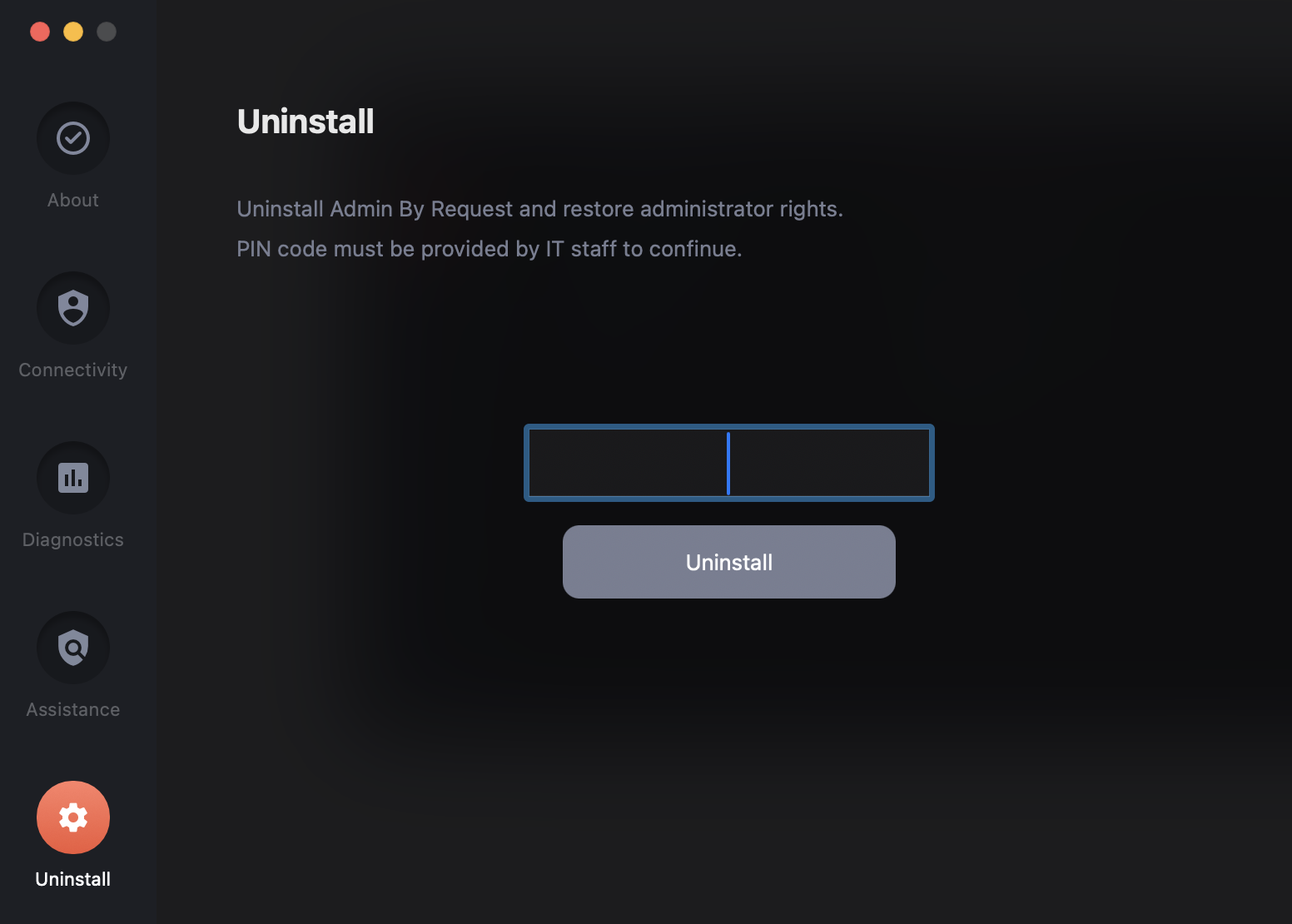
Uninstalling ABR requires a PIN.
Please approach the SEED team for assistance.