Create a TechPass account
You can create a TechPass account by following the steps shown in the video demo, or by referring to the step-by-step instructions provided below.
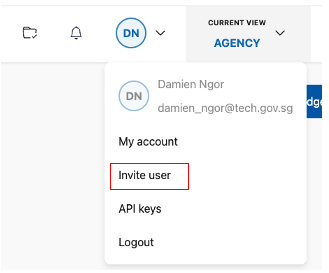
- Click on Invite user located at the top navigation bar under your initials. This workflow is only available to Public Officers.
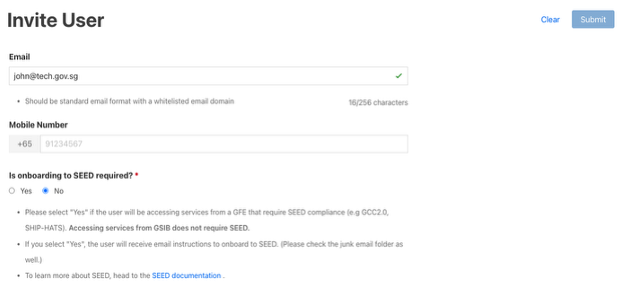
Enter the user’s email address to display the appropriate onboarding form based on whether the email address is associated with an integrated identity provider (e.g. WoG, MoE) account.
For integrated identity provider accounts, provide the Mobile Number and indicate whether SEED is required (only applicable for WoG accounts).
For non-integrated identity provider accounts, provide the following information:
*Sponsoring Agency (the agency that the user is attached to)
*Business Operation (onshore/offshore)
*Offshore Development Centre (ODC) - only applicable to offshore users; if the user does not belong to any of the listed ODCs, select Others & fill in the Offshore Company Name.
Whether SEED is required (For offshore users, SEED is mandatory and will be automatically indicated as ‘Yes’)
*not applicable to Public Officers with non-WOG email domains listed in Q3 of the onboarding flow chart
Fill in the required information and click Submit
Upon successful invitation:
for integrated identity provider account:
the user account has been created
the invited user will receive an onboarding invitation email
for non-integrated identity provider account:
the user account has not yet been created; the invited user will receive a registration link via email to complete the registration
the registration must be completed within 5 days, after which the link will expire, requiring a new invitation to be sent.
the user account will be created upon successful registration
you will be notified via email whether the user successfully completes the registration or fails to register within the allotted time.
if you need to correct some of the invitation details after it has been sent, you may do so by sending a new invitation (the new invitation will override the old one), provided the user has not completed their registration; if the user has already completed the registration, you will need to raise a service request for us to update the details on your behalf.
