Request an email ID migration
Use this page to request a change to the email ID of a TechPass account. You can request a change for yourself (single email ID change), or, as a tenant admin or agency representative, for many users at once (bulk email ID migration).
Audience
Single email ID change: Users who need to change their own email ID. Only the account owner can raise the request. Requests on behalf of others are not accepted.
Bulk email ID migration: Tenant admins or agency representatives who submit domain changes or email format changes for many users.
Before you start
Read the following before you raise a request:
Downstream services are affected. Changes to the email ID and User Principal Name (UPN) affect downstream services that use them as identifiers. Affected users may temporarily lose access to these services until the changes are applied.
Changing account type is not supported. A change from vendor to public officer, or from public officer to vendor, is not an email ID migration. You need to terminate the account and sign up for a new one. For more information, see Account Management FAQs and Sign up and onboard to TechPass.
Changing agency or company is not supported. If you move to a different agency or company, for example from MOH to GovTech, your existing account must be terminated and a new account created under the new agency.
Single email ID change
Eligible scenarios
You can request a single email ID change in the following scenarios.
# Scenario What happens 1 Legitimate name or email change, for example the username part changes and the domain stays the same. Email ID and UPN are updated. 2 Temporary staff becomes permanent staff, or the reverse, in the same agency or vendor company. Email ID and UPN are updated. The account is not terminated. 3 Vendor company changes, but you still support the same agency or team, for example from from.ncs@tech.gov.sgtofrom.toppan@tech.gov.sg.Email ID is updated after your reporting officer confirms that you are still on the same team. 4 Vendor UPN is too long, for example a long username that needs to be shortened. UPN is updated. Scenarios that are not supported
You cannot request an email ID migration in the following scenarios:
Change of agency or company, for example from
from.ncs@moh.gov.sgtofrom.toppan@tech.gov.sg. The account must be terminated.Change of employment type, from vendor to public officer or the reverse, for example from
john.from_ncs@tech.gov.sgtojohn@tech.gov.sg. The account must be terminated and a new account created. Contact your agency’s IT Service Management (ITSM) team.UPN too long for a public officer. TechPass does not support this. Log a ticket with your agency’s ITSM team to change your WOG account email ID first. TechPass can update your UPN only after your WOG account email ID is updated.
What you need
Your mobile number, for identity verification.
For scenarios 1, 2 and 3, access to your new email. You must raise the request from your new email address. This is mandatory.
For scenario 4, your email ID stays the same, so you do not need to raise the request from a new email address.
Submit the request
- Go to the TechPass-SEED Service Desk. For help signing in, see Raise a service request.
- Select Raise a SR, then Service Request for TechPass/SEED.
- Enter a Summary.
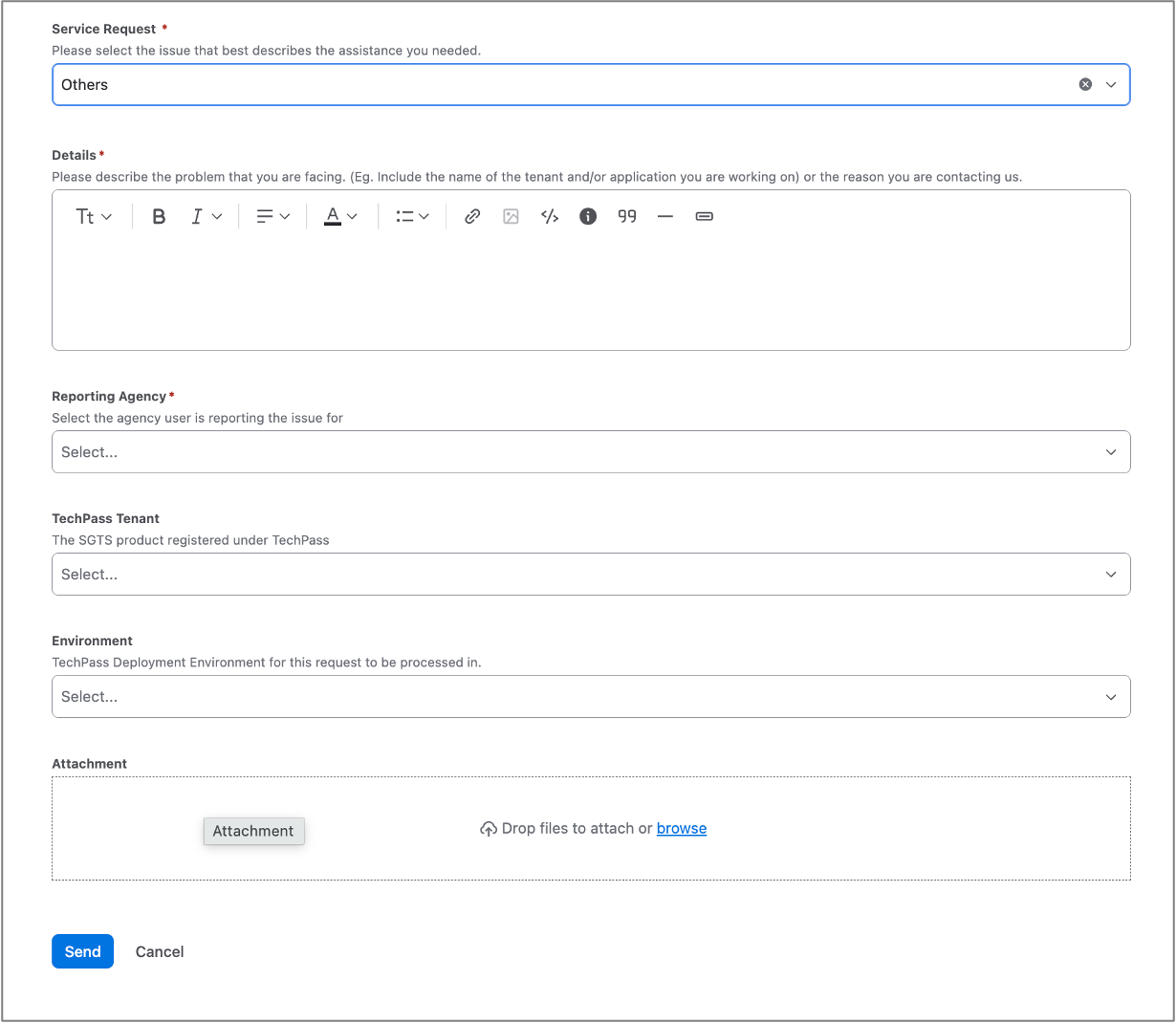
- Select TechPass as the Product, then select Others as the Service Request.
- In Details, describe your request.
- Select the Reporting Agency. TechPass Tenant, Environment and Attachment are optional.
- Select Send.
Bulk email ID migration
What you need
Gather the following information before you submit your request.
| # | Information | Details |
|---|---|---|
| 1 | Domain details | For a domain change, the new domain, the old domain and the new agency or department name. For example, the new domain is @judiciary.gov.sg. |
| 2 | Complete email list | A CSV or Excel file with two columns, Current Email and New Email, and one row per user. There is no template. You must provide the complete list before the date of change, for every phase. |
| 3 | Phased migration | Whether you migrate in phases. If you do, state the number of phases. |
| 4 | Schedule | For a single migration, the preferred date and time. For a phased migration, the preferred date, time and number of email IDs for each phase. |
| 5 | CIO approval | The CIO approval email, to attach to the request. |
Acknowledgements
Before you submit, read and acknowledge the following:
The migration affects downstream services such as GCC 2.0 and SHIP-HATS. The requestor is responsible for informing the administrators of any downstream or agency-specific applications that the affected users use, because access may be affected and may need to be restored manually.
After the TechPass email IDs are updated, affected users may lose access to downstream applications that do not reflect the change automatically. The requestor must work with application owners to make sure access continues before the migration starts.
The email list must be final and accurate for the scheduled phase. The requestor is responsible for any errors in the list.
CIO approval must be attached to the ticket when you submit it.
You must agree the migration schedule at least 30 days in advance for each phase. TechPass is not responsible for any impact if the migration goes ahead without this notice.
For vendors, the vendor company domain must be whitelisted before you submit the request. See Whitelist a vendor company domain.
Timeline
30-day rule: Every migration date must be at least 30 days after the requestor and the TechPass team agree on it.
Final email list: The complete and final email list for each phase must reach TechPass at least 30 days before the scheduled migration date of that phase.
No list, no migration: No phase proceeds without a validated email list and a confirmed schedule.
Whitelist a vendor company domain
For vendors, whitelist the vendor company domain before you submit the bulk migration request.
Go to the TechPass-SEED Service Desk. For help signing in, see Raise a service request.
Select Raise a SR, then Service Request for TechPass/SEED.
Enter a Summary.
Select TechPass as the Product, then select Whitelist Agency/Vendor Email Domain as the Service Request.
In Details, describe your request and include the vendor company domain.
Submit the request.

Whitelisting takes 3 working days.
Submit the request
Go to the TechPass-SEED Service Desk. For help signing in, see Raise a service request.
Select Raise a SR, then Service Request for TechPass/SEED.
Enter a Summary.
Select TechPass as the Product, then select Email Migration - Bulk as the Service Request.
Under Email ID Migration - Migration Details, select the Type of Migration:
Domain Change (e.g.
@agency.gov.sgto@newagency.gov.sg). Enter the New Domain, the Old Domain and the New Agency / Department Name.Email Format Change (e.g.
firstname@agency.gov.sgtofirst_last@agency.gov.sg). There are no extra fields.
Under Email ID Migration - Email List, upload your email list as a CSV or Excel file. Use two columns, Current Email and New Email, with one row per user.
Under Email ID Migration - Migration Schedule, select whether you want to migrate in phases:
No (Single Migration): Enter the Preferred Migration Date & Time.
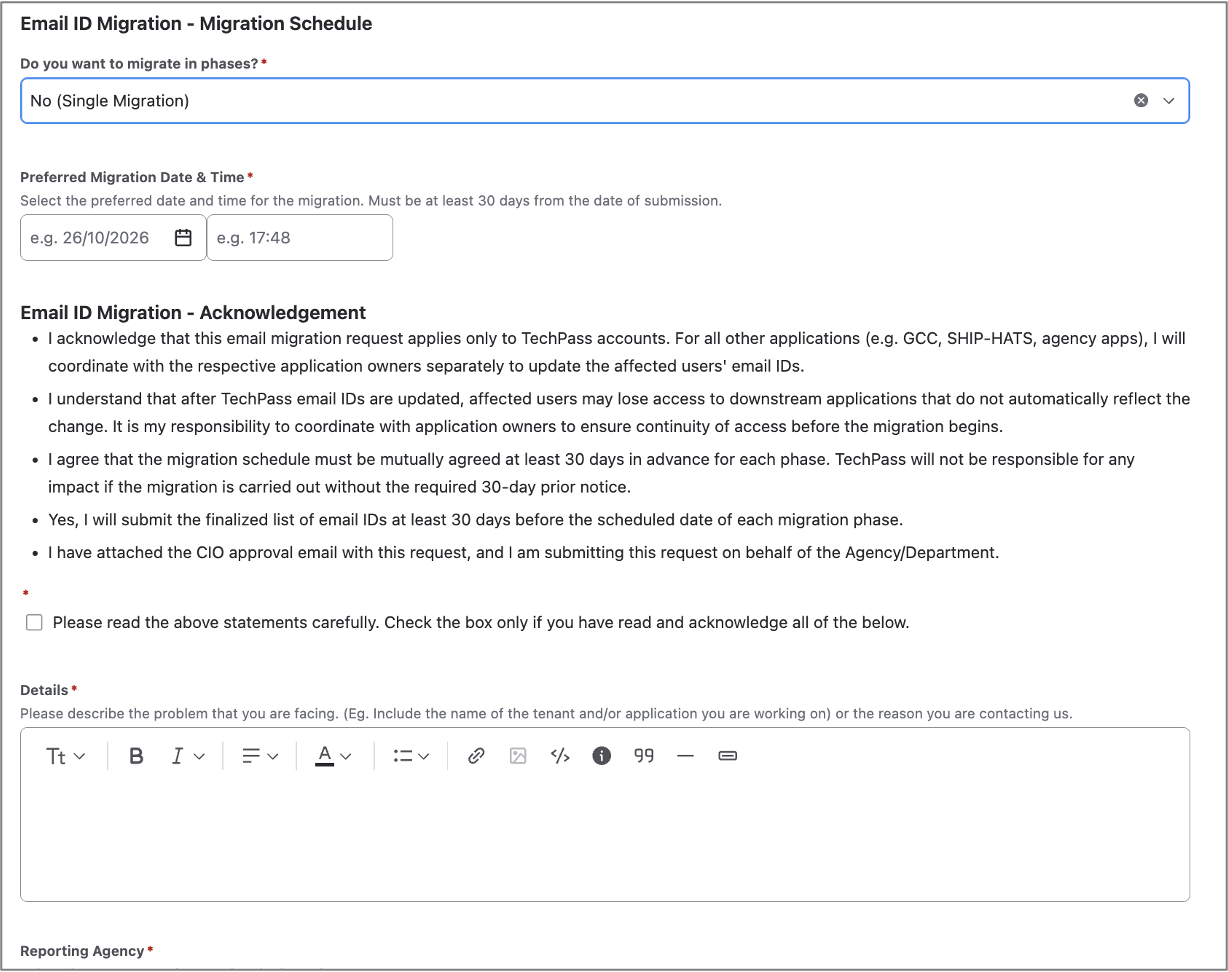
Yes: Enter the Number of Phases. In Preferred Schedule per Phase, list each phase with the preferred date, time and number of email IDs. For example,
Phase 1 - 15 Oct 2026, 10:00 AM, 50 users.
Under Email ID Migration - Acknowledgement, read the statements and select the checkbox.
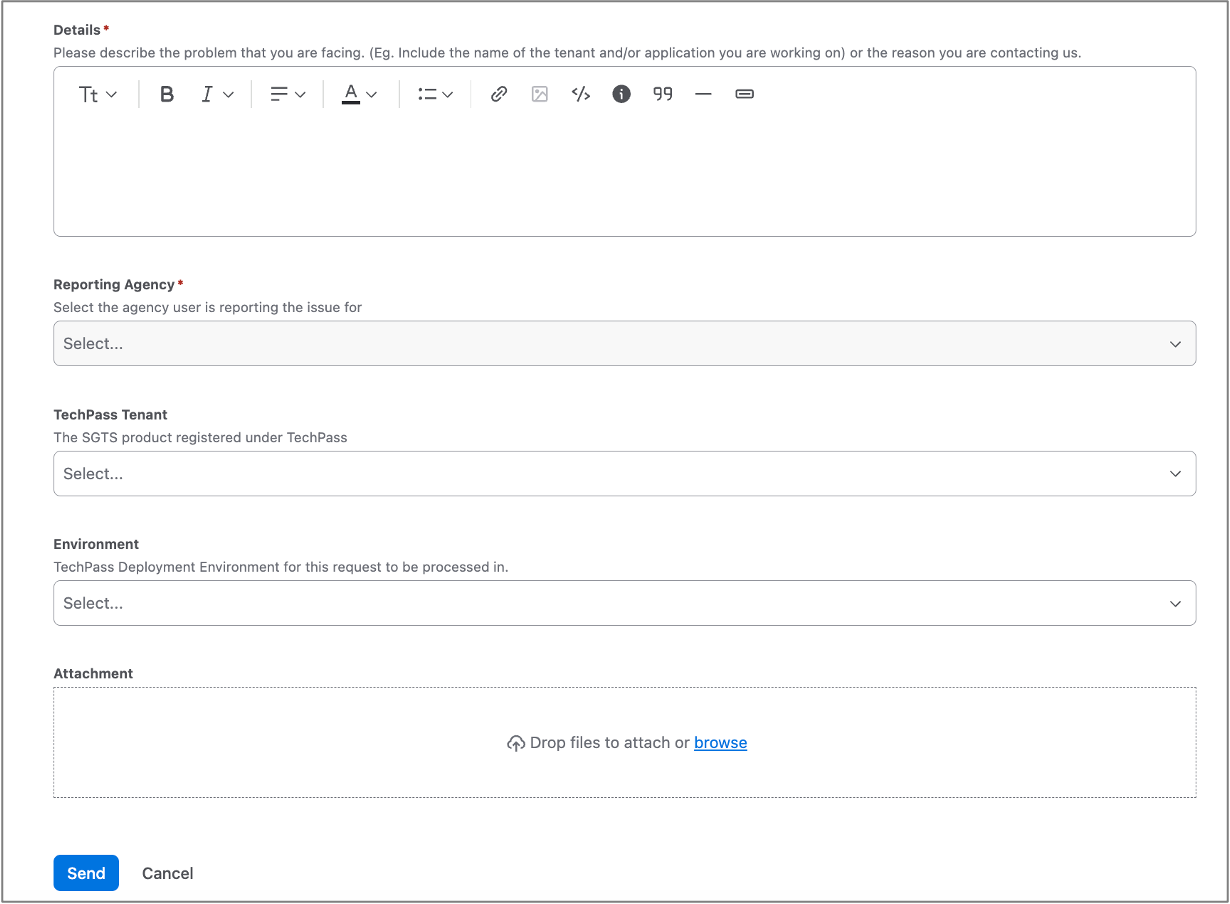
In Details, describe your request. Select the Reporting Agency. TechPass Tenant and Environment are optional.
In Attachment, attach the CIO approval email, then select Send.
Support
For questions about your email ID migration request, raise a request through the TechPass-SEED Service Desk.