Account Management FAQs
No, the Techpass account ID (name@techpass.gov.sg) does not have an associated mailbox. It is solely an account identifier and cannot be used for email communications.
If your TechPass login ID’s domain is techpass.gov.sg, your TechPass account is locked after continuous unsuccessful login attempts. You need to Reset TechPass password to unlock your TechPass account.
a. Create a service request.
In the service request form, select Service Request as Ticket Type and select Terminate the account, as user is leaving the organisation as Service Requests.
b. Fill in the email associated with the TechPass account to be terminated in the Email address for termination field.
Change of process for account termination requests of vendor accounts: Effective from 1 July 2024, the service desk will no longer process account termination requests logged by vendors on behalf of their colleagues. Accounts will only be terminated if the ticket is logged by the vendor themselves or a public officer.
If your TechPass login ID’s domain is techpass.gov.sg, we follow the password policy of Azure Active Directory. You will receive password expiry notifications accordingly. Reset your password by following the on-screen instructions on this page.
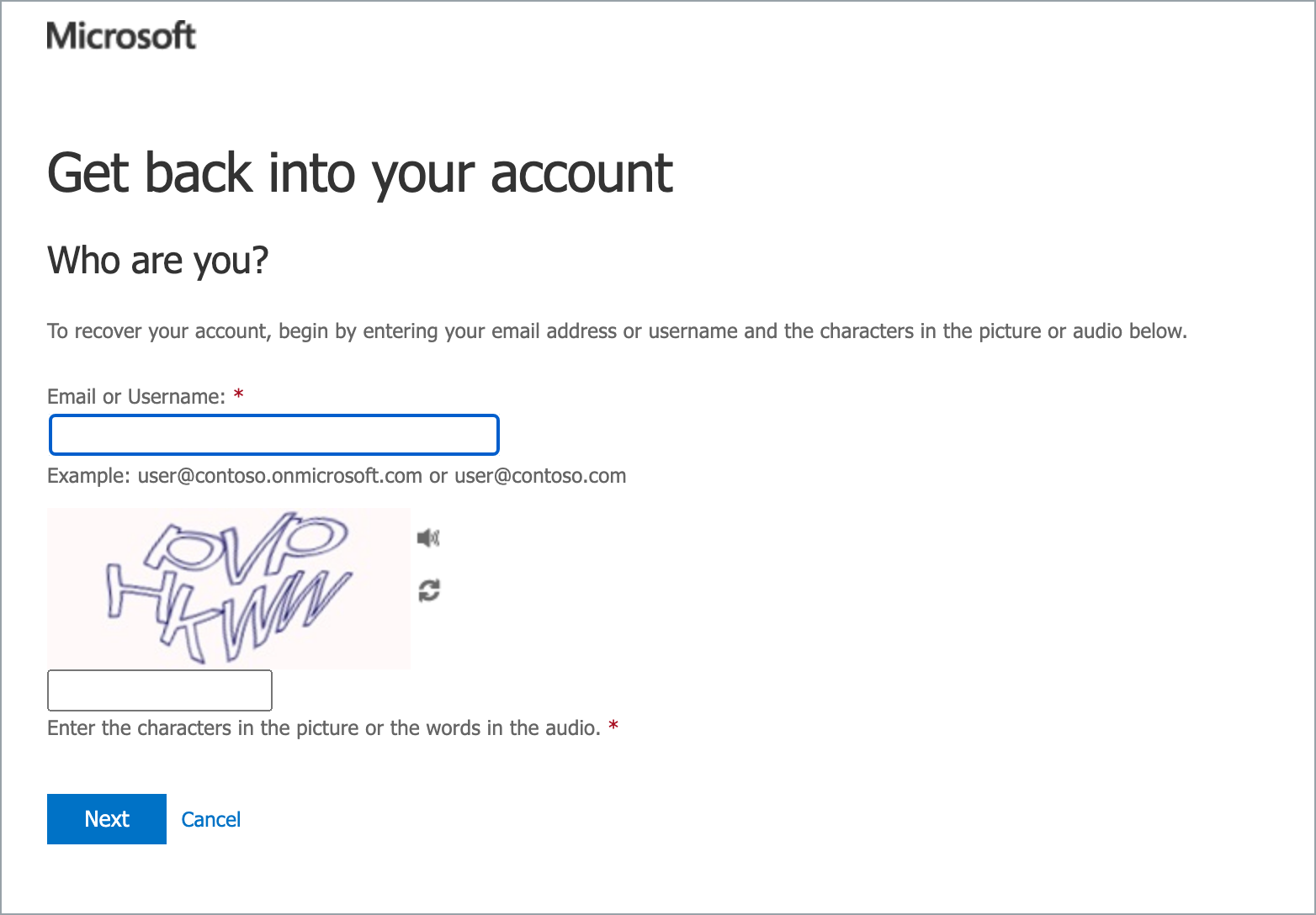
As security information is vital, you need to make sure it is always up-to-date. You will receive a reminder every 180 days to review your security info and update it as needed.
To manage your security info any time, go to My Account.
If your TechPass login ID’s domain is techpass.gov.sg:
a. Create a service request to contact our technical support to remove the MFA configured for your TechPass account.
In the service request form, select Service Request as Ticket Type and select Request to reset Multi-Factor Authentication (MFA) as Service Requests.
If your TechPass ID is same as the organisational email ID:
a. Contact your Agency Facility Management(AFM) to remove the MFA configured for your WOG account and create a service request to remove the MFA configured for your TechPass account.
In the service request form, select Service Request as Ticket Type and select Request to reset Multi Factor Authentication(MFA) as Service Requests.
b. Reset WOG MFA.
Do one of the following:
- Visit Microsoft’s Common problems with two-factor verification to see if there is a solution.
- You can also create a service request.
When you sign up or get invited to a TechPass account, a TechPass account is created for you and we will send an onboarding invitation email. When you onboard to your account, it gets activated.
This onboarding invitation email is valid only for 30 days and if you have not completed to onboard to TechPass within this time, you are notified via email on the 25th day and your account is terminated on the 30th day. When your account is terminated, you will again be notified about the account termination.
- Terminating account is different from disabling an account.
- If your TechPass ID is same as your organisational email ID, accept the onboarding invitation.
- If your TechPass login ID’s domain is techpass.gov.sg, you will receive an initial password by SMS. You need to sign in to TechPass using initial password.
Your SEED onboarding email invitation is valid only for 30 days.
If you can access TechPass Portal, complete the instructions mentioned on Request for SEED provisioning.
If you can’t access TechPass Portal, do one of the following:
- If you had earlier requested your reporting officer or project manager to invite you to TechPass and SEED, contact them again to resend the SEED onboarding invitation.
- Create a service request with TechPass to receive the SEED onboarding invitation email again.
Your TechPass account might be disabled if you have not used it for 90 consecutive days. However, if you have not used it for 60 consecutive days, from day 61 onwards you will receive an email alert about your inactive status with the remediation step. If you still do not use your TechPass account, your account is disabled on day 90 and you are notified.
Re-enabled inactive accounts now have an additional grace period of 5 days to sign in at least once before their accounts are disabled again.
To re-enable or if you think your account was incorrectly disabled, create a service request.
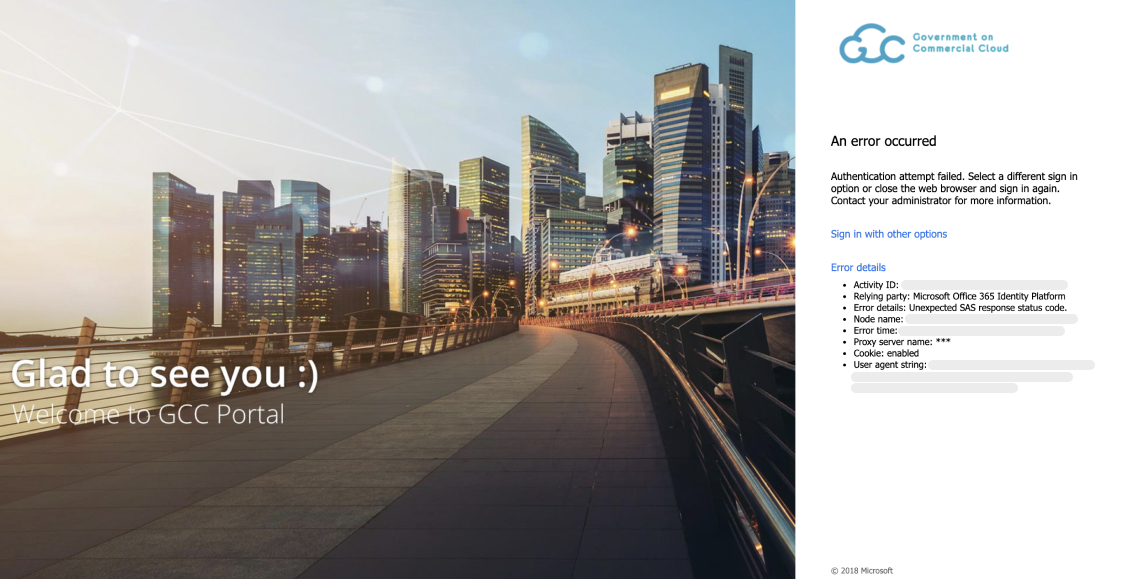
You might encounter this error if you are trying to sign in to your WOG account without setting up the MFA for WOG to authenticate it. For more information, see Set up security verification for WOG account.
