Log in with TechPass
This article tells you how to sign-in to a service using TechPass account.
Log in to a service using your TechPass account
Go to the Portal or home page of the required service. Some of the services using TechPass:
- TechPass Portal (accessible using non-SE GSIB, Comet or GMD)
- Console (TechBiz, StackOps, SHIP-HATS) (accessible using non-SE GSIB, Comet or GMD)
- Documentation Portal (accessible using any device)
- GCC CMP (accessible using non-SE GSIB, Comet or GMD)
- SEED Dashboard (accessible using non-SE GSIB, Comet or GMD)
Click Login with TechPass.
Choose the required TechPass account.
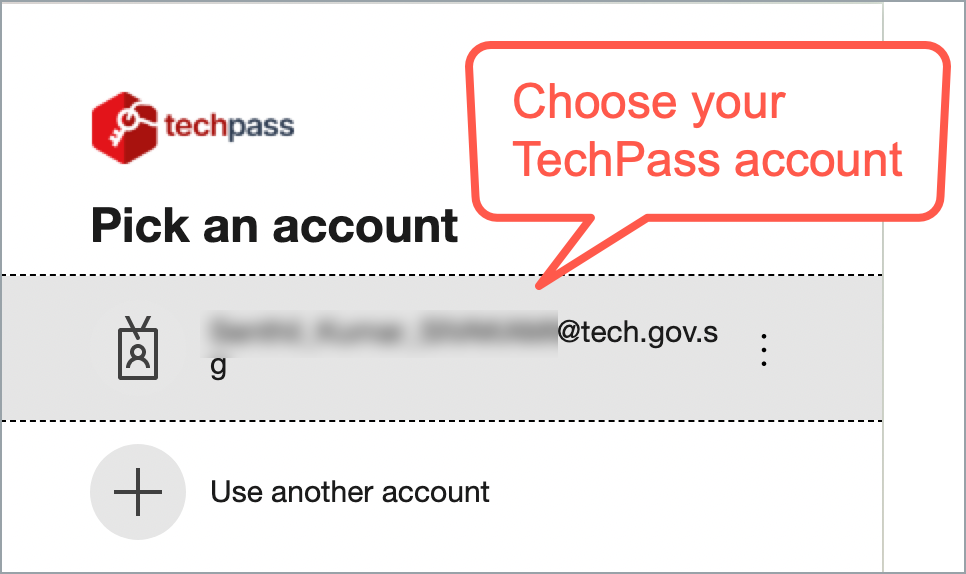
You may be asked to provide other authentication method:
- If you have a WOG account and logging in via your GMD, refer to Authentication for WOG account via GMD
- If you have a @techpass account, refer to
Authentication for WOG account via GMD
If you have setup passwordless sign-in for your WOG account, proceed to step 3.
Enter the verification code displayed for your SG Govt M365 profile on your Authenticator app.
Click Sign in.
You are prompted to authenticate your sign-in. A number is shown on your browser.
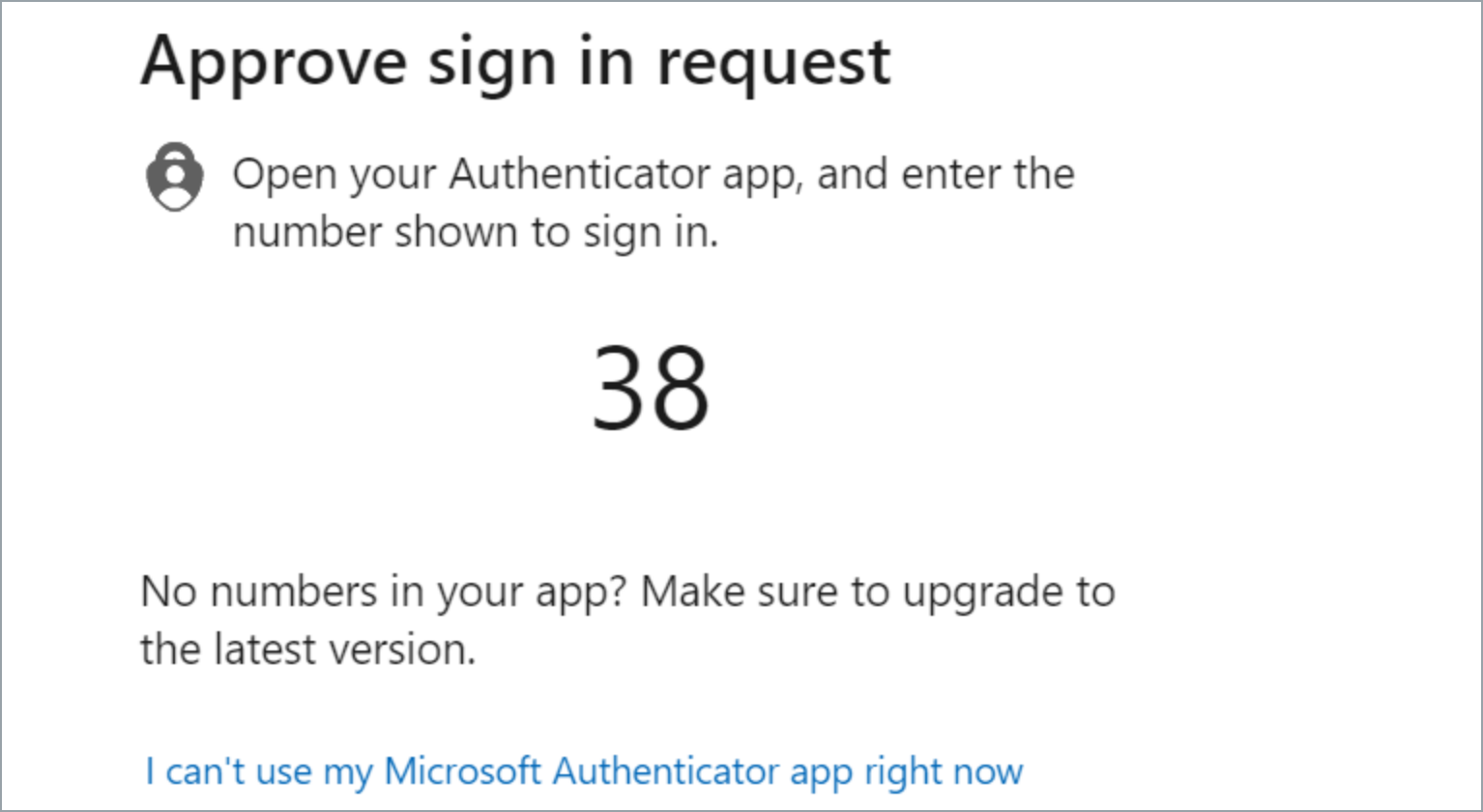
On the Authenticator app, enter the number shown on your browser.
Select Yes or Done on the app.
You have successfully logged in to the service using your TechPass account.
Authentication for @techpass.gov.sg account using passwordless sign-in
If you have @techpass.gov.sg or @stg.techpass.gov.sg account and have not set up passwordless sign-in, refer to: Setup passwordless sign-in
If you have setup passwordless sign-in but the sign-in flow still prompts for password, you may click on the “Use app instead”

If passwordless sign-in has just been recently setup, it may take a few minutes for the “Use app instead” option to be available.
You are prompted to approve your sign-in. A number is shown on your browser.
On the Authenticator app, enter the number shown.
Select Yes or Done on the app.
You have successfully logged in to the TechPass Portal.
Authentication for @techpass.gov.sg account using password and Microsoft Authenticator push notification
Enter the password of your TechPass account and click Sign in. For example, if your TechPass ID is john_doe@techpass.gov.sg, you need to enter your TechPass password.
You are prompted to authenticate your sign-in. A number is shown on your browser.
On the Authenticator app, enter the number shown on your browser.
Select Yes or Done on the app.
You have successfully logged in to the service using your TechPass account.
