Manage app users for Atlassian Dedicated Site
Subscription Admins (SAs) and Project Admins (PAs) can manage user access and roles for Jira, Confluence, and Jira Service Management (JSM) apps within an Atlassian Dedicated Site.
Prerequisites
Ensure the following:
- You are a Subscription Admin (SA) for the subscription, or a Project Admin (PA) for a SHIP-HATS project within the subscription.
- The dedicated site is Active.
- Users have the required licences:
- Jira / Confluence → Atlassian (Jira & Confluence) licence
- JSM agents → Jira Service Management (JSM) agent licence
Steps
In Console, go to Products > SHIP-HATS, and select the required subscription to open the Workspace.
For detailed steps, see Access Workspace.
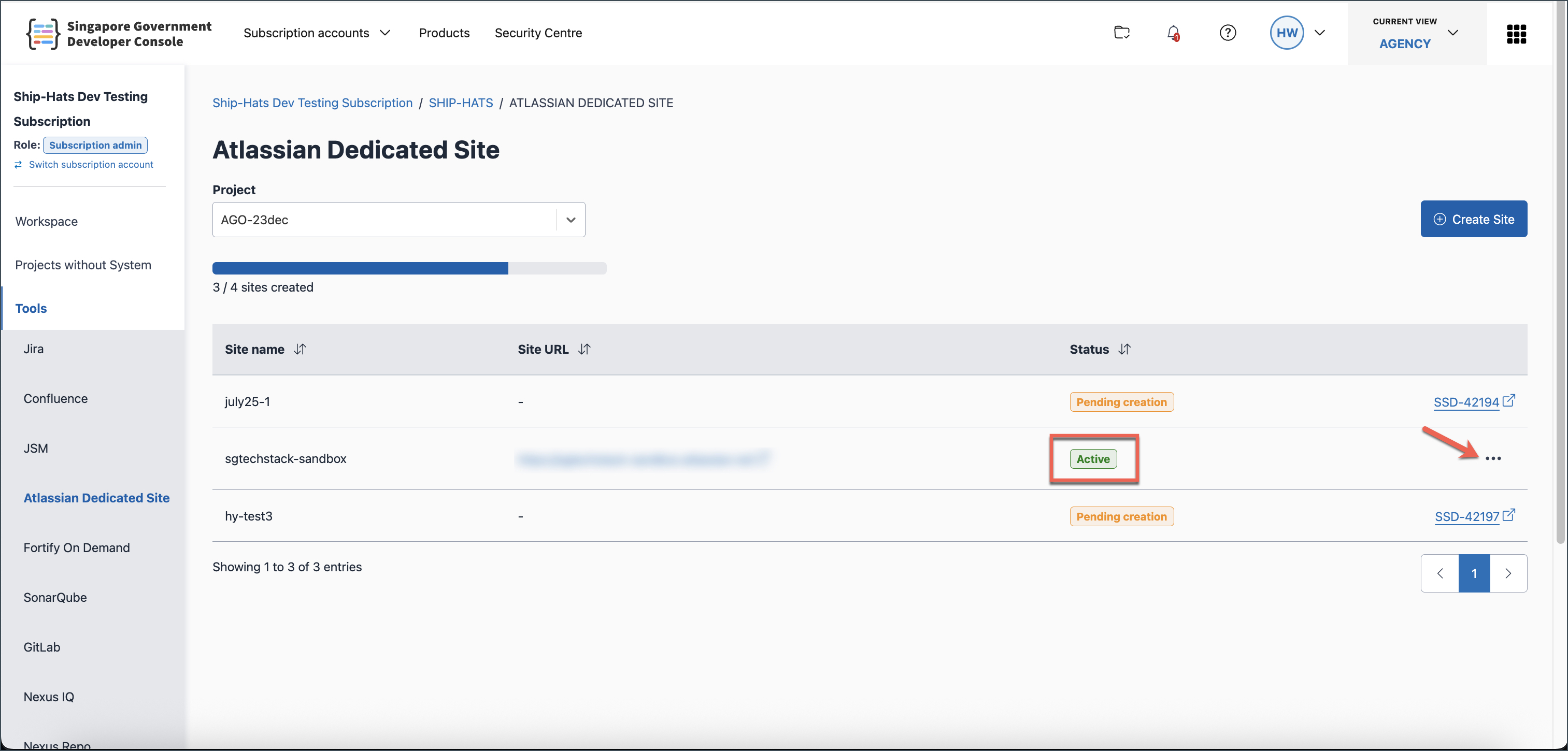
Click Tools > Atlassian Dedicated Site.
Select the required SHIP-HATS project.
Locate the required dedicated site and click the ellipsis (⋯), then select Manage.
Use the relevant tab to manage users:
- Jira users
- Confluence users
- JSM agents
Add users
Go to the relevant tab:
- Jira users or Confluence users → click + Add user
- JSM agents → click + Add user
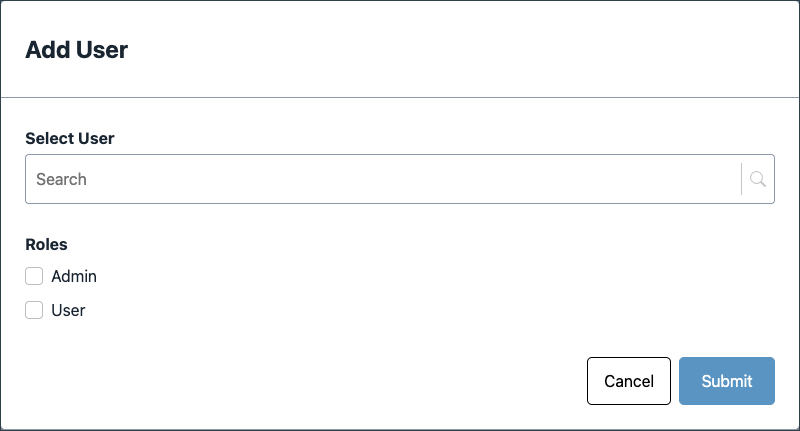
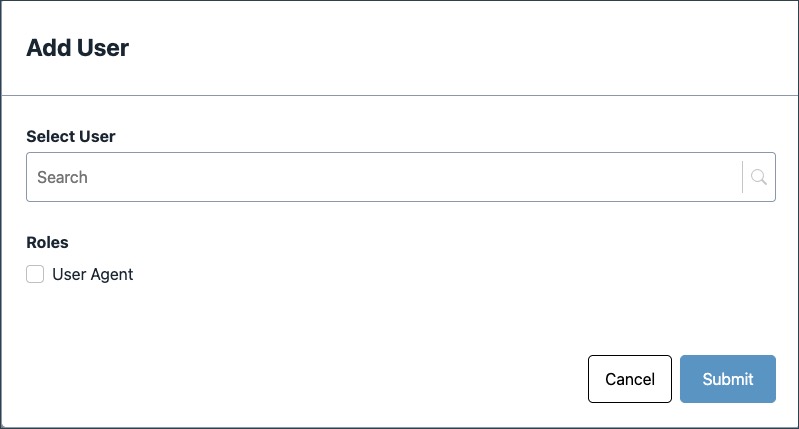
Search for the user by name or email (linked to TechPass ID).
Assign the required role(s) and click Submit.
If the user already exists, their current role(s) will be displayed.
Manage users and roles
Select the relevant tab:
- Jira users
- Confluence users
- JSM agents
Search for the user if needed.
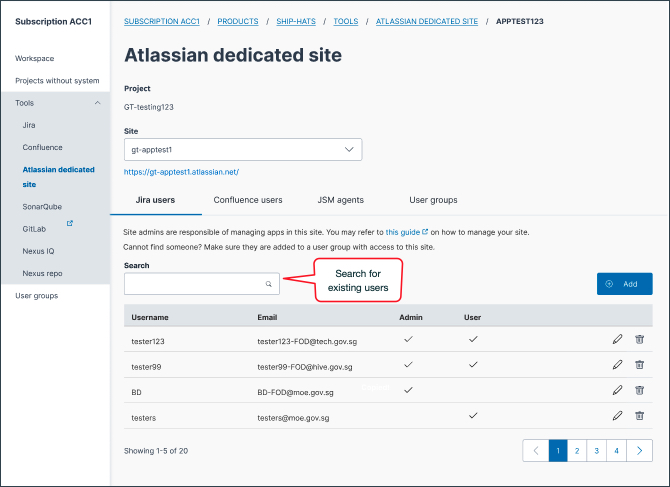
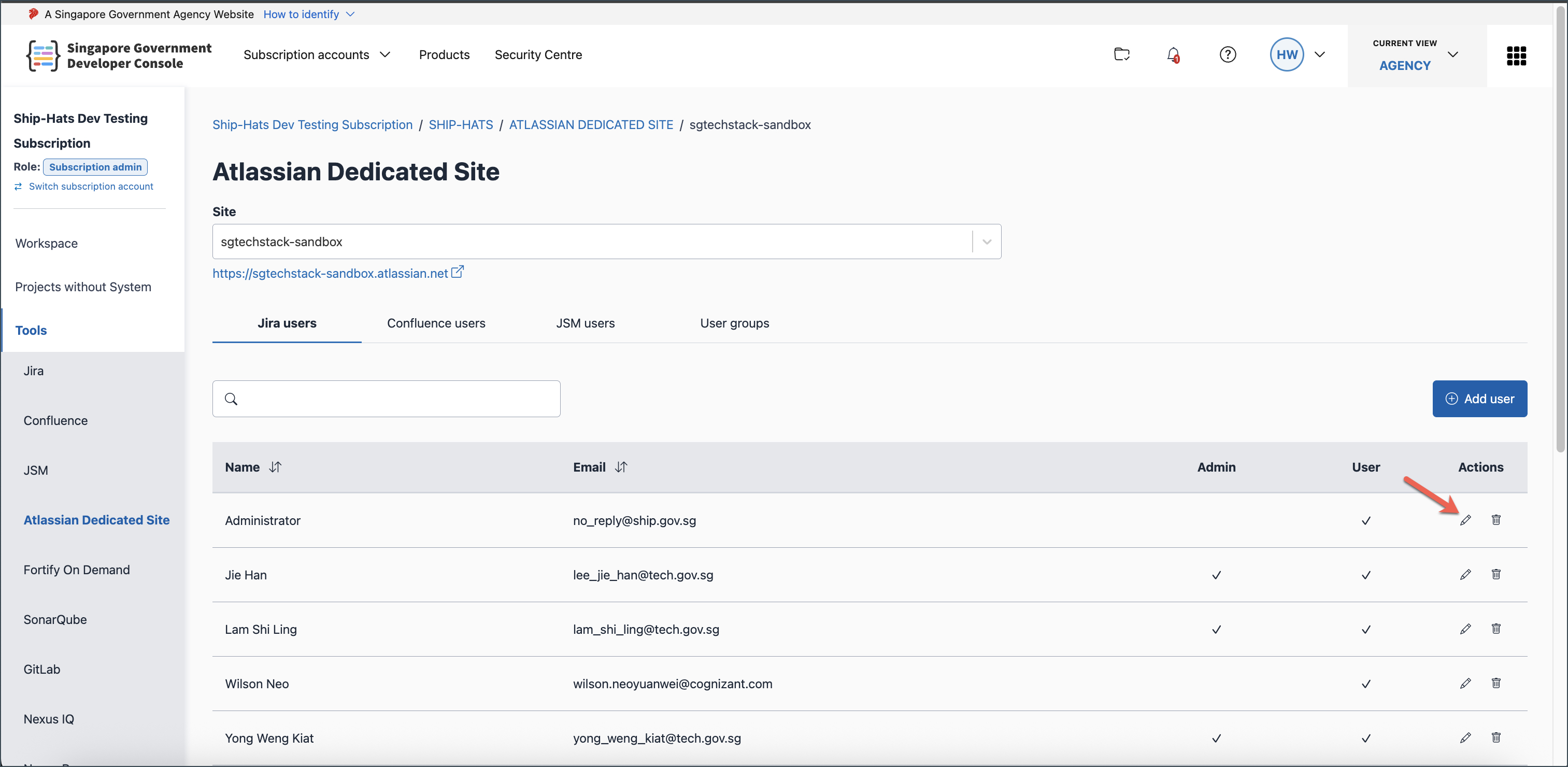
To update roles:
- Click the edit icon
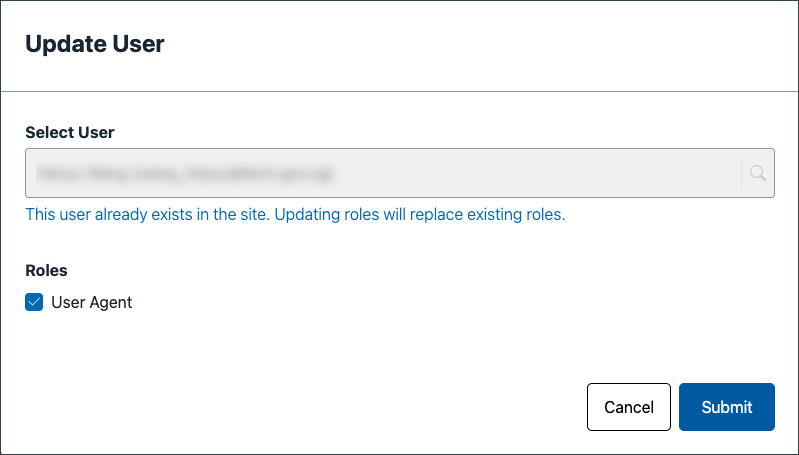
- Update role(s)
- Click Submit
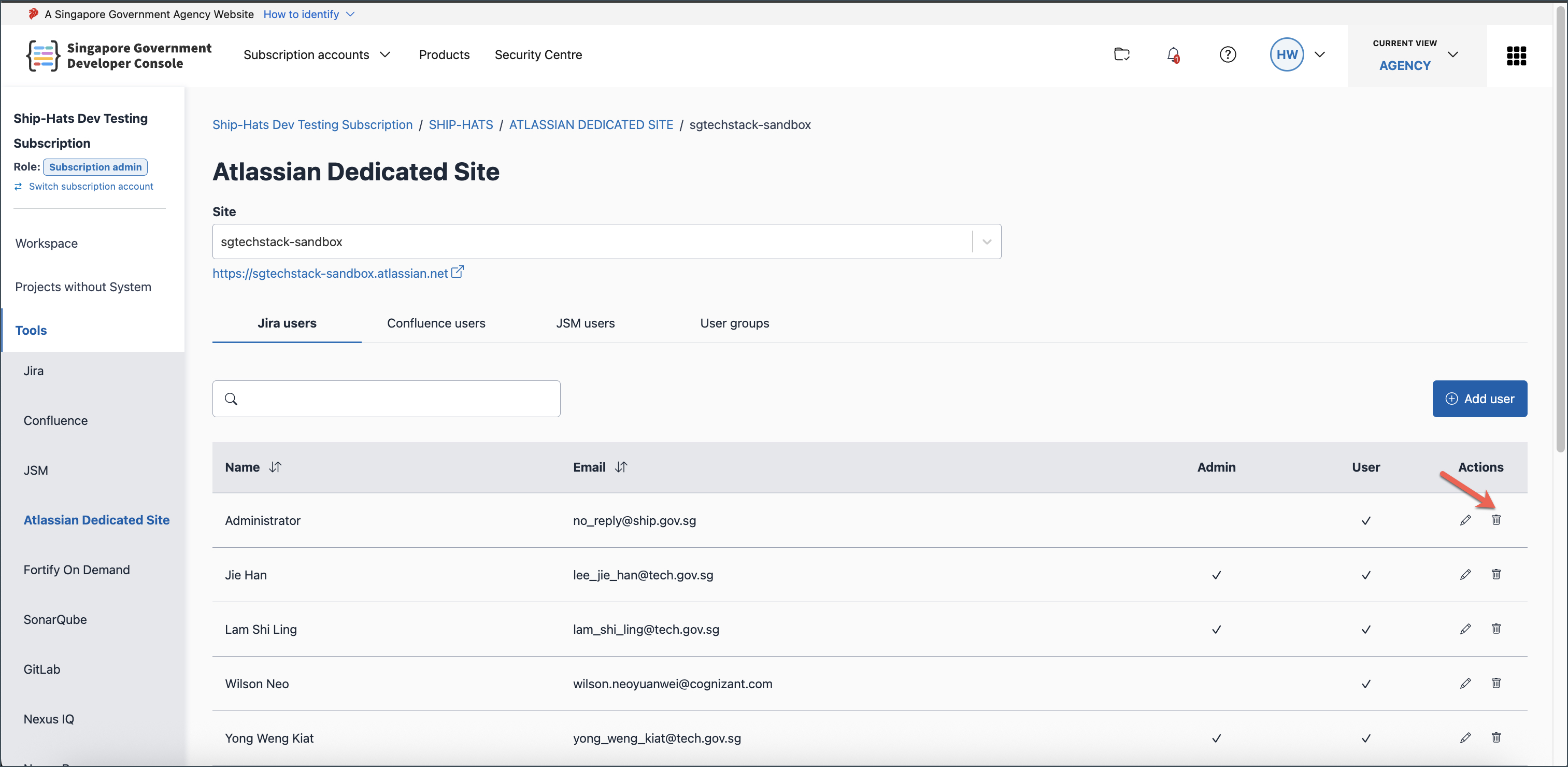
To remove a user:
- Click the delete icon
- Confirm the removal
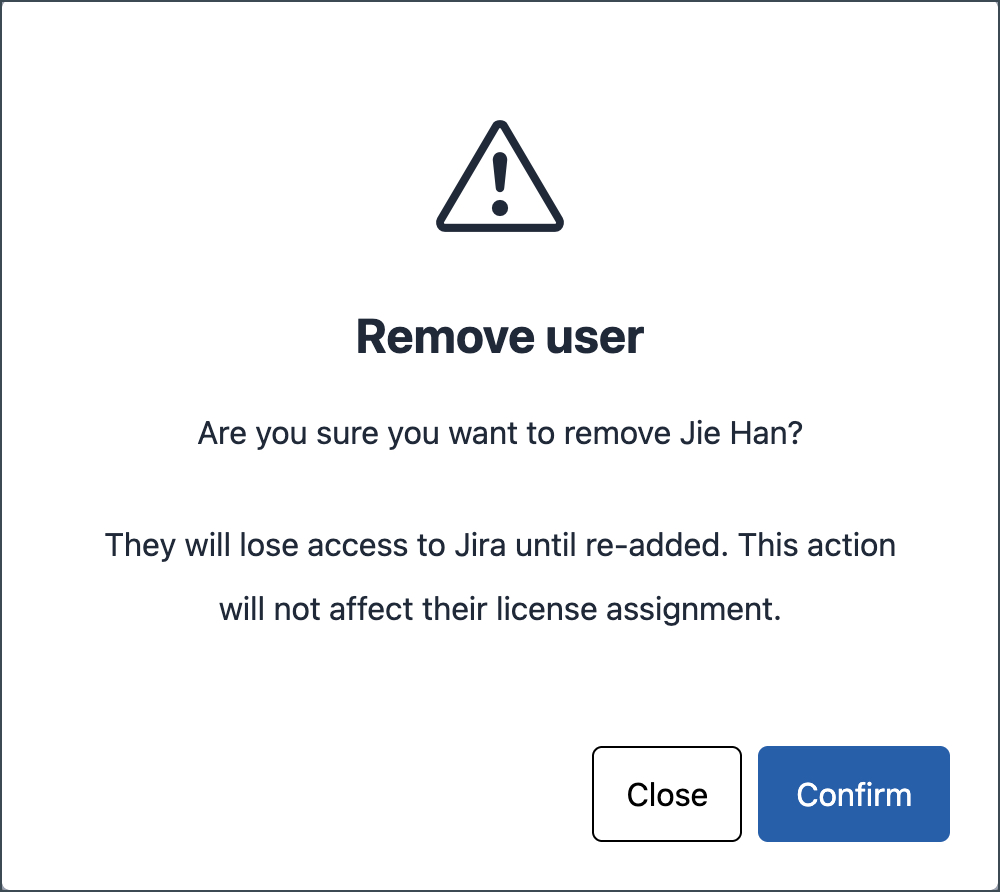
Updates apply only to the selected app.
Removing a user removes access to the app only and does not remove their licence.
Things to note
- Access is managed at the app level (Jira, Confluence, or JSM).
- Users must have the required licence before they can be added to an app.
- Removing a user from an app does not remove their licence.
