macOS post onboarding guide
After onboarding your Internet Device to SEED, follow these instructions:
Ensure Full Disk Access (FDA) is enabled for SEED components
After onboarding, ensure FDA is enabled for the following SEED components:
- Tanium Client
- Microsoft Intune Agent
- Falcon agent
Note: The following steps require administrator privileges. If your device has the Admin By Request (ABR) app, request admin access before starting. Refer to the ABR user workflow for instructions.
Verification steps:
- Go to the Apple menu > System Settings.
- On the left pane, select Privacy & Security.
- If prompted, unlock the setting using your Touch ID or enter your device password.
Note: If you were not prompted to reset device password during onboarding, you will be prompted now. Refer to the FAQ for password policy.
On the Privacy & Security pane, choose Full Disk Access.
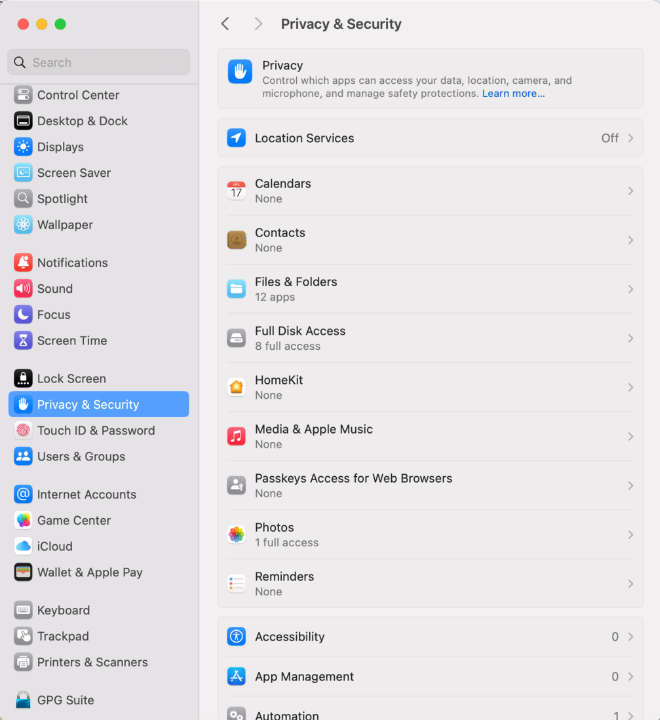
Ensure the following applications are listed and enabled:
- Tanium Client
- Microsoft Intune Agent
- Falcon agent
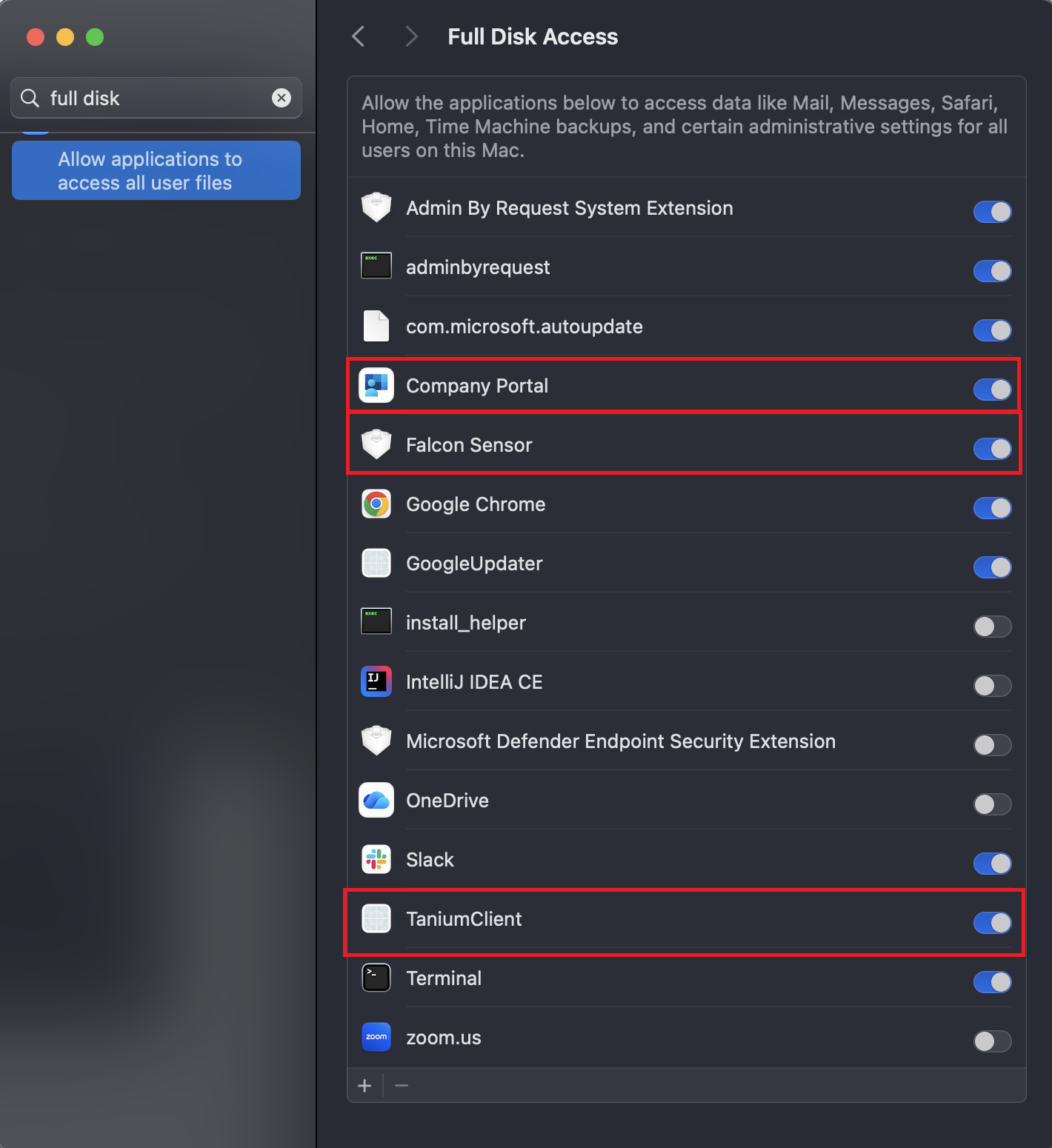
Note: If a SEED component is missing, refer to Onboarding FAQ.
Known issue: Full Disk Access (FDA) on macOS 26
There is a known issue on macOS 26 where Tanium does not appear in the Full Disk Access (FDA) settings page, even after it has been added.
Workaround:
- Go to System Settings → Privacy & Security → Full Disk Access.
- Drag and drop TaniumClient into the Full Disk Access page.
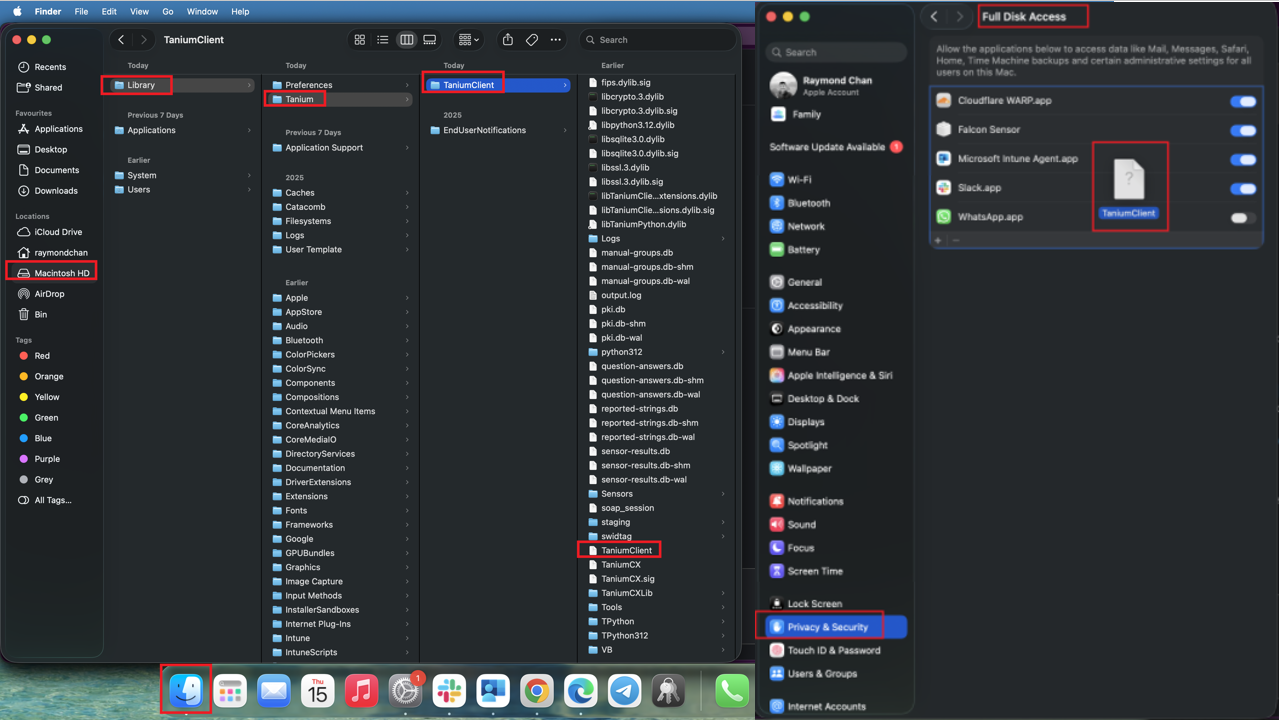
Note: Due to a macOS bug, Tanium will still not be visible in the FDA list after being added.
Full Disk Access is successfully granted, and Tanium will continue to function as expected.
