Provision GitLab licences
Subscription Admins (SAs) and Technical Admins (TAs) can provision GitLab licences to users using Console. You can provision a licence to a single user or multiple users.
Prerequisites
Ensure the following:
- You are a Subscription Admin (SA) or Technical Admin (TA).
- GitLab Ultimate is included in your SHIP-HATS subscription.
See Subscribe to GitLab. - Sufficient GitLab licences are available for provisioning.
- The user has an active TechPass account.
- You are using a non-SE GSIB, COMET, or GMD (SEED) device.
Things to note before you begin
- A user can hold only one GitLab licence in SHIP-HATS.
- If a user already holds a GitLab licence under another SHIP-HATS subscription, Console prevents duplicate provisioning.
- In this case, a Subscription Admin (SA) or Project Admin (PA) can add the user directly to the required GitLab groups or projects.
- Users without an active TechPass account will not appear in search results for licence provisioning.
Steps
Log in to Console.
Go to Subscription Accounts and select the required SHIP-HATS subscription.
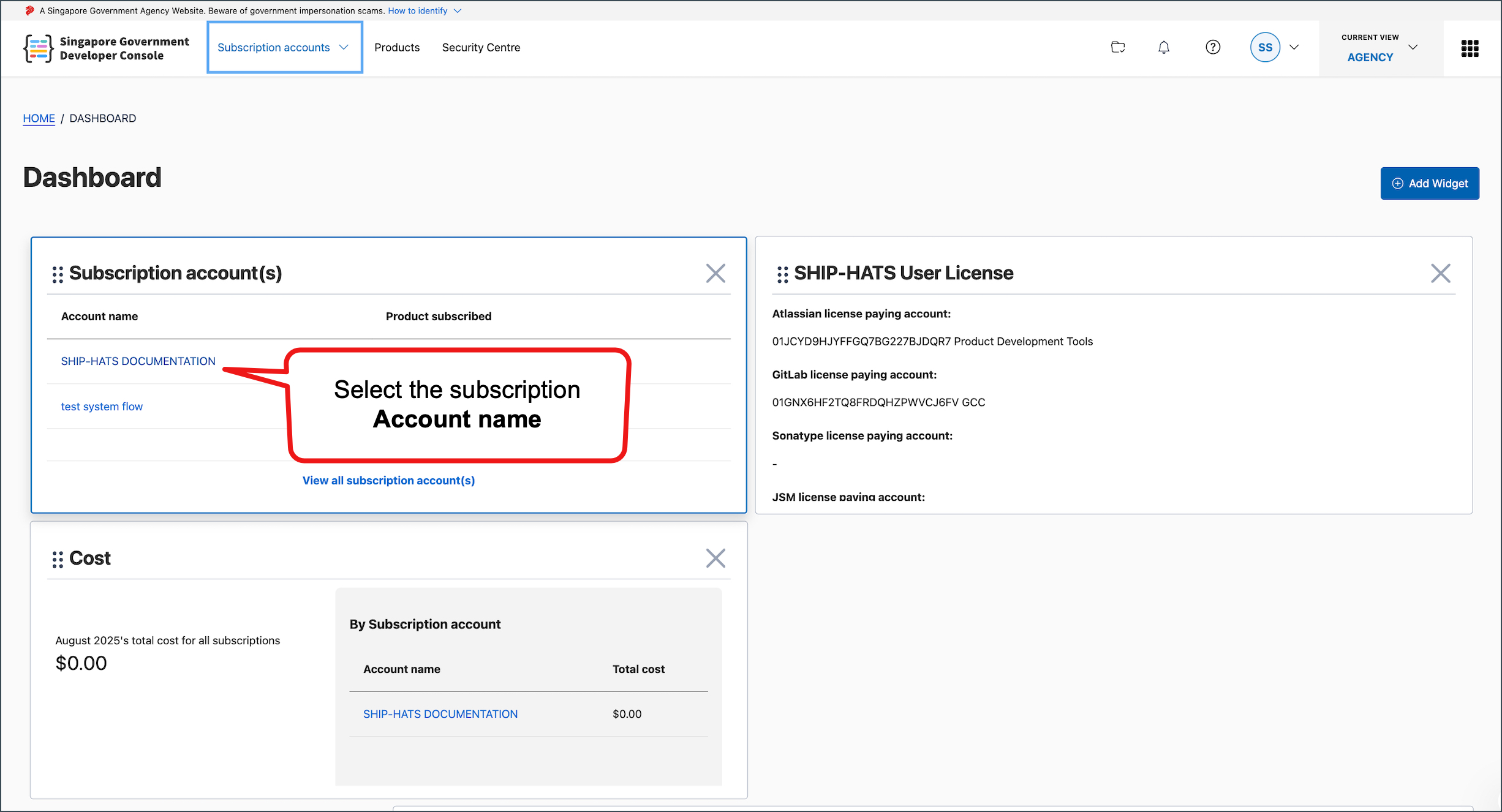
Go to User Management > GitLab.
Click the down arrow next to GitLab.
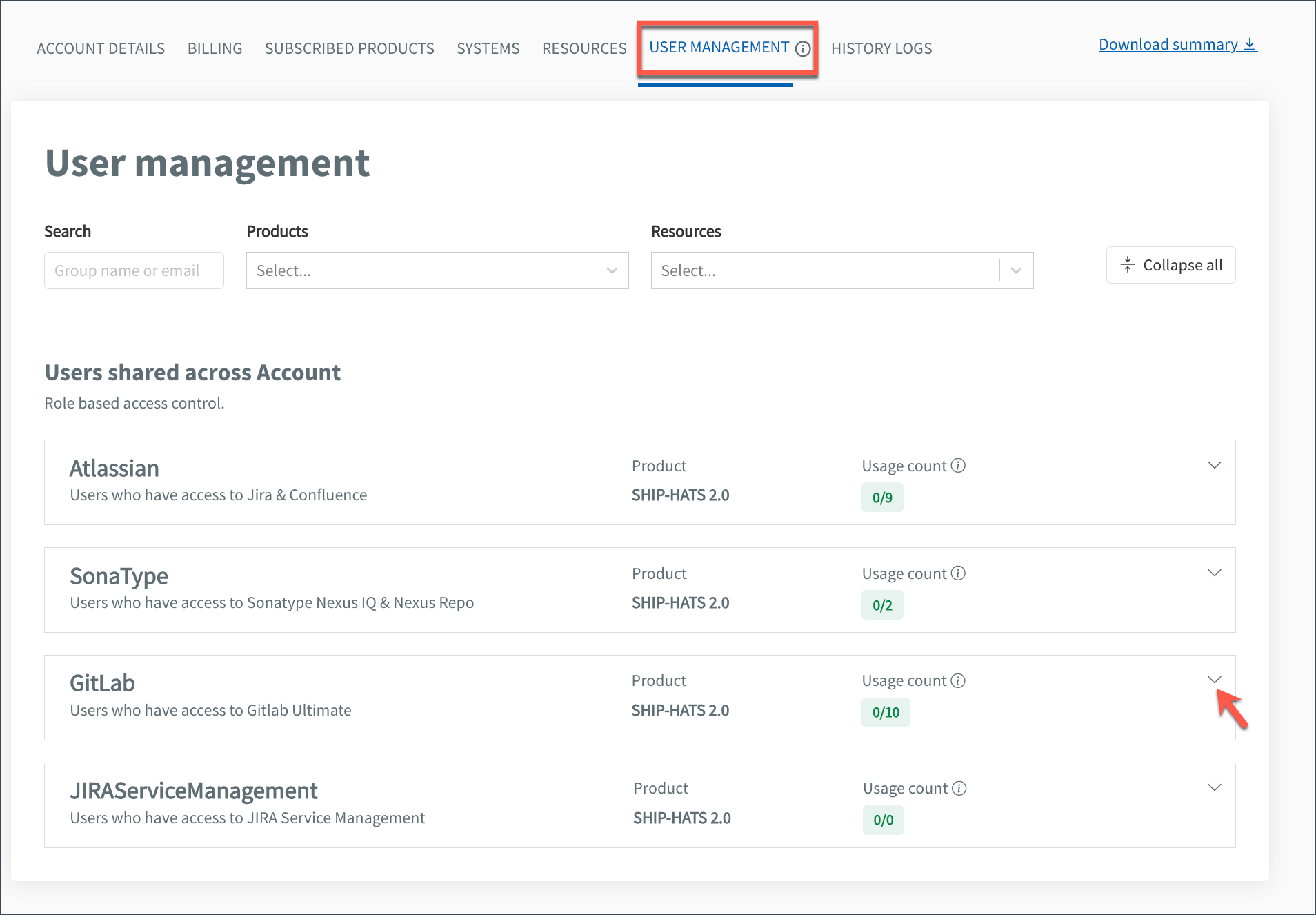
Check the licence Usage count.
For example,0/11means 0 licences are in use and 11 are available.If sufficient licences are available, click Manage.

⚠️ If licence quota is reached
If there are no available licences:
- Increase the licence quantity in your subscription. See Update licences or units. In this page, select the Update licences or units tab.
- Then return to this page to provision licences to users.
Choose how you want to provision licences:
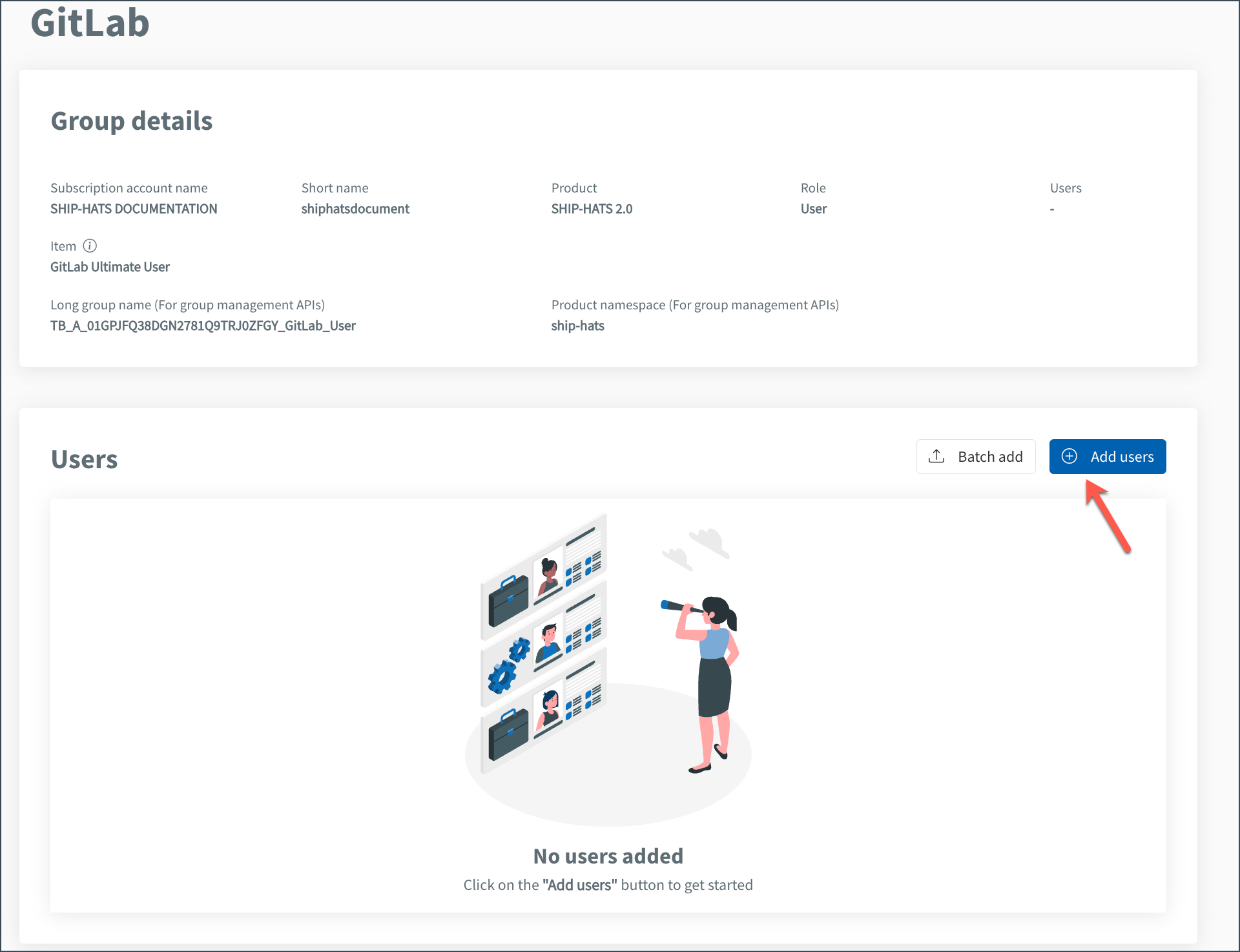
Provision licence to a single userClick Add users.
Use the Search box to find the user by name or email linked to their TechPass account.
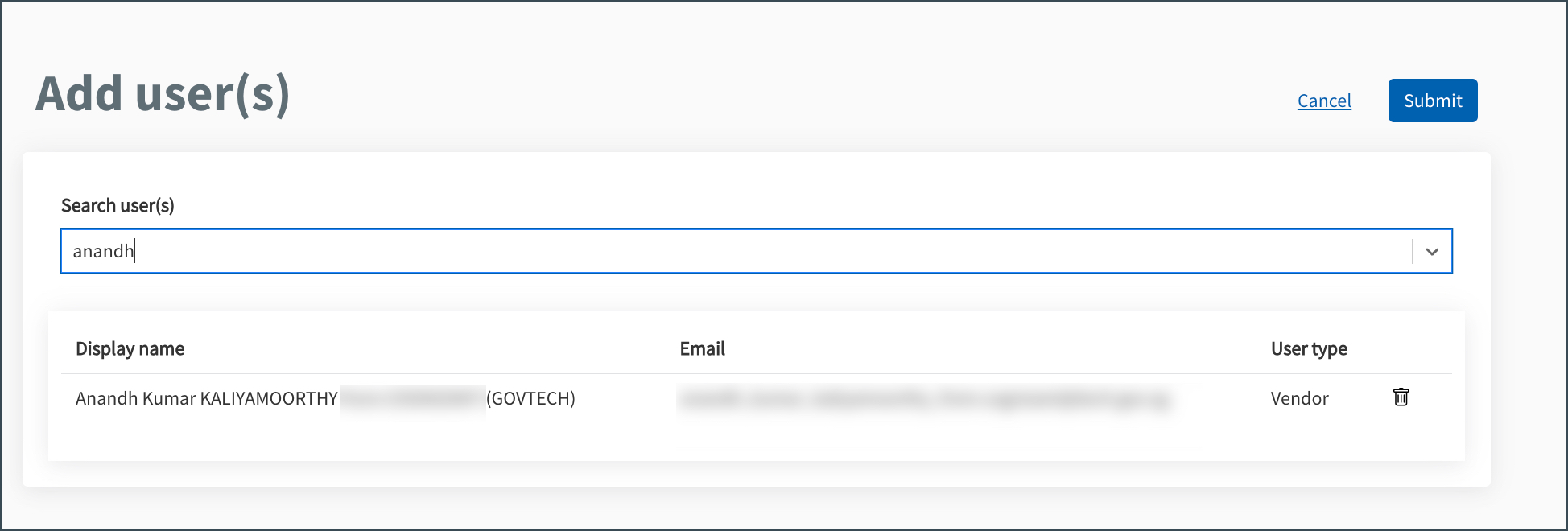
Users without an active TechPass account will not appear in the search results.
Click Submit.
Confirm the provisioning when prompted.
Users who already hold this licence cannot be assigned another licence.
Provision licence to multiple users (batch upload)Click Batch add.
Download the template.
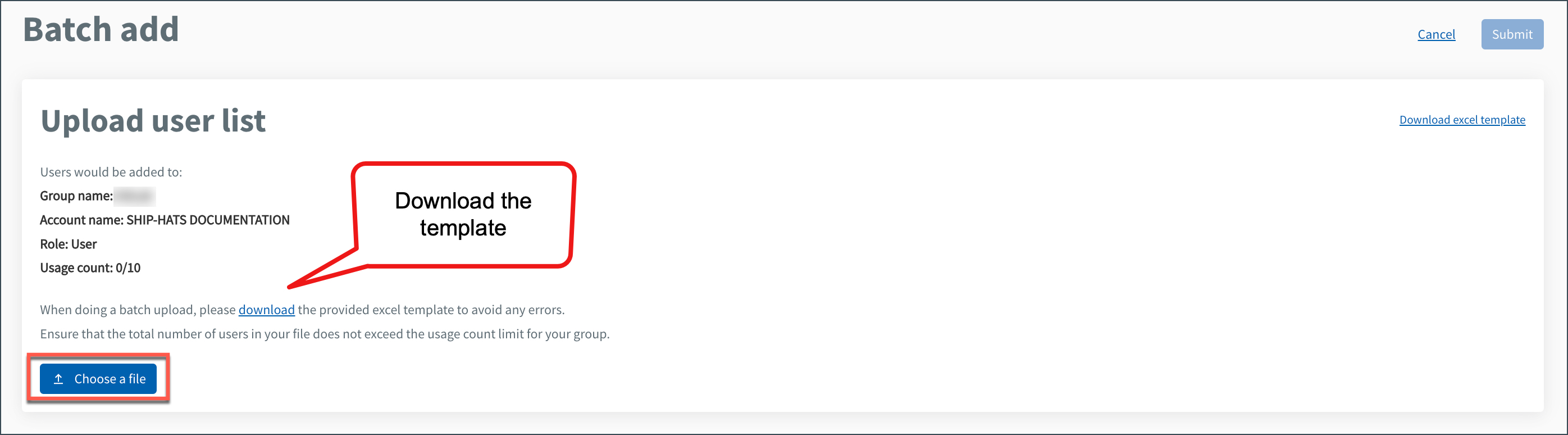
Enter the TechPass email address of the users.
Ensure:
- The total number of users does not exceed the available licence count.
- A maximum of 50 users can be added in one batch.
Upload the completed template.
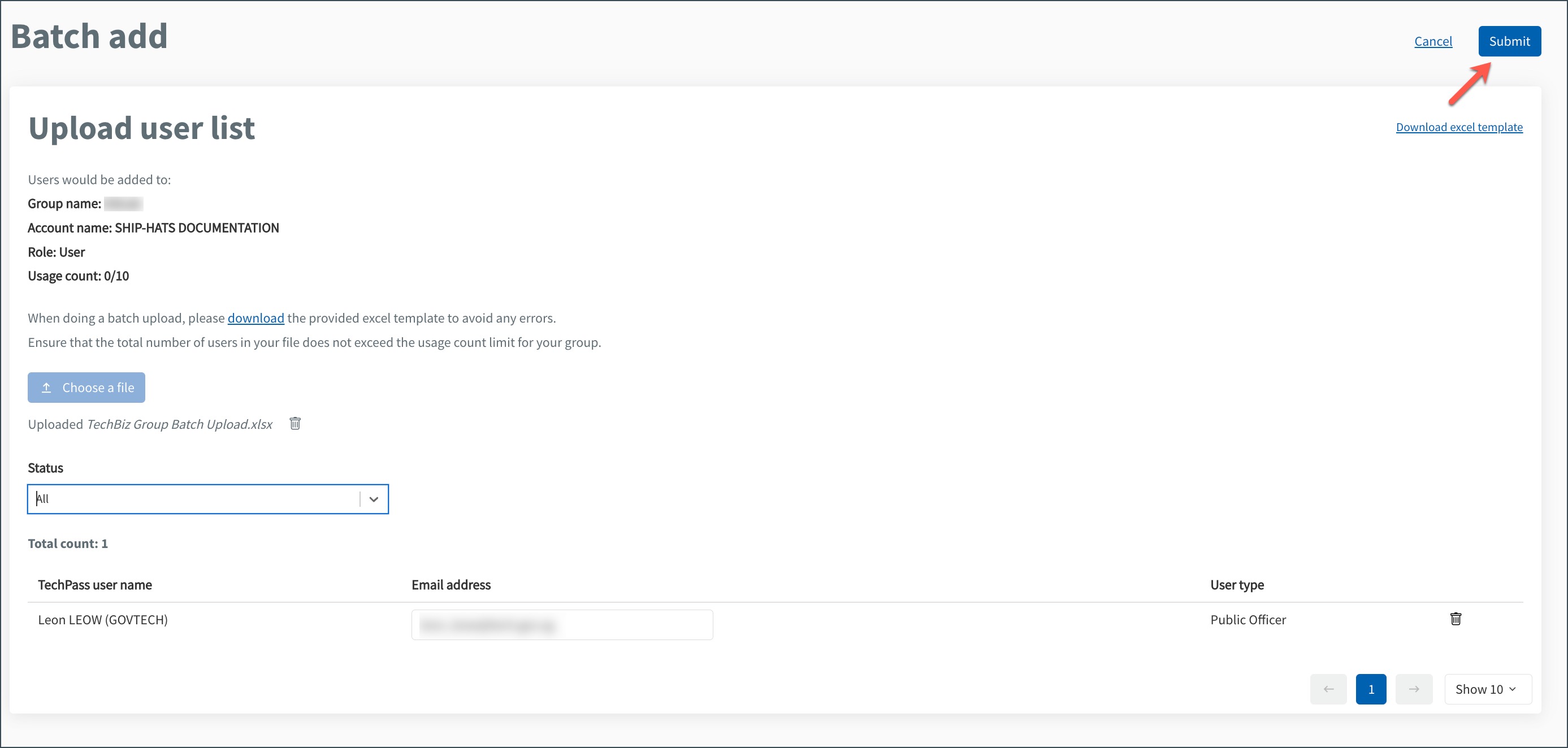
To remove a user from the list, click the delete icon next to their User type.
Click Submit.
Confirm the provisioning when prompted.
A GitLab licence allows users to log in. To access repositories, users must also be added to groups or projects and assigned a role.
💡 Tip: Regularly review licence usage to avoid running out of available licences.
