Delete GitLab groups
Subscription Admins (SAs) and Project Admins (PAs) can delete GitLab groups associated with SHIP-HATS projects.
Important
- Deleting a GitLab group removes all repositories and subgroups under the group.
- This action cannot be undone once the deletion is permanently completed.
- Before deleting, clone or back up any repositories you may need later.
Prerequisites
Ensure the following:
- You are a Subscription Admin (SA) for the subscription, or a Project Admin (PA) for a SHIP-HATS project within the subscription.
- A GitLab group exists for the SHIP-HATS project.
See Create GitLab group.
Steps
In Console, go to Products > SHIP-HATS, and select the required subscription to open the Workspace.
For detailed steps, see Access Workspace.
Click Tools > GitLab.
Select the required SHIP-HATS project that contains the GitLab group.
If required, click the GitLab group name to open it in GitLab and clone any repositories you want to retain.
Return to Console, and click the Delete icon next to the GitLab group name.
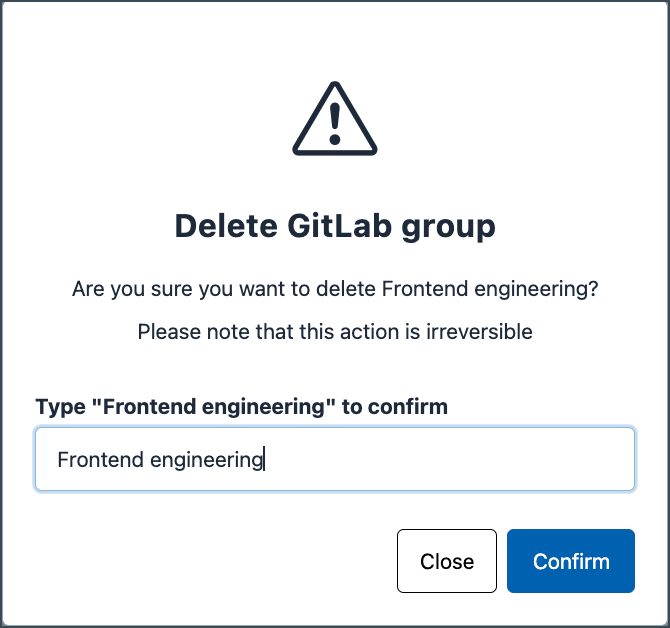
Follow the on-screen instructions to confirm the deletion.
What happens after deletion
After deletion, the GitLab group enters a 7-day soft delete period before it is permanently removed.
During this period:
- Administrators receive an email notification about the deletion.
- You can raise a service request to restore the deleted group.
- A new GitLab group cannot be created with the same name until deletion is final.
All subgroups and repositories under the deleted group are also removed, and users who were members of these groups lose access to the associated GitLab projects.
