Manage user groups for Fortify on Demand (FOD)
Subscription Admins (SAs) and Project Admins (PAs) can manage user access and permissions for FOD applications using User groups.
Note that roles for FOD applications are granted at user level and not at user group level.
Prerequisites
Ensure the following:
You are a Subscription Admin (SA) for the subscription, or a Project Admin (PA) for a SHIP-HATS project within the subscription.
Identify which user groups you want to add or remove. See View user groups.
Users in the group you want to add must have at least one SHIP-HATS tool licence.
FOD does not require a dedicated licence. However, users in this group should have at least one Tools that require licence.
Steps
In Console, go to Products > SHIP-HATS, and select the required subscription to open the Workspace.
For detailed steps, see Access Workspace.
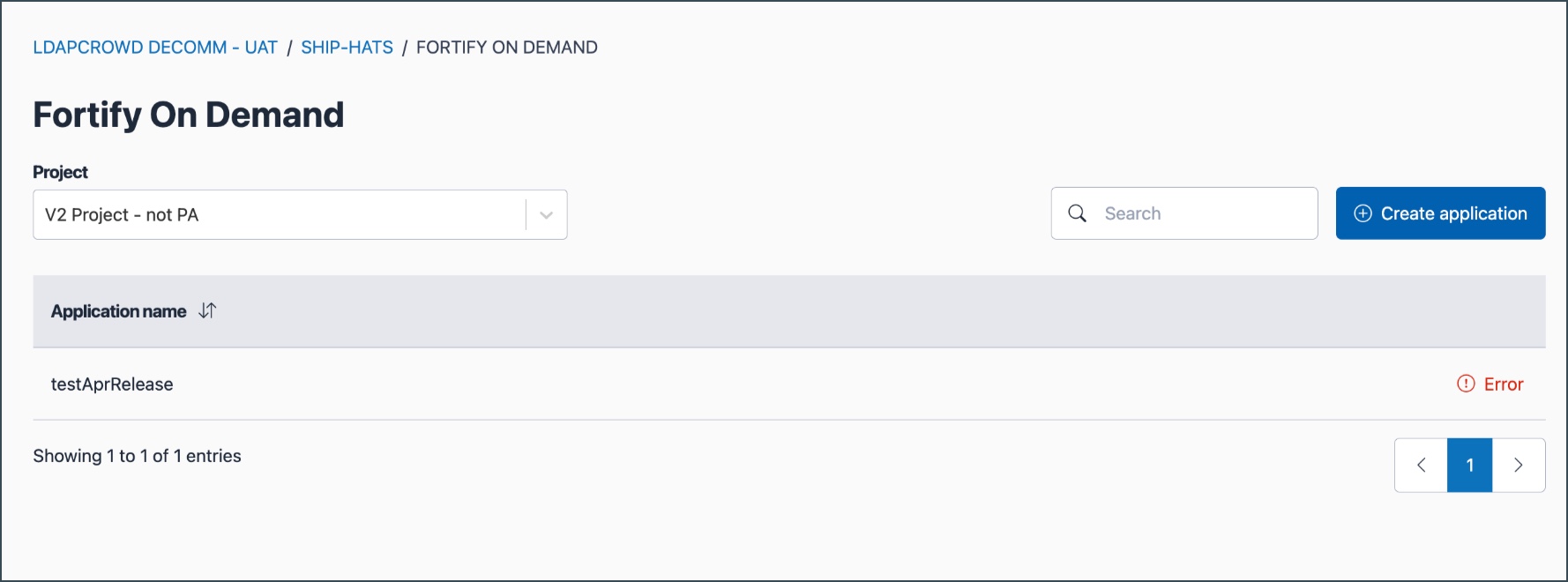
Click Tools > FOD.
Select the required SHIP-HATS project.
Select the ellipsis (…) next to the Application name and then select Manage.
In the User groups tab, you can:
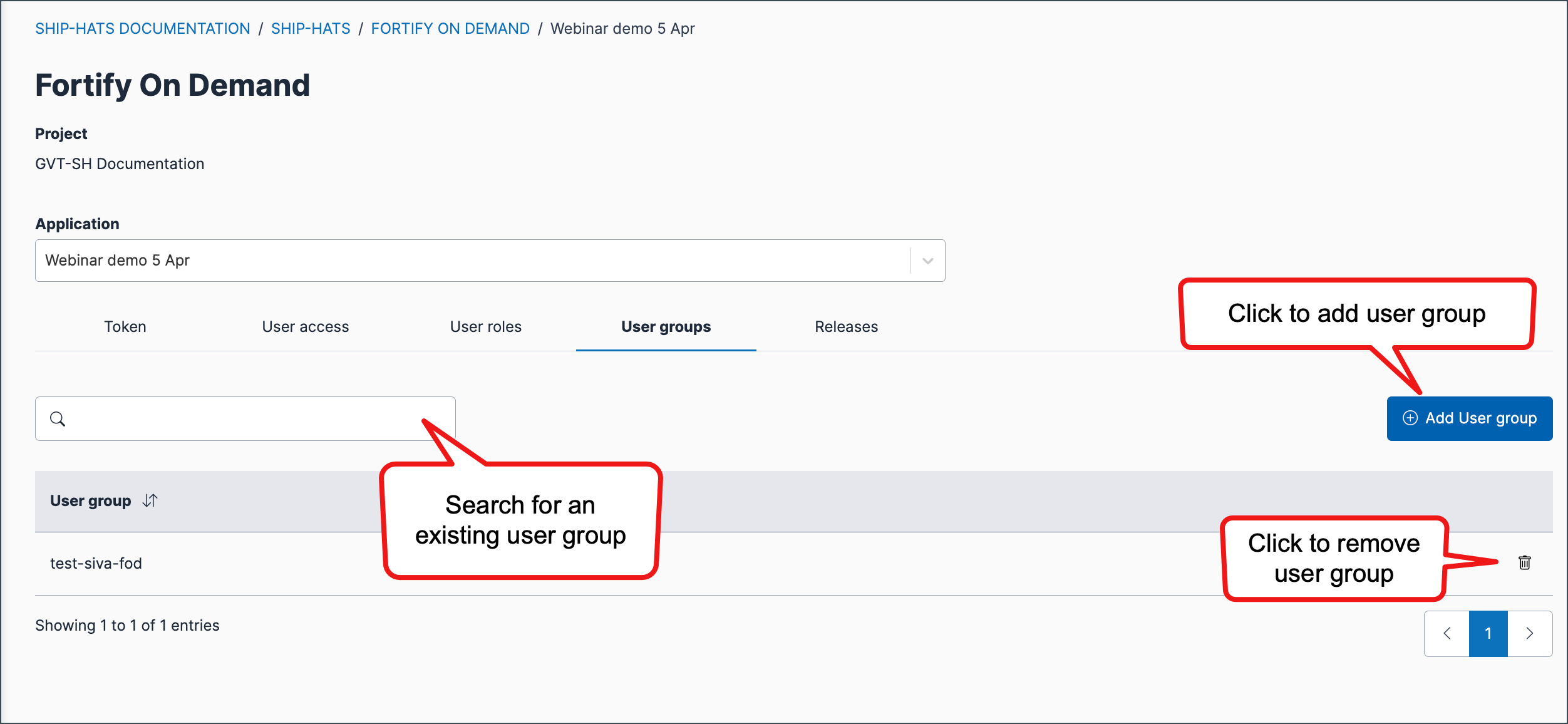
- View a user group — Enter the user group name. Matching records appear in the search results.
- Add user group — Click Add user groups, then select the required user group.
- Remove user group — Click the bin icon corresponding to the user group record.
Things to note
- Adding a group grants users access to the FOD application. It does not provision any licences.
- FOD roles are not assigned at group level.
- Users must be assigned a role individually to perform actions within the application.
- To remove access, remove the group from the FOD aaplication. This removes the user group from the FOD application. It does not delete the user group from your subscription.
- Removing users from this group only removes access to the associated FOD applications.
