MAST scan
Complete the following steps to conduct a MAST scan:
Set up your MAST scan in FOD portal
You need to setup your MAST scan once in the FOD portal before running it.
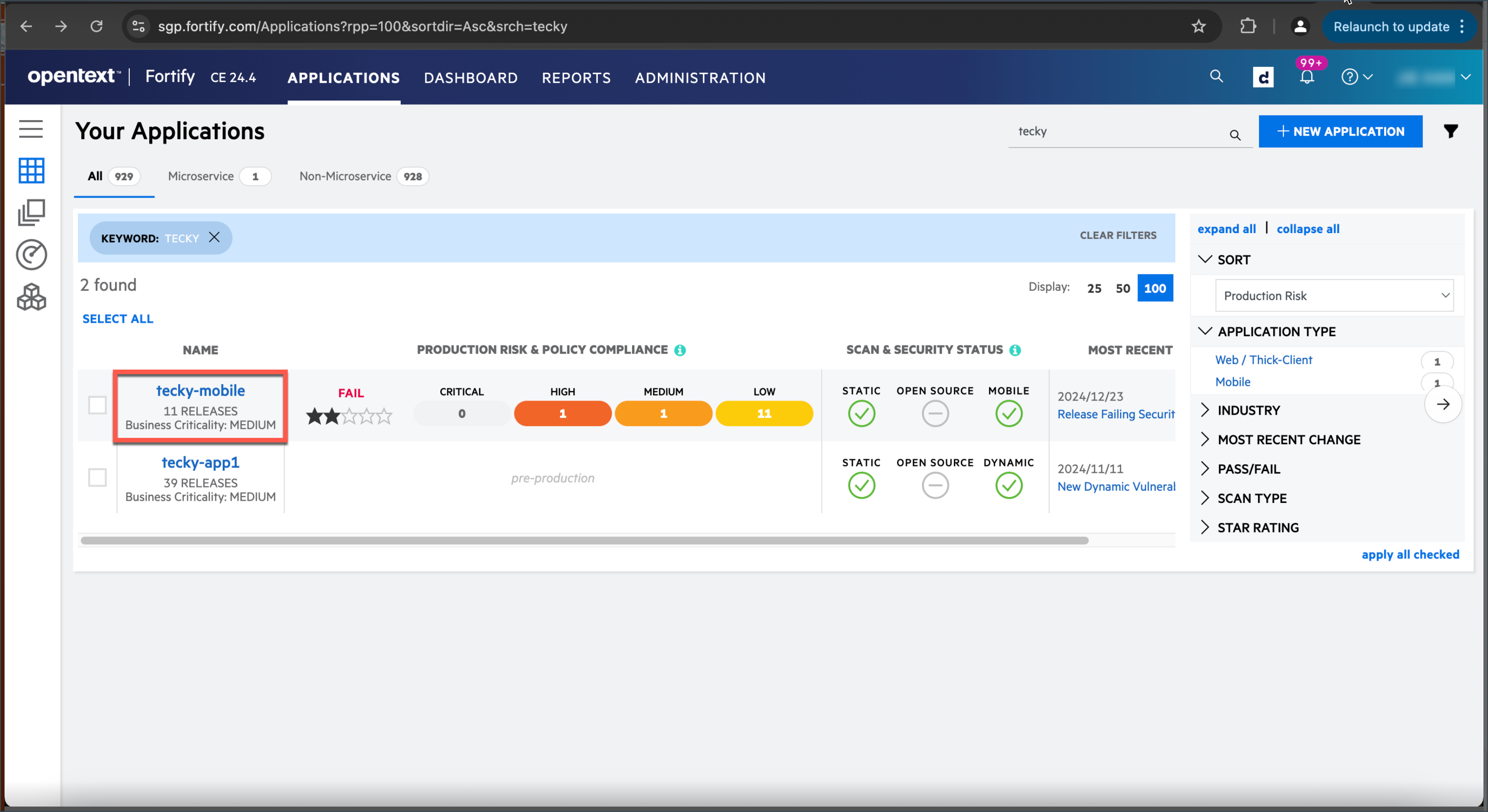
Log in to the FOD portal, and then click the required application. For this example, we are using tecky-mobile.
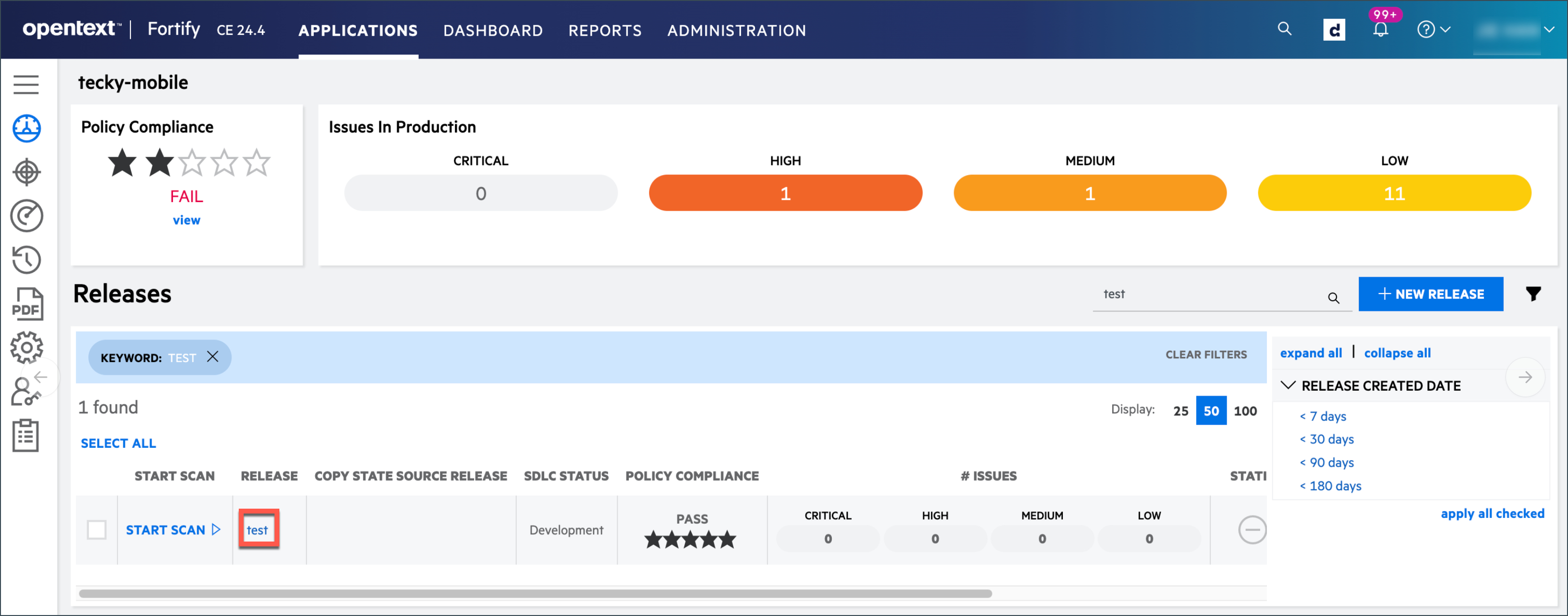
Select the required release. For this example, we will be using the test release.
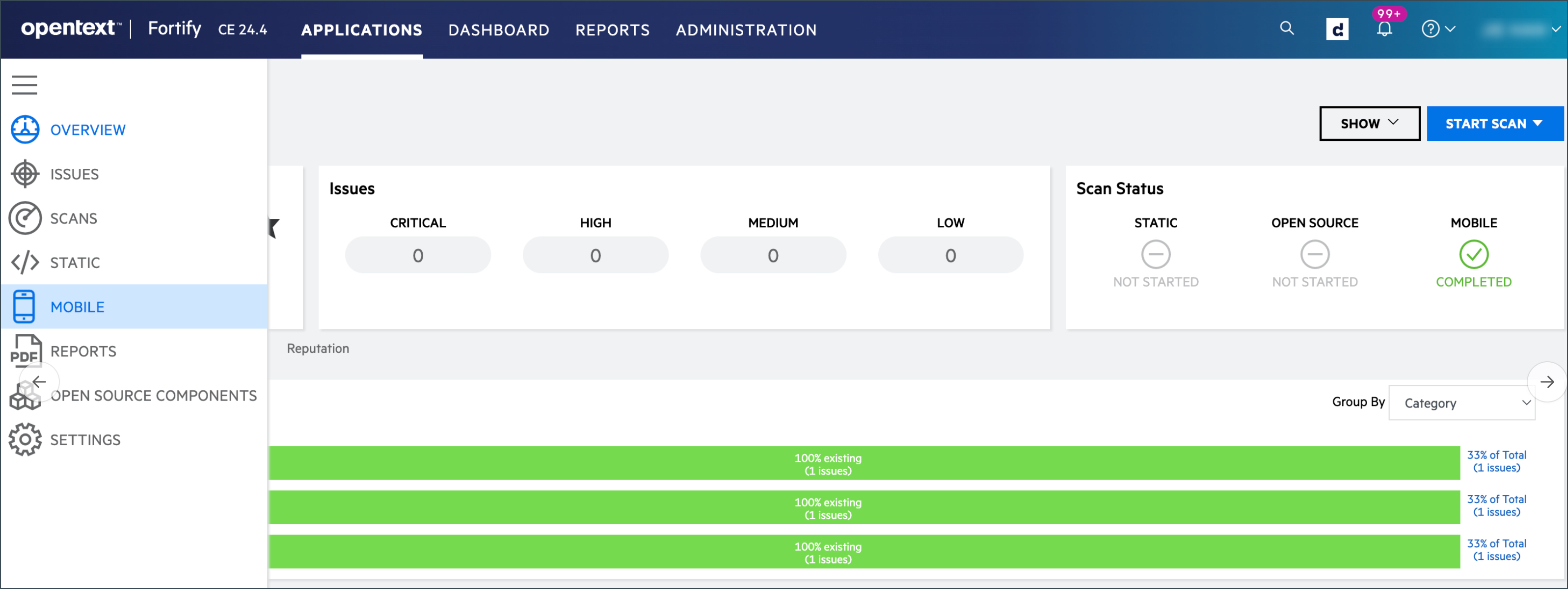
Open the menu button on your left, and then select MOBILE to start configuring your MAST scan.
Ensure the required Mobile Scan Setup details are provided and Save your MAST setup.
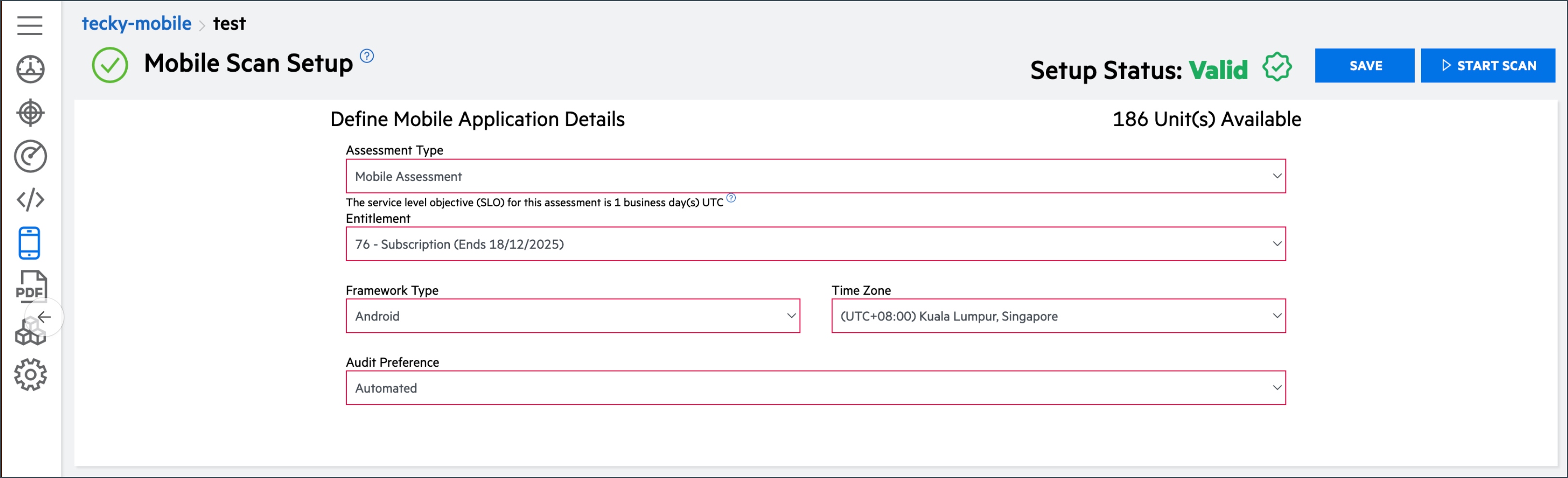
Your Setup Status is now Valid and changes are saved successfully. You are now ready to invoke your MAST scan via GitLab.
Run your MAST scan in GitLab
After you have set up your MAST scan in FOD, use the .gitlab-ci-run-fod-scan.yml GitLab template to perform your scan.
Running the scan performs following three essential steps to run your scan successfully:
- Get API token to invoke scan.
- Run scan using predefined and custom variables.
For more information, refer to following resources:
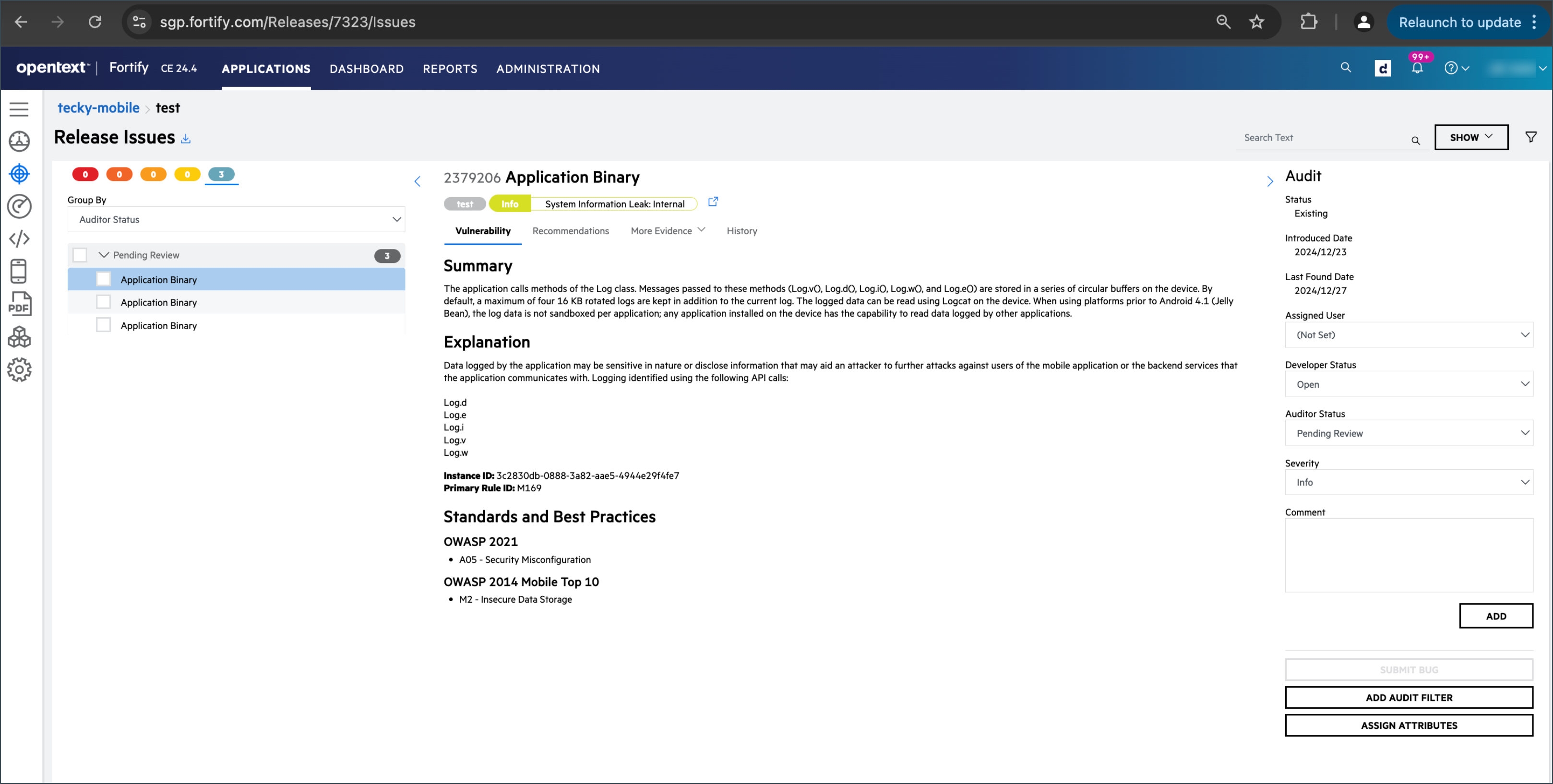
View release issues
Click the required application from the APPLICATIONS tab.
Select the required release. For this example, we will be using the test release.
Open the menu button on your left, and then select Release Issues to view the issues.
Cancel Scan
To cancel or pause your scan, contact FOD support via FOD Live Chat or FOD Help Center.
