Onboarding for Directory Search
Step 1: Submit a Directory Search onboarding request
Directory Search is currently onboarded manually via the Contact Us form. Self-service setup in the Admin Portal will be available at a later date.
Submit your request through our Contact Us form with the following configuration information:
| Details | Detail Description | Required / Optional | Example |
|---|---|---|---|
| Directory Listing domain name | The domain name for the Directory Listing you want to create under Directory Search. This is used as an identifier for the listing. | Required | www.gov.sg |
| Starting URL | Your starting page for us to start our crawl. Can be more than one domain. | Required | ['https://www.myactivesg.com', 'https://www.sportsingapore.gov.sg'] |
| Whitelisted URLs within your domain | Whitelisted URL path patterns | Optional | ['https://www.myactivesg.com', 'https://www.sportsingapore.gov.sg'] |
| Blacklisted URLs within your domain | Blacklisted URL path patterns | Optional | ['*://www.search.gov.sg/private', '*://subdomain.gov.sg/not-indexed'] |
These configuration details will inform SearchSG which Directory Listing to create and which URLs to crawl. Any changes can be made later on. To understand more about whitelisting and blacklisting, see our docs here.
The onboarding process will take up to 3 working days to create your Directory Listing under Directory Search. After that, we will reply with a clientId and appId to be used in Step 2.
Step 2: Adding Directory Search To Your Site
Pre-requisite
- Your website must be accessible from the internet so our web crawler can access it for auto indexing.
- Note: SearchSG may not be able to access or crawl your staging website. As a result, after adding the Directory Search widget to your staging site, you will only see search results from your production website. To learn more about how the SearchSG web crawler works and why this is important, see our docs here.
Step 2.1. Choose your integration option
There are two ways to add Directory Search to your site:
| Option | Use this if... | What you need to configure |
|---|---|---|
| Option 1: Render the Directory Search bar | You want to display a SearchSG search bar on your website and redirect users to a Directory Search results page. | Directory Search bar and Directory Search results page. |
| Option 2: Render the Directory Search results page only | You want to display the Directory Listing directly, without requiring users to perform a search first. | Directory Search results page only. |
Step 2.2. Option 1: Render the Directory Search bar
Follow this section if you want to add the Directory Search bar to your website. If you only need to render the Directory Search results page, skip to Step 2.3.
Step 2.2.1. Load the searchconfig.js script
Add the following snippet into the <head> section of any page that requires the Directory Search bar.
searchconfig.js - Configuration script for all environments
<script
id="searchsg-config"
src="https://api.search.gov.sg/v1/searchconfig.js?clientId=<your-issued-client-id>"
defer
></script>Step 2.2.2. Choose where to place the Directory Search bar widget
Add the following code snippet to the page body location where you want to render the Directory Search bar.
<div id="searchsg-directory-searchbar" />Step 2.2.3. Configure the Directory Search results page
After adding the Directory Search bar, you must also configure the Directory Search results page. Follow Step 2.3 below.
Step 2.3. Configure the Directory Search results page
This step is required for both options:
- Option 1: Render the Directory Search bar
- Option 2: Render the Directory Search results page only
Use the following URL format for your Directory Search results page:
<your website domain>/<directory listing page>?cid=<your-issued-client-id>&appId=<your-issued-app-id>Replace the placeholders with your actual values:
| Placeholder | Description | Example |
|---|---|---|
| <your website domain> | Your agency website domain. | https://www.search.gov.sg |
| <directory listing page> | The page where the Directory Listing should be shown. | news |
| <your-issued-client-id> | The client ID issued by SearchSG. | 00000000-0000-0000-0000-000000000000 |
| <your-issued-app-id> | The app ID issued by SearchSG. | 11111111-1111-1111-1111-111111111111 |
Example:
https://www.search.gov.sg/news?cid=00000000-0000-0000-0000-000000000000&appId=11111111-1111-1111-1111-111111111111Step 2.3.1. Load the searchconfig.js script for the results page
Add the following snippet into the <head> section of the page that will display your search results. The page=result query parameter must be included at the end of the script link.
searchconfig.js - Configuration script for all environments
<script
id="searchsg-config"
src="https://api.search.gov.sg/v1/searchconfig.js?clientId=<your-issued-client-id>&page=result"
defer
></script>Step 2.3.2. Render the search result frame
Add the following code snippet to the page body location where you want to render the search result frame.
<div id="searchsg-result-container" style="min-height: 100vh;" />Note: The id attribute must be set as searchsg-result-container and must not be changed.
Step 2.3.3. Whitelist required query parameters on your CMS
For websites using CMS that requires whitelisting of URL query parameters, whitelist the following query parameters to allow the embedded search results frame to work as intended.
| Query parameter to whitelist | Usage for SearchSG |
|---|---|
| cid | clientId |
| q | query |
| page | page number |
| scope | search scope |
| sort | search sort |
| sortList | search sort list |
| filter | search filter |
| filterList | search filter list |
| contentType | search content filter |
| ac | autocomplete used (analytics) |
| sid | site Id (analytics) |
| duid | domain user Id (analytics) |
| dsid | domain session Id (analytics) |
| rurl | referrer (analytics) |
| appId | Directory Listing app ID |
Step 2.4. Adjust CSP rules on your website to allow for SearchSG domain resources
If your website has Content Security Policy enabled, update CSP to add the following code:
default-src 'self' https://www.search.gov.sg;
frame-src 'self' https://www.search.gov.sg https://www.google.com;
script-src 'self' blob: https://api.search.gov.sg https://www.search.gov.sg https://www.google.com https://assets.search.gov.sg;
connect-src 'self' https://api.search.gov.sg https://assets.search.gov.sg;
style-src 'self' 'unsafe-inline' https://www.search.gov.sg;
img-src 'self' data: https://assets.search.gov.sg;
font-src 'self' data: https://www.search.gov.sg;Step 2.5. Verify Directory Search renders properly
Verification Checklist
| Step | Action / Notes | Preview |
|---|---|---|
| 1 |
Confirm that the Directory Search bar or Directory Search results page is displayed at the intended location, based on your selected integration option:
|
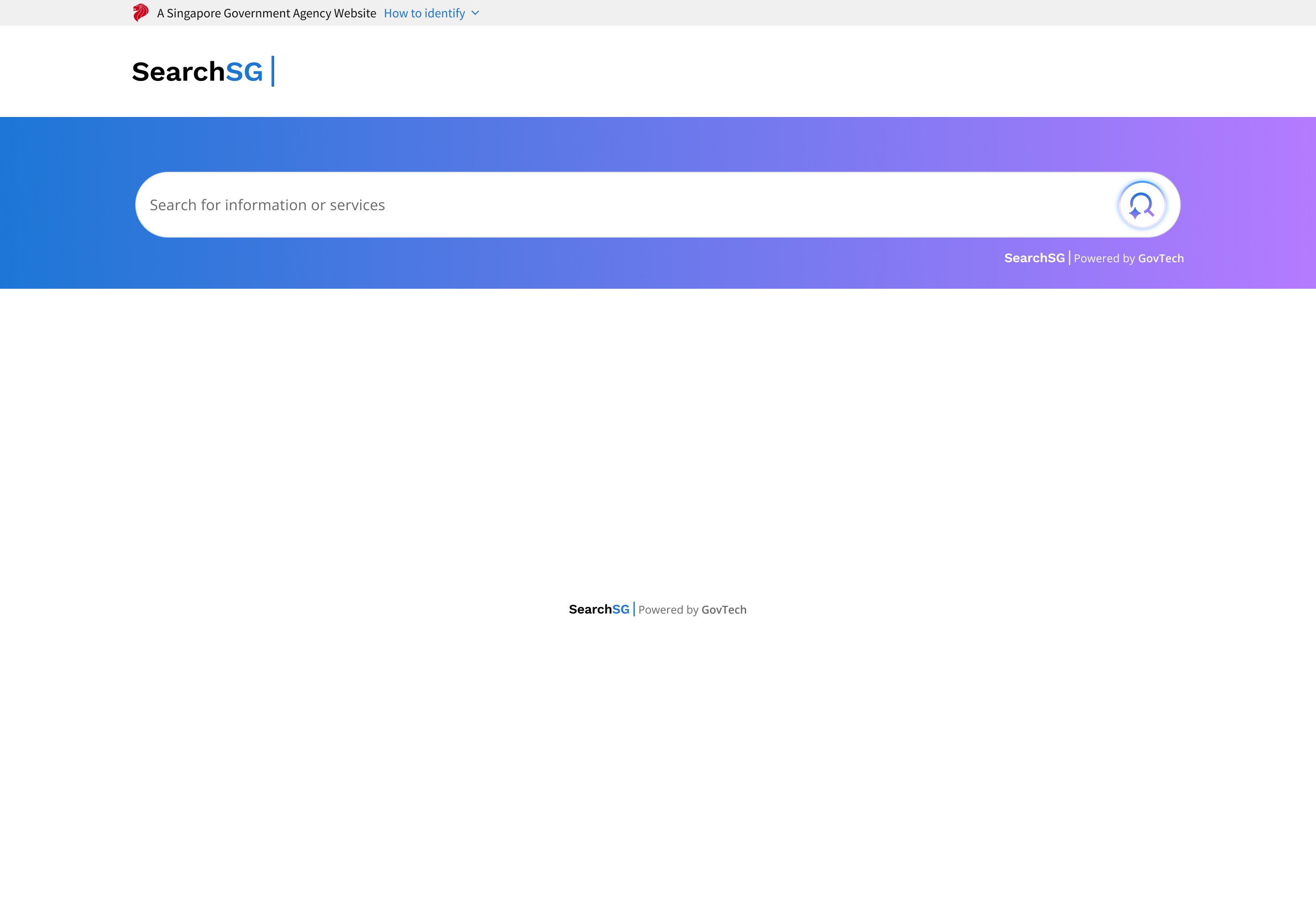 Preview 1a: Directory Search bar displayed
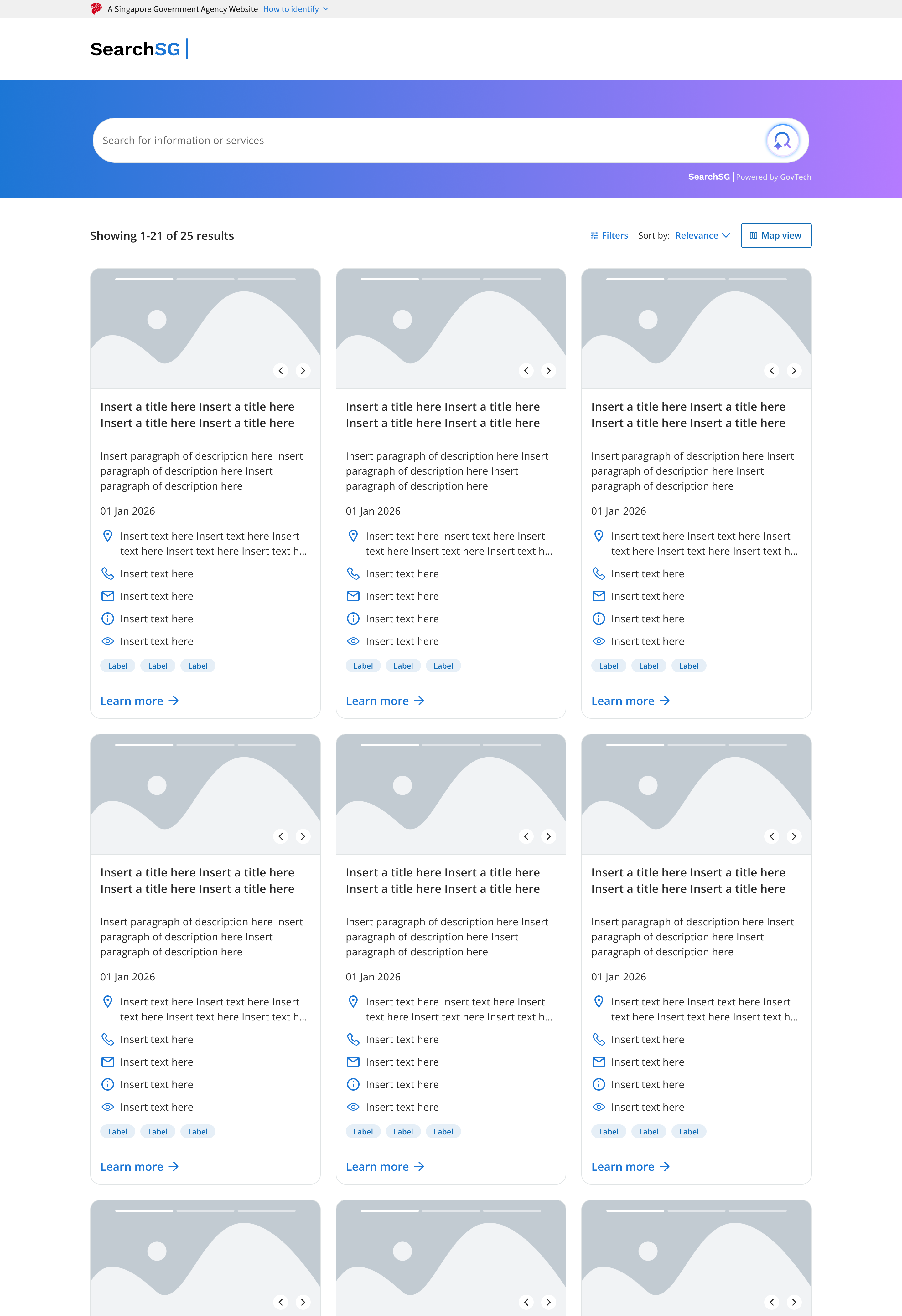 Preview 1b: Directory Search results page displayed
|
| 2 | Type a query and check that search suggestions appear while typing to verify autocomplete works correctly. |
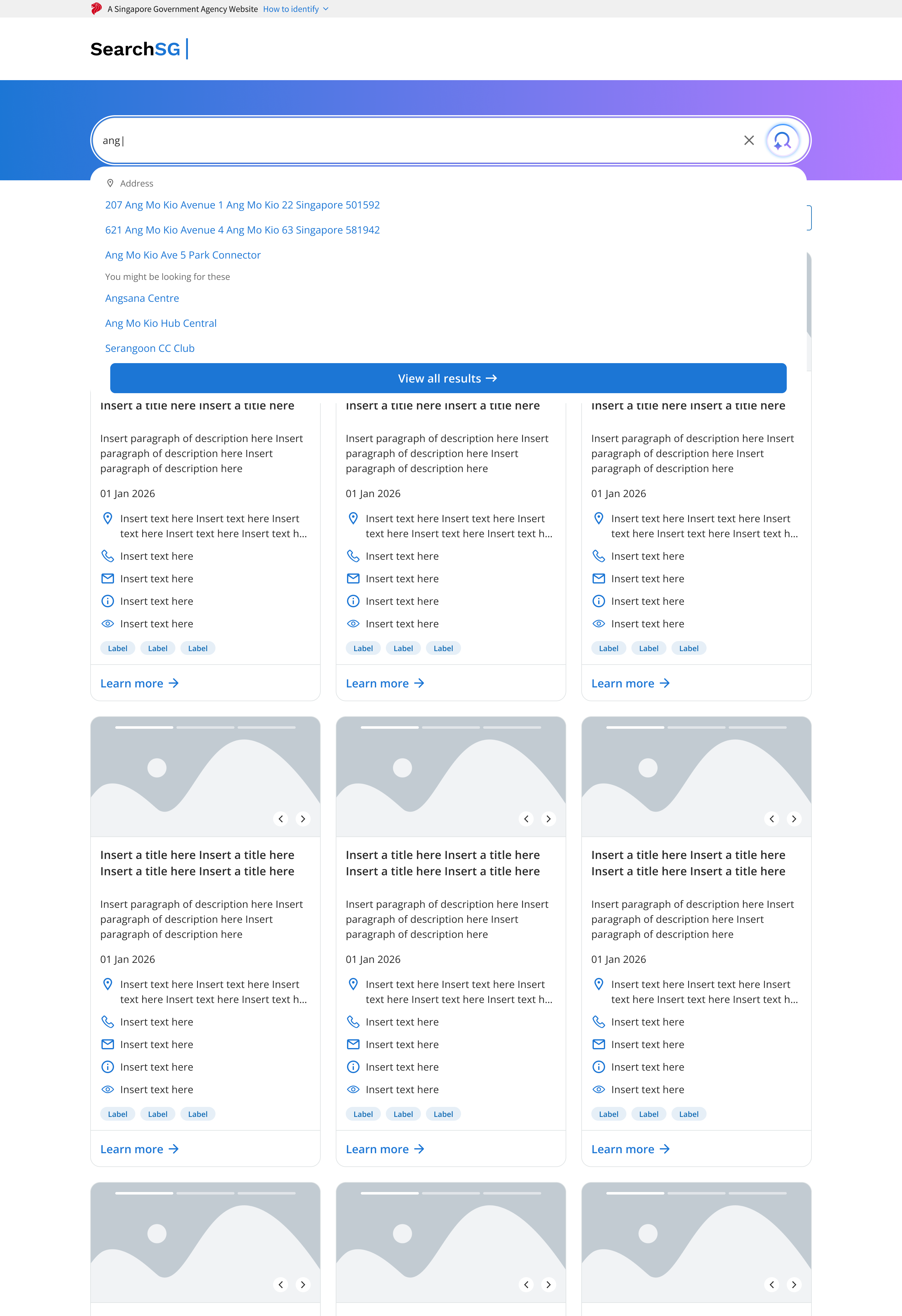 Preview 2: Directory Search bar autocomplete
|
| 3 | Perform a sample search to verify that the results page loads and displays results correctly. |
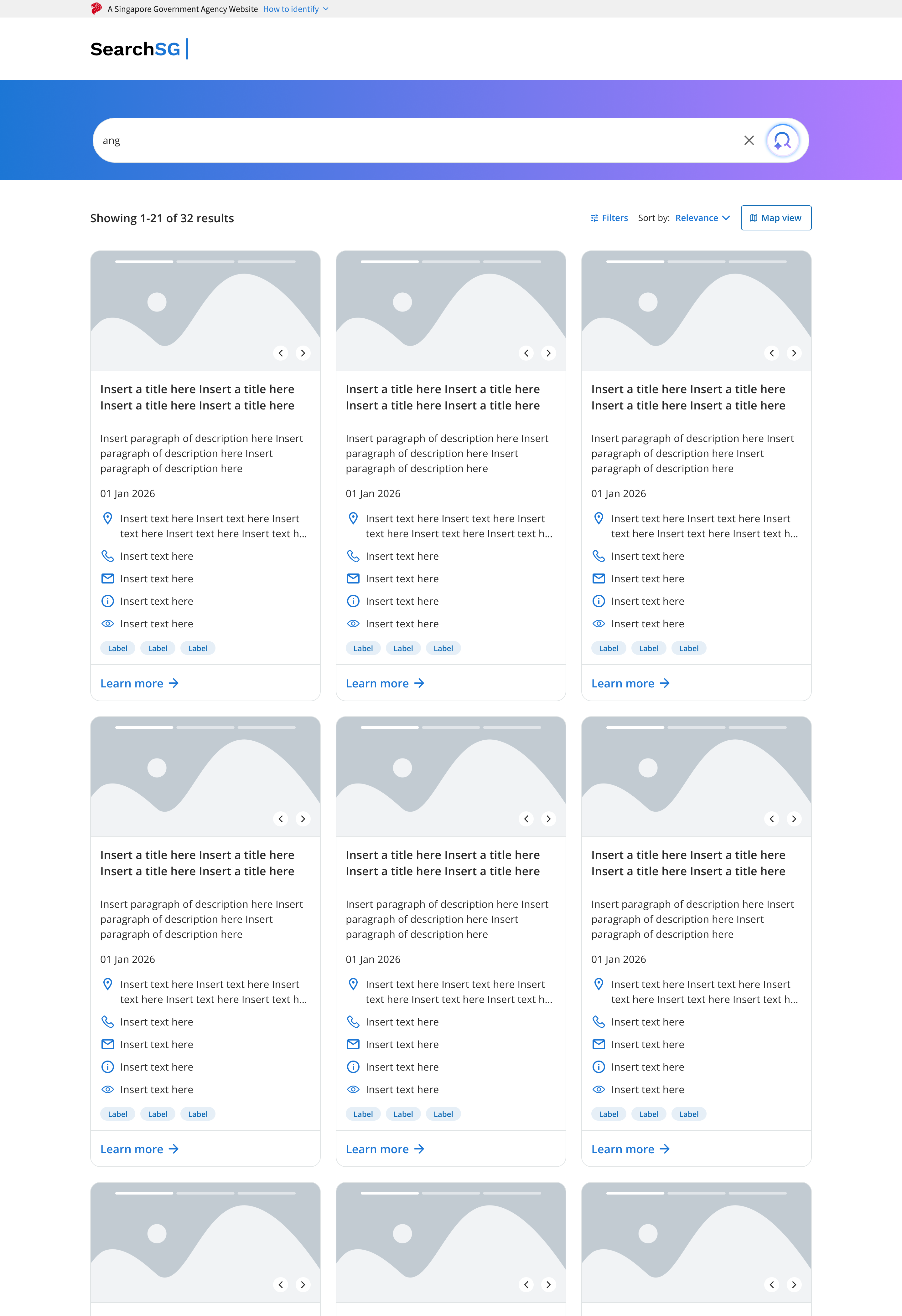 Preview 3: Search results loaded
|
| 4 |
Check the onboarding status in the Admin Portal.
Important: The status only updates one day after a sample search is performed. |
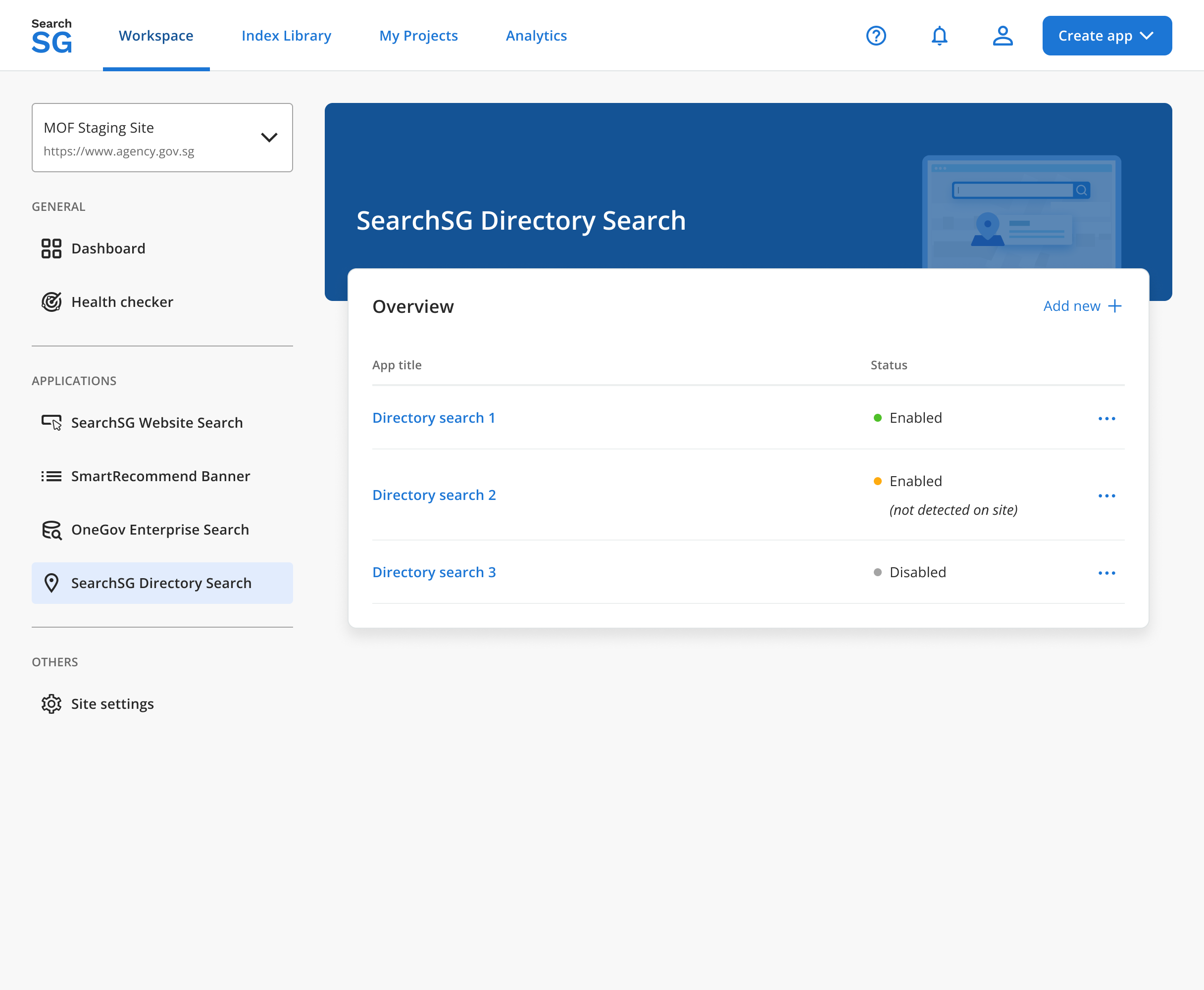 Preview 4: Onboarding status
|
