Setup Passwordless Sign-In
This article guides you on how to setup passwordless sign-in if you have existing MFA.
Benefits of Passwordless Authentication
Passwordless authentication offers several advantages over traditional password-based systems:
- Reduced attack surface: Eliminates risks from password theft, reuse, phishing, and brute-force attacks.
- Improved user experience: Users do not need to remember complex passwords or manage frequent resets. Authentication is faster and less error-prone.
- Stronger security posture: Modern passwordless methods use cryptographic keys, biometrics, and device-bound credentials, which are more secure than passwords.
- Simplified access: Users can securely access corporate resources from various devices, supporting organizational security policies.
More information about passwordless.
Audience
Users who have @techpass.gov.sg account (all TechPass enviroments, including @stg.techpass.gov.sg) and have signed-in and setup MFA before.
If you already have Microsoft Authenticator app and use app notification with number matching for your MFA, proceed to Step 3.
If you are using other software token authenticators like Authy or Google Authenticator, continue with Step 1 to transition to use Microsoft Authenticator for passwordless sign-in.
Azure Passwordless authentication does not support 3rd-party authenticators like Authy or Google Authenticator. Hence, you need to transition to Microsoft Authenticator.
Raise a ticket with us if you have legitimate reasons why you cannot use Microsoft Authenticator to secure your identity (e.g., security-related restrictions where you cannot bring a mobile phone into the work premises).
Step 1: Open Microsoft Account Security Info
Option 1: via My Account in TechPass Portal
TechPass Portal is only accessible via Comet, non-SE GSIB, or SEED device.
If you’re using MOE GSIB or other device, refer to Option 2.
For Staging environment, TechPass Portal is only accessible via SEED device.
Log in to TechPass Portal. For Staging environment: TechPass Portal Staging.
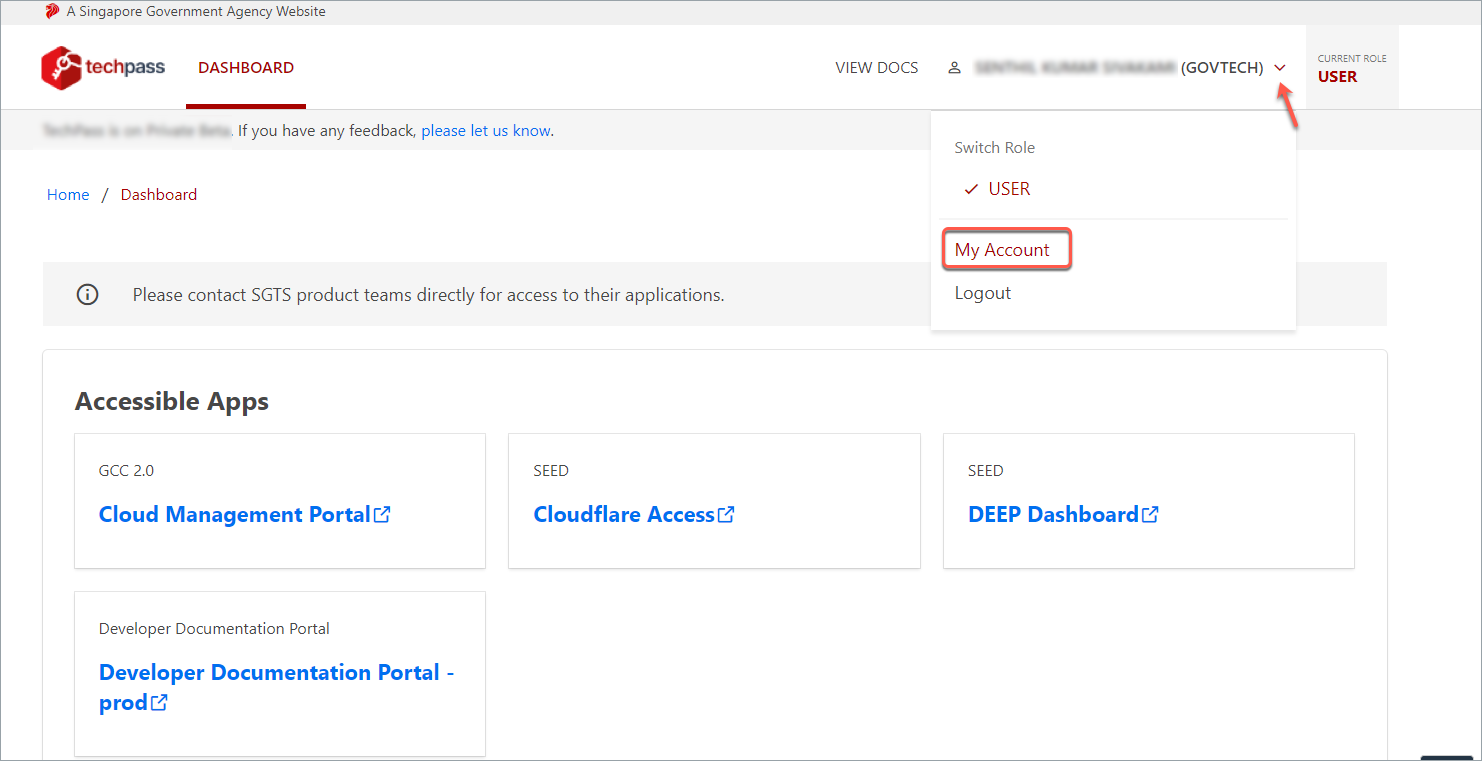
Hover over your account name and click My Account.
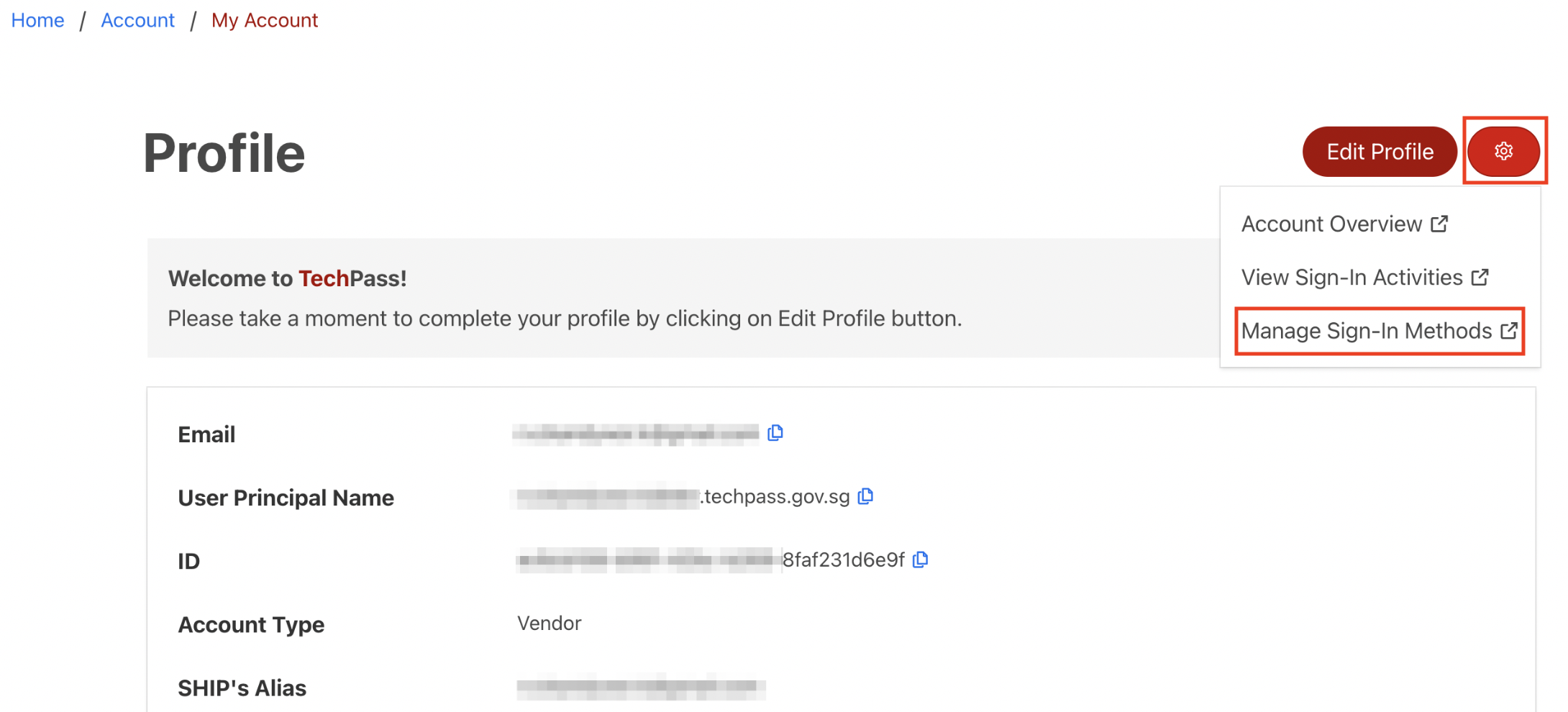
Hover over the setting icon and click Manage Sign-In Methods.
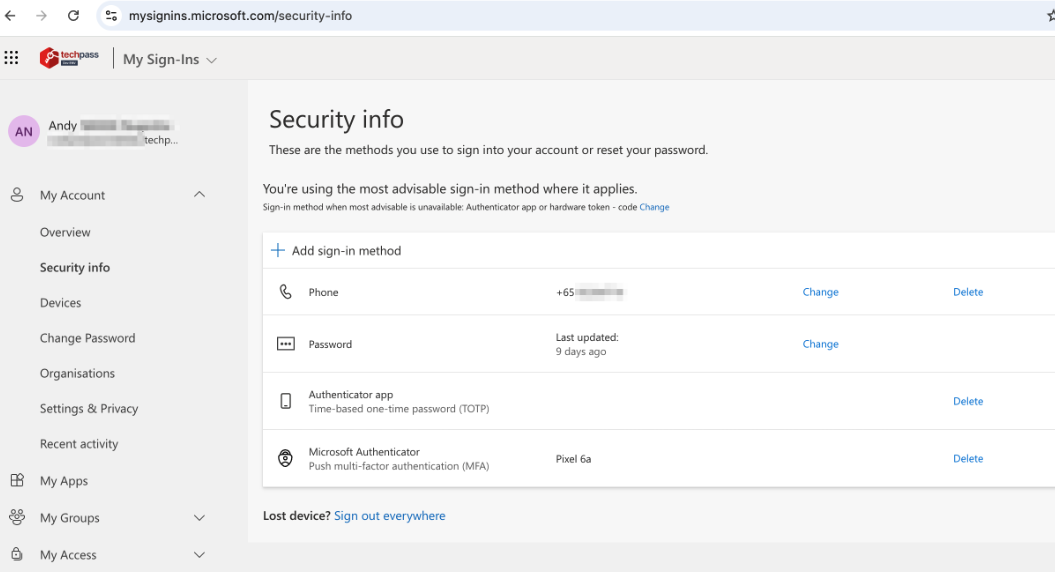
Microsoft account security info will be displayed.
Option 2: directly access Microsoft Account Security Info
Access Microsoft Account Security Info via this URL: https://aka.ms/mfasetup.
It may prompt for account selection. Select the correct account used for TechPass.
Microsoft account security info will be displayed.
Step 2: Configure Microsoft Authenticator sign-in method
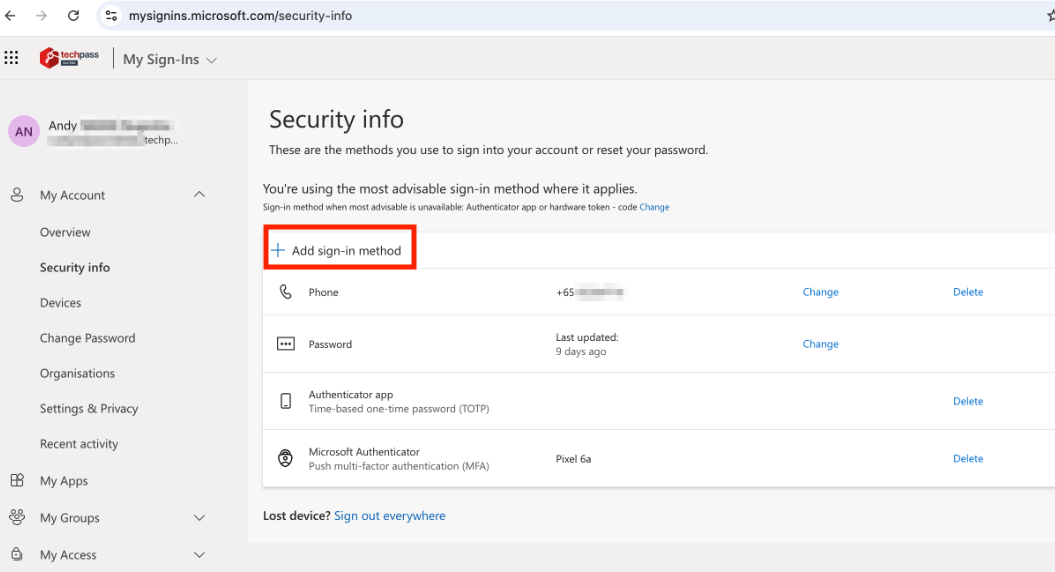
Click on Add sign-in method.
Click on Microsoft Authenticator.
Install Microsoft Authenticator on your mobile phone if you have not done so. Click Next on your computer.
Azure Passwordless authentication do not support the use of 3rd-party authenticators like Authy or Google Authenticator
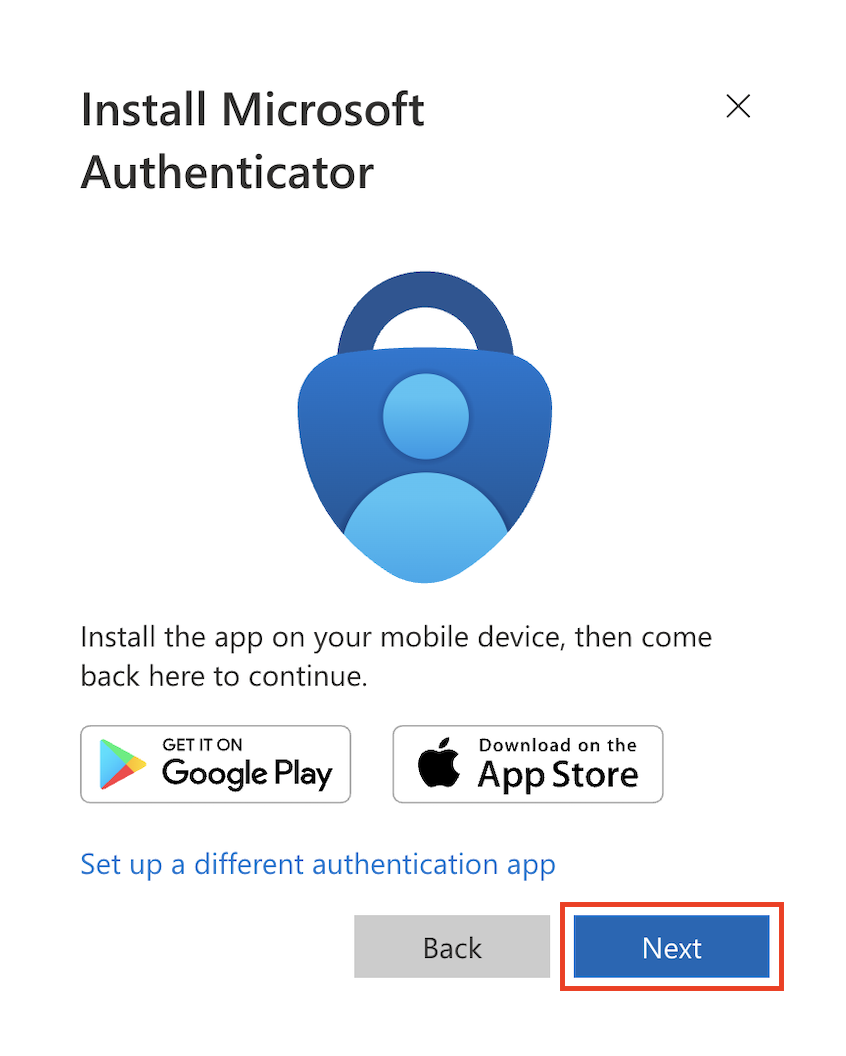
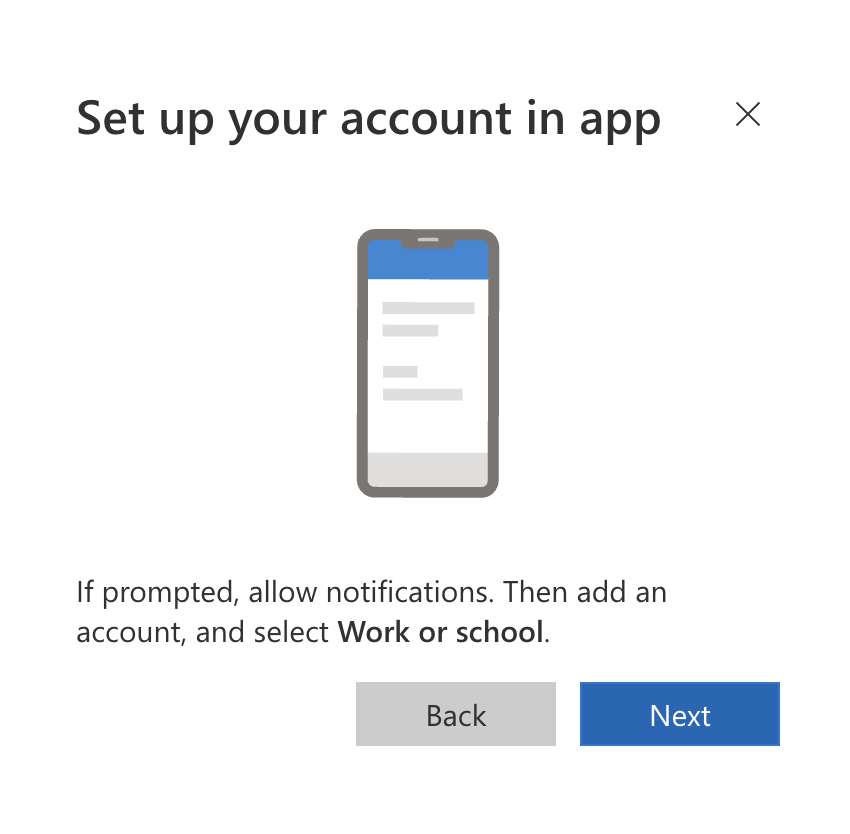
On your computer, you will be prompted to set up the account in your app. Click Next.
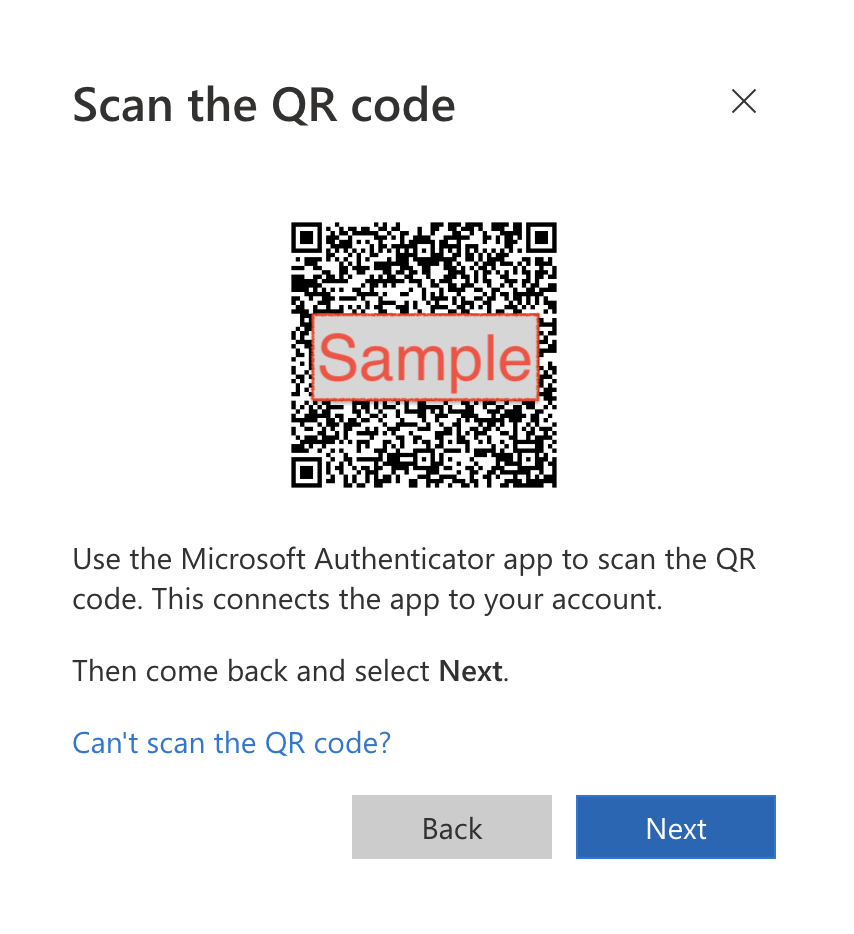
On your computer, a QR code will be displayed.
On your mobile phone, open Microsoft Authenticator and select + Add account > Work or School account.
Scan the QR code on your computer screen. Your TechPass account will be added to Microsoft Authenticator on your mobile phone.
On your computer, click Next.
A number is shown on your browser.
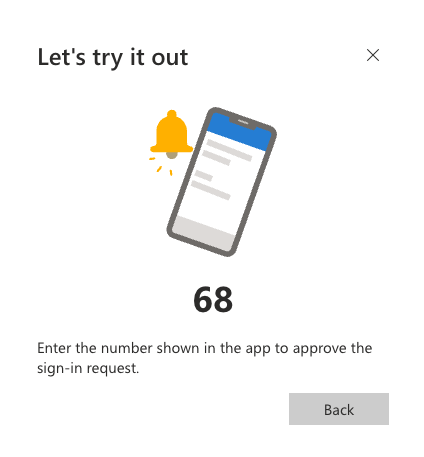
On the Authenticator app, enter the number shown, and select Yes to verify.
Step 3: Enable Passwordless sign-in in mobile app
This section guides you to configure Passwordless sign-in using Microsoft Authenticator.
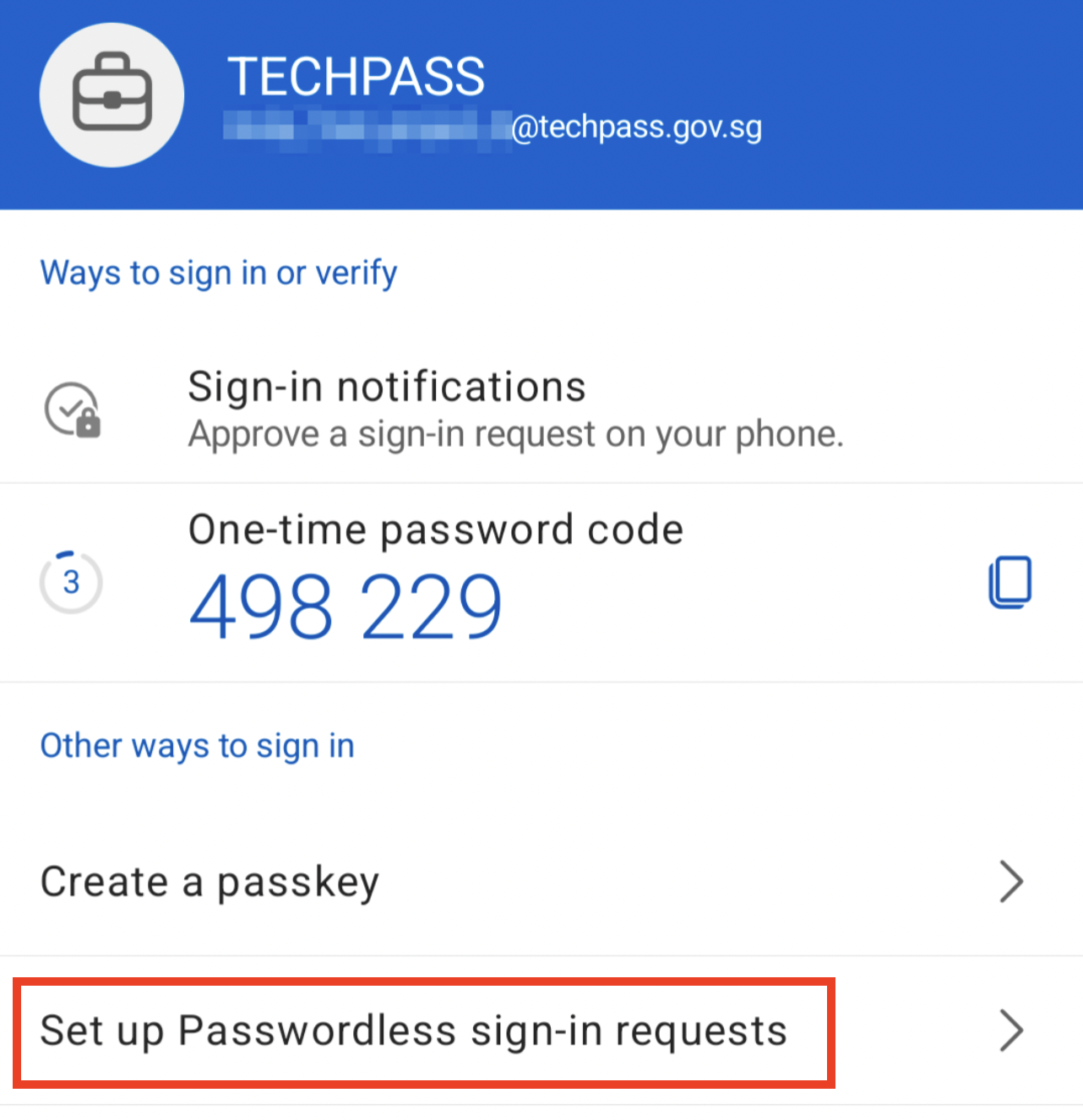
In the Microsoft Authenticator app, select the TECHPASS account. If you are using the TechPass Staging environment, select GDS TECHPASS STG instead.
Select Set up Passwordless sign-in requests.
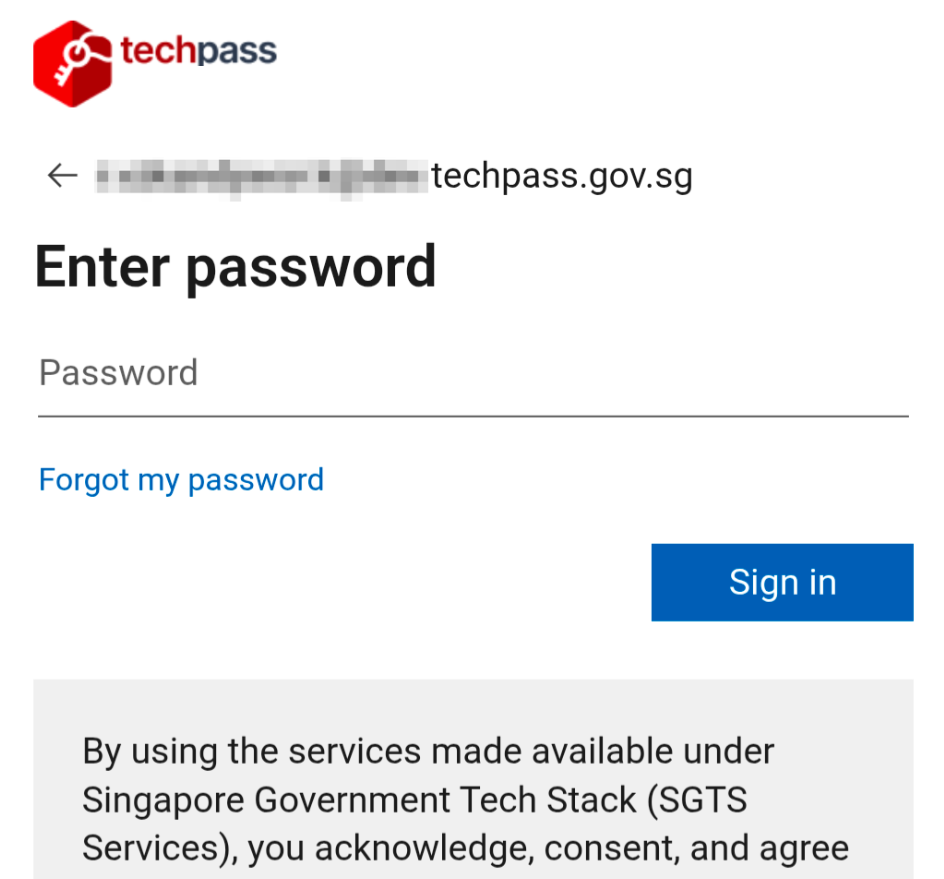
Enter your TechPass account password when prompted in the Microsoft Authenticator app and tap Sign in.
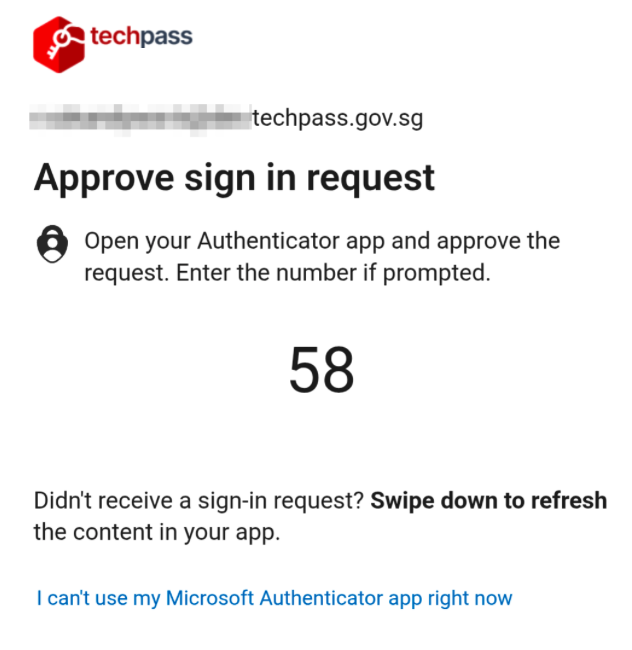
MFA will be prompted and your mobile phone will receive a push notification to approve the sign-in.
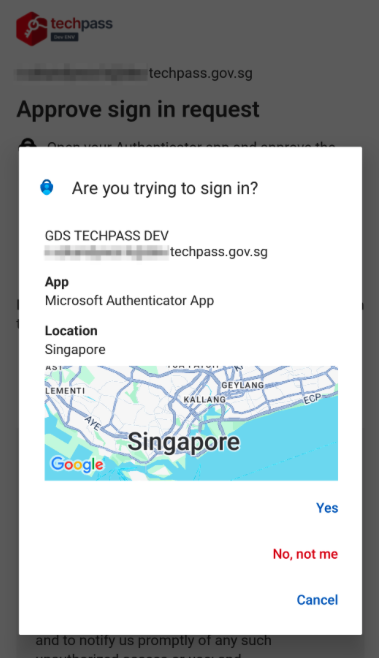
Open the Authenticator notification and approve the sign-in by selecting Yes.
When prompted, proceed with the passwordless setup by selecting Continue.
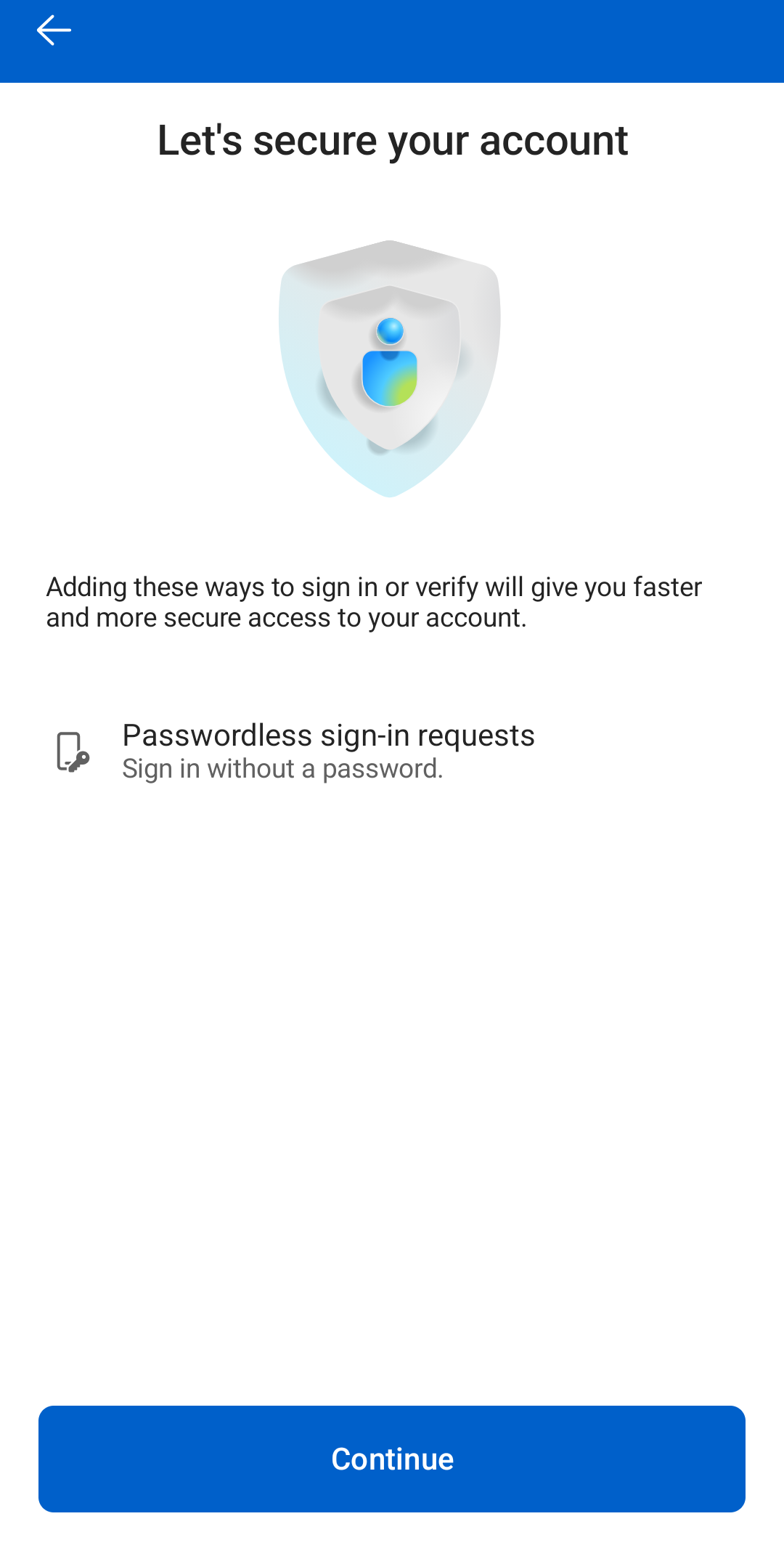
The Authenticator app will prompt you for phone passcode or biometric. Proceed with the authentication.
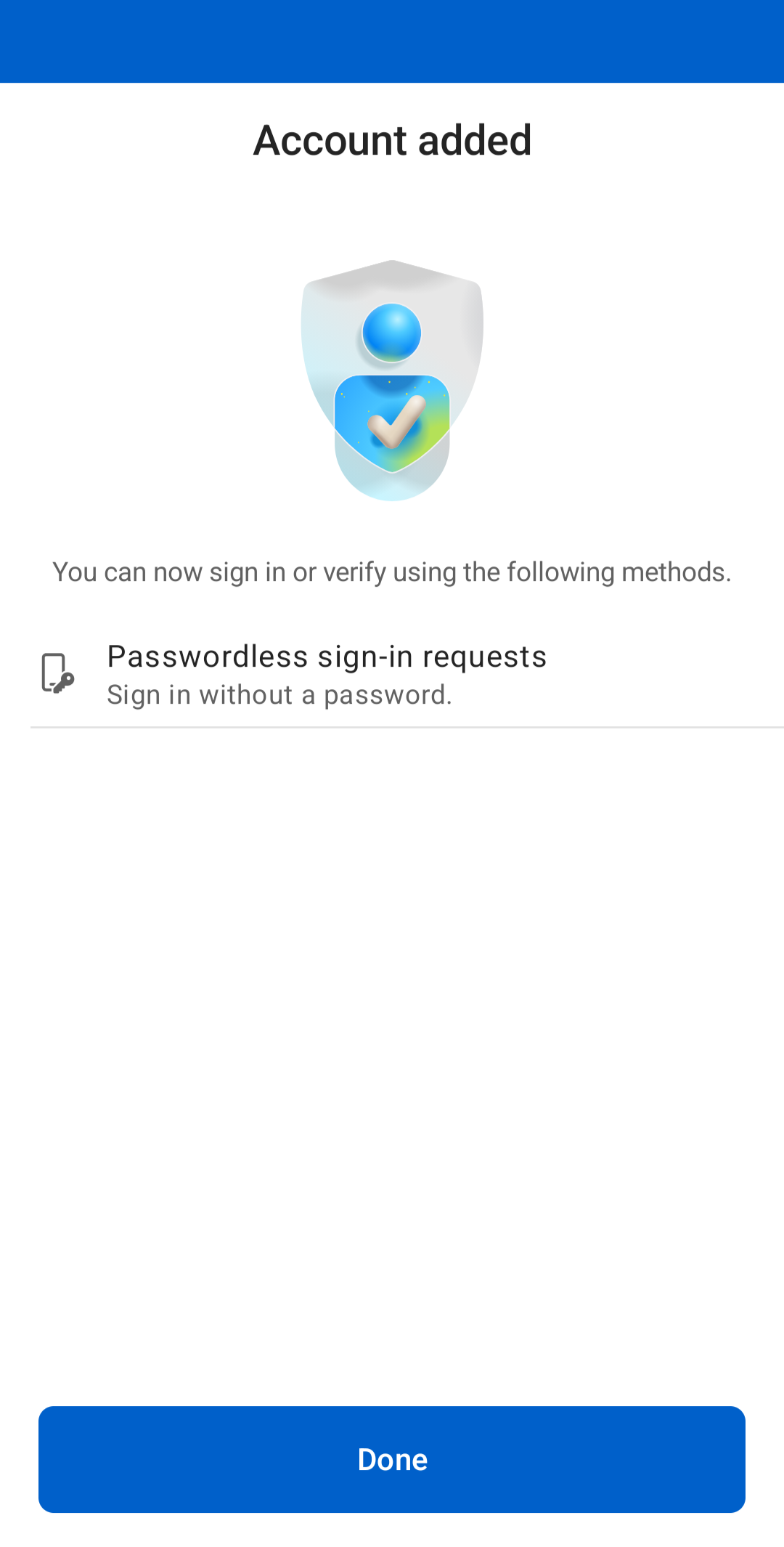
The account added page will be displayed when the passwordless setup is done. Select Done.
Step 4: Enable Microsoft Authenticator App lock
This step is to ensure that App Lock is enabled in the Microsoft Authenticator.
On the Microsoft Authenticator app, access the Settings.
For Android, open the menu via the three-dot icon and select Settings.

For iOS, open the sidebar and select Settings.

Enable the App Lock if not yet enabled.
The app will prompt you for phone passcode or biometric. Proceed with the authentication.
Step 5: Set default sign-in method
Proceed with this step only if the Sign-in method when most advisable is unavailable is not App based authentication - notification.
Go back to the Microsoft account security info page on your computer.
On how to access Microsoft Account Security Info, follow step 1
Click Change for Sign-in method when most advisable is unavailable.
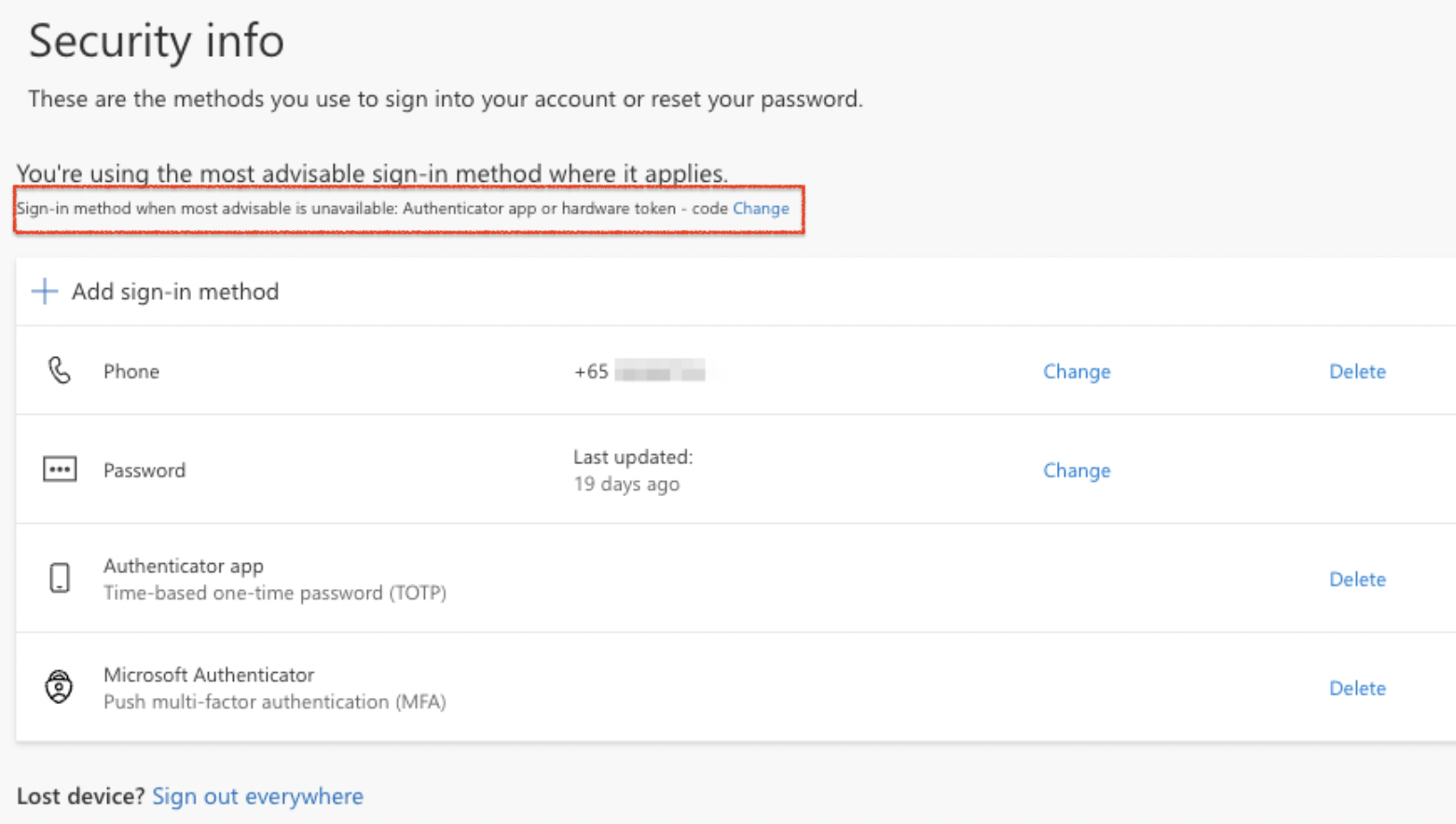
Select App based authentication - notification.
Click on Confirm.
Step 6: (Optional) Delete an unused sign-in method
Proceed only if you wish to remove an unused sign-in method, such as remove other Authenticator app (TOTP) sign-in method or sign-in method linked to lost device.
Go back to the Microsoft account security info page on your computer.
On how to access Microsoft Account Security Info, follow step 1
Find the sign-in method you wish to delete.
- To delete software OATH token (Authy or Google Authenticator), find Authenticator app Time-based one-time password (TOTP).
Click on Delete.
Click OK to confirm.
