Reset MFA (WOG account)
For TechPass accounts using your organisational email address (WOG account):
- Changed or lost your mobile phone.
- Deleted the Authenticator app from the mobile phone or unable to access the app on your phone.
Prerequisites
- You must have your previous mobile phone to authenticate your WOG login.
If you have lost or formatted your previous mobile phone or are unable to authenticate using it, contact your Agency Facility Management(AFM) to remove the MFA configured for your WOG profile.
To reset MFA for your WOG account
Go to Microsoft Security info.
If prompted, sign in to your WOG account.
On the Security info page, click + Add sign-in method.
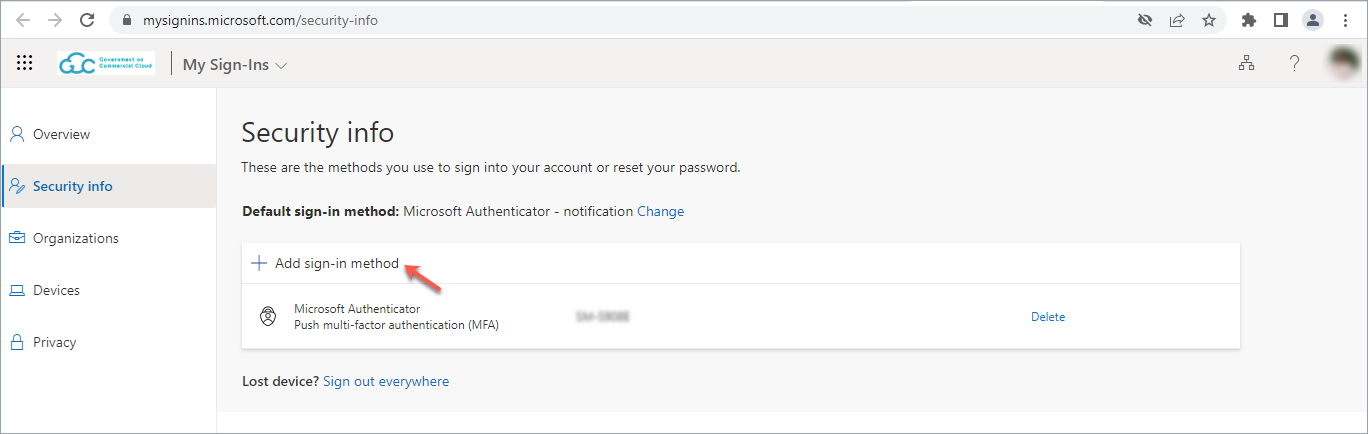
In Add a method, select Authenticator app and click Add.

Click Next.
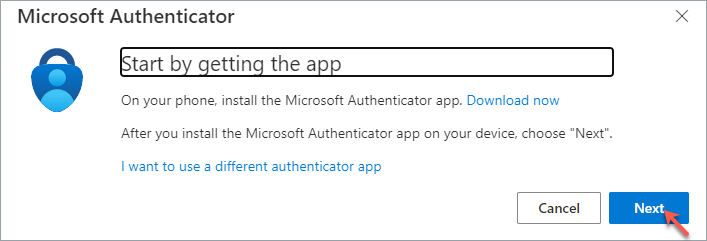
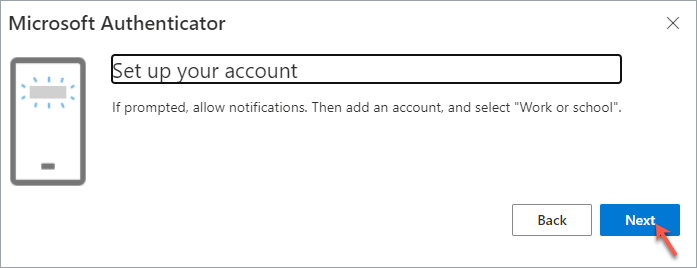
Follow the on-screen instructions and click Next.
Download and install Microsoft Authenticator on your new Microsoft phone, Android phone or iOS phone.
In the app, add an account and choose Work or school account.
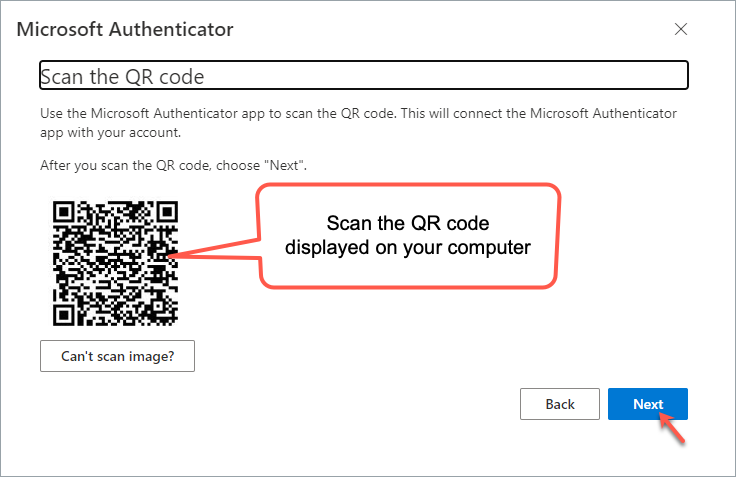
Select Scan a QR code on the app.
Scan the QR code displayed on your computer using the new mobile phone and click Next.
A notification is sent to your new mobile phone to verify your authentication process. A number is shown on your browser.
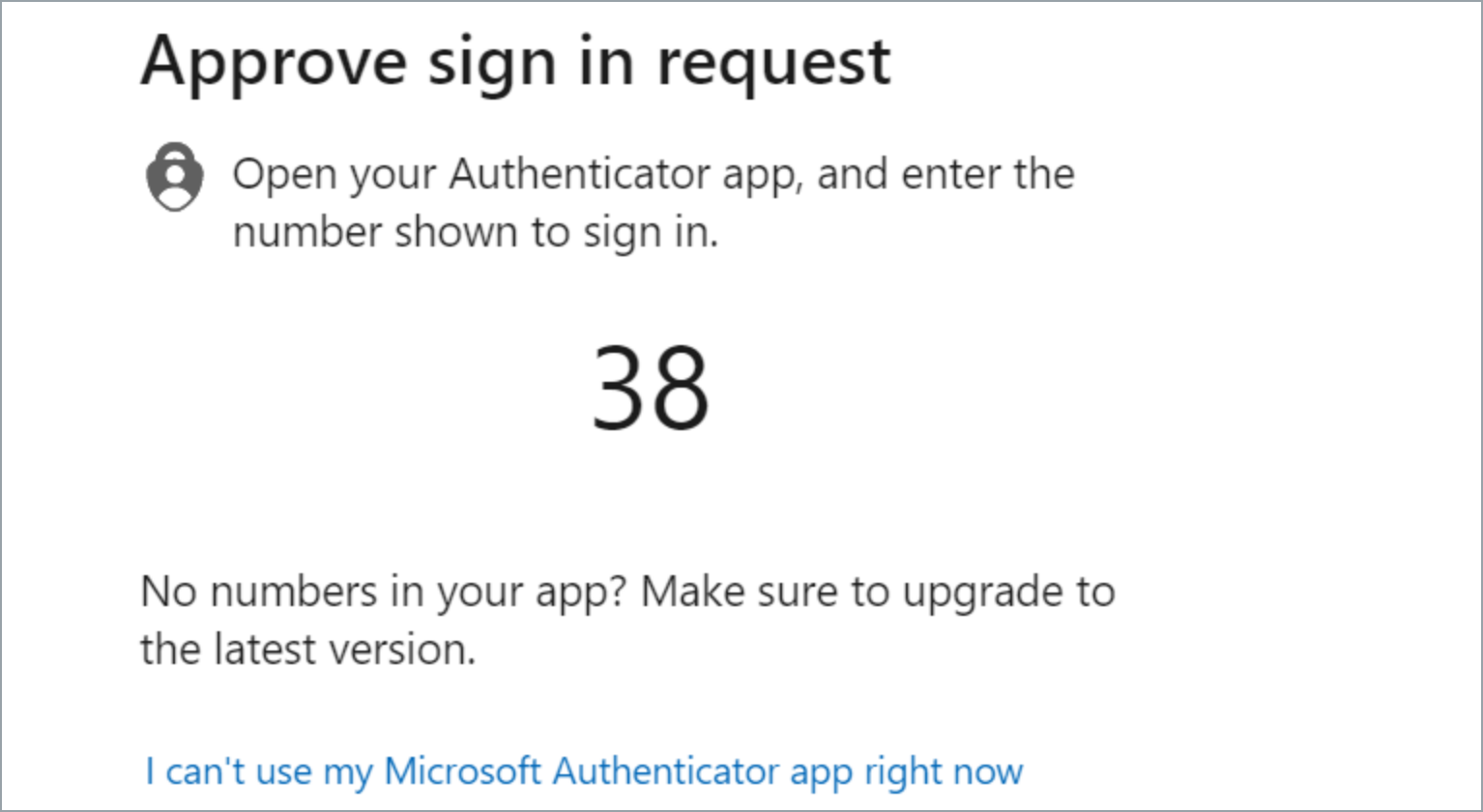
On the Authenticator app, enter the number shown on your browser.
Select Yes or Done on the app.
You have reset your WOG MFA using your new mobile phone.
