Invite user
This feature is available only to Public Officers with a TechPass account.
This guide explains how a Public Officer can invite users to TechPass. You can invite users individually (single invite) or invite multiple users at one time using the bulk invite feature.
Audience
TechPass users who are Public Officers.
Prerequisites
You need the following to invite users via the TechPass Portal:
- An active TechPass account
- A non-SE GSIB or GMD device
Invitation options
TechPass offers two ways to invite users:
- Single invite: Invite one user at a time
- Bulk invite: Invite up to 50 users at one time
Getting started
- Using your non-SE GSIB or GMD device, go to TechPass Portal and select Login with TechPass.
- Sign in to your TechPass account.
- On the top navigation bar, select Invite user.
- Select the invitation mode (Single or Bulk).

Single invite
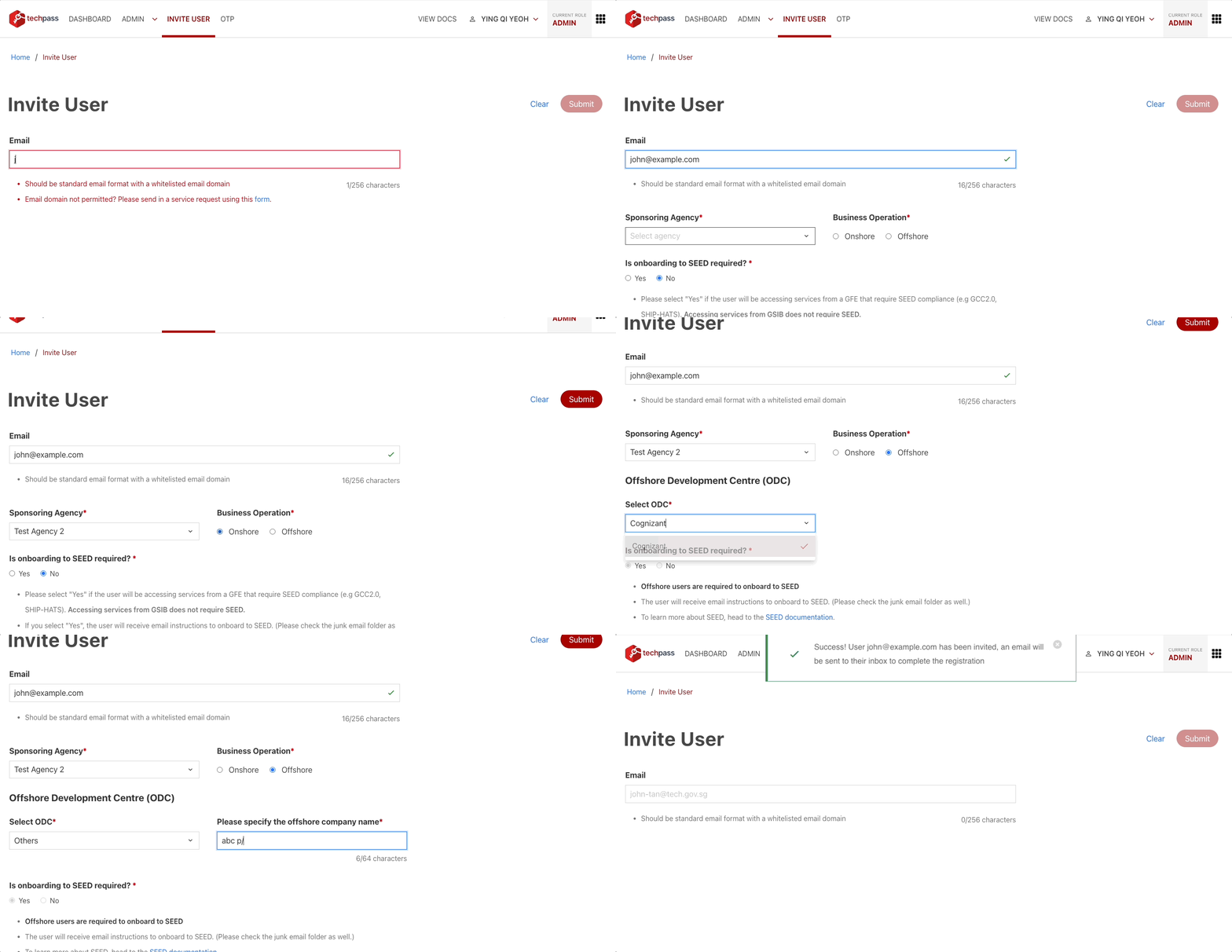
Enter the user’s email address. The system displays the appropriate onboarding form based on whether the email address is associated with an integrated identity provider (for example, WoG or MOE).
For integrated identity provider accounts, indicate whether SEED is required (applicable only to WoG accounts).

For non-integrated identity provider accounts, provide the following information:
- Sponsoring agency (the agency that the user is attached to). See Sponsoring agency responsibilities for details on your obligations as a sponsoring agency.
- Business operation (onshore or offshore)
- Offshore Development Centre (ODC)
Applicable only to offshore users. If the user does not belong to any of the listed ODCs, select Others and enter the offshore company name. - Whether SEED is required
For offshore users, SEED is mandatory and is automatically set to Yes
This does not apply to Public Officers with non-WoG email domains listed in Q3 of the onboarding flow chart.
Fill in the required information and select Submit.
Bulk invite
Select the user type:
- Users with government email
- Users with vendor email
For users with government email:
- Indicate whether SEED onboarding is required
- Enter up to 50 email addresses, separated by commas
Example:user1@tech.gov.sg, user2@tech.gov.sg, user3@tech.gov.sg
For users with vendor email:
- Provide the following information:
- Sponsoring agency (the agency that the users are attached to). See Sponsoring agency responsibilities for details on your obligations as a sponsoring agency.
- Business operation (onshore or offshore)
- Offshore Development Centre (ODC)
Applicable only to offshore users. If the users do not belong to any of the listed ODCs, select Others and enter the offshore company name. - Whether SEED is required
For offshore users, SEED is mandatory and is automatically set to Yes
- Enter up to 50 email addresses, separated by commas
Example:vendor1@example.com, vendor2@example.com, vendor3@example.com
- Provide the following information:
Select Submit to send the bulk invitations.
Note
- All email addresses must be in a valid format
- A maximum of 50 email addresses is allowed per bulk invite
- The system validates all email addresses before sending invitations
- If validation fails for any email address (for example, invalid format, incorrect user type, or unaccepted domain), no invitations will be sent and the invalid email addresses will be removed
- You can review the remaining valid email addresses and resubmit if required
- You will receive email notifications for successful and failed invitations
After sending invitations
After a successful invitation (single or bulk):
- The user account is not created yet. Invited users receive a registration link via email to complete the registration.
- The registration must be completed within 5 days. After this period, the link expires and a new invitation is required.
- The user account is created only after the registration is successfully completed.
- You receive an email notification when the user completes the registration or fails to register within the allotted time.
- If you need to update invitation details after sending the invitation:
- Send a new invitation if the user has not completed registration. The new invitation overrides the previous one.
- If the user has already completed registration, raise a service request for assistance.
