Edit your TechPass profile
TechPass users can edit their TechPass profile by logging into the TechPass Portal.
- You can’t edit or delete the Agency name linked to your TechPass.
- To edit your email address, create a service request with us.
- If you don’t have access to the TechPass Portal, create a service request with us to update your profile details.
- If you are leaving your organisation and no longer need your TechPass account, create a service request to terminate it.
- If your TechPass ID is the same as your organisational email(WOG account), and you are transferring to a different agency, create a service request with us to resynchronise your TechPass account.
Audience
TechPass users who can access TechPass Portal.
Prerequisites
You need the following to edit your TechPass profile via the TechPass Portal:
- An active TechPass account.
- A non-SE GSIB or GMD device.
To edit your TechPass profile
Using your non-SE GSIB or GMD device, log in to TechPass Portal.
Hover over your account name and click My Account.
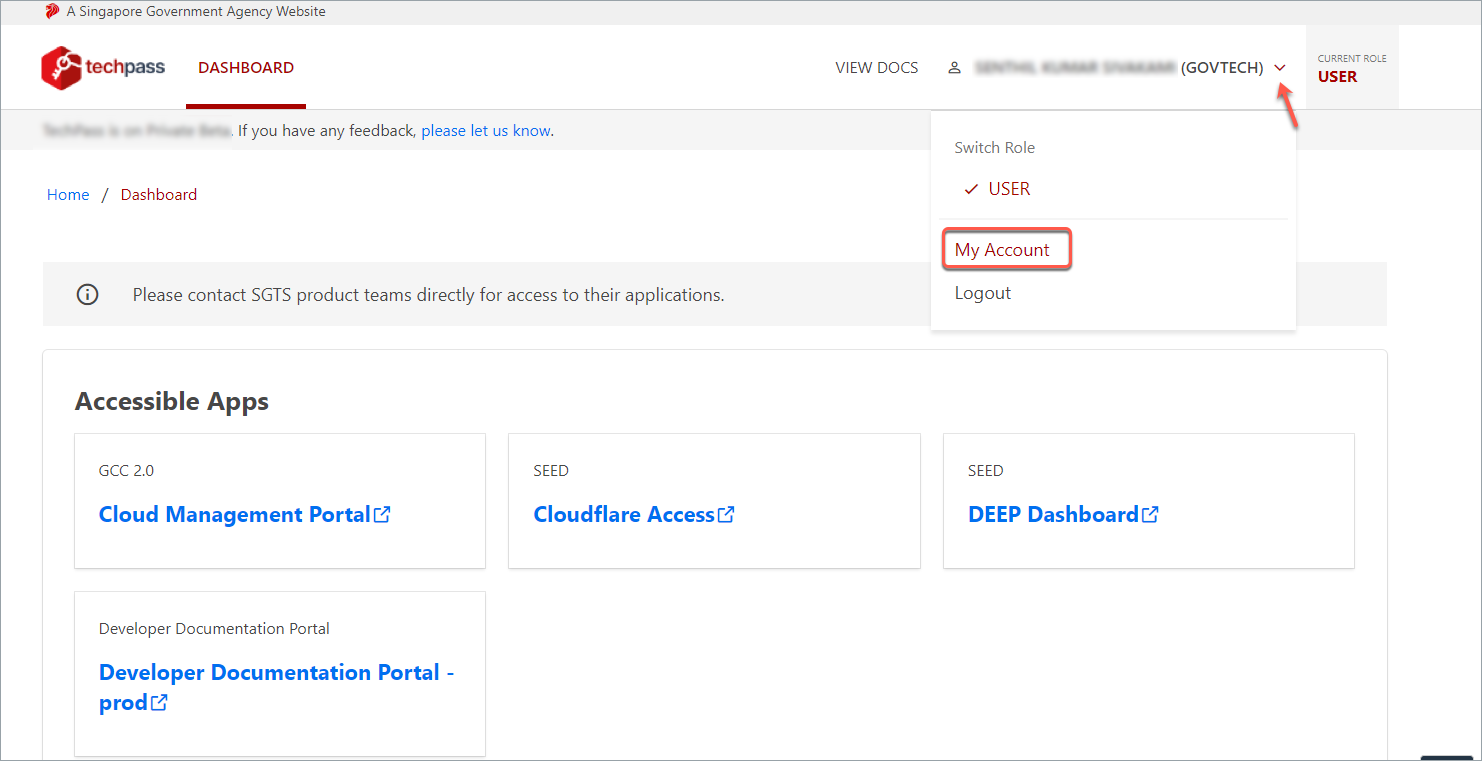
- Click Edit Profile.

- Make the required changes and click Save.
Known issues
Unable to save when editing TechPass profile
You may be unable to select Save when updating your TechPass profile.
This can happen when the Country code field for your mobile number is empty. A number displayed in the field, such as 65, may be a placeholder and not an entered value.
Impacted users
TechPass users whose Country code field is empty when editing their profile may encounter this issue.
Workaround
Enter your country code in the Country code field, then select Save. For example, if you have a Singapore mobile number, enter 65 as the country code.
403 error when saving TechPass profile
You may encounter a 403 error after selecting Save on your TechPass profile.
Impacted users
TechPass users whose session has expired while editing their profile.
Workaround
Open TechPass in a new browser or incognito/private browsing window, sign in again, and retry.
