Create a TechPass account
This guide is for users who are eligible for self sign-up via the TechPass Account Portal.
Check eligibility →
Audience
Use this guide if you do not have a TechPass account.
Prerequisites
Once you’ve confirmed you’re eligible to create an account, make sure you also have:
- Access to your organisational email inbox.
- A mobile phone to receive a one-time password (OTP).
What to expect
You will:
- Start sign-up
- If required, indicate SEED access
- Verify your email
- Complete your account
- Verify your mobile number
Start sign-up
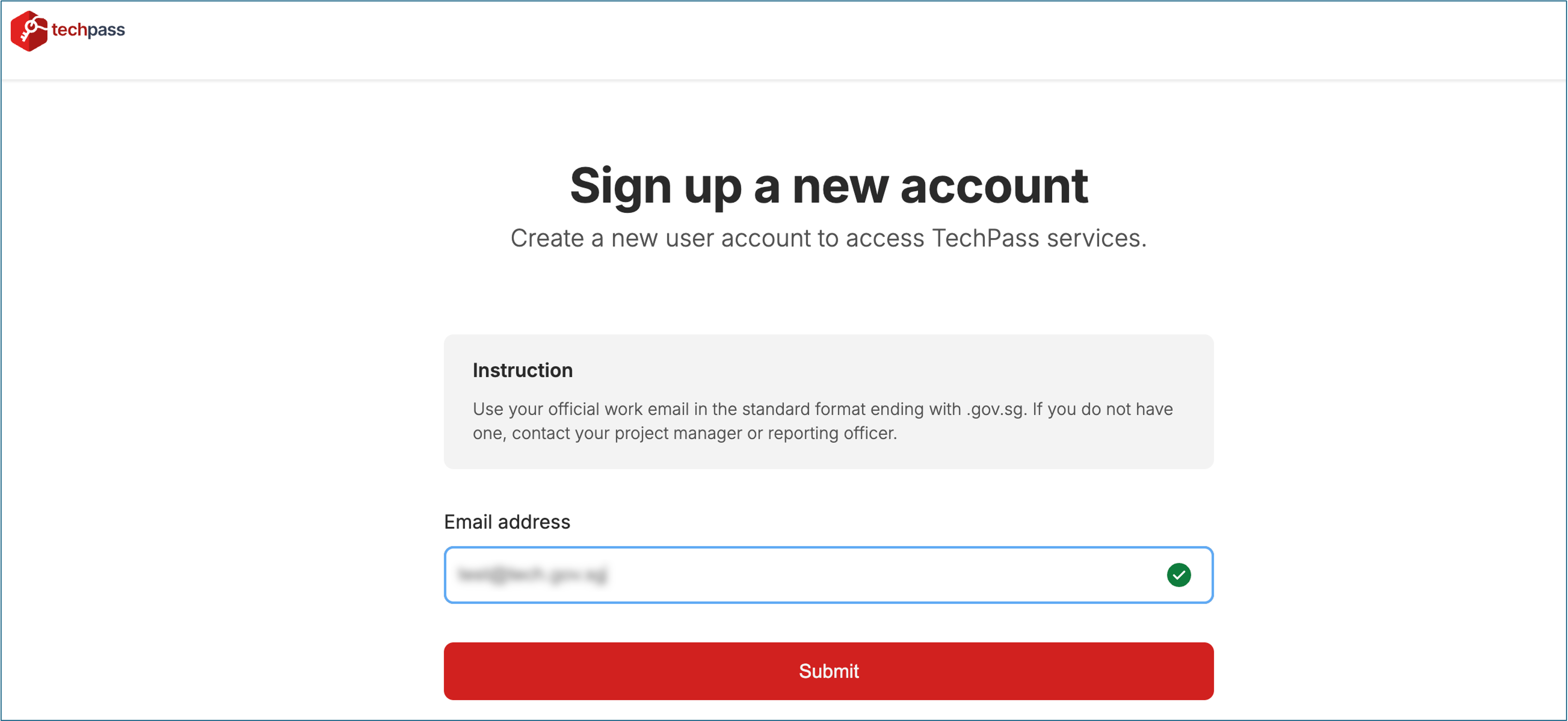 |
- Select Sign up a new account.
- Enter your email address.
- Complete the required fields.
- Select Submit.
If you see an error, see Form validation errors.
SEED access (if required)
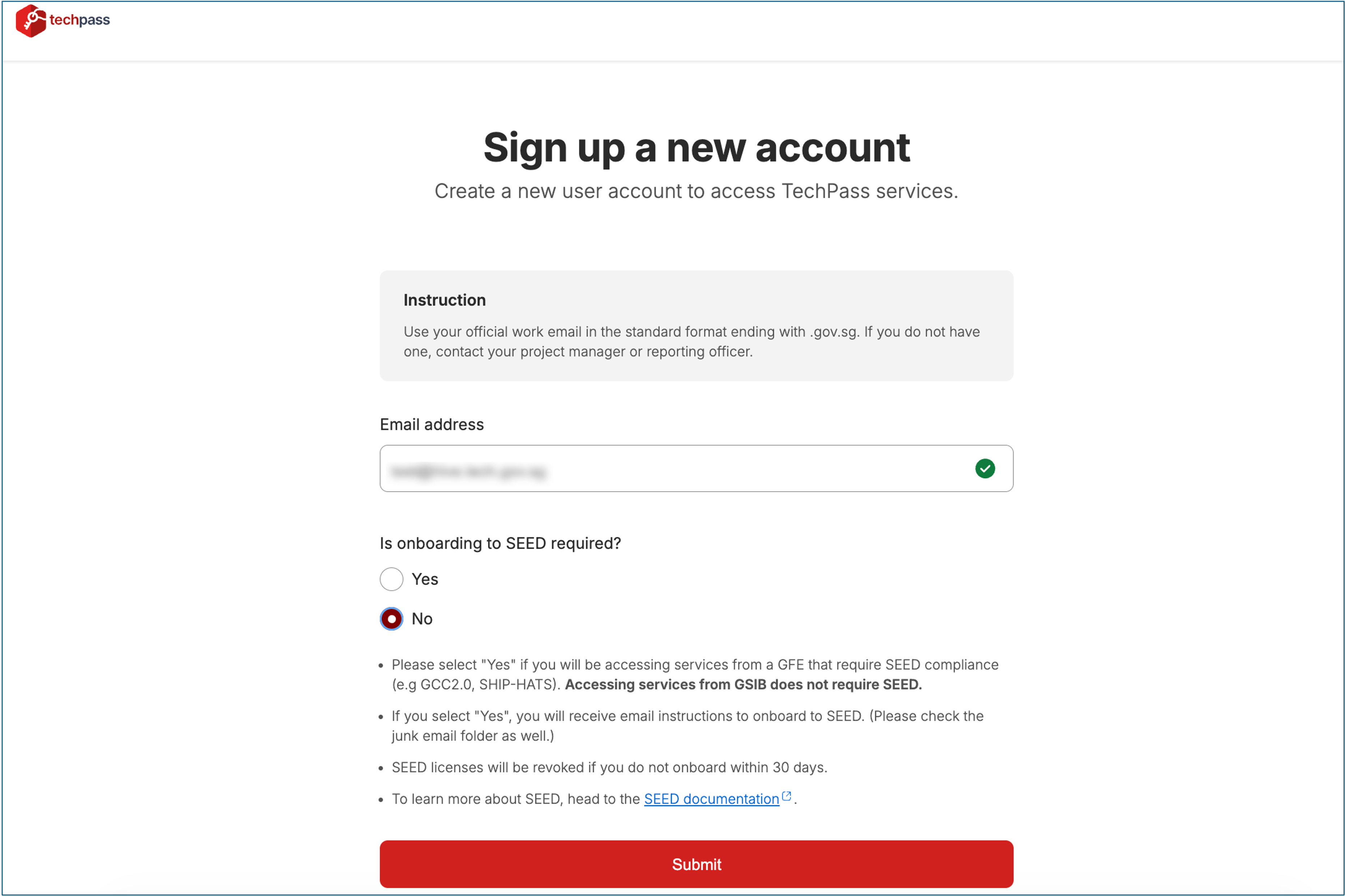 |
Some government services require SEED, the Mobile Device Management (MDM) platform, to securely access SGTS products and the GCC platform.
When prompted:
- Yes - Select if you need access to SGTS products and/or GCC platform. You will receive an email with instructions.
- No - Select if secure access is not required.
Only select Yes if your work requires these services. You can request access later if needed.
Learn more about SEED requirements.
Verify your email
- Check your email inbox.
- If you do not see the email, check your Junk or Spam folder.
- Open the verification email.
- Select the verification link.
If the link is valid, the Complete your account page opens.
Didn’t receive the email? See Verification email not received.
Complete your account
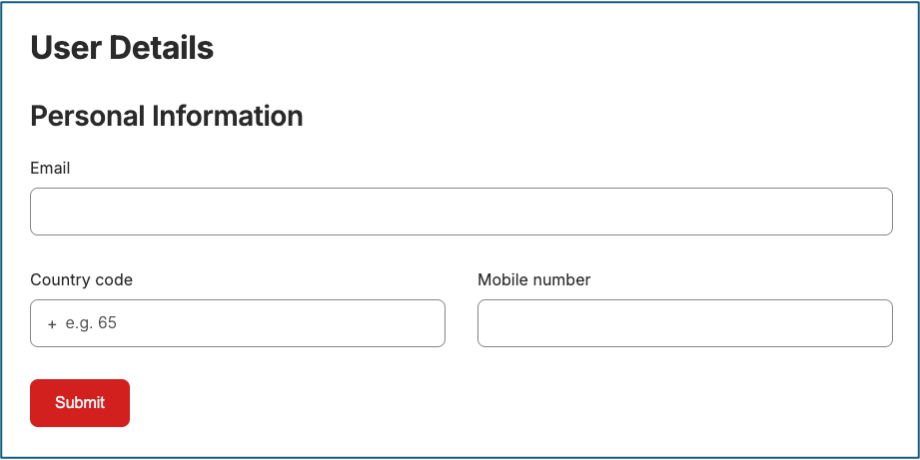 |
- Enter the required details.
- Review your information.
- Select Submit.
The system then prompts you to verify your mobile number.
If you see an error, see Form validation errors.
Verify your mobile number
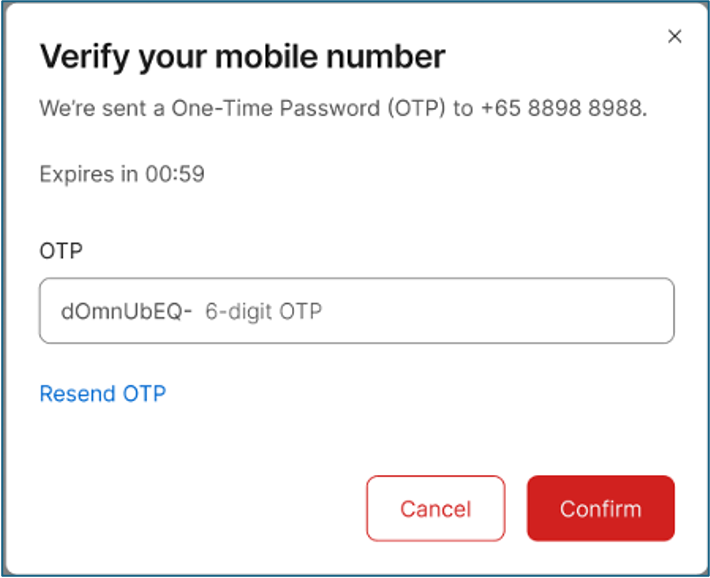 |
- Enter the 6-digit OTP sent to your mobile phone.
- Select Confirm.
If the OTP is valid, your account is created successfully.
If you see an error, see OTP errors.
Troubleshooting
Form validation errors
You may see validation errors if:
- Required fields are empty.
- Information does not meet the required format.
- The email address is not eligible for self sign-up (e.g., open.gov.sg or non-.gov.sg domains).
Correct the highlighted fields and submit the form again.
Verification email not received
If you do not receive the verification email:
- Check your Junk or Spam folder.
- Wait a few minutes and try again.
- Restart the sign-up process if needed.
OTP errors
You may see:
- Invalid OTP
- Expired OTP
Request a new OTP and enter it again.
