Register pCloudy iOS devices in the Apple Developer portal
To run iOS apps on pCloudy devices, you must register the device UUIDs in your Apple Developer account. This is an Apple requirement for installing and testing apps on physical iOS devices.
This task applies to iOS testing only. You do not need to complete this for Android devices.
Who should complete this task
- Developers or testers who run iOS app testing on pCloudy.
- Users who manage or have access to an Apple Developer Account.
Prerequisites
Before you begin, confirm the following:
- Your pCloudy account is approved and active.
- You have access to pCloudy iOS devices under your subscription.
- You have access to an Apple Developer Account with an active Apple Developer Program membership.
- You have sufficient permissions to register devices in the Apple Developer portal.
Step 1: Retrieve iOS device UUIDs from pCloudy
Use the pCloudy portal to obtain the UUIDs of the iOS devices you plan to test on.
To retrieve UUIDs
- Log in to the SHIP-HATS pCloudy portal.
- Select Devices.
- Click UUID to view the list of available iOS device UUIDs.
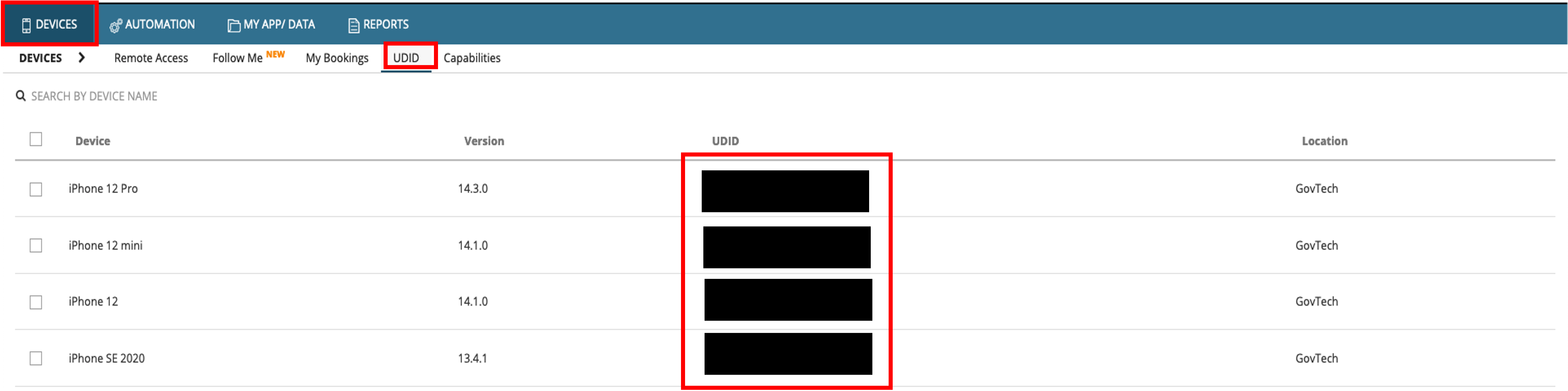
You have the UUIDs of the iOS devices required for registration.
Step 2: Register devices in the Apple Developer portal
Register the retrieved UUIDs in your Apple Developer account to allow app installation on those devices.
Complete this step only for iOS devices.
How to register devices
- Log in to the Apple Developer portal.
- Navigate to Certificates, Identifiers & Profiles.
- Select Devices.
- Register:
- A single device, or
- Multiple devices by uploading a device file.
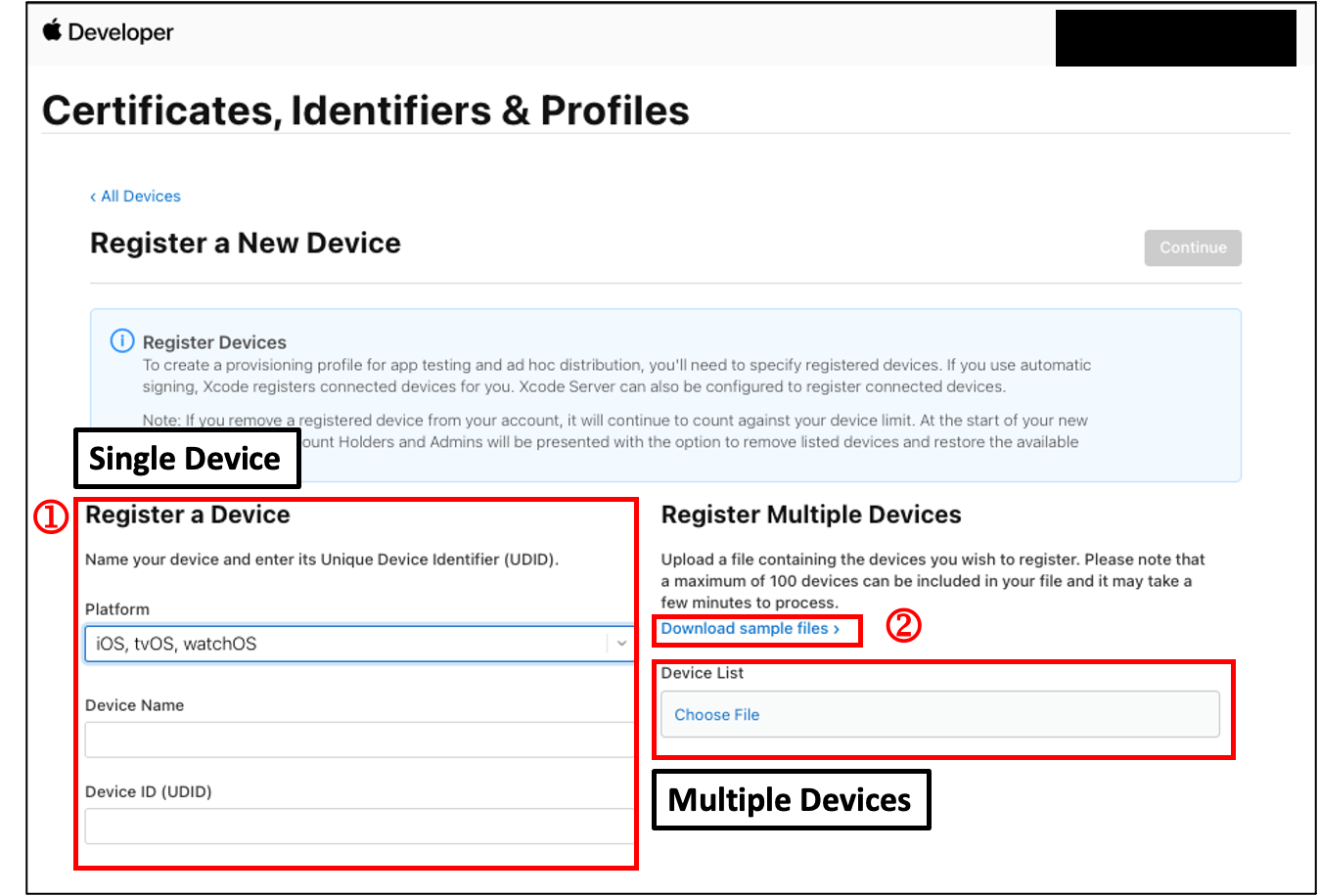
Result
- The pCloudy iOS devices are registered in your Apple Developer account.
- Your iOS apps can now be installed and tested on these devices.
