Manage user groups for Nexus IQ applications
Subscription Admins (SAs) and Project Admins (PAs) can manage user groups for Nexus IQ applications created under a SHIP-HATS project.
When adding or updating a user group, you can assign or modify roles at either the project or application level.
Alternatively, you can manage access for individual users.
See Manage users for Nexus IQ applications.
Prerequisites
Ensure the following:
- You are a Subscription Admin (SA) for the subscription, or a Project Admin (PA) for a SHIP-HATS project within the subscription.
- The users within the group have a Sonatype – Nexus IQ licence.
See Provision Sonatype – Nexus IQ licences.
Tip:
To understand how roles apply across projects and applications, see
Role scope and permission inheritance in Nexus IQ.
Steps
In Console, go to Products > SHIP-HATS, and select the required subscription to open the Workspace.
For detailed steps, see Access Workspace.
Click Tools > Nexus IQ.
Select the required SHIP-HATS project.
Existing Nexus IQ applications for the project are displayed.
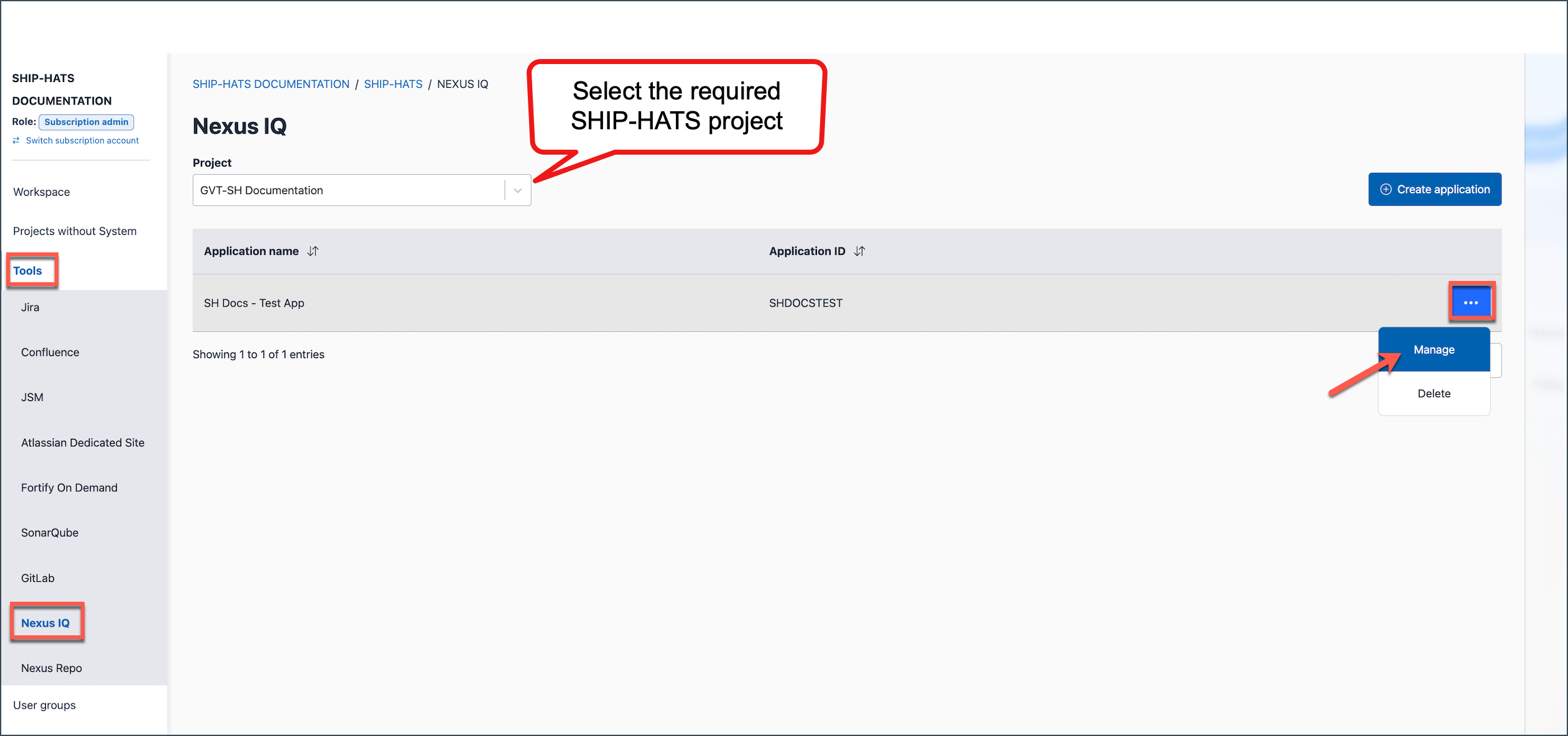
Locate the required Application name, click the ellipsis (…), then select Manage.
Go to the Manage groups tab.
Perform the required action.
Assign user groups
Select the required Assignment level:
- Project level — The assigned roles apply to all Nexus IQ applications within this SHIP-HATS project.
- Application level — The assigned roles apply only to the selected Nexus IQ application.
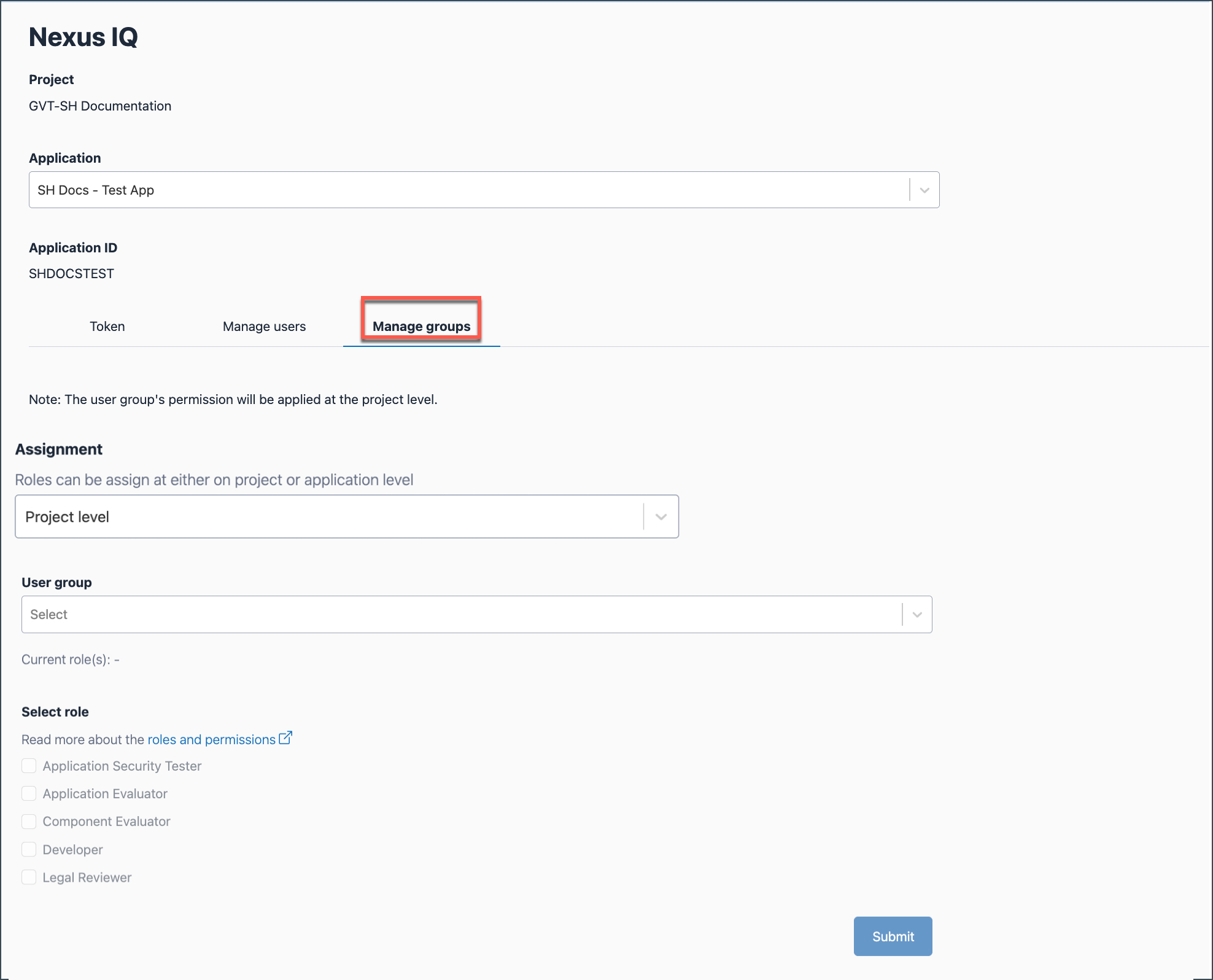
Select the required User group.
In Select role, assign the required role for the user group.
Click Submit.
Update roles and permissions
Select the existing Assignment level.
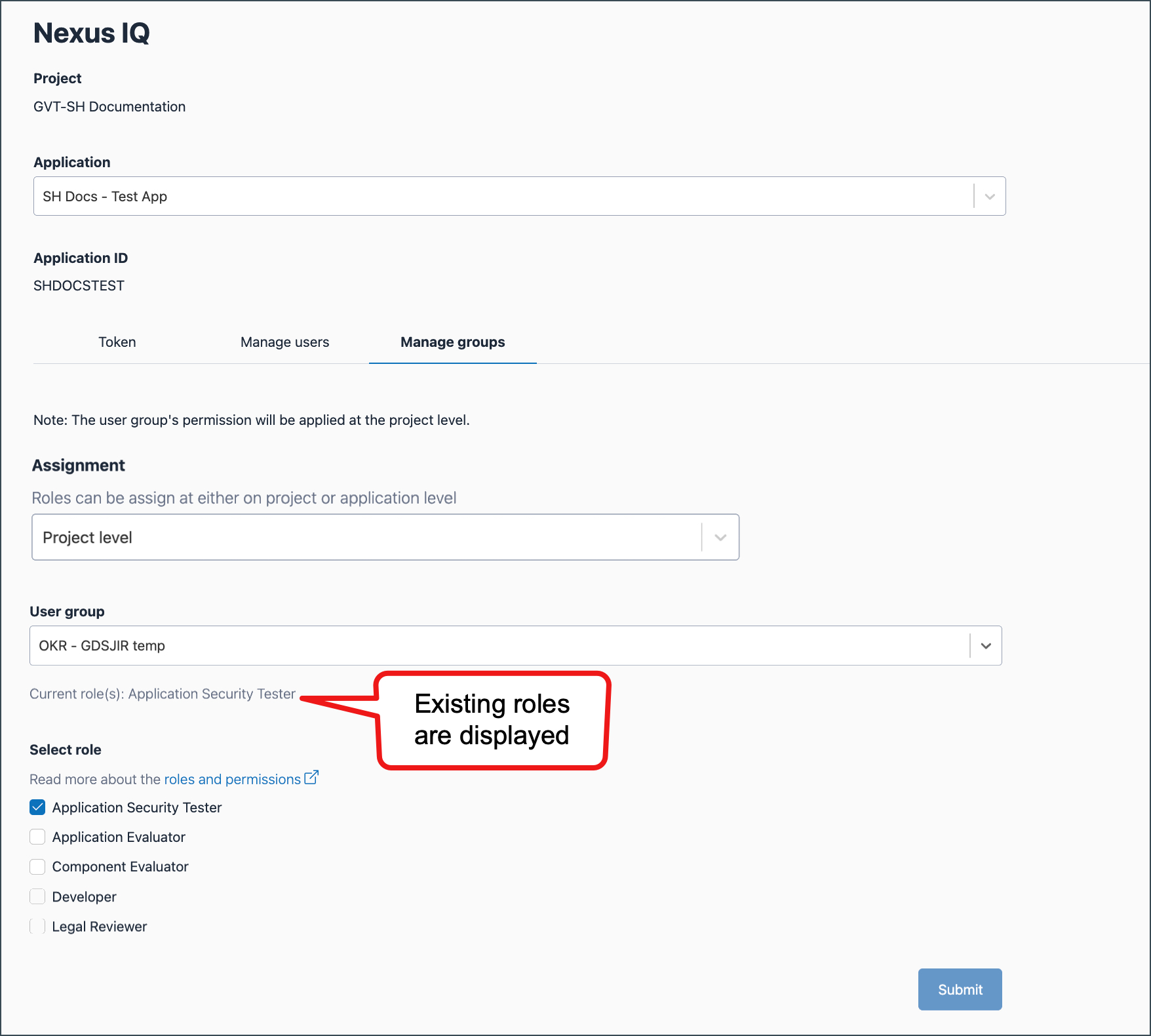
Select the User group whose roles you want to modify.
The current roles assigned to the user group are displayed.
Modify the Assignment level or roles, if required.
Click Submit.
Remove user groups
Select the existing Assignment level.
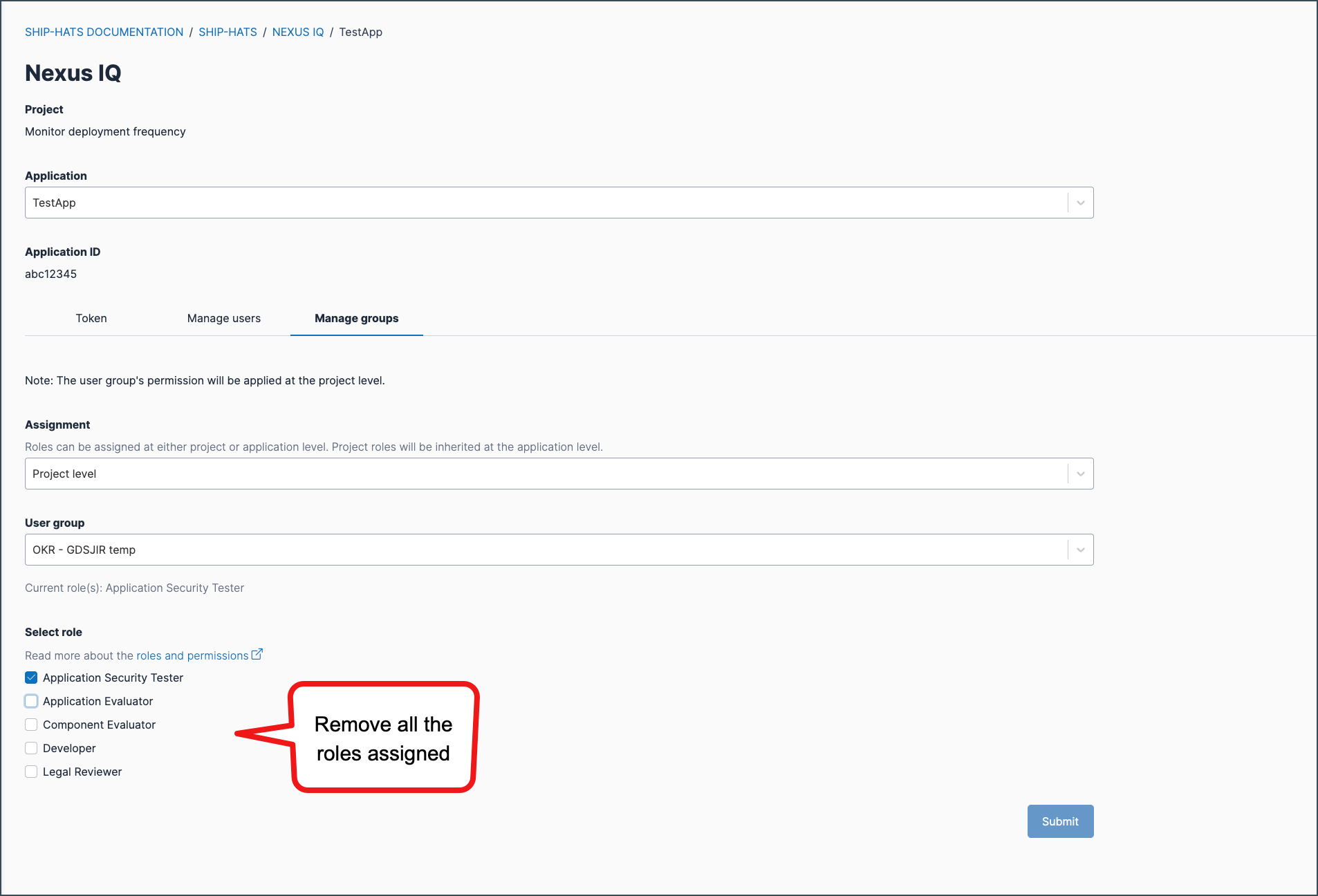
Select the User group which you want to remove.
The current roles assigned to the user group are displayed.
Remove all the roles assigned.
Click Submit.
Things to know
All users in the group inherit the assigned roles and permissions at the specified assignment level.
For details, see Role scope and permission inheritance in Nexus IQ.Assigning a group grants users access to the Nexus IQ application, but does not provision a Sonatype – Nexus IQ licence.
To revoke access for users, remove them from the user group or update the group’s assigned roles.
Removing users from the group revokes access only to the associated Nexus IQ applications.
If users still have the Sonatype – Nexus IQ licence, they can still access the
Nexus IQ portal.
