Manage Fortify on Demand (FOD) user roles
Subscription Admins (SAs) and Project Admins (PAs) can assign or update roles for users who have access to a Fortify on Demand (FOD) application.
Important
- FOD roles are granted at the user level and cannot be assigned to user groups.
Prerequisites
Ensure the following:
- You are a Subscription Admin (SA) for the subscription, or a Project Admin (PA) for a SHIP-HATS project within the subscription.
- The user is already been added to the FOD application. See Manage Fortify on Demand (FOD) users.
- You understand the available roles and their permissions. See:
Steps
In Console, go to Products > SHIP-HATS, and select the required subscription to open the Workspace.
For detailed steps, see Access Workspace.
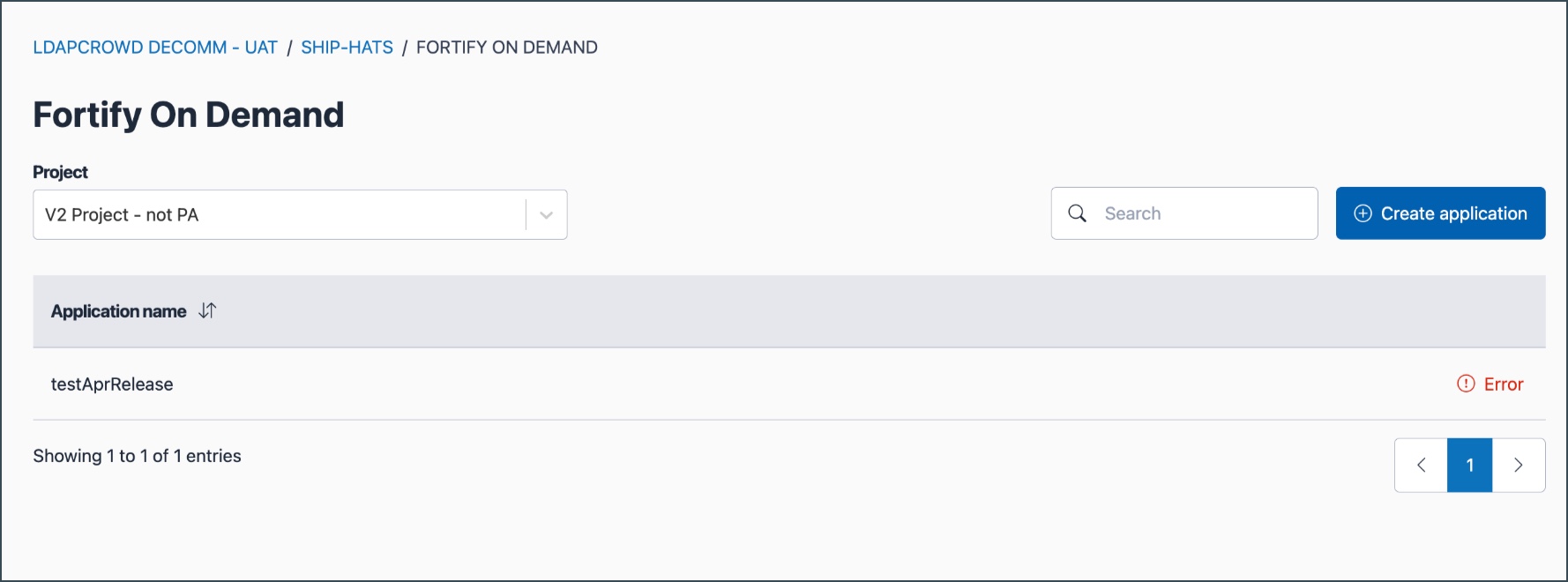
Click Tools > FOD.
Select the required SHIP-HATS project.
Select the ellipsis (…) next to the Application name and then select Manage.
In the User roles tab, you can:
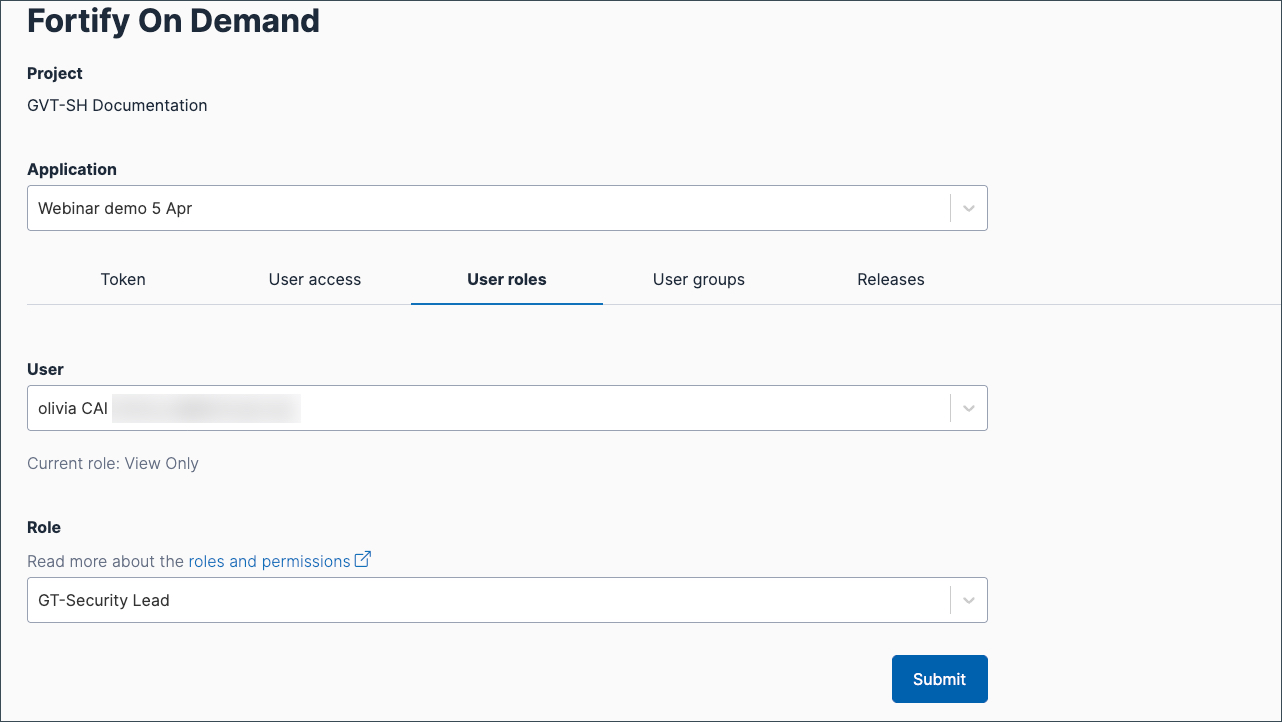
Select the required User, then do one of the following:
Assign a role If no role is assigned, select the required Role from the dropdown list.
Update a role
If a role is already assigned, it appears in Current role. Select a different role if required.
Note
If a role does not appear in the dropdown, see Things to note below.Click Submit.
Things to note
- Only View-Only, GT-Application Security Tester, and GT-Security Lead can be assigned through Console.
- GT-Manager access is automatically granted to users who are Project Admins in any SHIP-HATS project within the subscription.
- To grant or remove GT-Manager access, update the user’s Project Admin role.
- The scan role (GT-Report-Upload-And-Generate-SAST-and-DAST) is reserved for the FOD Service Account and cannot be assigned to regular users.
- Changing a user’s role updates their permissions for the selected FOD application only.
