Create Confluence spaces
Subscription Admins (SAs) and Project Admins (PAs) can create and manage Confluence spaces.
Prerequisites
Ensure the following:
- You are a Subscription Admin (SA) for the subscription, or a Project Admin (PA) for a SHIP-HATS project within the subscription.
- Your subscription includes Confluence. To verify this, see View tools included in a SHIP-HATS subscription.
- At least one SHIP-HATS project exists in the subscription. For steps to confirm this, see View SHIP-HATS projects.
Steps
In Console, go to Products > SHIP-HATS, and select the required subscription to open the Workspace.
For detailed steps, see Access Workspace.
Click Tools > Confluence.
Select the SHIP-HATS project for which you want to create the Confluence space.
Existing Confluence spaces for the project are displayed.
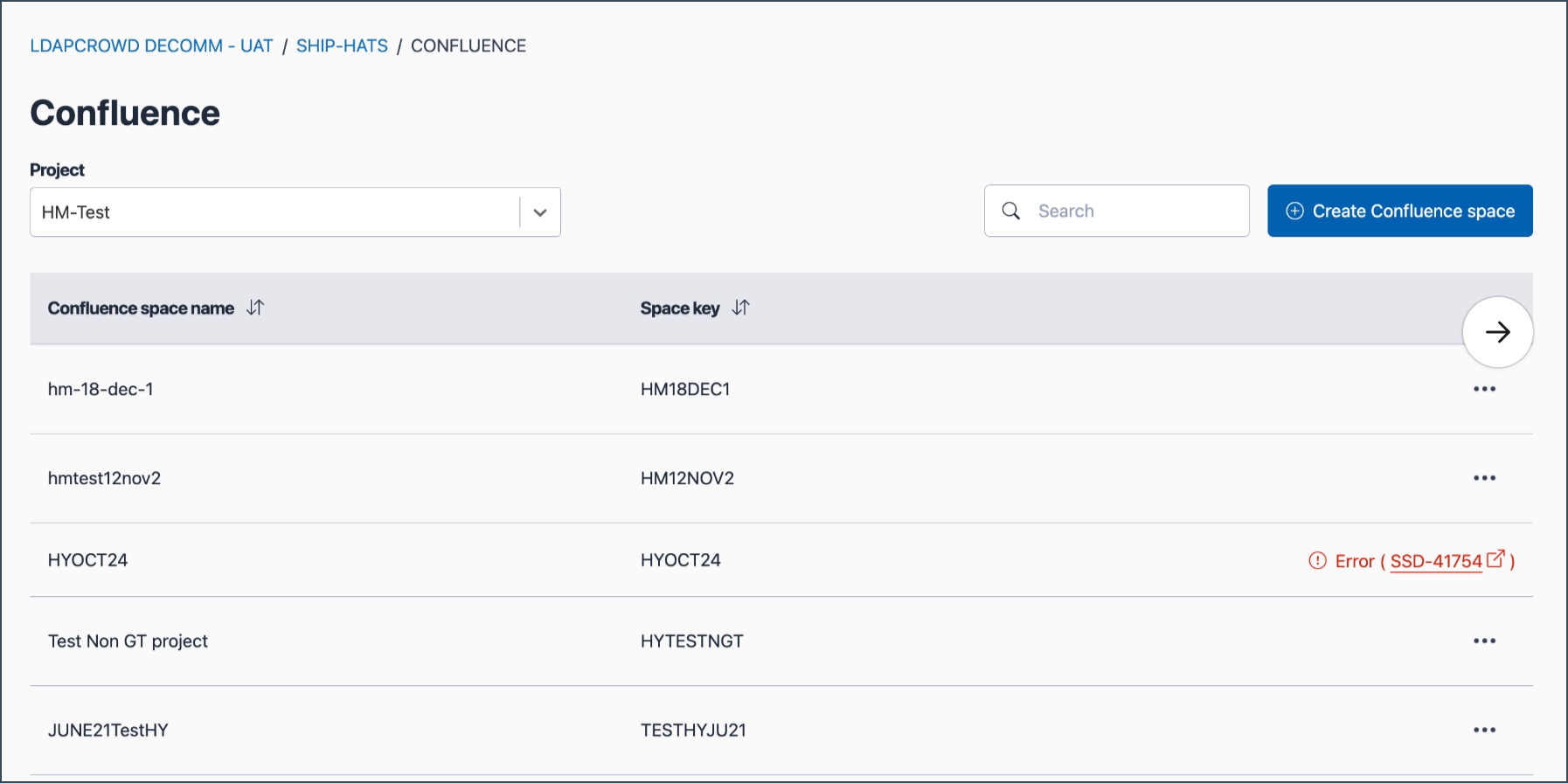
Click Create Confluence space.
Enter the required details.
Enter the required details.
Field Description Space name Specify a name for the Confluence space. Ensure that it is meaningful and reflects the purpose of the SHIP-HATS project. Space key Enter a unique key for the space. Ensure that it:
- Is 2–10 characters long.
- Starts with a letter (A–Z).
- Contains only uppercase letters (A–Z) and numbers (0–9).
Examples
✅ Valid:DEV,APP01,TEAM1
❌ Invalid:dev(lowercase letters),1APP(starts with a number),APP-01(contains hyphen),ABCDEFGHIJK(more than 10 characters)Click Submit.
The newly created Confluence space appears under the selected SHIP-HATS project.
