Recommendation Index
(Required only for ML-based)
How to Create a SmartRecommend Index
Step 1: Access the Index Library
- Navigate to the
Index Librarypage using the top navigation menu.
Step 2: Add a New Index
- Click on “Add new +” within the project card that you want to add your index to.
- In the pop-up window, enter a title for your index, choose
Recommendationas the type, and click “Create” to proceed.
Step 3: View Created Index in Index Overview
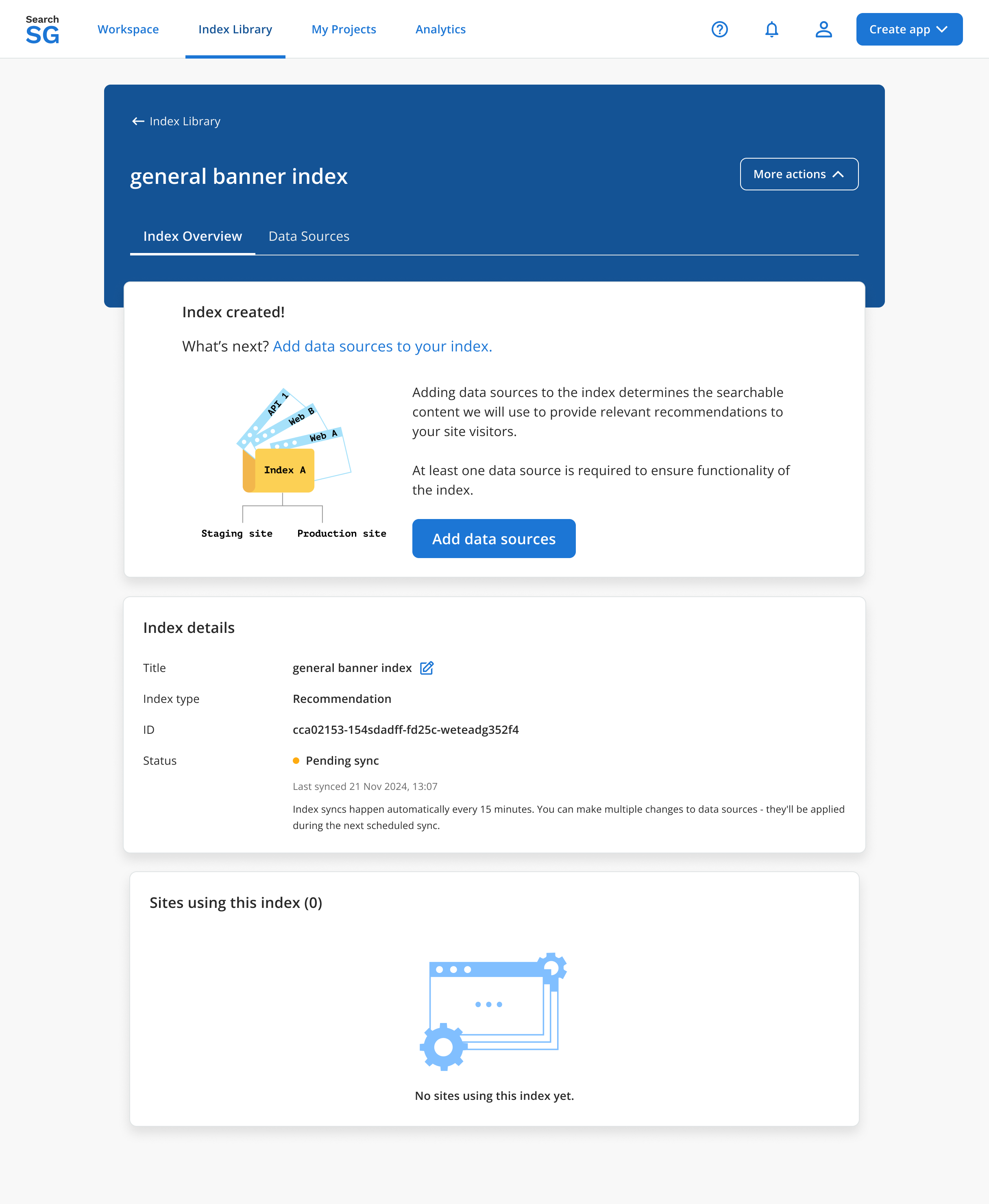
- The created index will have a status that indicates “Action Required: Add Data Source” on the Index overview page after creation.
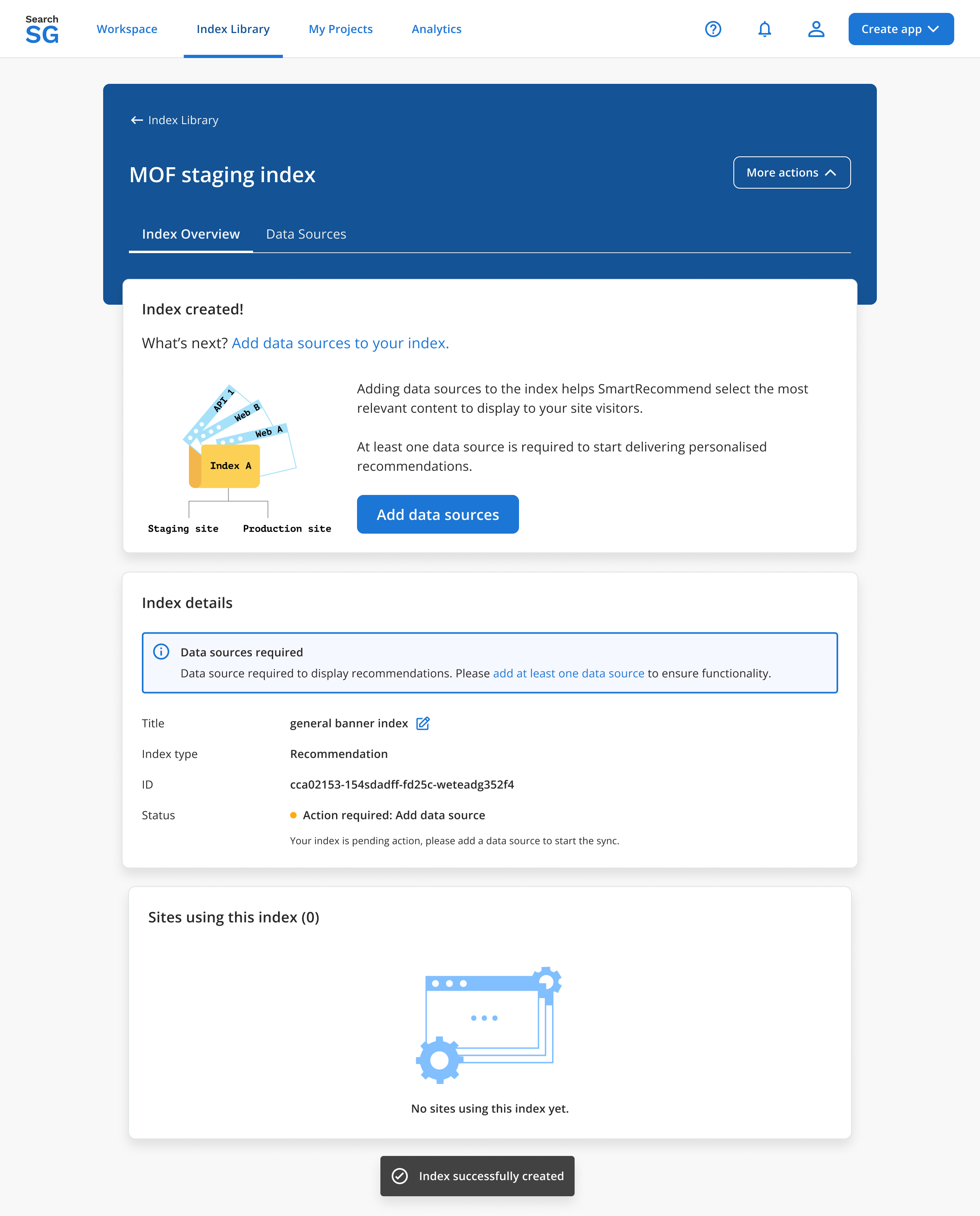
- Status Definitions:
Action required: Add data source: This status means at least one data source needs to be added to start delivering personalised recommendations.Pending sync: This status indicates the sync process is queued and waiting to start.Syncing: This status indicates syncing is currently in progress. Please wait for it to complete.Active: This status indicates that the index is now actively providing personalised recommendations.
Step 4: Add a Data Source
- Click “Data Sources” tab and you will be redirected to the data sources page.
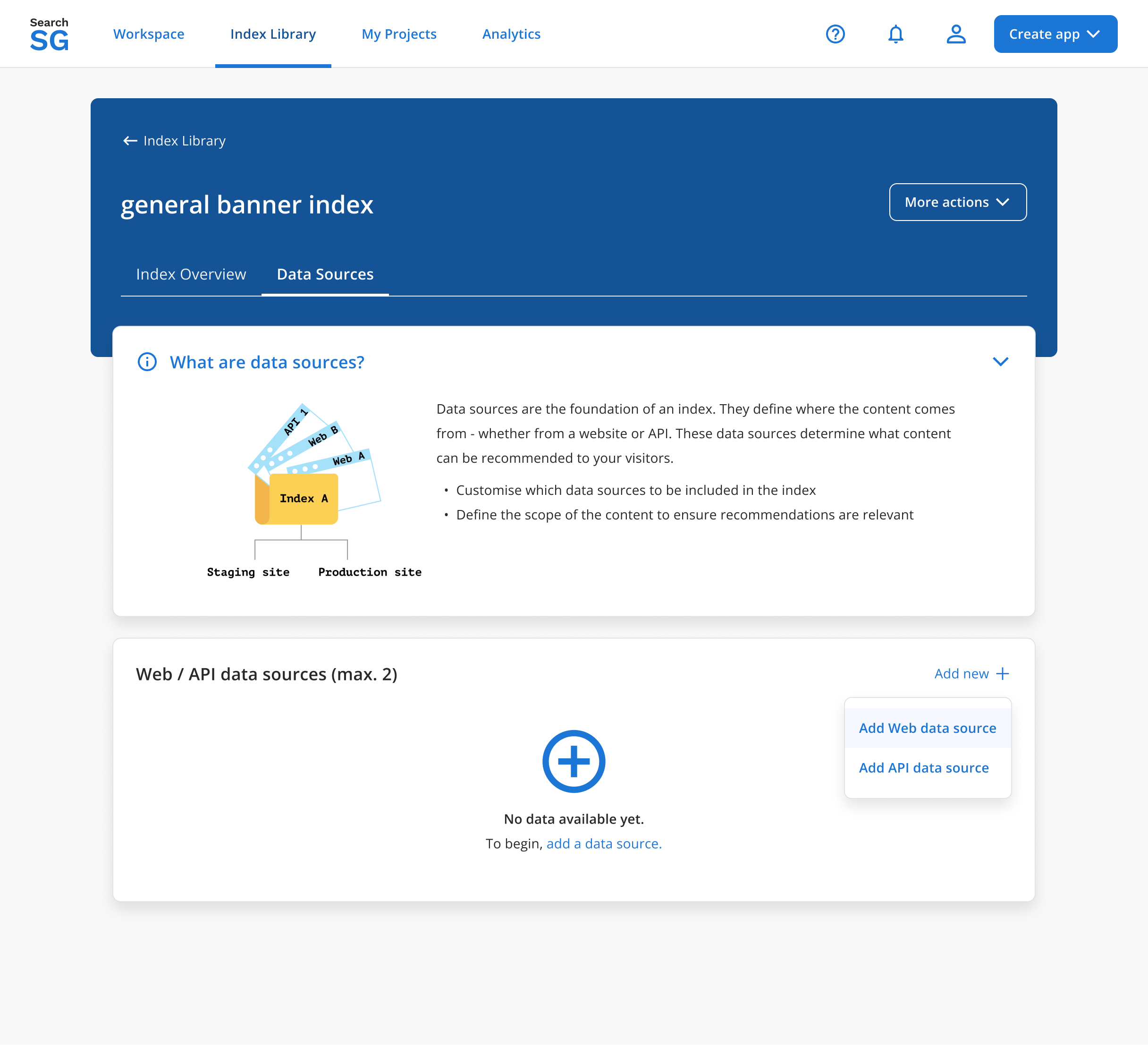
- You can use a maximum of two data sources, whether a combination of web and API data sources or just one type.
Step 4.1. Setup a Web Data Source
- To add a
Web Data Source, click “Add new +”, select “Add Web data source”, and follow the prompts to set up the data source.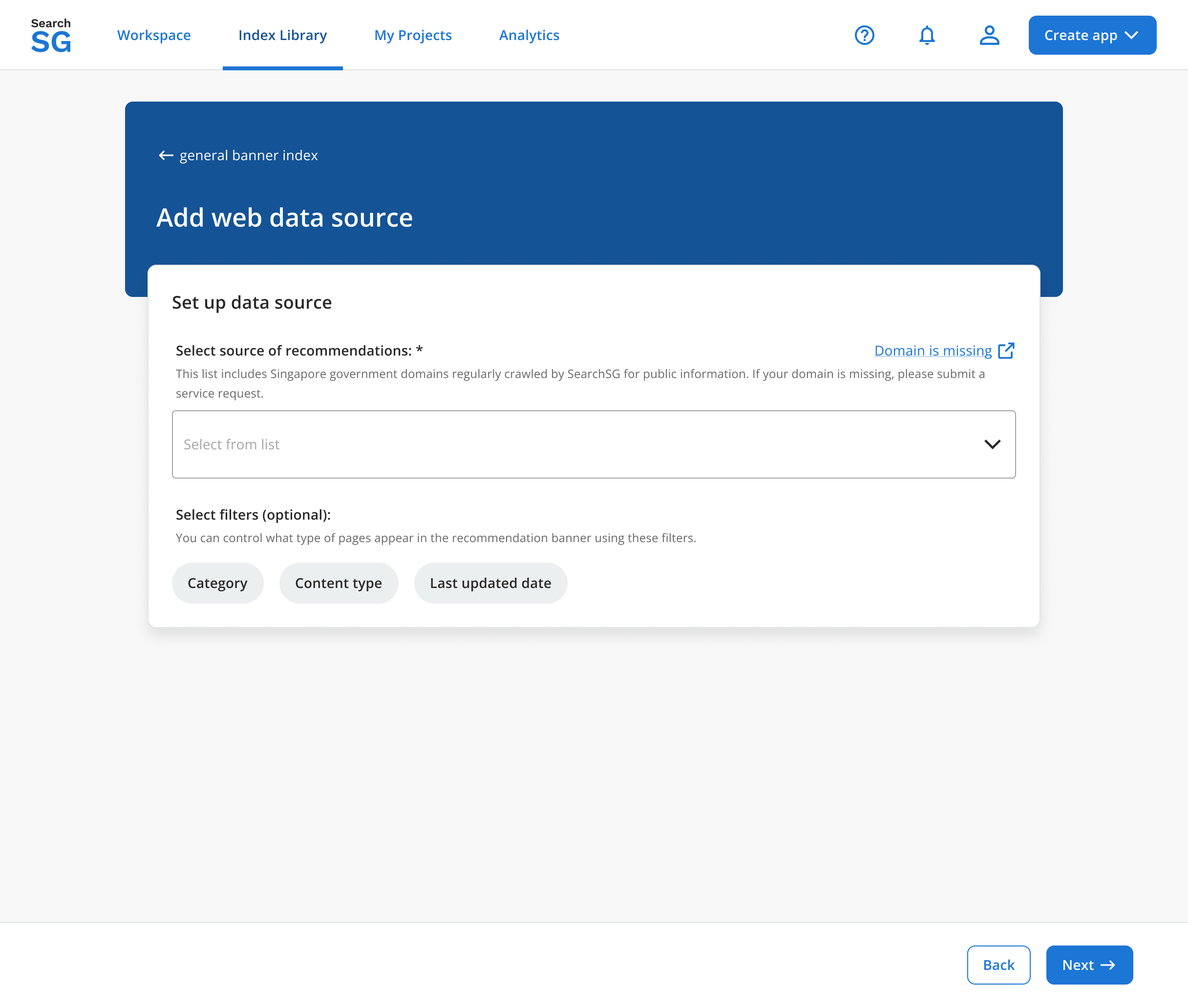
- Select your website domain to index from the list of websites crawled by SearchSG. If your domain is not listed, click “Domain is missing”.
- Selecting a
filterto control the types of pages displayed in your recommendation banner is optional. There are three filter options available: Category, Content Type, and Last Updated Date. You may select a maximum of one filter per data source.- Category: Choose from the categories you have tagged on your web pages or those automatically generated by our machine learning model.
- Content Type: Choose from the content types you have tagged on your web pages or those automatically generated by our machine learning model.
- Last Updated Date: Only pages created or updated after the specified date will appear in your recommendation banner.
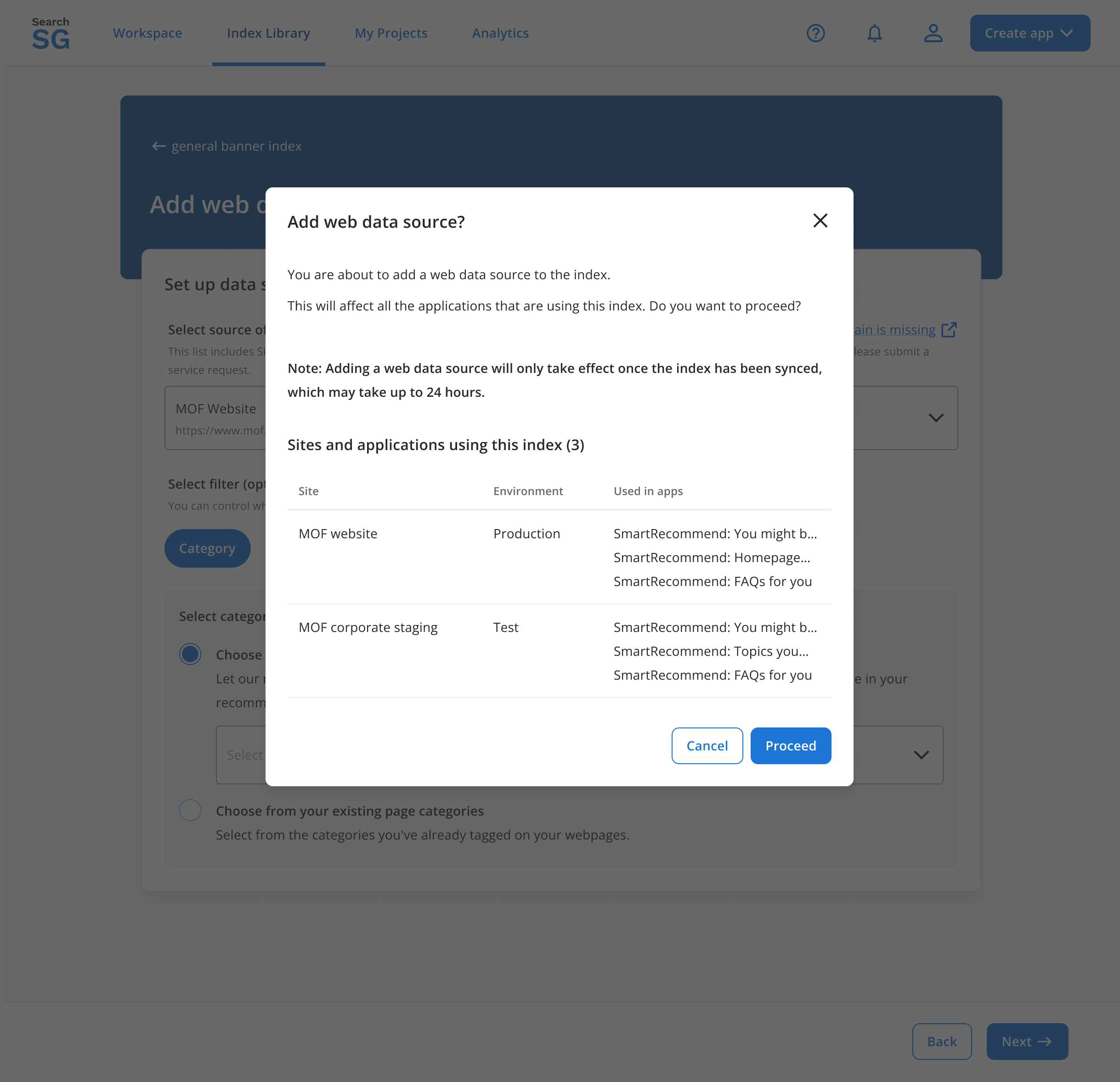
- Click “Next”, then confirm by clicking “Proceed” in the pop-up window.
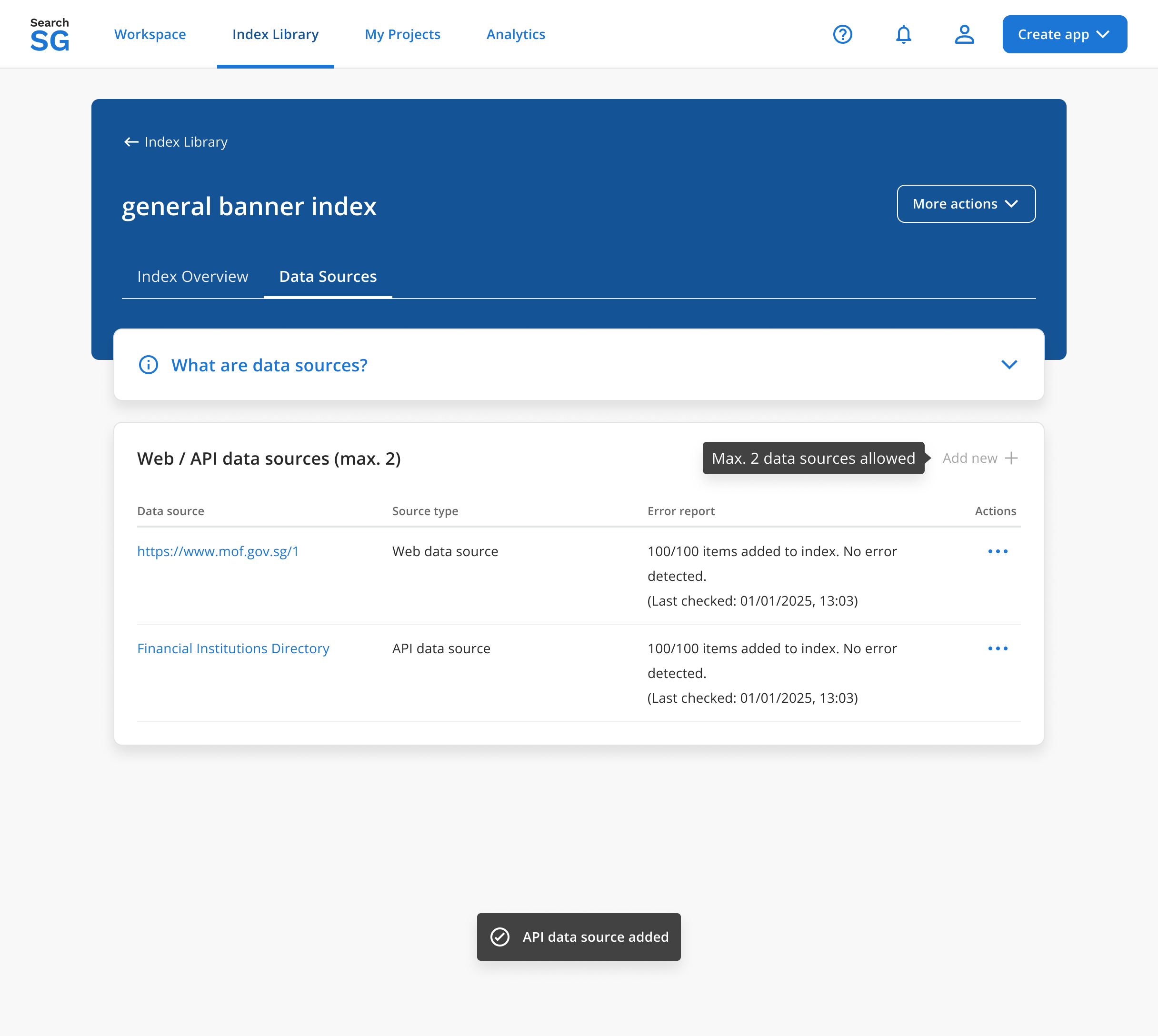
- You will be redirected to the previous page, where the newly created data source will appear under the “Web/API data sources” section.
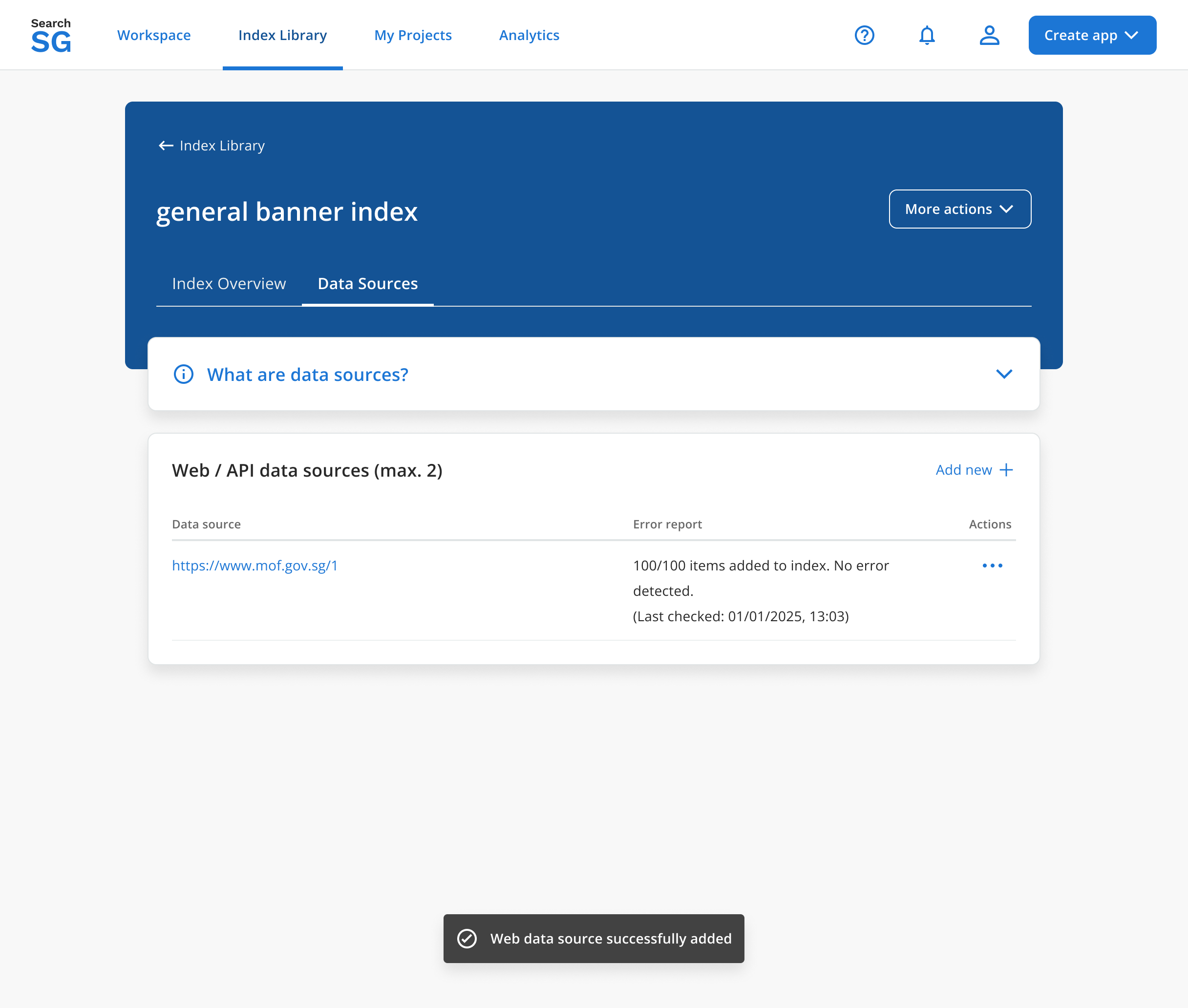
Step 4.2. Setup an API Data Source
- This API connector allows agencies to index custom API data that may be protected or not publicly available. Our API connector polls your configured endpoints hourly, to process changes in your content and updates your index automatically.
- To add an
API Data Source, click “Add new +”, select “Add API data source”, and follow the prompts to set up the data source.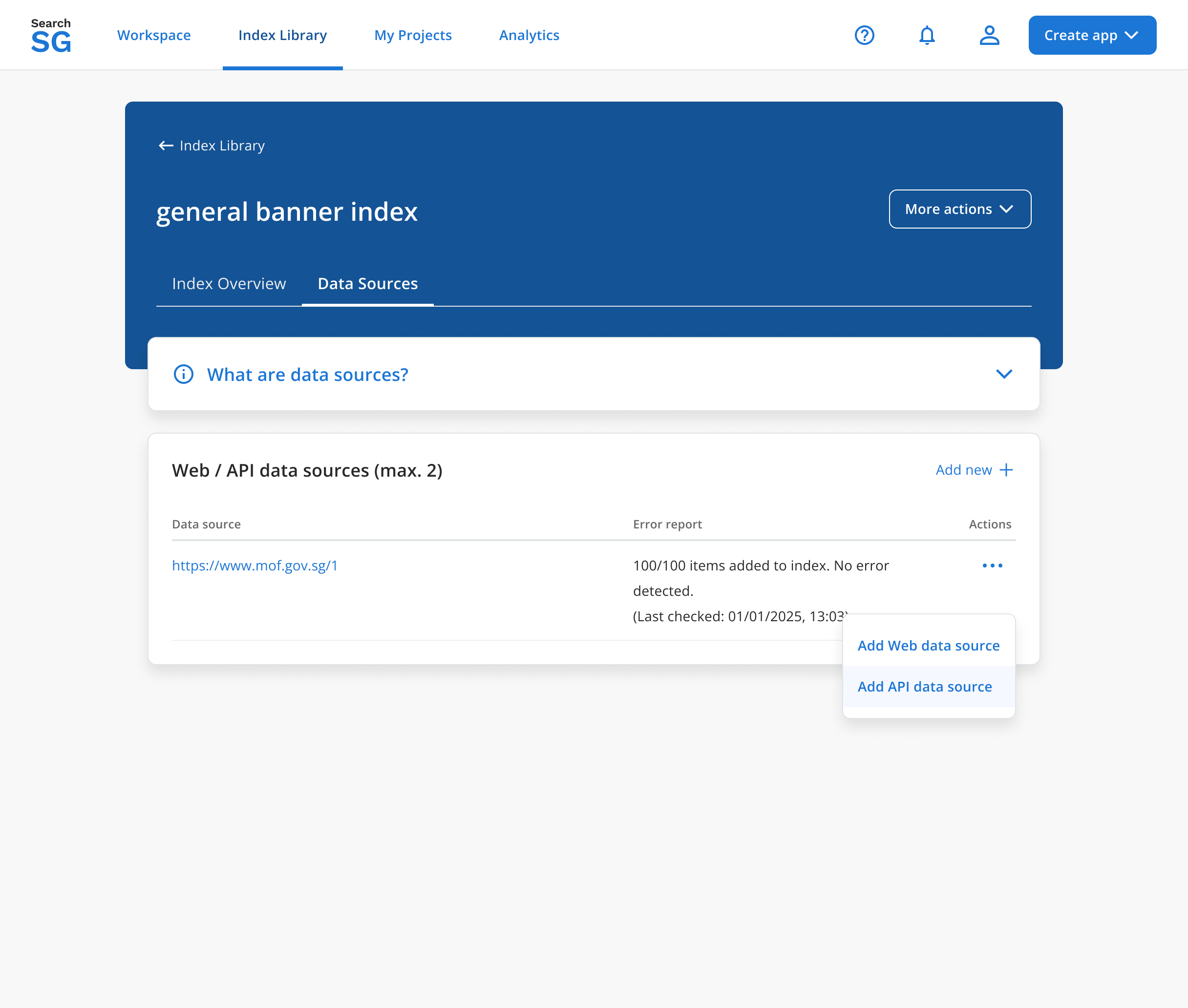
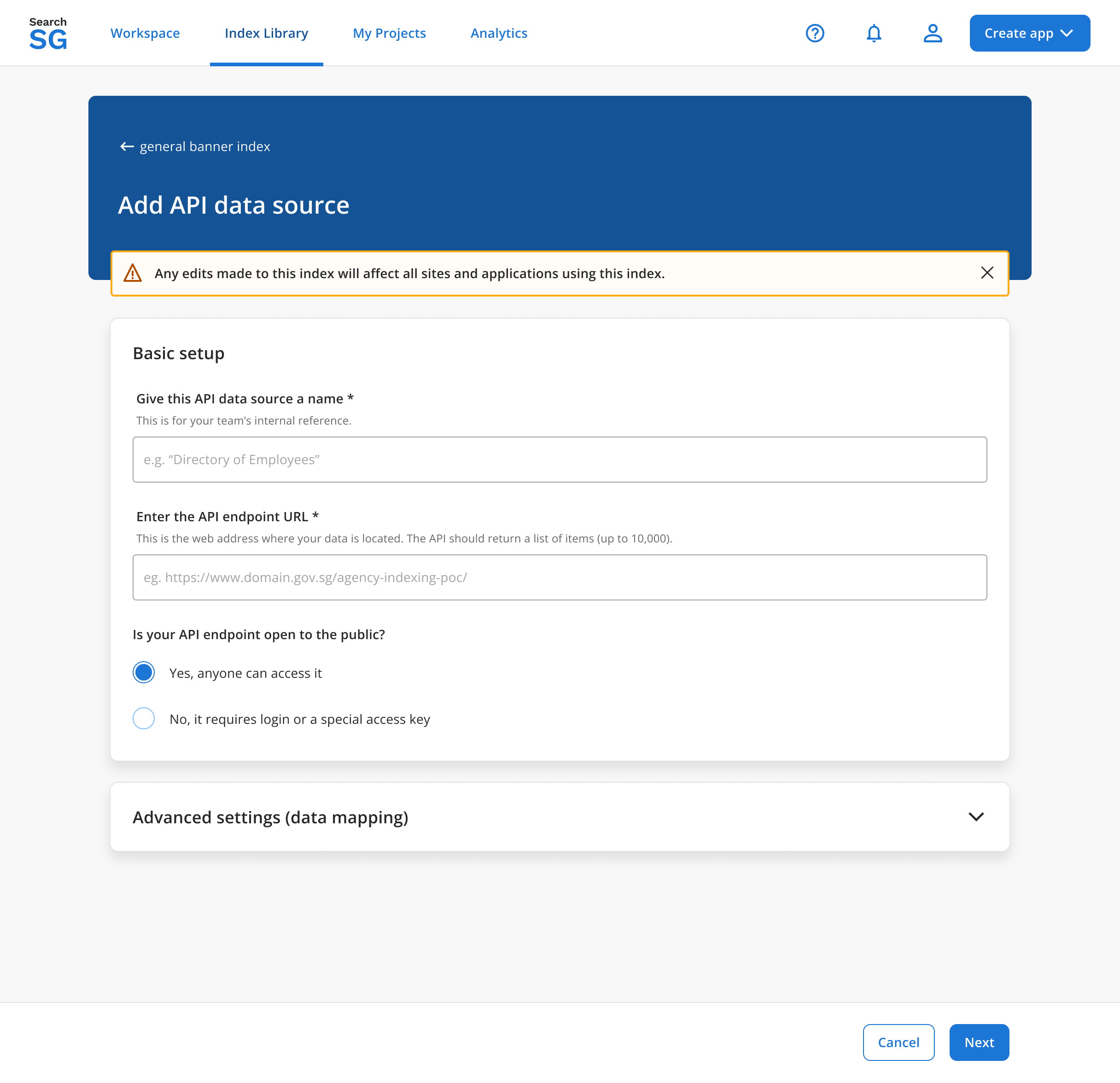
- Fill up your API information and click “Next”. Refer our docs to understand how API Data sources work.
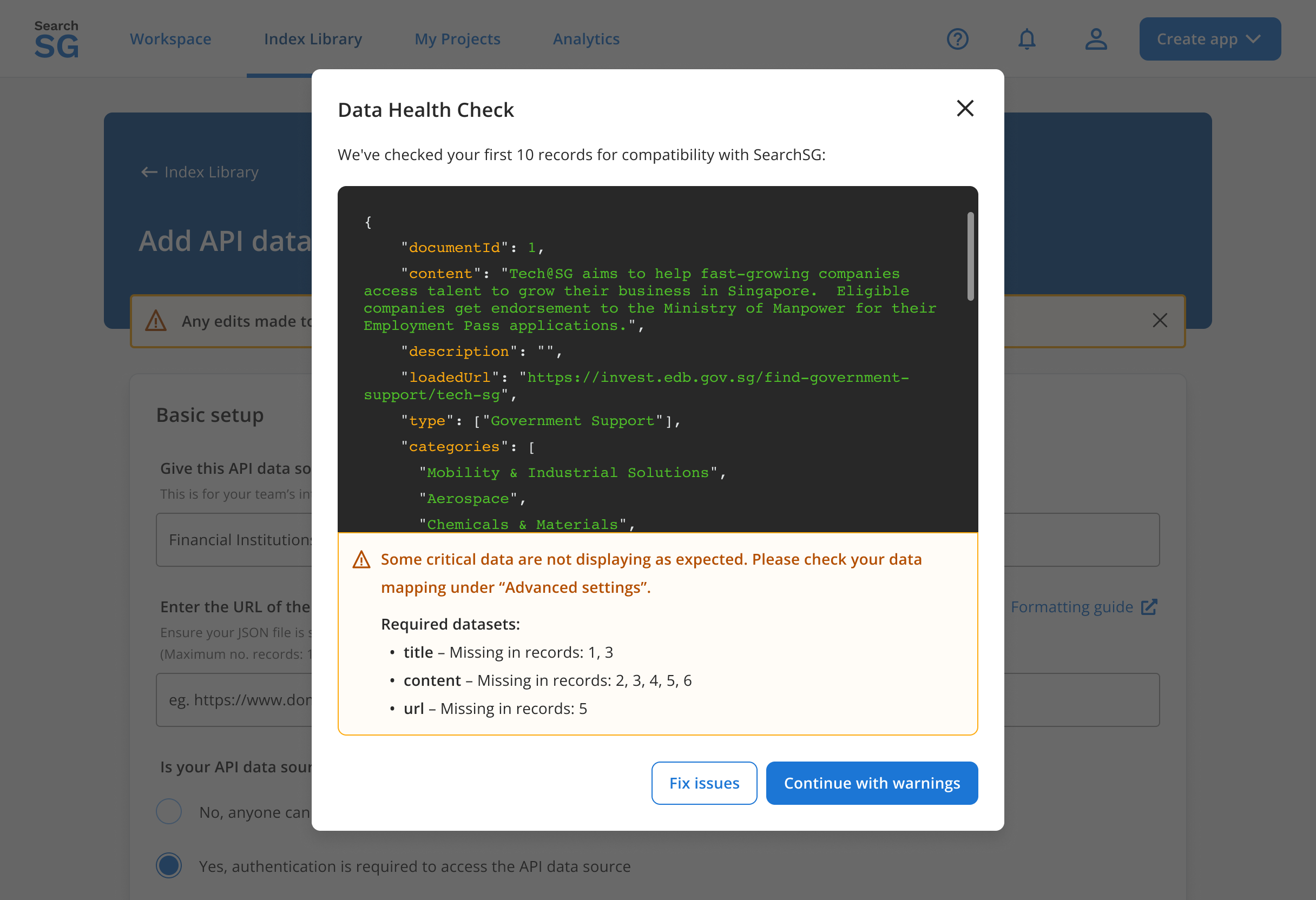
- Once configured, a data health check will be performed on your API.
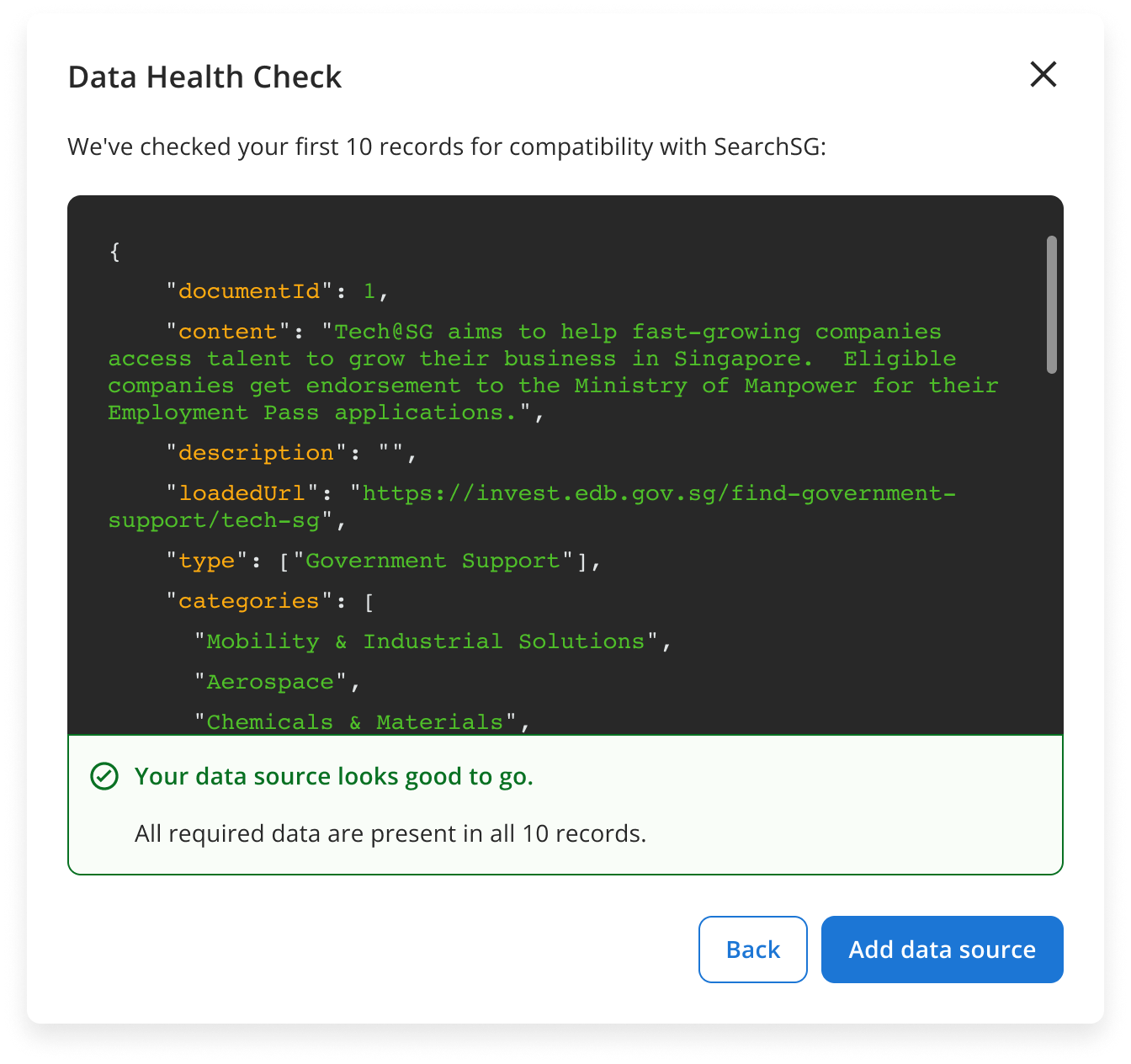
- If all required data are present, click “Add data source”.
- If any required data are missing, you can choose to “Fix issues” or “Continue with warnings”.
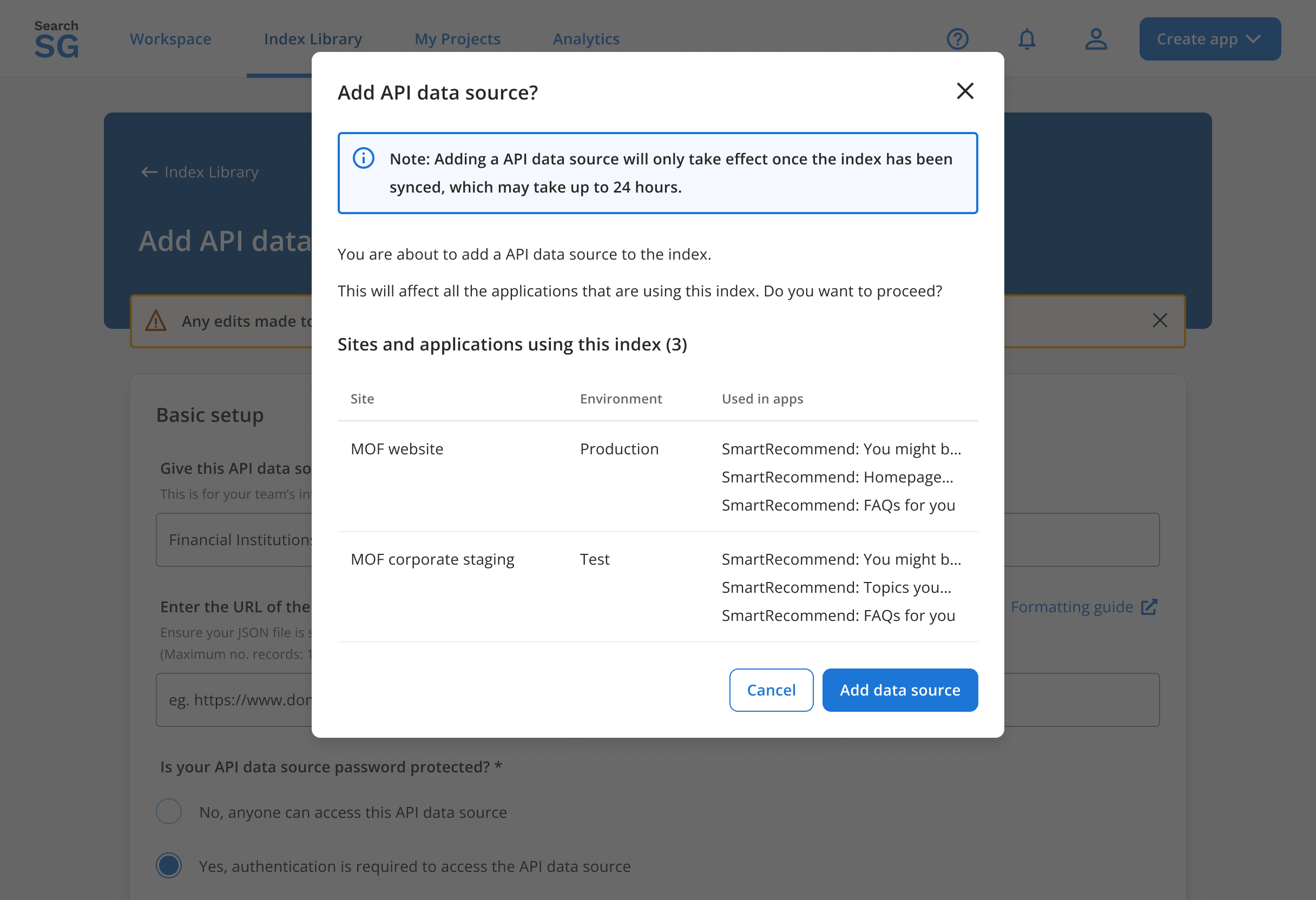
- Click “Add data source” in the confirmation pop-up.
- You will be redirected to the previous page, where the newly created data source will appear under the “Web/API data sources” section.
Step 5: Automatic Sync of Changes
- You can make multiple changes as needed.
- All updates will be applied automatically during the next scheduled sync, which runs every 15 minutes.
- If you’re using the web data source, any new pages added to your site will appear in recommendations the next day, once SearchSG has crawled them.
How to Delete the SmartRecommend Index
Note: Deleting a SmartRecommend index will remove all previously collected content & interactions history associated with it, and recommendations will no longer be available.
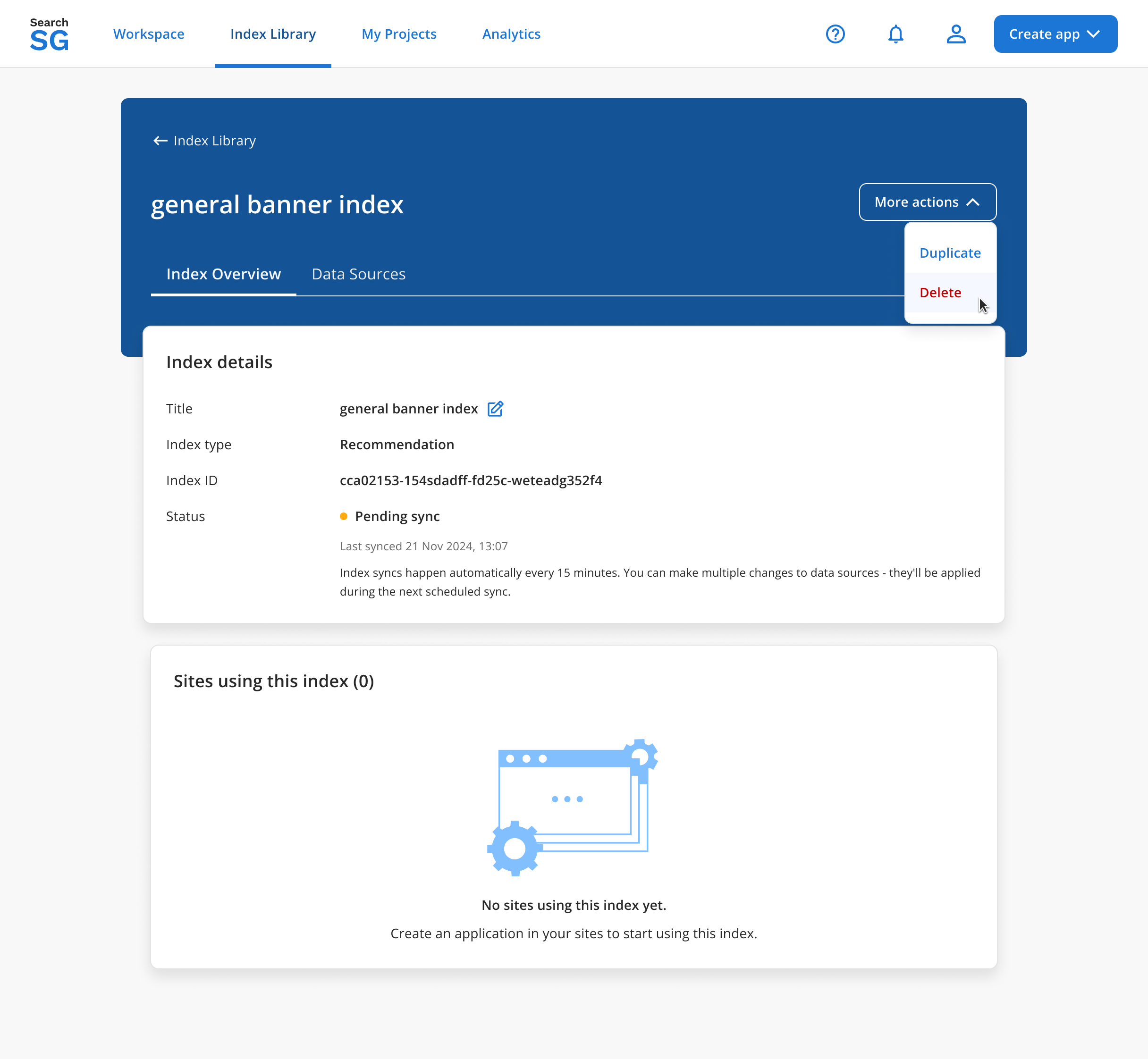
- Click “More actions”, then select “Delete”.
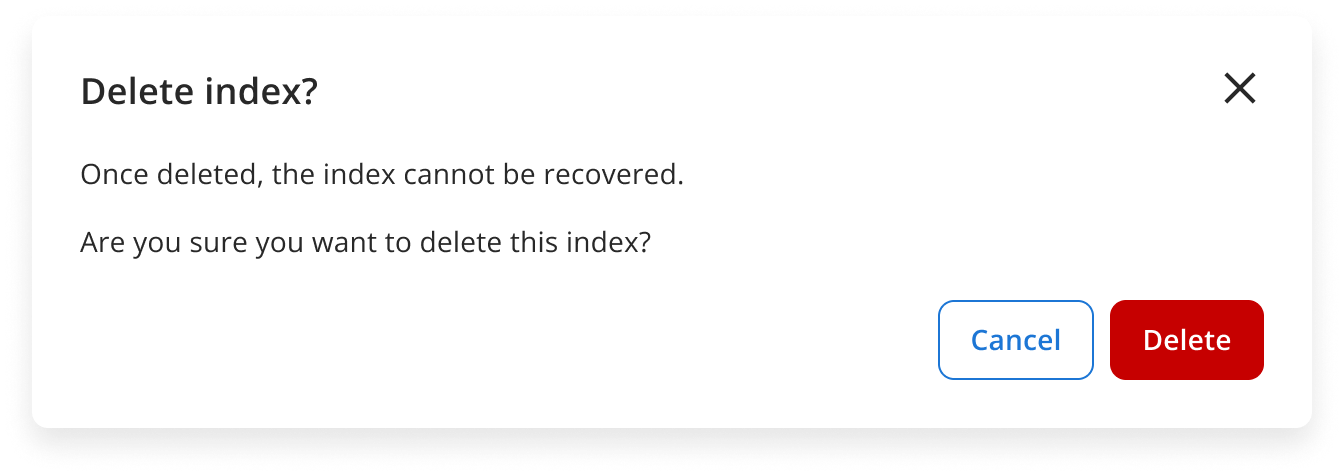
- Click “Delete” in the confirmation pop-up.
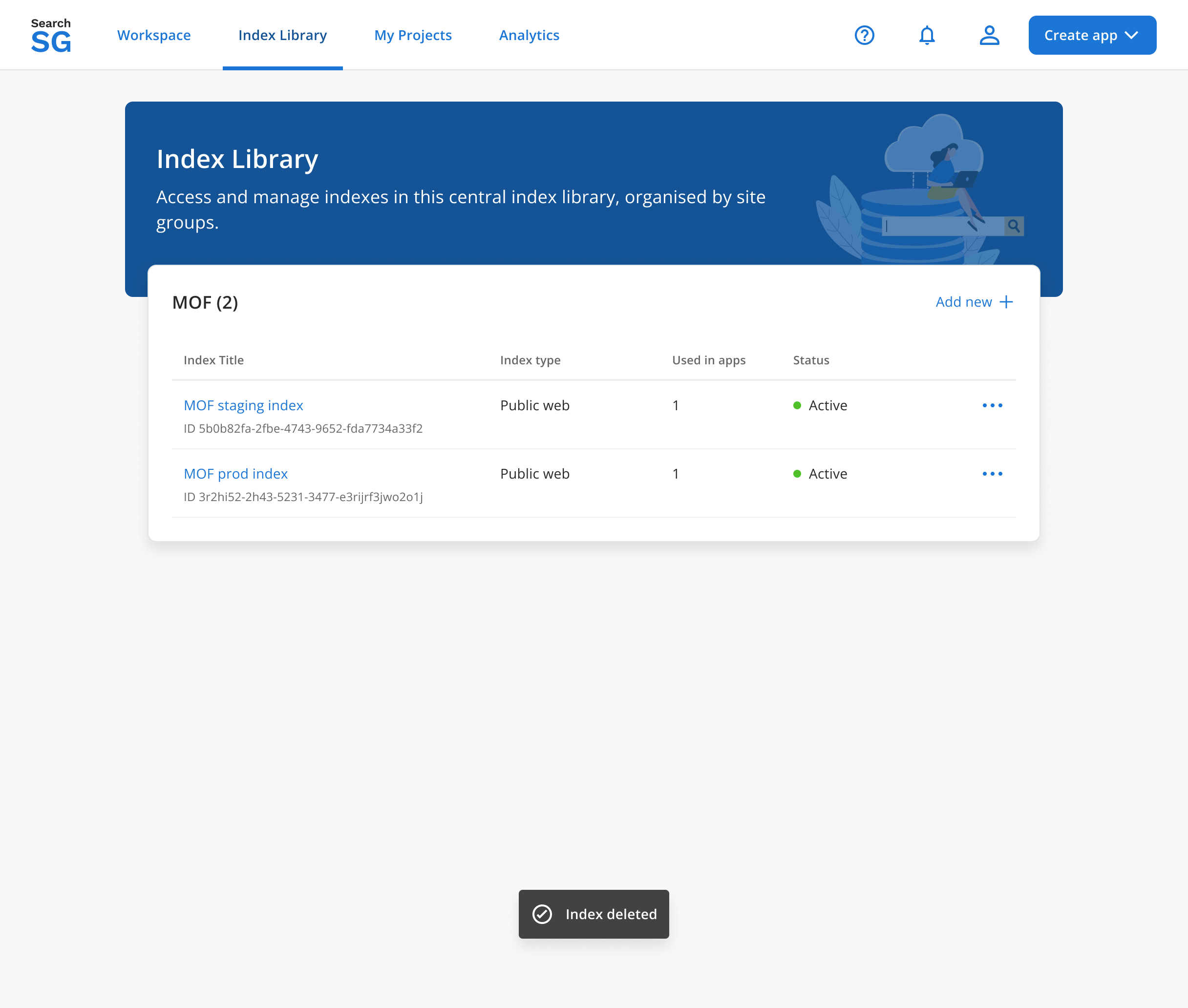
- You will be redirected to the index library page once the index is successfully removed.
- Only indexes not used in any sites can be deleted.
