Public Web Index
How to Create a Search Index
Step 1: Access the Index Library
- Navigate to the
Index Librarypage using the top navigation menu.
Step 2: Add a New Index
- Click on “Add new +” within the project card that you want to add your index to.
- In the pop-up window, enter a title for your index, choose
Public Webas the type, and click “Create” to proceed.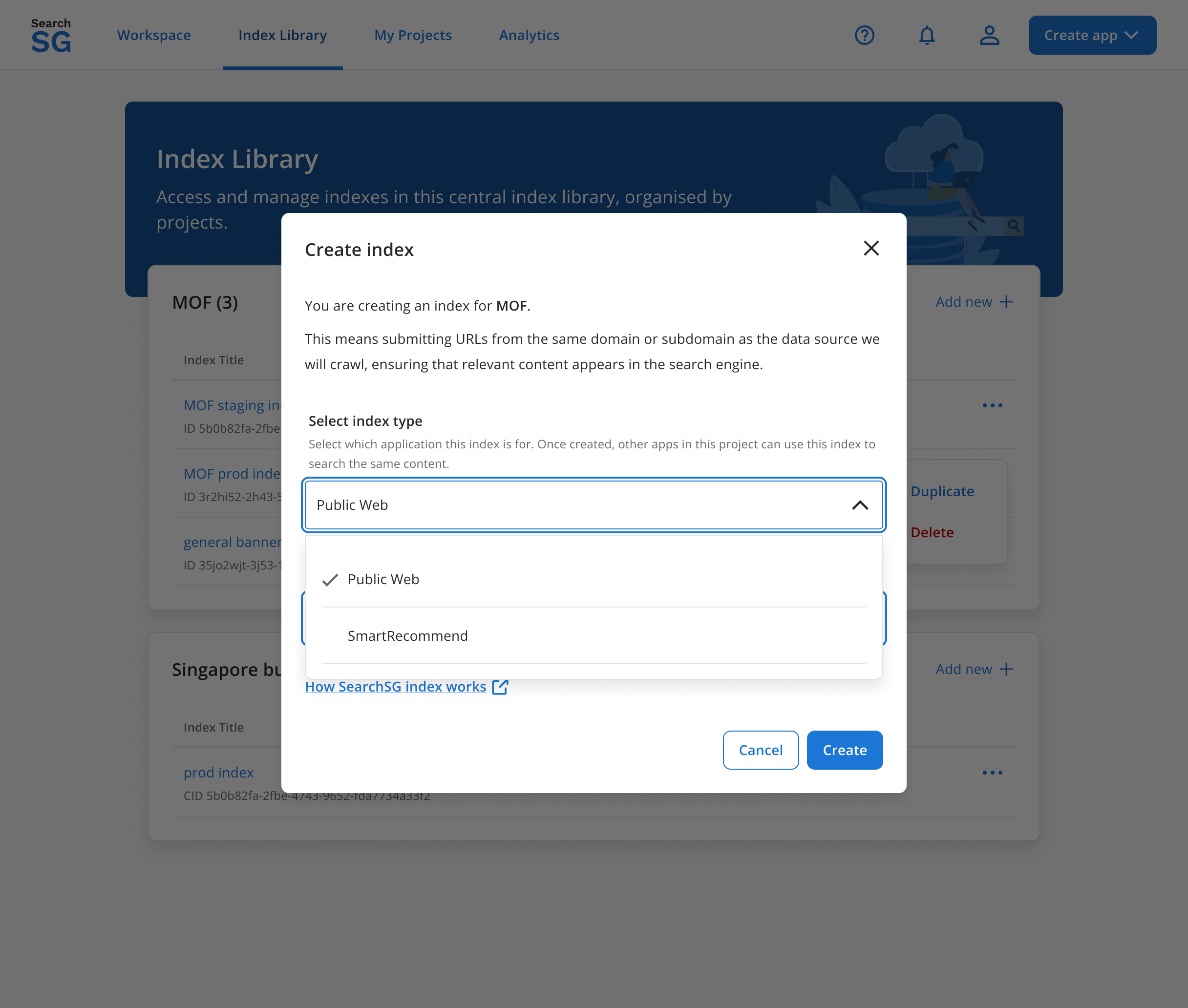
Step 3: View Created Index in Index Overview
- The created index will have a status that indicates “Action Required: Add Data Source” on the Index overview page after creation.
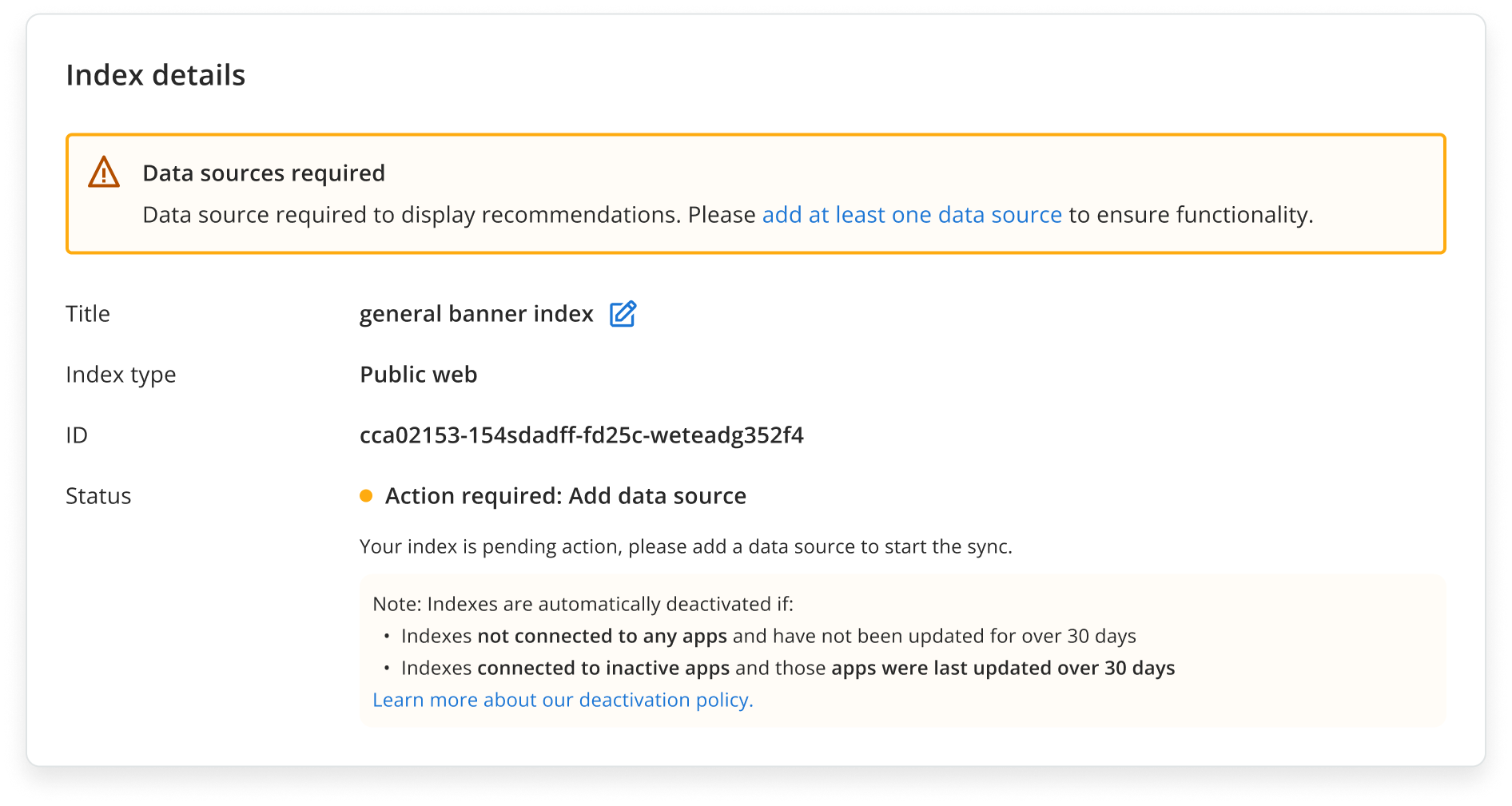
- Status Definitions:
Action required: Add data source: This status means at least one data source must be added before the public web index can start supporting search functionality.Pending sync: This status indicates the public web index is queued for syncing and waiting to start.Syncing: This status indicates that data syncing is currently in progress. Please wait for it to complete.Active: This status indicates that the public web index is now active and serving search results.
Step 4: Add a Data Source
- Click “Data Sources” tab and you will be redirected to the data sources page.
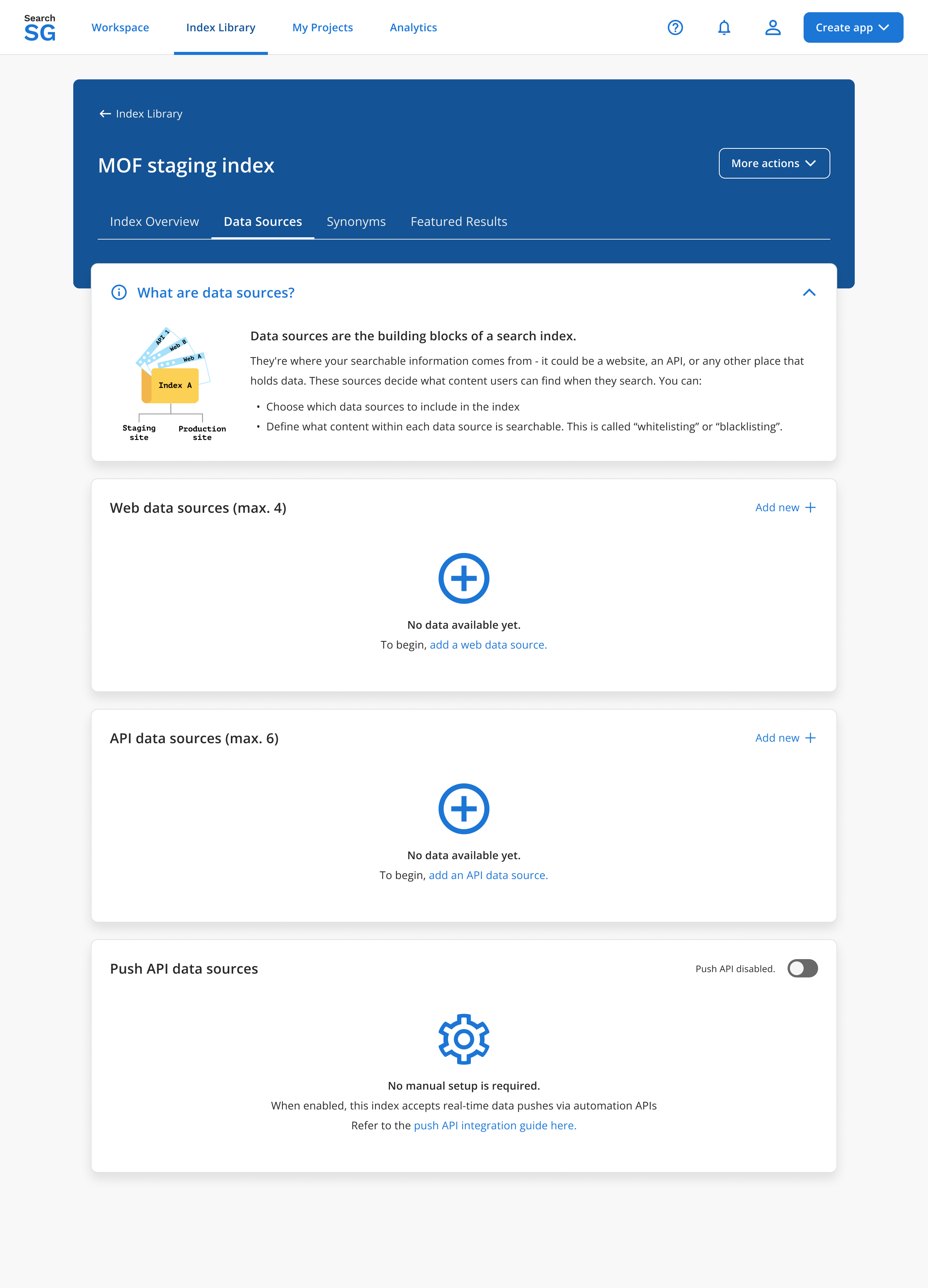
Step 4.1. Setup a Web Data Source
- To add a
Web Data Source, choose “Add new +” within Web data source card and proceed to set up the data source.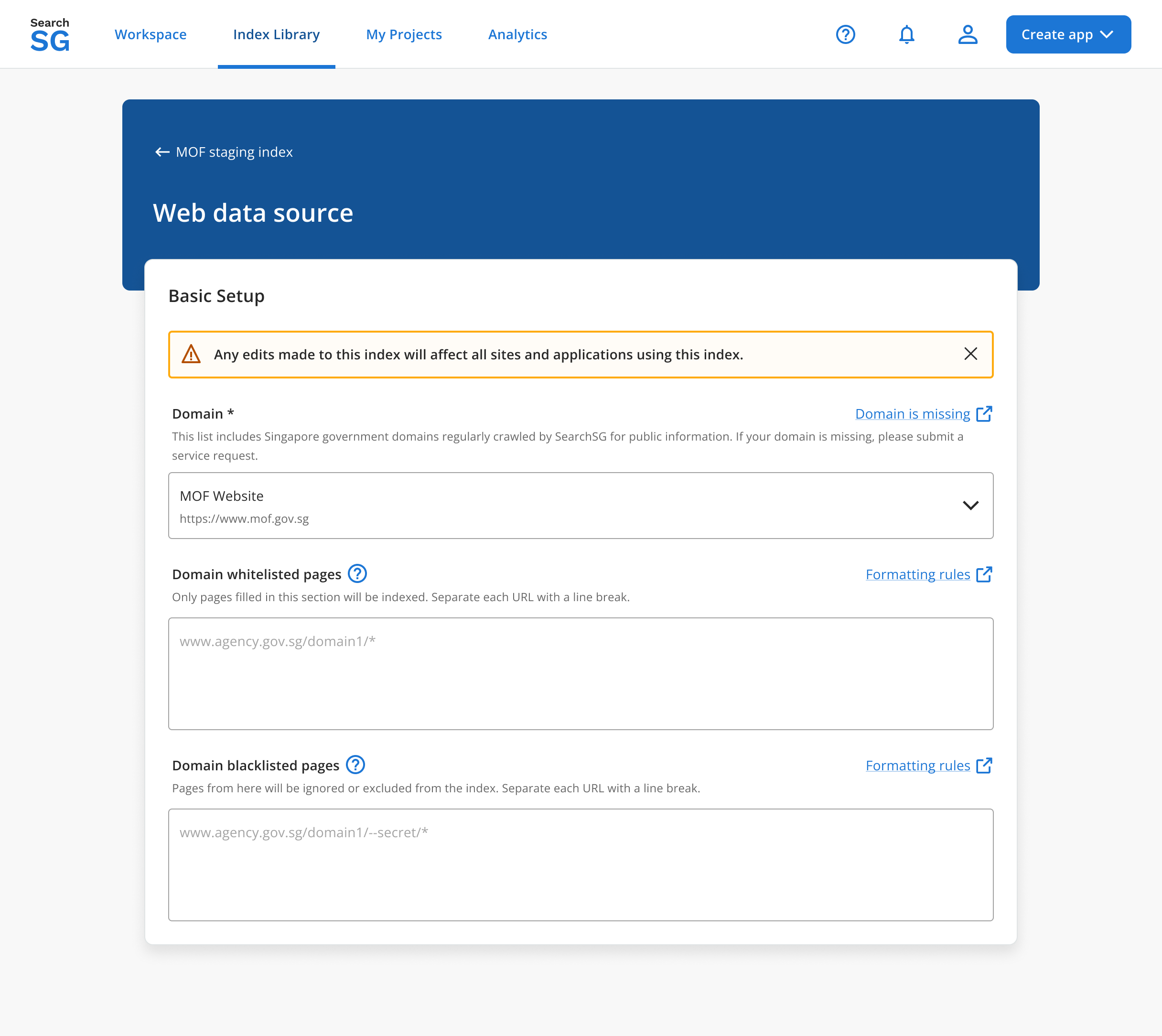
- Select your website domain to index from the list of websites crawled by SearchSG. If your domain is not listed, click on “Domain is missing”.
- Whitelisted and blacklisted pages are optional configuration to exclude certain webpages.
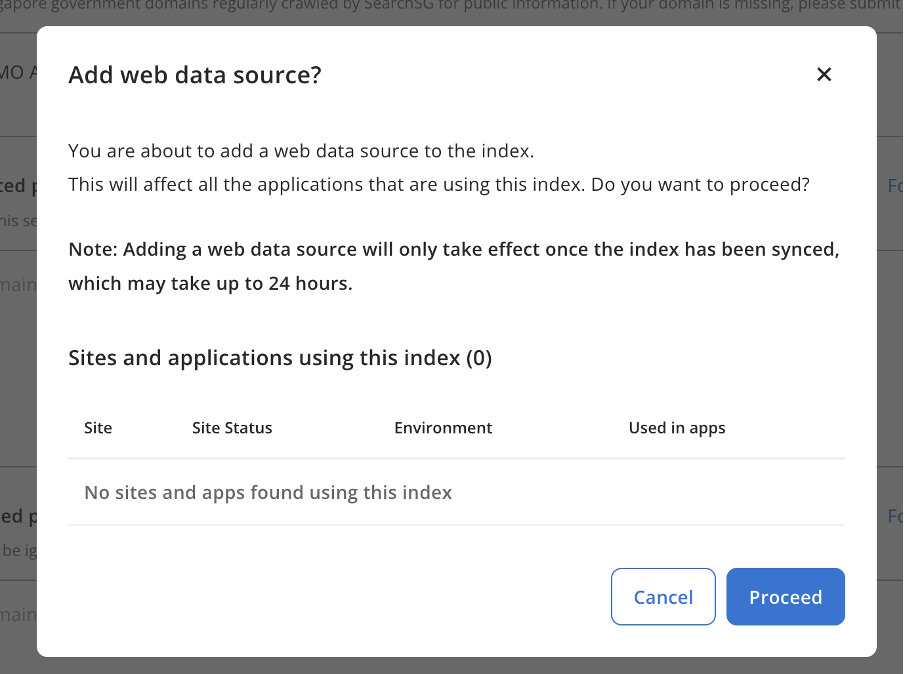
- Click on “Save” and then “Proceed” in the confirmation pop-up window.
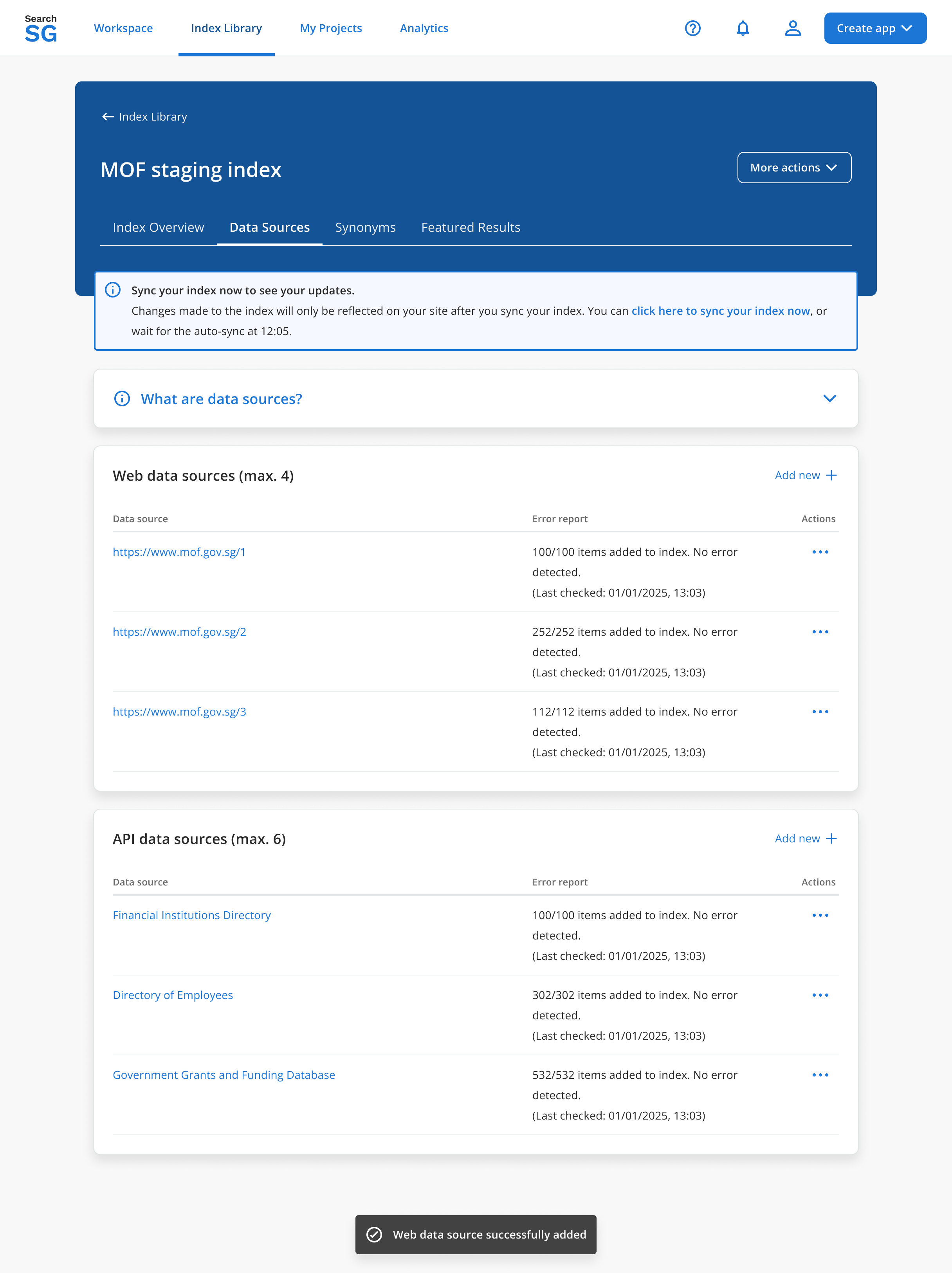
- You will be redirected to the previous page, where the newly created data source will appear under the “Web data sources” section.
Step 4.2. Setup an API Data Source
This API connector allows agencies to index custom API data that may be protected or not publicly available. Our API connector polls your configured endpoints hourly, to process changes in your content and updates your index automatically.
To add an
API Data Source, choose “Add new +” within API data source card and proceed to set up the data source.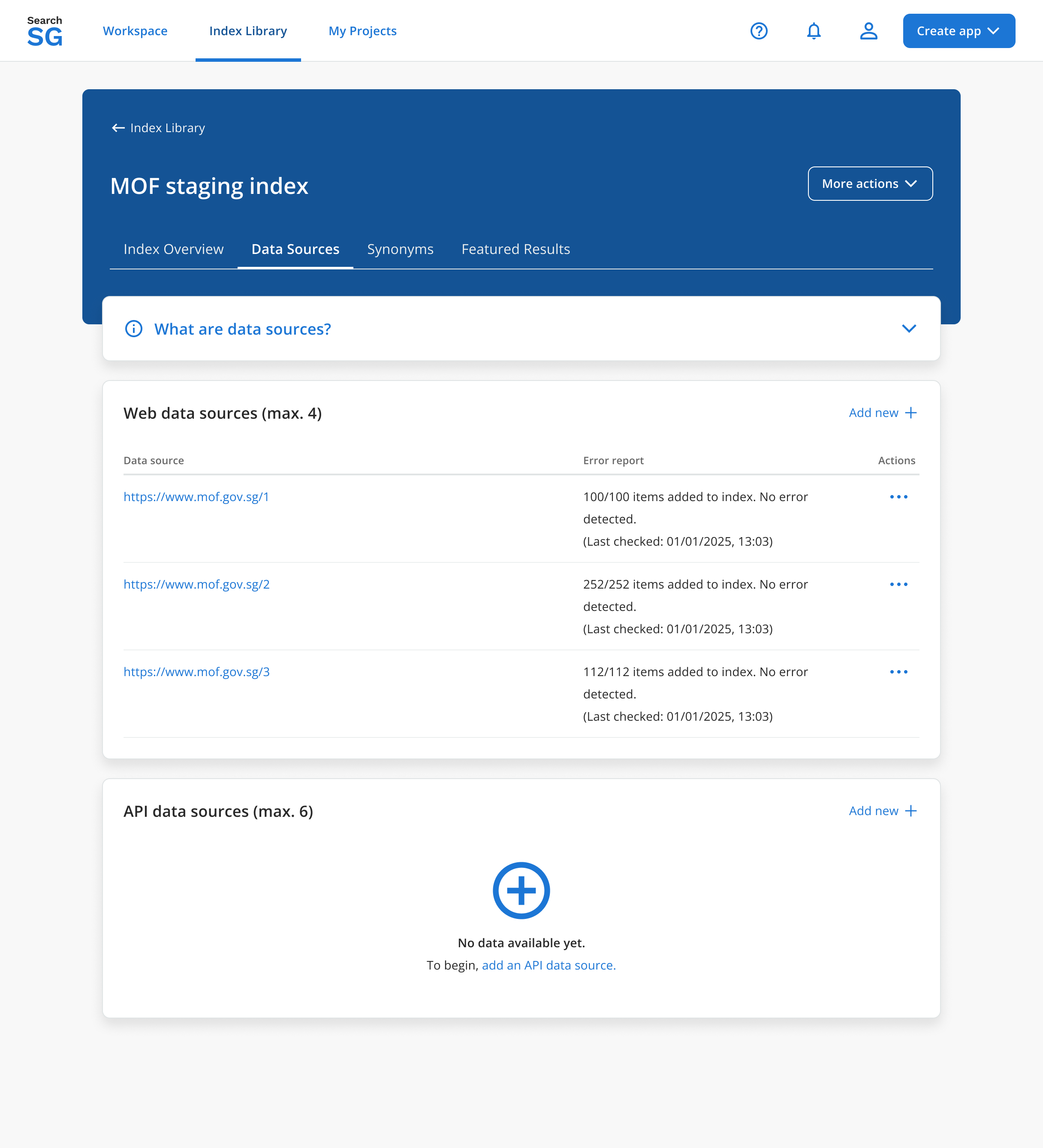
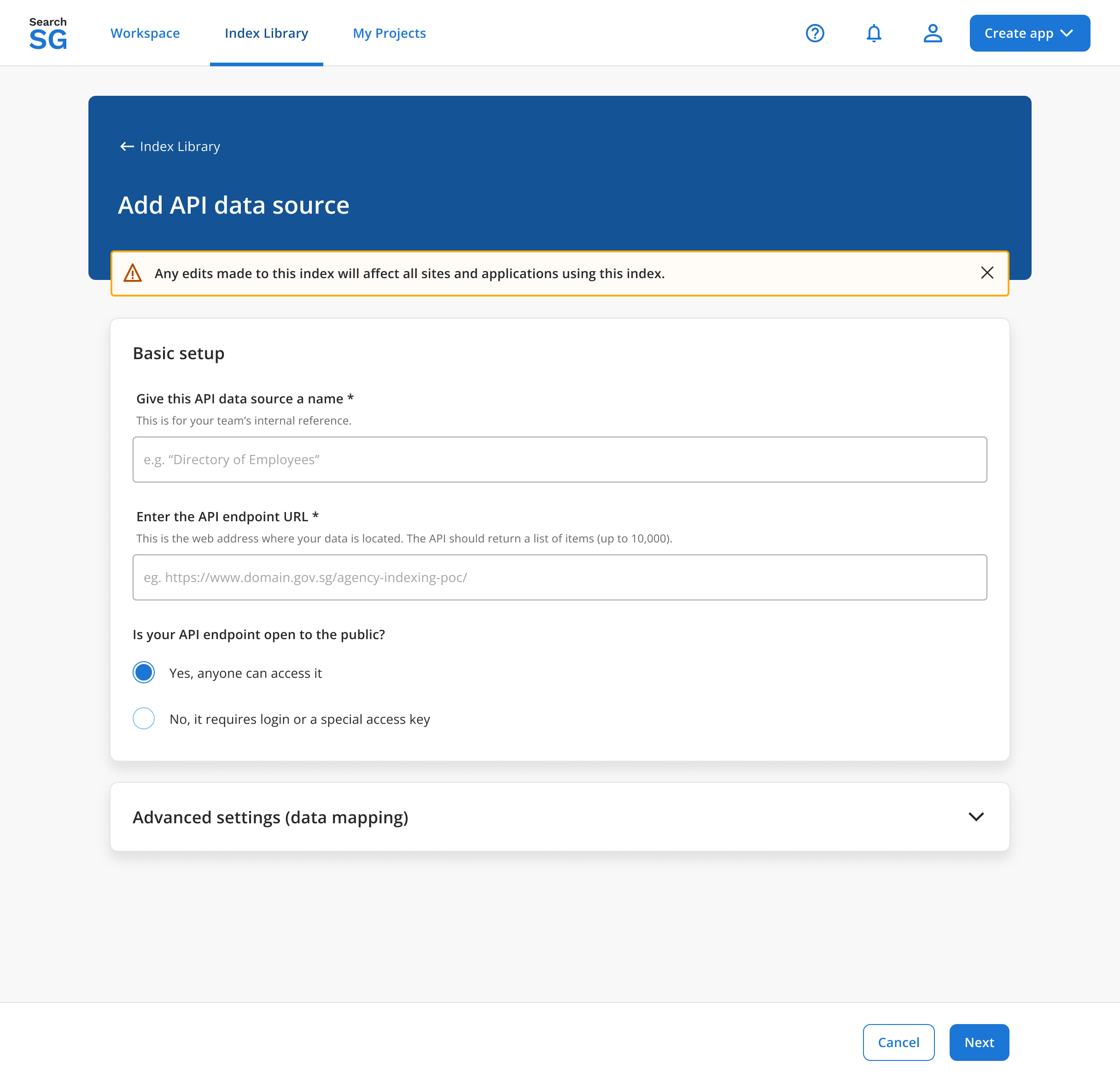
Fill up your API information and click on “Next”. Refer our docs to understand how API Data sources work
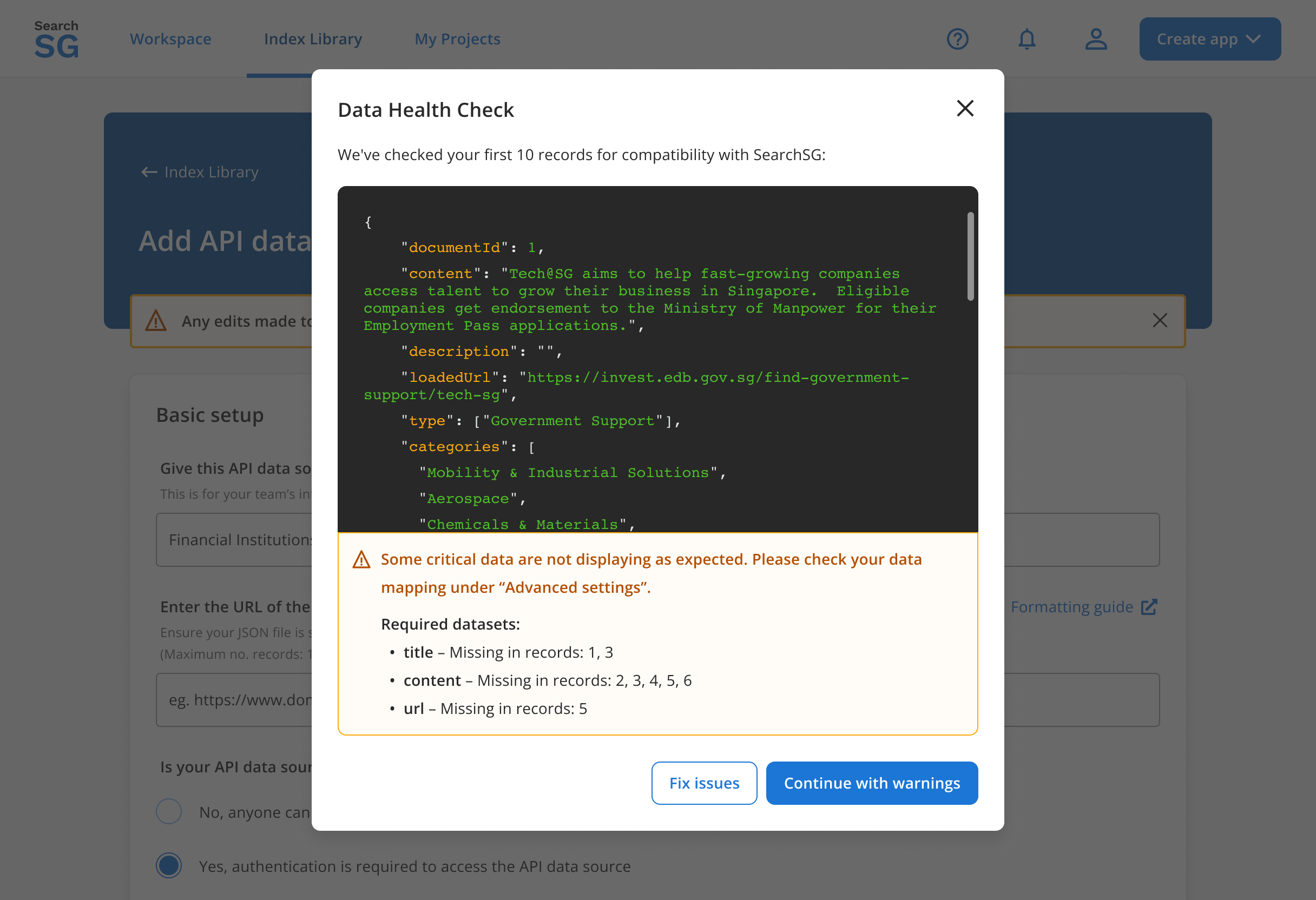
Once configured, a data health check will be performed on your API.
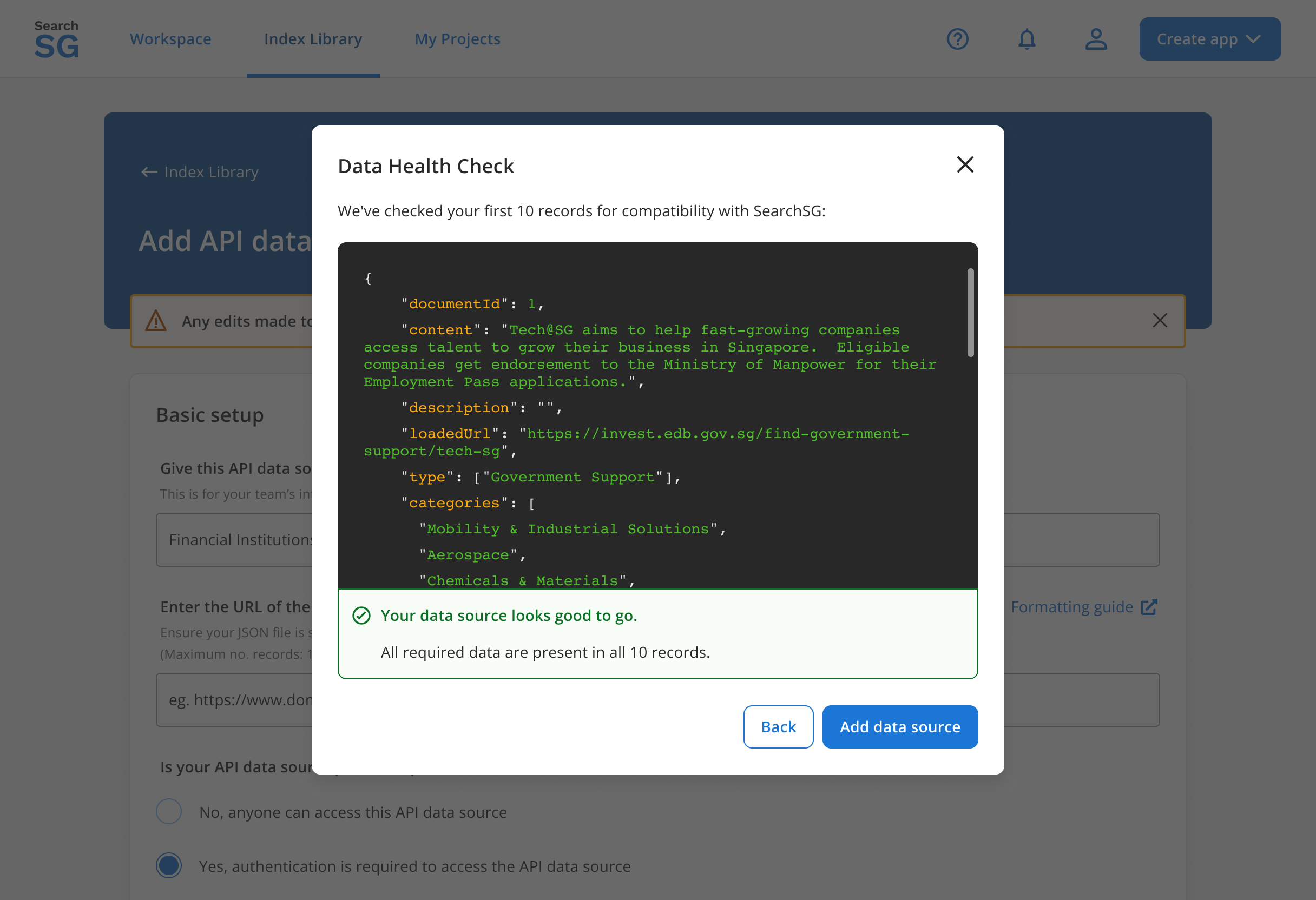
- If all required data are present, click “Add data source“
- If any required data are missing, you can choose to “Fix issues“ or “Continue with warnings“
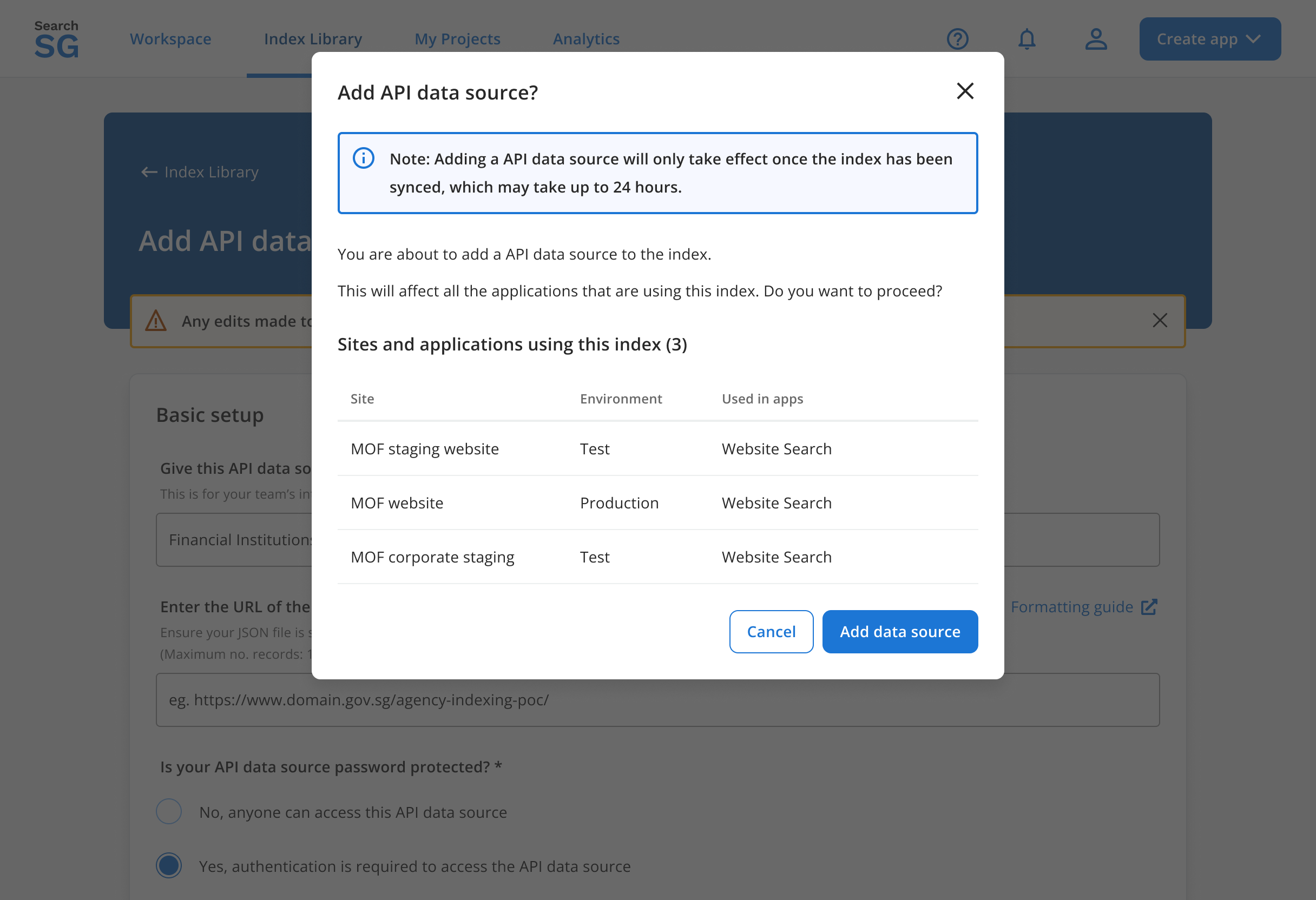
Click “Add data source” in the confirmation pop-up.
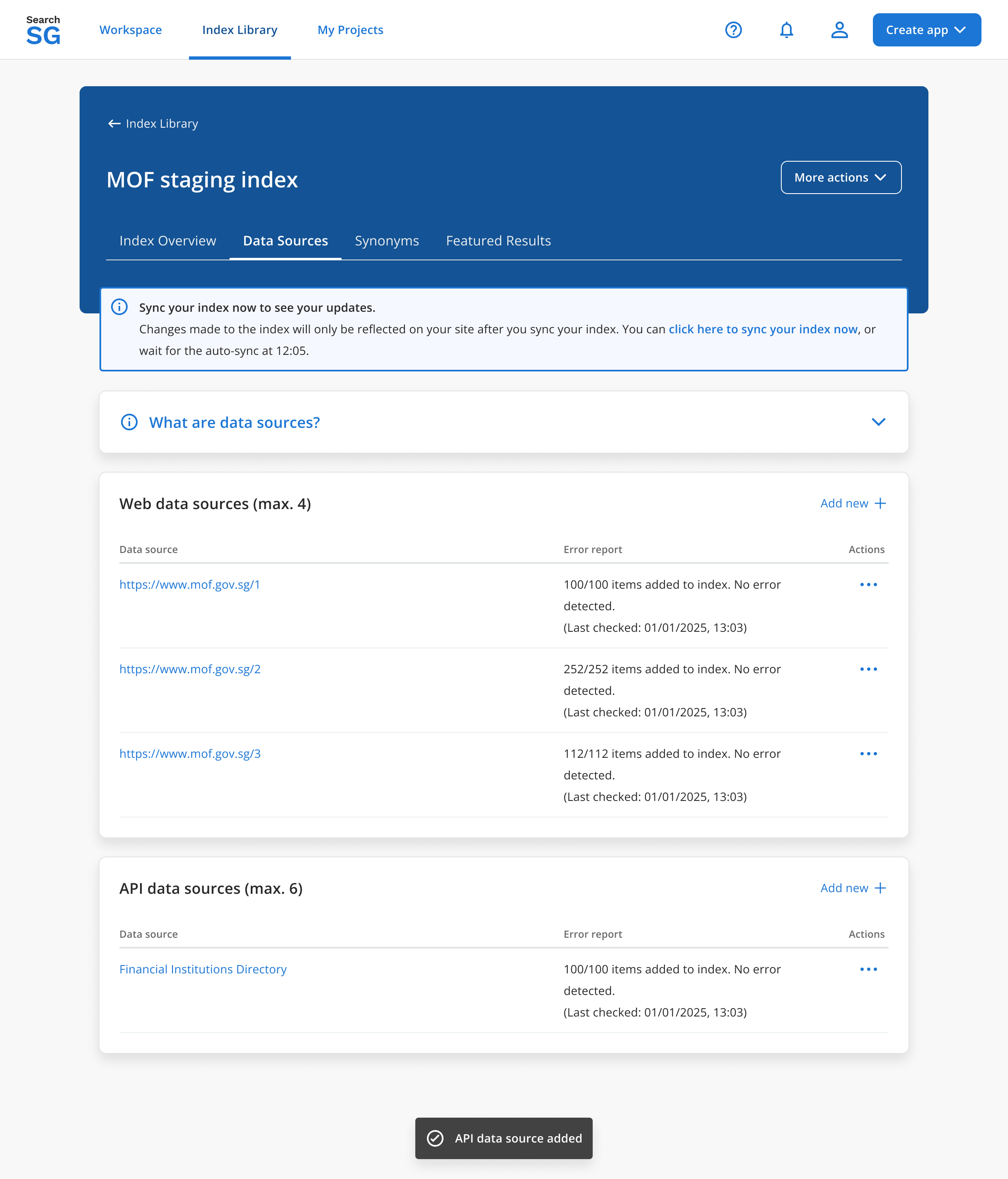
You will be redirected to the previous page, where the newly created data source will appear under the “API data sources” section.
Step 4.3. Setup a Push API Data Source
- The
Push API Data Sourceallows you to proactively send updated content and files to SearchSG whenever your data changes. With near real-time synchronization, it bypasses the need for polling, and it’s especially useful for websites with time-sensitive data. - For enabling the
Push API Data Source, toggle the switch button. A confirmation toast message - “Push API data source enabled” will appear upon successful activation.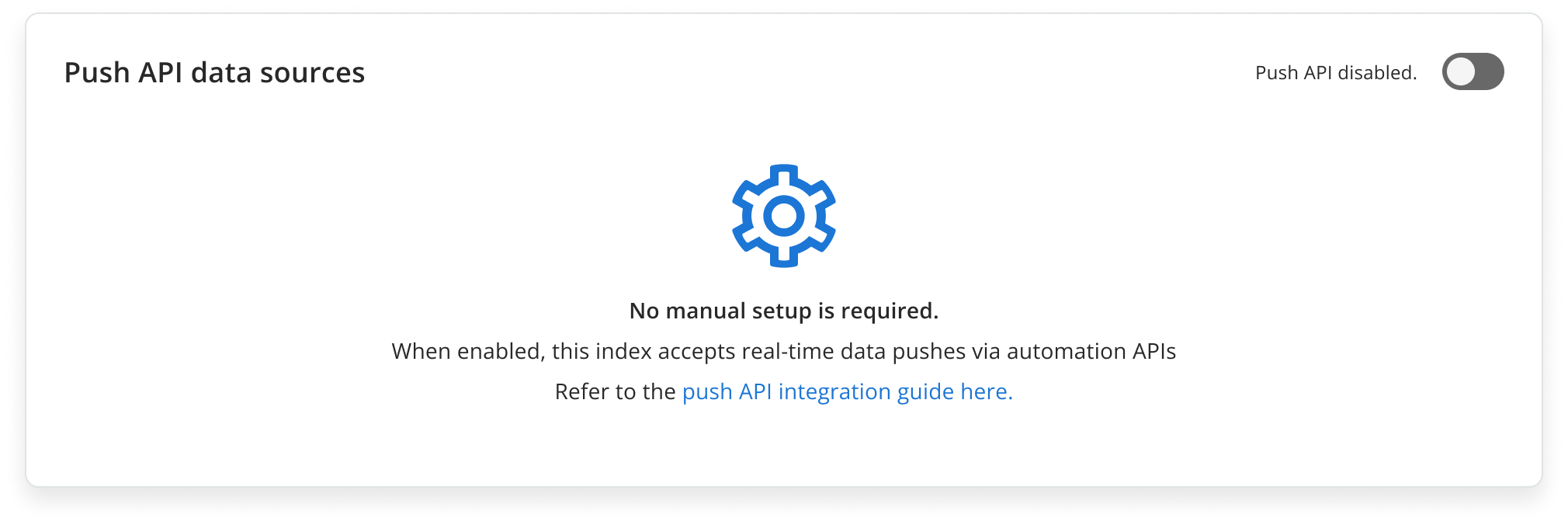
- Only the latest 5 pushes within the past 7 days are displayed, including details on the number of documents added or deleted. For example, if only 1 push happened within the past 7 days, just that push will appear.
- “No error detected” indicates a successful API call.
- If errors occur, download the error report using the provided link. Note: Error report downloads will be available in an upcoming release.
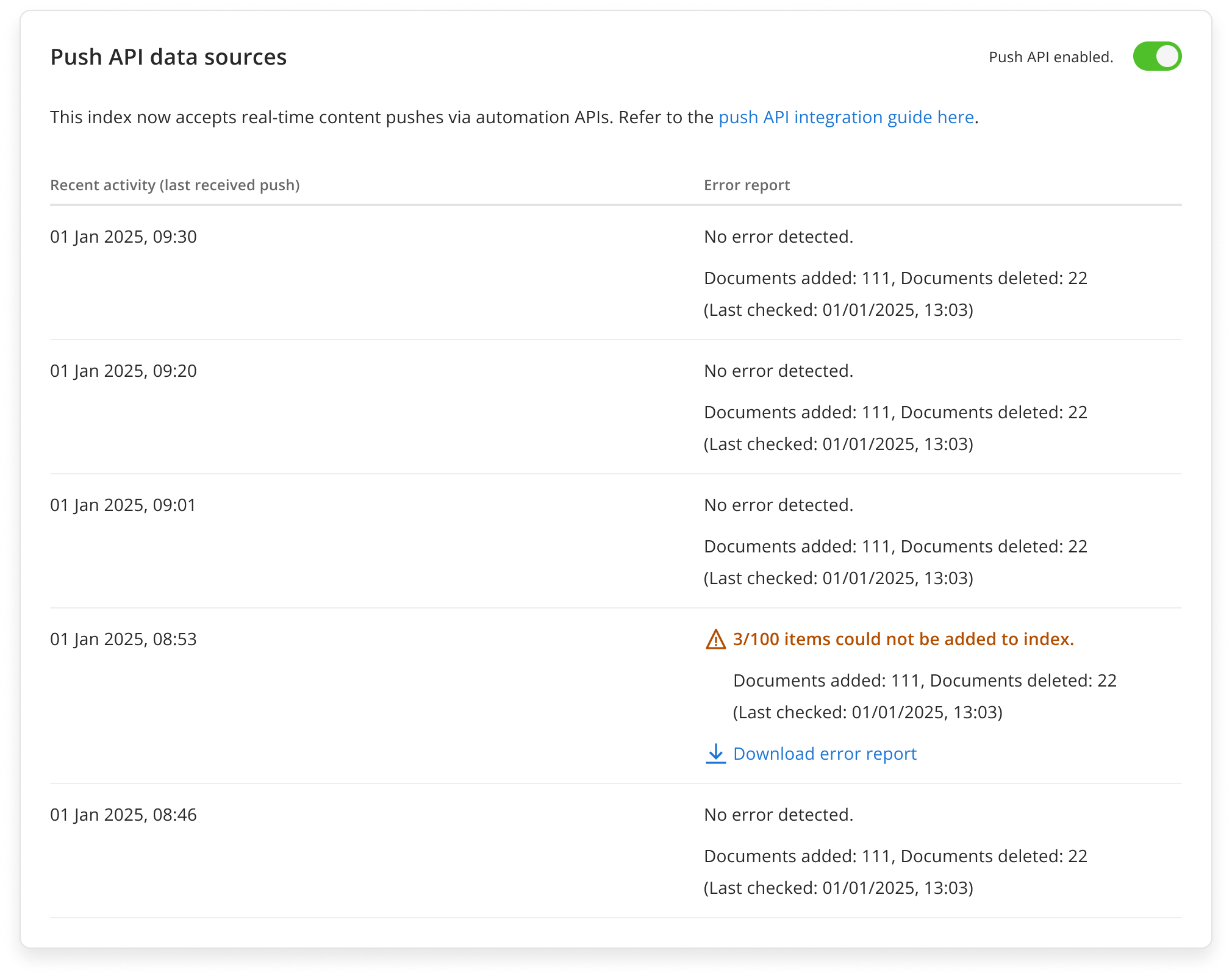
- When disabled, previously synced content and files are preserved, so you can re-enable the data source later without data loss.
Step 5: Trigger Sync Process to Prepare Index
- Under “Index overview”, the status of the index should be updated to “Pending Sync”.
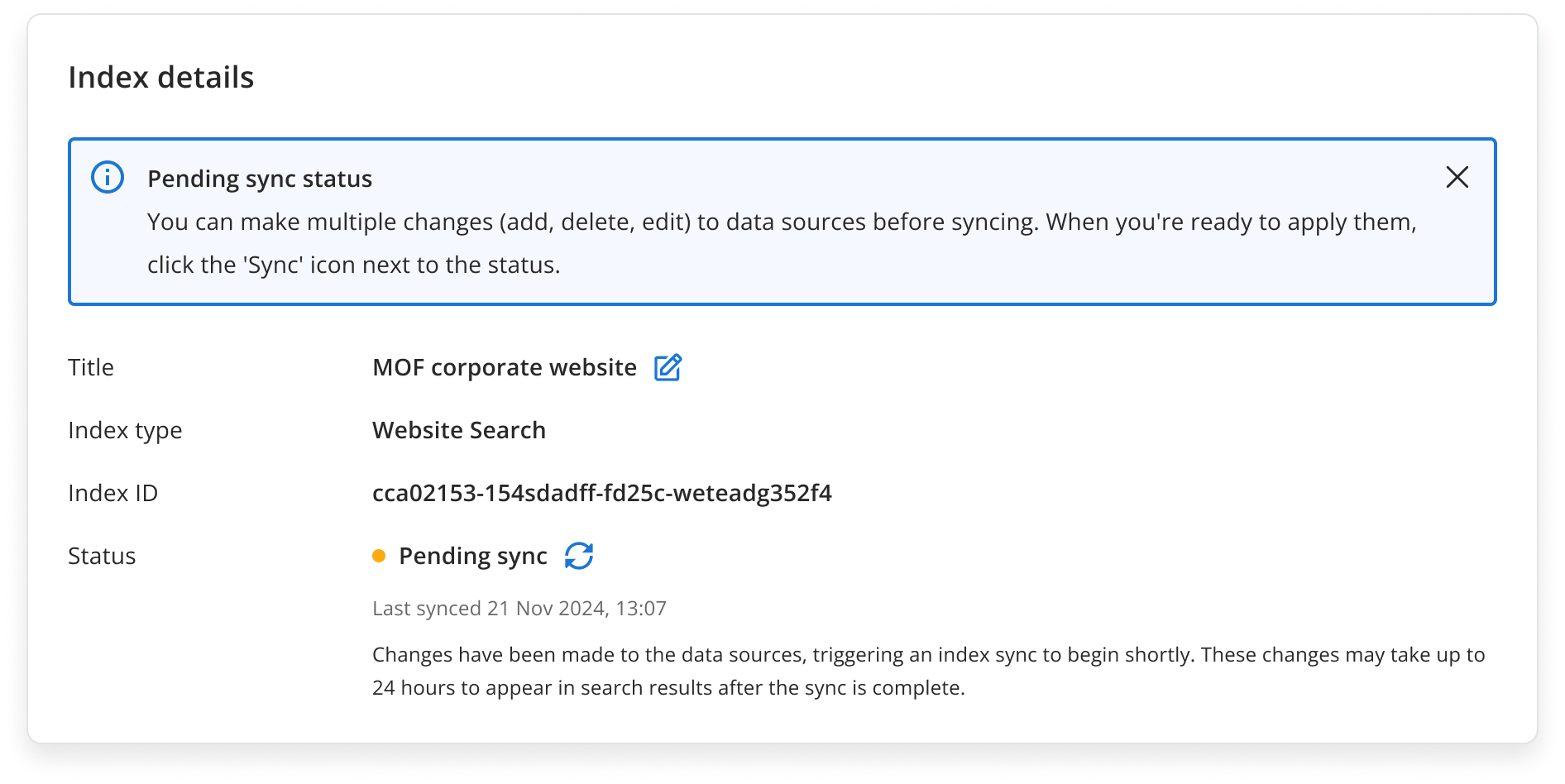
- Click on sync icon next to index status to trigger syncing process to start immediately, or wait for the scheduled job to start sync for your index automatically at a later timing.
- Once sync process is complete and your index is ready to be used, the index status will update to be “Active”.
Optional Configurations for your Search Index
Synonyms
- Access Synonyms
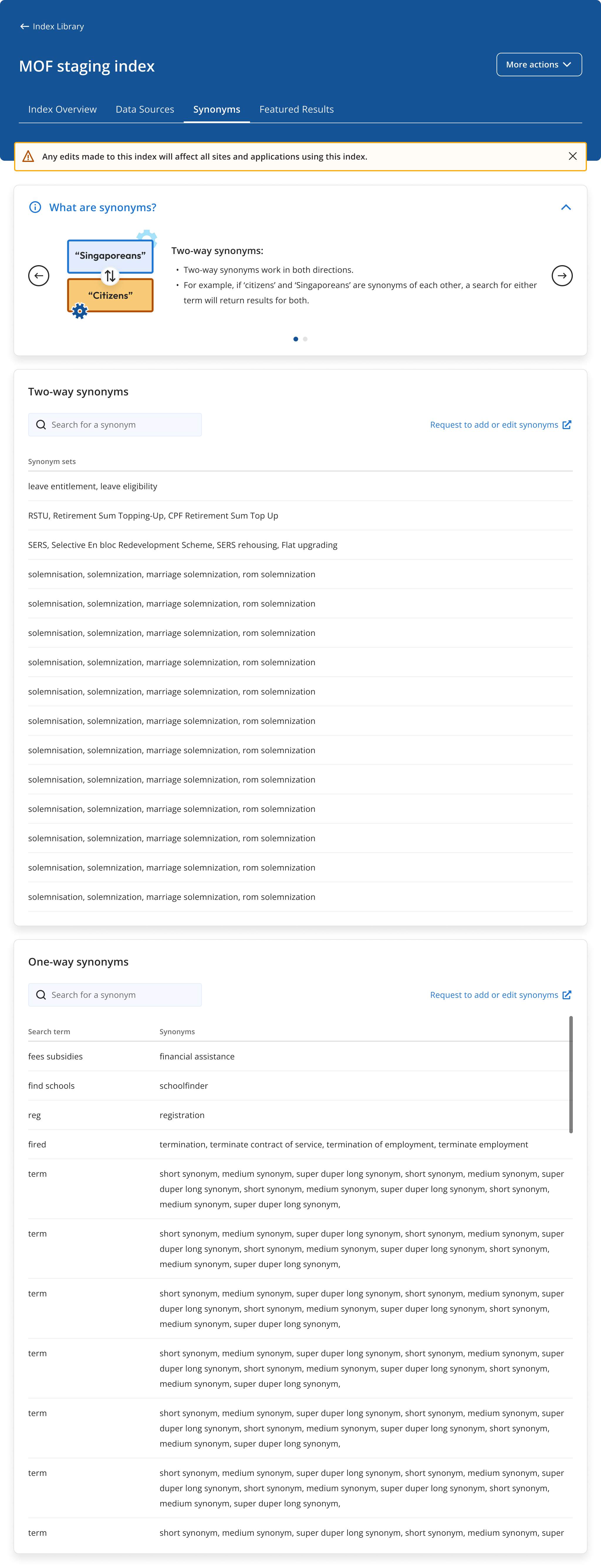
- Navigate to the “Synonyms” page to set up synonyms.
- Request Synonyms setup for your Index
- To add synonyms, reach out to us by clicking on the “Request to add or edit synonyms” button.
- To add synonyms, reach out to us by clicking on the “Request to add or edit synonyms” button.
Featured Results
Access Featured Results
- Navigate to the “Featured results” page to configure the featured search result.
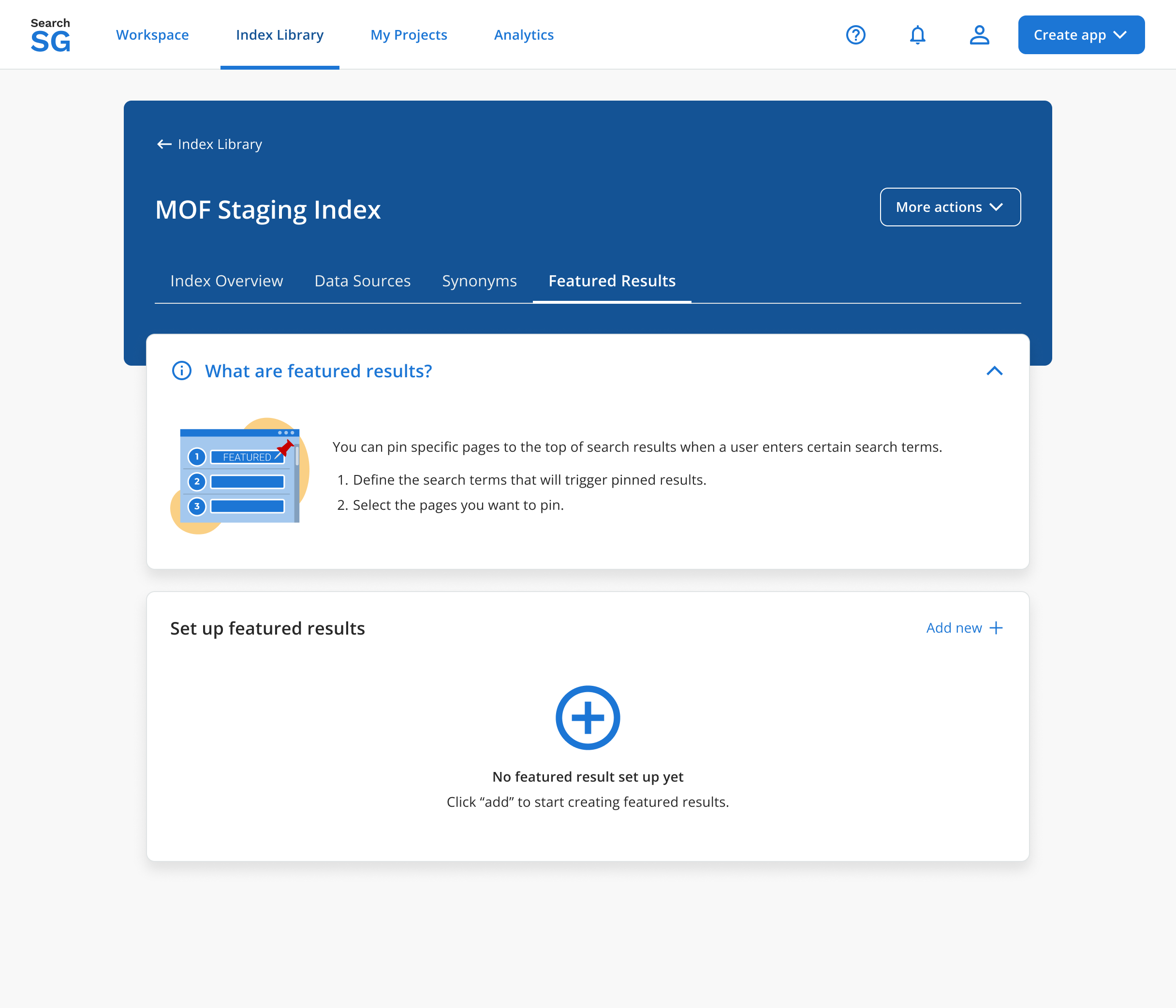
- Navigate to the “Featured results” page to configure the featured search result.
Create Featured Results
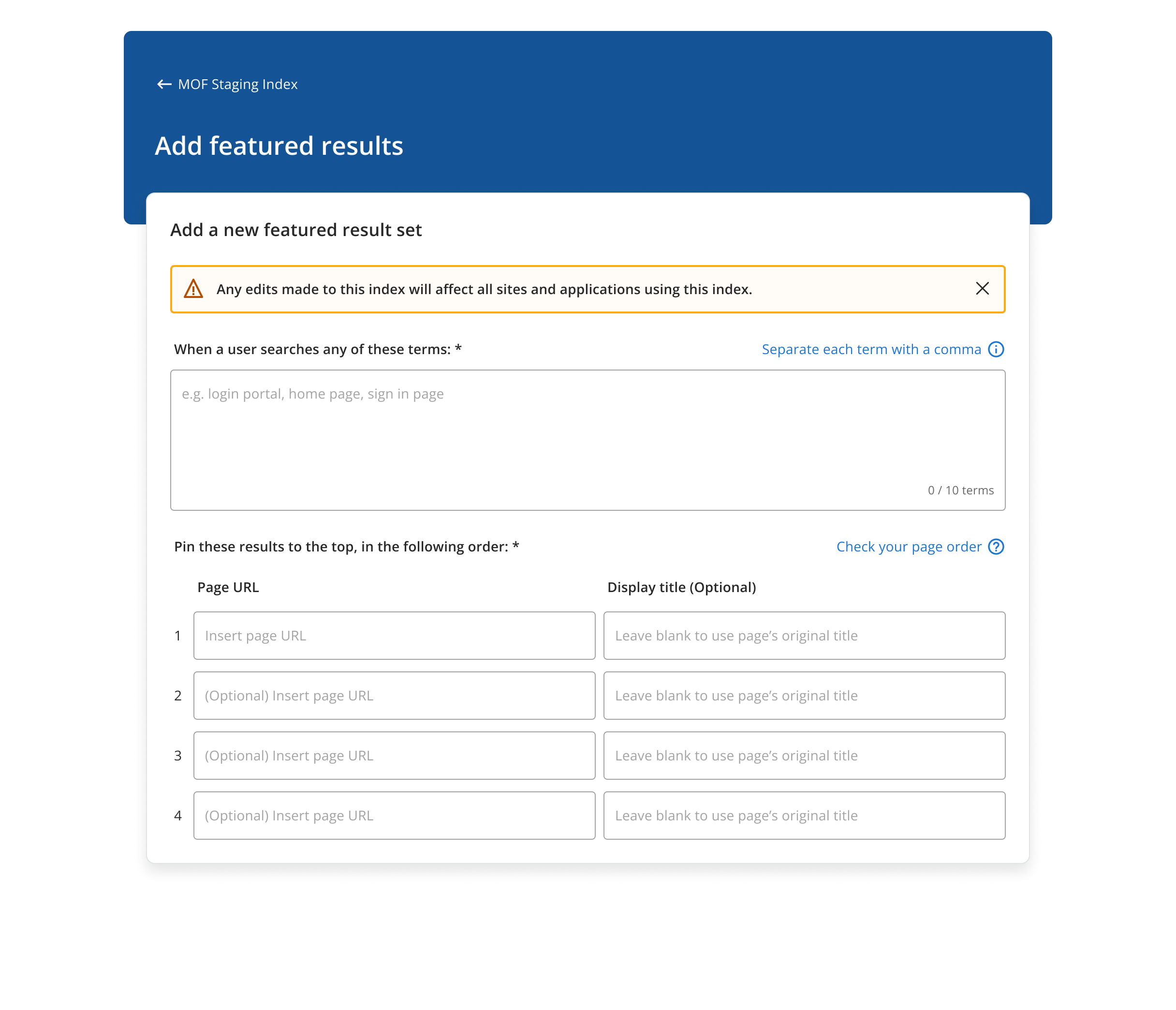
- Click “Add new +” in the “Set up featured results” card to create a new featured result.
- Enter the following details:
Search terms: The query terms that will trigger the featured result.
Page URL: The URLs of pages within your index that should be pinned to the top of search results.
Both fields are required. The Display title is optional.
Save and Verify
- After saving, you will be redirected to the previous page, where the newly created featured result(s) will appear under the “Set up featured results“ section.
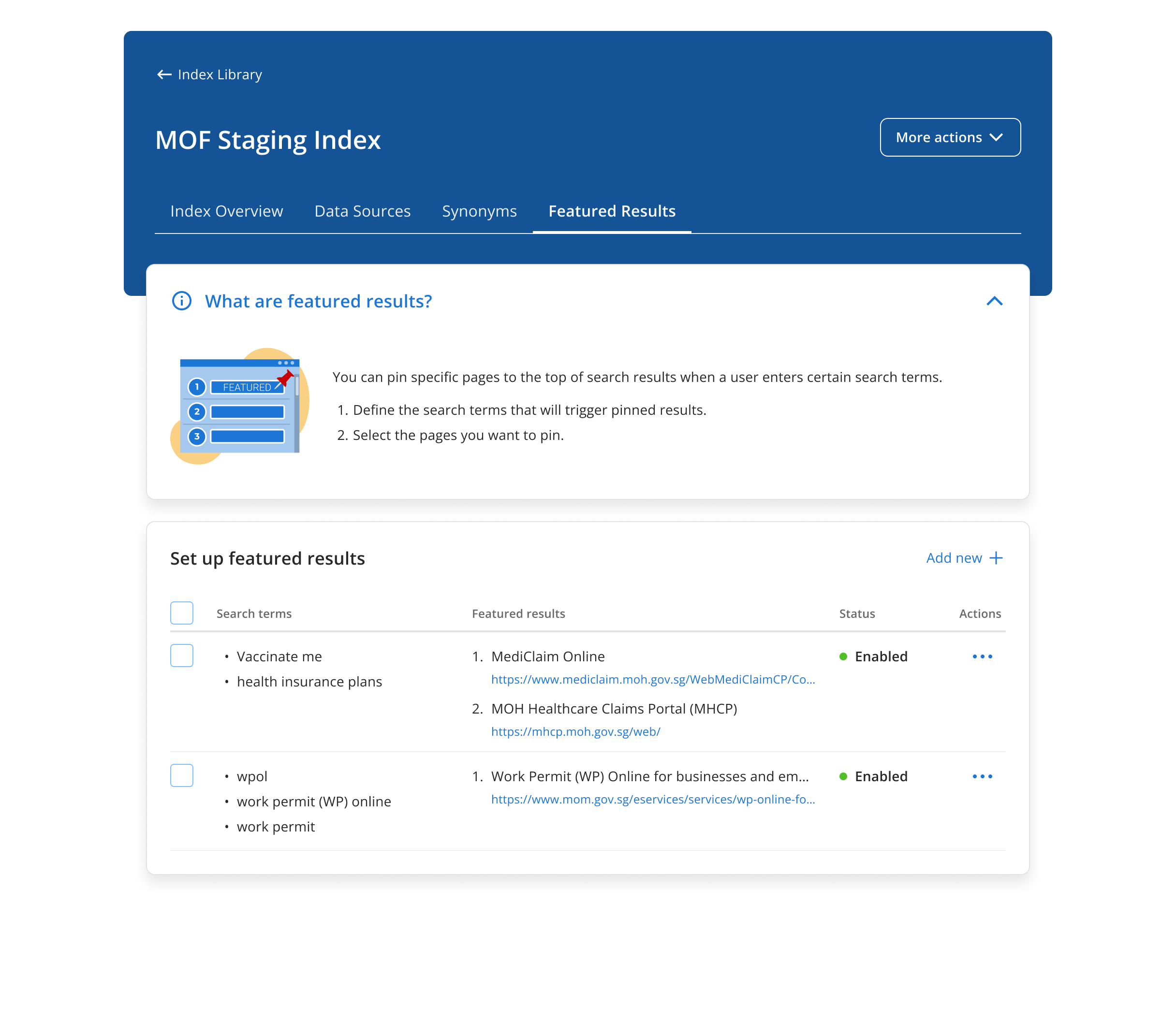
- After saving, you will be redirected to the previous page, where the newly created featured result(s) will appear under the “Set up featured results“ section.
How to Delete the Search Index?
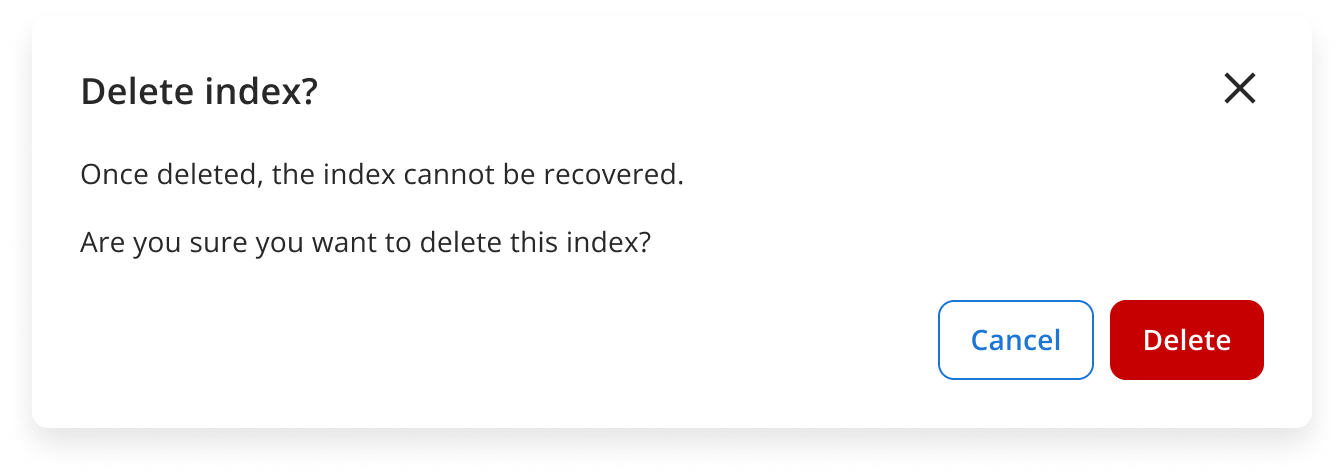
Note: Deleting a search index will permanently remove all previously collected interaction feedback and incremental learning data associated with it, which may negatively impact search relevance.
Click “More actions“ and then select “Delete“.
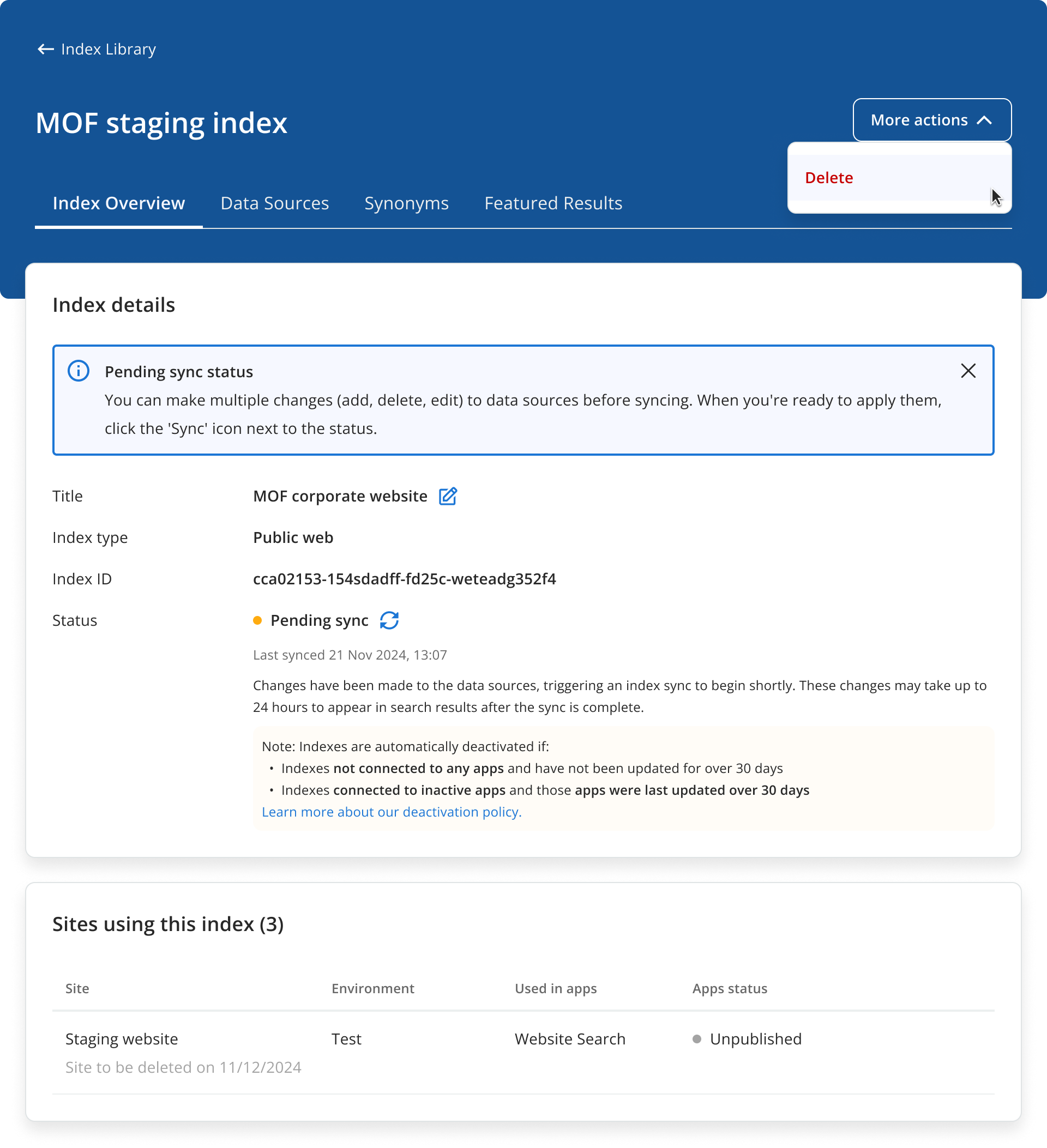
Click “Delete” in the confirmation pop-up.
You will be redirected to the index library page once the index is successfully removed.
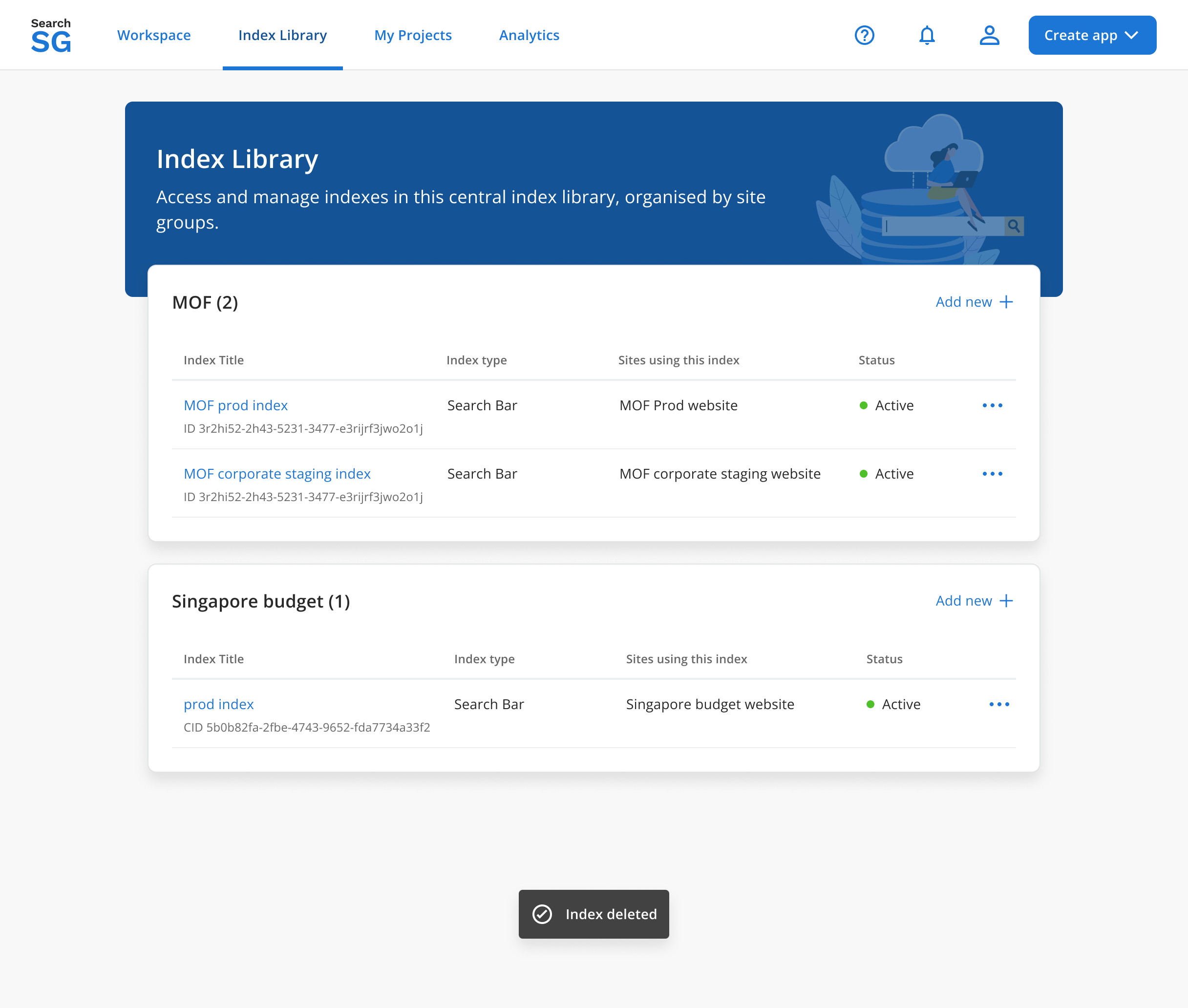
- Only indexes that are not used in any active sites, or are associated with inactive (soft-deleted) sites, can be deleted.
